Cynoia team
Automation Actions Explained
Written by : Cynoia team
Automation actions define what Cynoia does automatically once a trigger fires and all conditions are met.
Actions are the final step in an automation workflow and can be combined to perform multiple operations at once.
What Is an Action?
An action is an automated operation executed by Cynoia.
Actions run instantly after the trigger and conditions are satisfied.
Available Automation Actions
Below is the full list of actions currently available in Cynoia.
Task Update Actions
These actions modify task properties automatically.
Change task status
Change task priority
Assign points to task
Assign task to member
Set task start date
Set task end date
Use cases:
Enforcing workflows
Auto-prioritizing work
Planning deadlines
Label & Organization Actions
Add label to task
Useful for:
Categorizing work
Powering other automations
Improving filtering and reporting
Content Actions
These actions update task content.
Add comment to task
Add description to task
Common uses:
Auto-documenting status changes
Adding context or instructions
Subtask Actions
Create subtask
Use this action to:
Automatically break work into steps
Enforce task structure
Notification Actions
These actions inform people automatically.
Notify members
Email members
Message members
Notifications can include:
Custom subject
Custom message
Use notifications carefully to avoid noise.
Task Duplication & Removal Actions
Duplicate task
Delete task
⚠️ Use deletion actions carefully, especially in active projects.
Using Multiple Actions
A single automation can perform multiple actions in sequence.
Example:
Change task status
Assign task to a member
Notify the team
This allows powerful workflow automation.
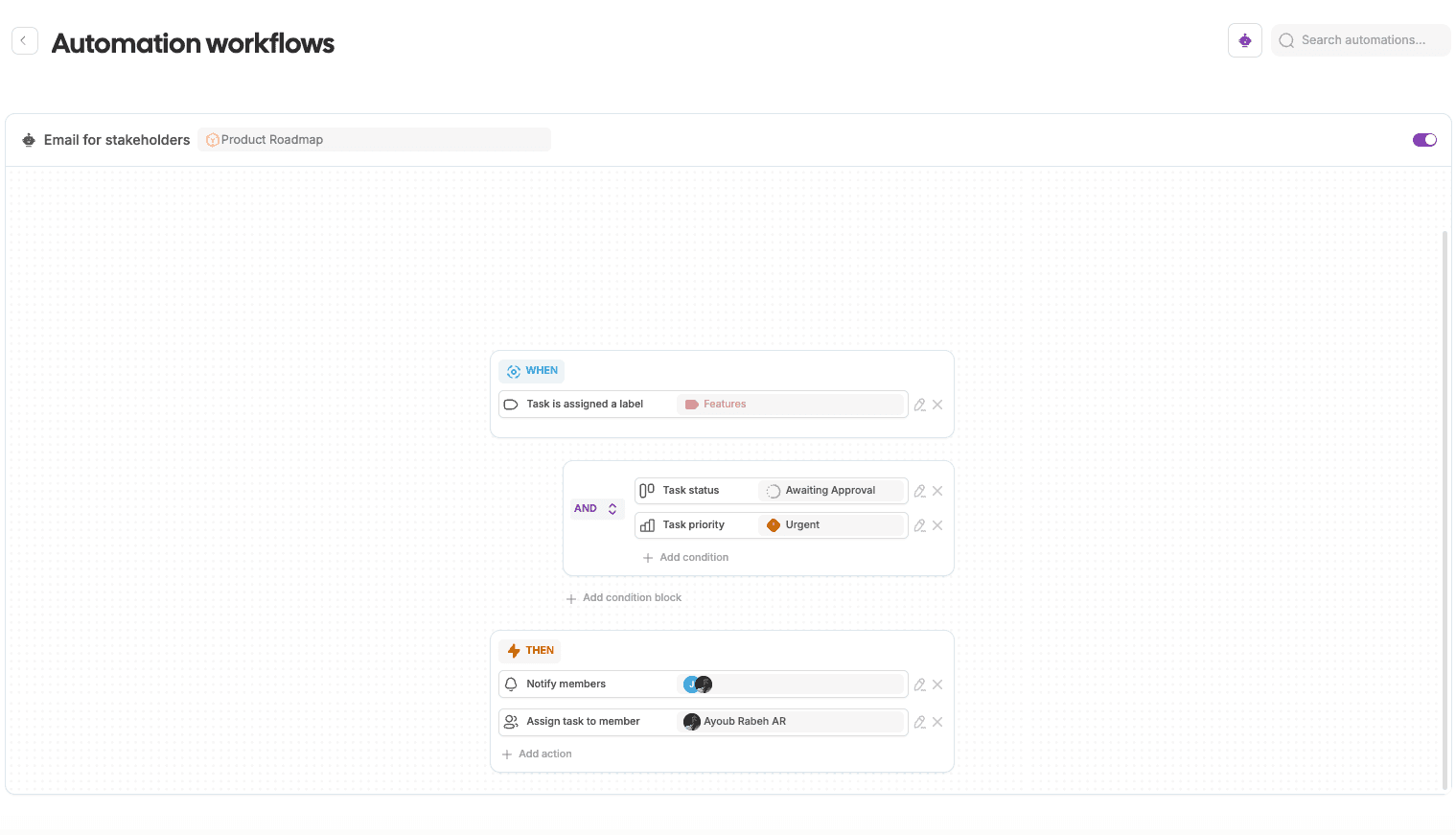
Example Action Workflow
Auto-assign and notify for urgent tasks
WHEN: Task priority is set → Urgent
THEN:
Assign task to team lead
Notify selected members
This ensures urgent tasks are handled immediately.
Action Scope & Limitations
Actions apply only within the project
Actions cannot override permissions
Some actions depend on enabled project features
If an action isn’t available, check project settings.
Best Practices for Actions
Combine related actions into one automation
Avoid destructive actions unless necessary
Use comments to explain automated changes
Keep notifications targeted
What’s Next?
You now understand Triggers, Conditions, and Actions.
👉 Next article: Automation Examples & Recipes
This will provide ready-to-use workflows you can apply immediately.
Related to Automation & Workflows