Cynoia team
Roles and permission
Written by : Cynoia team
Roles & Access
In Cynoia, roles define what each team member can see and do inside a workspace, projects, and apps.
Roles help teams collaborate securely while keeping the right level of control.
Available Roles
Cynoia provides several default roles. Each role comes with predefined permissions.
Note: Moderators have full access to everything.
Moderator
Moderators have full control over the workspace and all its features.
They can:
Manage workspace settings
Invite and remove members
Assign and change roles
Create, edit, and delete projects
Manage tasks, automations, budgets, and settings
Access all apps (Projects, Chat, Notes, Calendar, etc.)
This role is ideal for:
Workspace owners
Team leads
Administrators
Editor
Editors can actively work on projects and collaborate with the team, but cannot manage workspace-level settings.
Editors can:
Create and manage projects
Create, edit, and delete tasks
Update task status, priority, labels, points, and dates
Comment on tasks and collaborate with the team
Use views like Kanban, List, Calendar, Gantt, and Sprint
Create chat rooms and participate in discussions
Create and manage notes and folders
Editors cannot:
Manage workspace roles or permissions
Delete the workspace
Manage subscriptions
Viewer
Viewers have limited access, mainly focused on visibility and basic interaction.
Viewers can:
View projects and tasks
Update tasks assigned to them
Comment on tasks they are involved in
Browse chat channels and read messages
View notes they have access to
Viewers cannot:
Create tasks (unless explicitly allowed)
Manage members or settings
Access restricted content
This role is ideal for:
Stakeholders
Clients
Limited access collaborators
How Permissions Work
Cynoia uses a smart permission system:
Roles define default access
Project or content-level permissions can add restrictions
Private content requires explicit access
The most permissive rule applies when multiple permissions exist
This ensures flexibility without sacrificing control.
Changing Roles
Workspace Moderators can:
Change a member’s role at any time
Remove members from the workspace
Assign access based on responsibility
Changes take effect immediately.
Creating Custom roles
In addition to default roles, Cynoia allows Workspace Owners and Moderators to create custom roles with tailored permissions.
This gives teams full flexibility to control access across different apps.
Who Can Create Custom Roles?
Only the following roles can create and manage custom roles:
Workspace Owner
Moderator
What Are Custom Roles?
Custom roles let you define exactly what a member can do, app by app.
Instead of using a single predefined role, you can:
Create a new role
Choose permissions per app
Assign that role to specific members
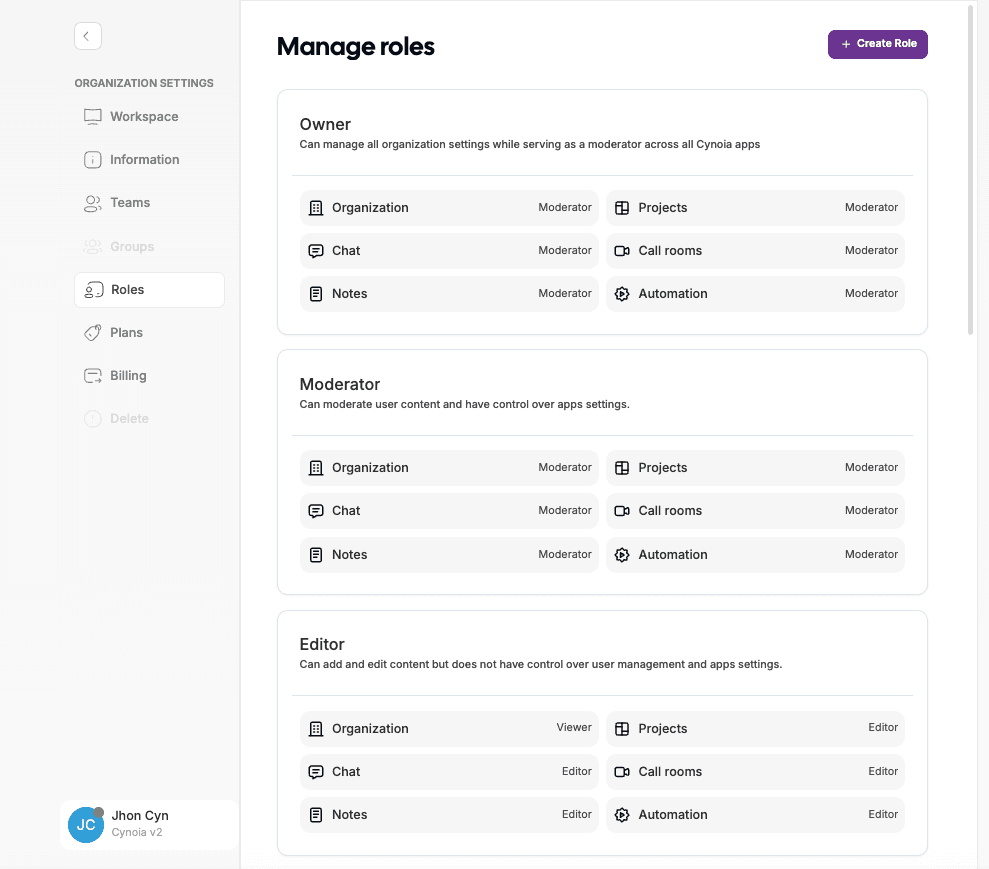
Role Comparison Table
This table shows what each default role can do by default across Cynoia apps.
Role | Organization | Projects | Chat | Call Rooms | Notes | Automation |
|---|---|---|---|---|---|---|
Owner | Moderator | Moderator | Moderator | Moderator | Moderator | Moderator |
Moderator | Moderator | Moderator | Moderator | Moderator | Moderator | Moderator |
Editor | Viewer | Editor | Editor | Editor | Editor | Editor |
Viewer | Viewer | Viewer | Viewer | Viewer | Viewer | Viewer |
💡 Owners and Moderators can also create custom roles with tailored permissions.
Global vs Resource-Level Permissions
Cynoia uses two layers of permissions to give teams maximum flexibility.
Global Role (Default Access)
Your global role applies when:
You join public projects
You join public chat rooms
You access public note collections
You enter shared resources without a direct invitation
In these cases, you automatically inherit your global role permissions.
Example:
If your global role is Editor, you can edit content in public projects you join.
If your global role is Viewer, you’ll have read-only access.
Resource-Level Permissions (Overrides)
When a project, channel, or note is created, its creator or a moderator can:
Invite you directly
Assign you a specific role for that resource
This role overrides your global role for that specific resource only.
Example:
You can be a global Moderator
But be assigned as a Viewer on a specific project or chat
Or an Editor on one project and Viewer on another
This ensures precise access control without changing your overall role.
Why This Matters
This system allows teams to:
Limit access to sensitive projects
Give temporary or partial permissions
Avoid over-permissioning users
Choosing the Right Role
Not sure which role to assign? Here’s a simple guide.
🟣 Owner
Best for:
Company founders
Workspace administrators
Use when someone needs:
Full control over the workspace
Billing, roles, and organization settings
⚠️ Very limited to only 1 user ( you can transfer ownership )
🔵 Moderator
Best for:
Team leads
Product managers
Admin-level collaborators
Use when someone needs:
Full access to apps
Ability to manage content and settings
Control over roles and permissions
🟢 Editor
Best for:
Core team members
Contributors
Designers, developers, writers
Use when someone needs:
Create and edit content
Work inside projects, chat, notes, and calls
No access to user management or organization settings
⚪ Viewer
Best for:
Clients
Stakeholders
Read-only users
Use when someone needs:
View access only
No ability to modify content
🧩 Custom Roles
Best for:
External collaborators
QA teams
Support agents
Special use cases
Use custom roles when:
Default roles are too broad
You need different permissions per app
You want tighter access control
What’s Next?
Now that you understand roles and permissions, you’re ready to start understanding your workspace.
👉 Next: Understanding Your Workspace