Cynoia team
Inviting Team Members
Written by : Cynoia team
Inviting Team Members
Once your workspace is set up, you can invite team members to start collaborating in Cynoia.
Invited members can access projects, tasks, and other features based on the role you assign them.
Invite Members to Your Workspace
Steps:
Open your workspace in Cynoia
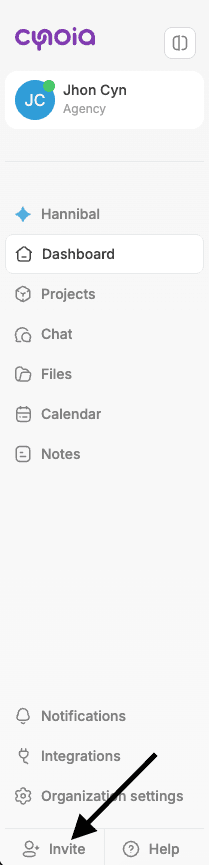
You have a quick button to invite at the bottom left
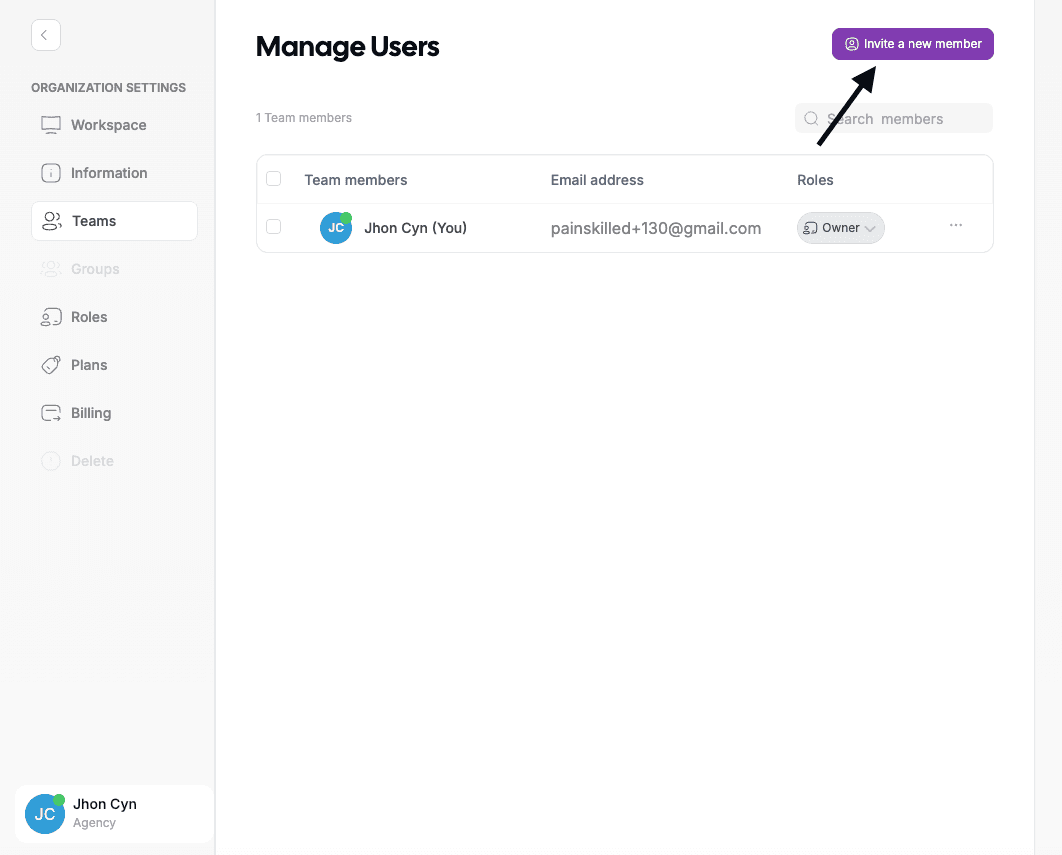
Or you can go to Workspace / organization settings
Select Invite a new member
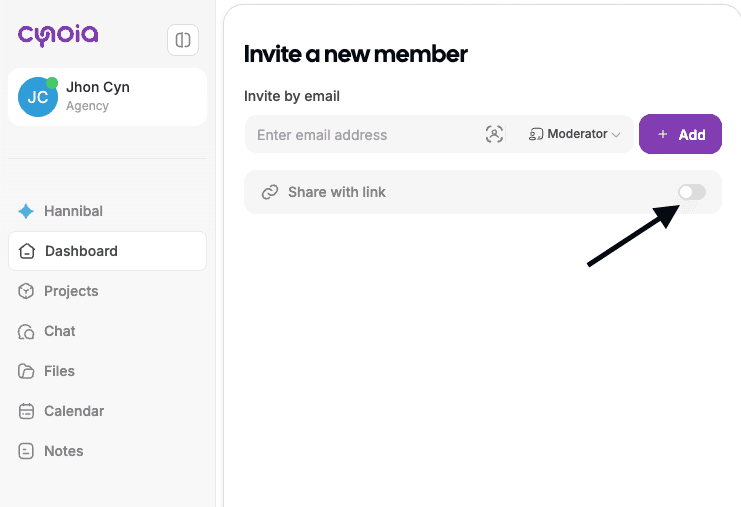
Enter the email address of the person you want to invite
Assign a role (Moderator, Editor, or Viewer)
Send the invitation
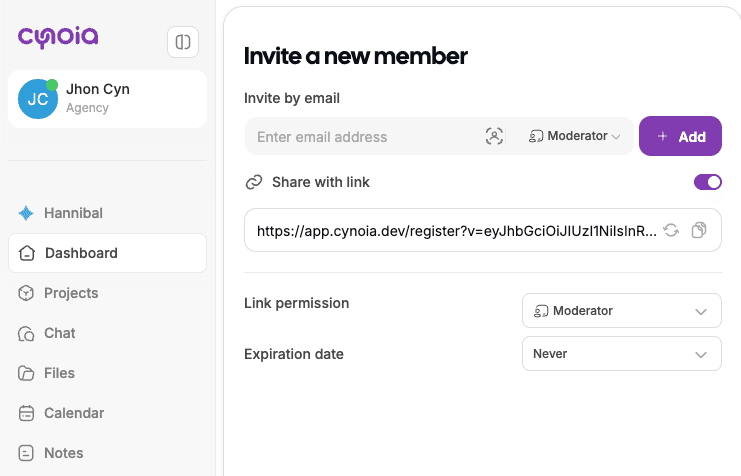
Or by enabling the option share with link
Accepting an Invitation
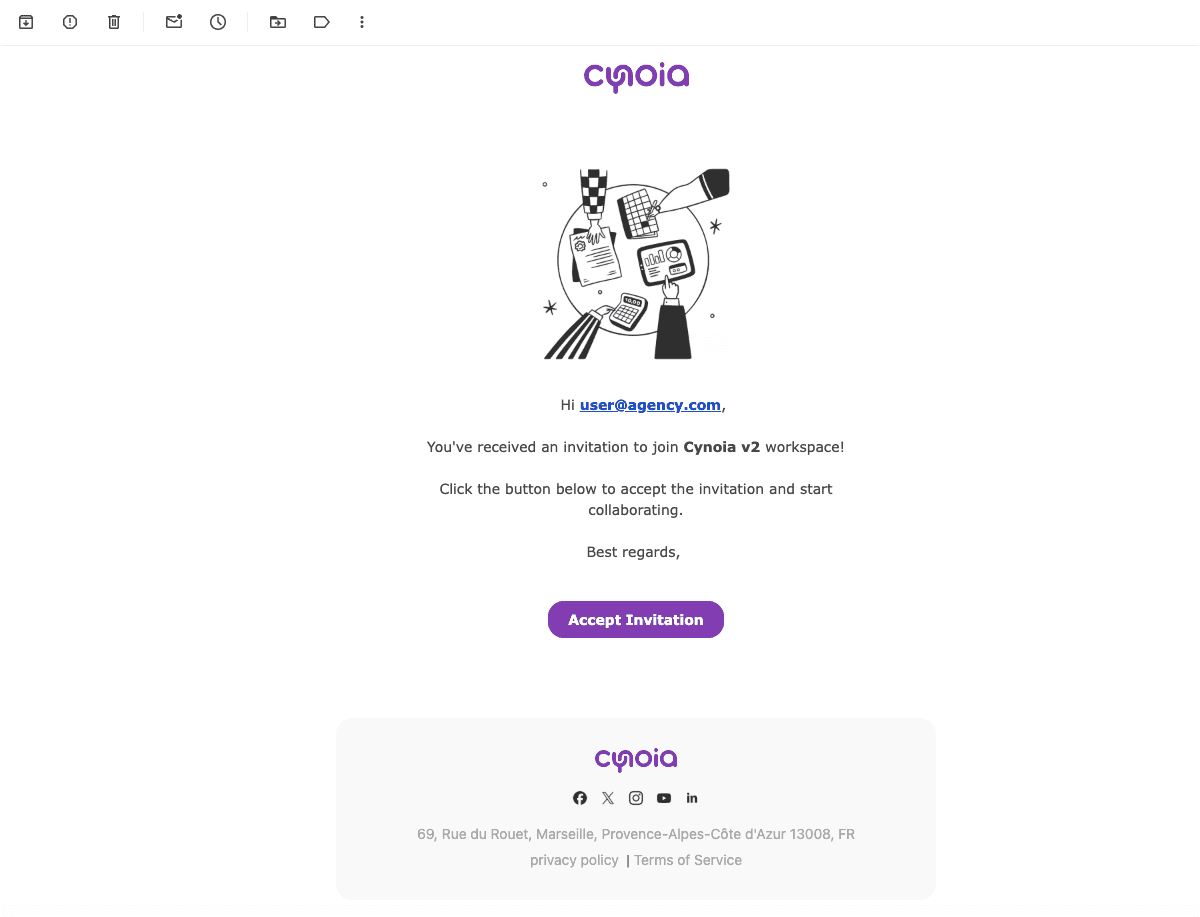
When a member is invited, they will receive an email invitation.
To join:
Open the invitation email
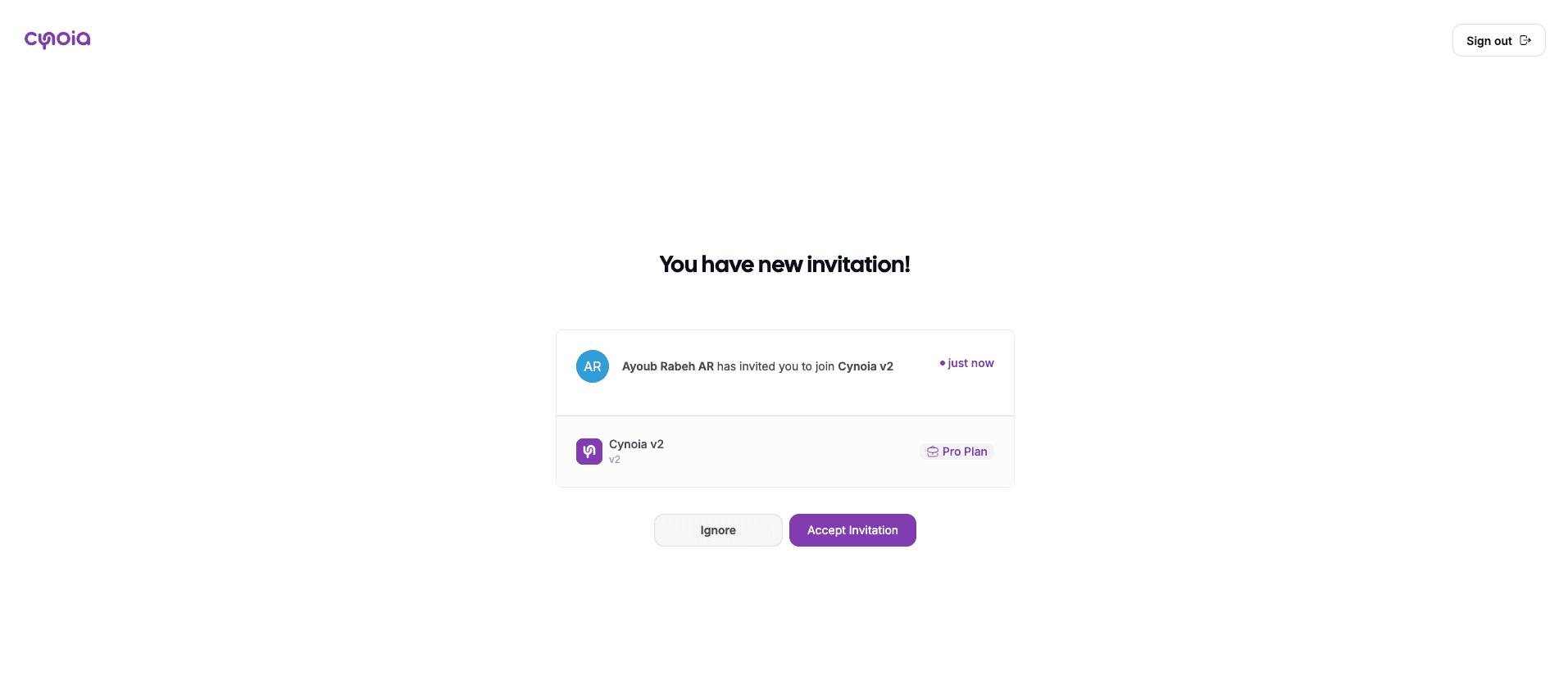
Click Join workspace
Sign in or create an account
Once accepted, the member will be added to the workspace automatically.
Managing Invited Members
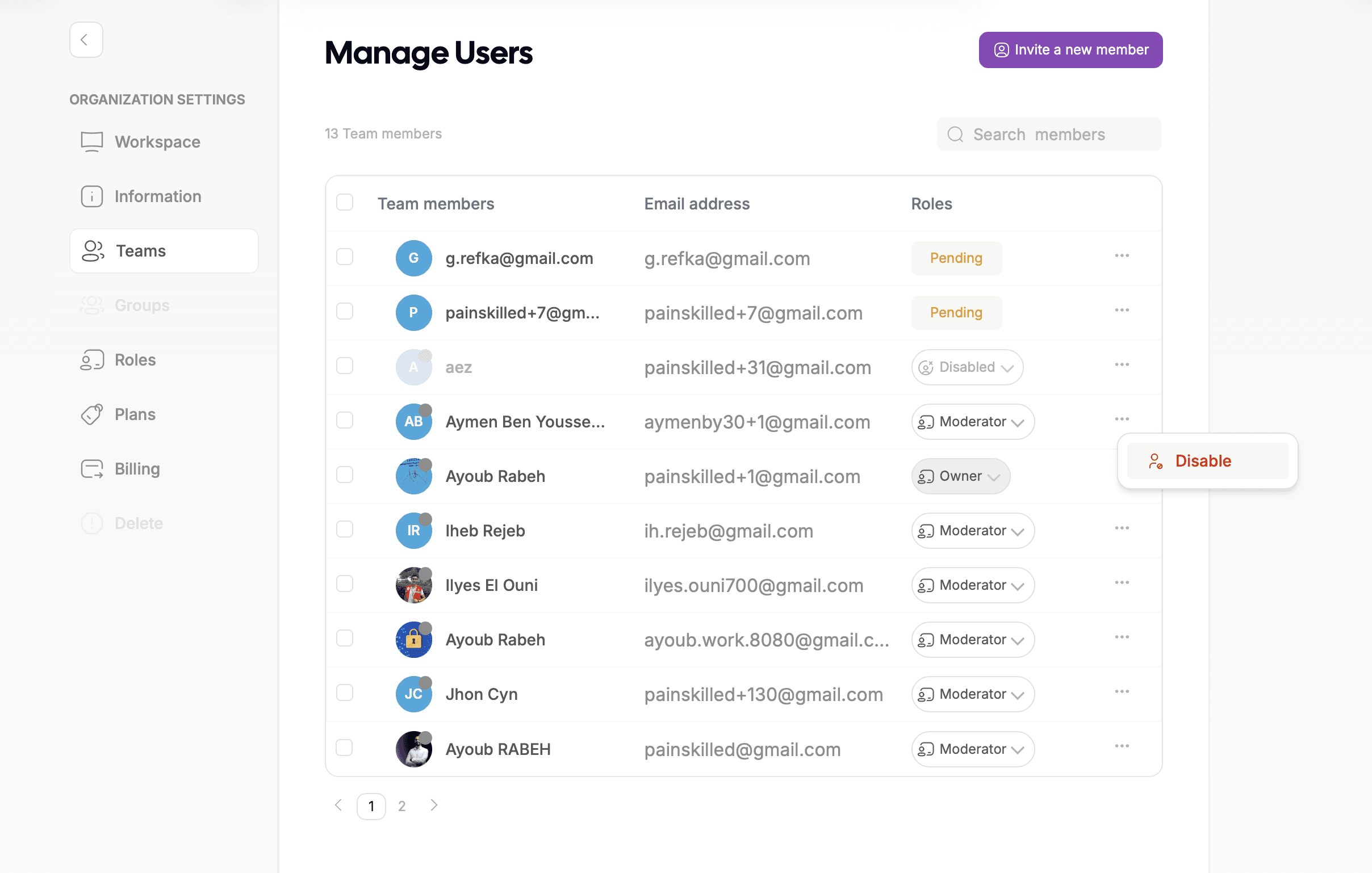
Workspace owners and moderators can:
Change member roles
Remove members from the workspace
Resend invitations if needed
Changes take effect immediately.
Roles & Access
Each invited member is assigned a role that defines what they can do inside the workspace.
Common roles include:
Owner – Full control over the workspace ( only the organization / workspace creator can have this role )
Moderator – Manage members and settings
Editor – Create and manage content
Viewer – View content with limited interaction
Roles can be updated at any time by workspace admins.
What’s Next?
After inviting your team, you’re ready to start working together.
👉 Next: Roles & Access explained