Cynoia team
Automation Conditions Explained
Written by : Cynoia team
Automation conditions allow you to control which tasks an automation applies to.
While triggers define when an automation starts, conditions define whether the automation should continue.
Conditions are optional, but they are essential for creating precise and reliable automations.
What Is a Condition?
A condition is a rule that must be true for the automation to proceed.
If the condition is not met, the automation stops and no action is executed.
When Should You Use Conditions?
Use conditions when:
You want to target specific tasks
Not all tasks should trigger the same action
You want to reduce unnecessary notifications
You need precise workflow logic
Available Automation Conditions
Below are the conditions currently available in Cynoia.
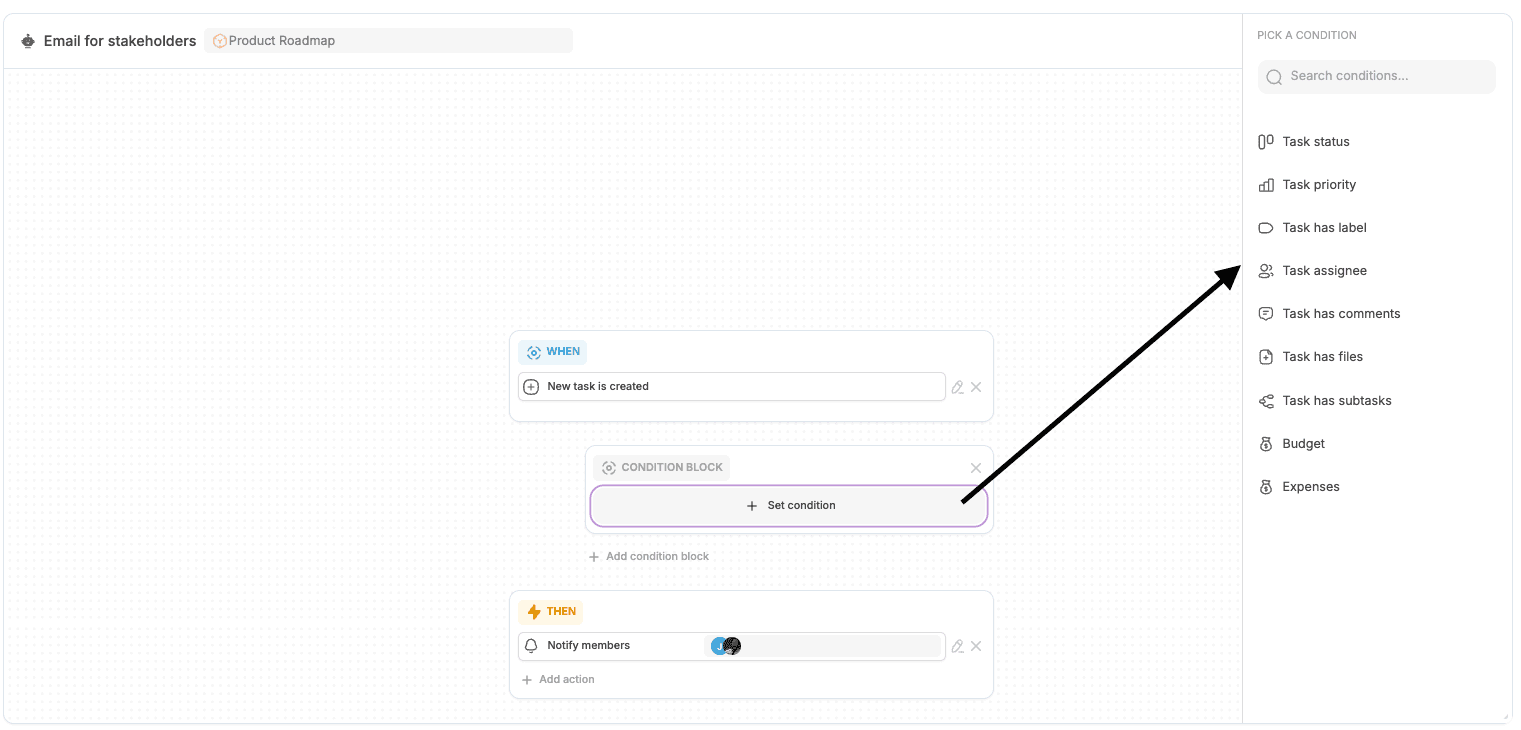
Task Status
Task status
Applies the automation only when the task is in a specific status.
Example:
Run only if status = Completed
Task Priority
Task priority
Applies the automation only when the task has a specific priority.
Example:
Run only if priority = Urgent
Task Labels
Task has label
Applies the automation only if a task contains a specific label.
Example:
Run only if label = Bug
Task Assignee
Task assignee
Applies the automation only if the task is assigned to a specific member.
Example:
Run only if assigned to John
Task Content Conditions
These conditions check what content exists on a task.
Task has comments
Task has files
Task has subtasks
Useful for:
Enforcing documentation rules
Checking task completeness
Budget & Expense Conditions
Available when budget tracking is enabled:
Budget
Expenses
These conditions allow automations to react to financial data.
Using Multiple Conditions
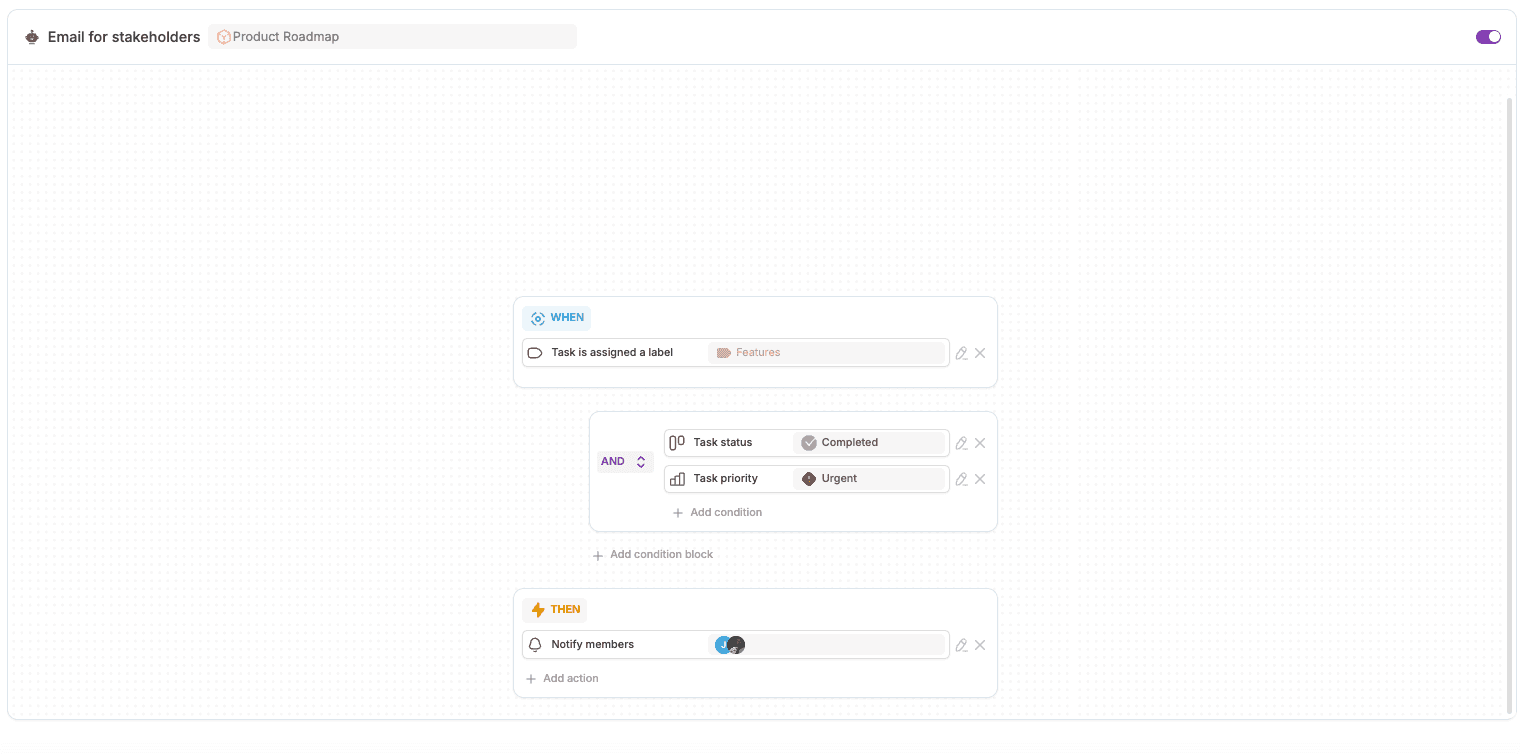
You can combine multiple conditions in a single automation.
All conditions must be met for the automation to continue.
Example:
Trigger: Task status changes
Condition 1: Status = Completed
Condition 2: Priority = Urgent
Condition Blocks
Condition blocks allow you to group conditions together.
They help you:
Organize complex logic
Keep automations readable
Scale workflows safely
Common Condition Use Cases
Notify only for urgent tasks
Apply rules only to bugs or features
Restrict actions to assigned tasks
Trigger actions only when tasks are complete
Best Practices
Use conditions to avoid noise
Combine conditions instead of duplicating automations
Keep logic simple and readable
Test automations with different task states
What’s Next?
Now that you understand conditions, let’s look at what automations can do.
👉 Next article: Automation Actions Explained
Related to Automation & Workflows