Cynoia team
Understanding Your Workspace
Written by : Cynoia team
Your workspace is the central place where your team collaborates inside Cynoia.
It contains all your projects, conversations, notes, and shared tools.
This guide helps you quickly understand how the workspace is structured and how to navigate it.
Workspace Overview
When you join a workspace, you’ll see a left sidebar and a main content area.
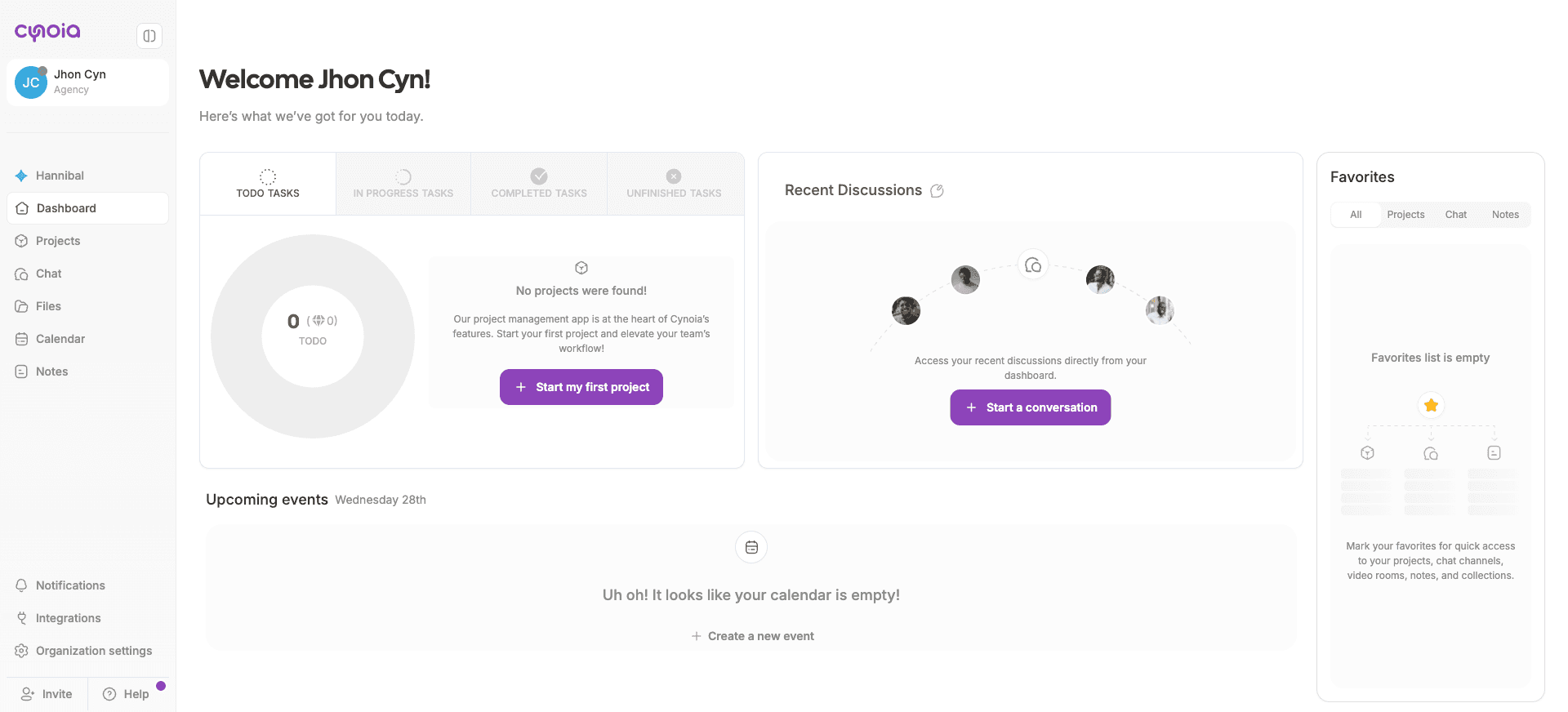
The Sidebar
The sidebar gives you access to all core apps and workspace-level features.
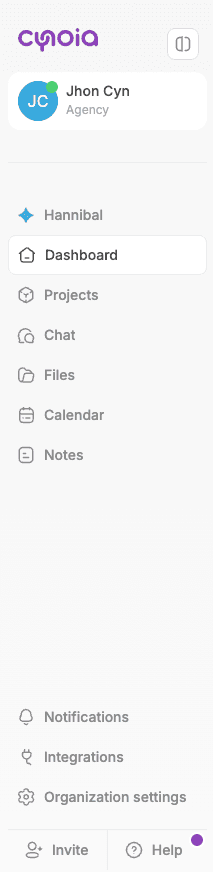
Sidebar sections include:
Dashboard – Workspace overview and updates
Projects – Task management and planning
Chat – Team conversations and channels
Files – Shared files across the workspace
Calendar – Tasks and events with dates
Notes – Documentation and knowledge base
At the bottom of the sidebar:
Notifications
Integrations
Organization settings (if permitted)
Help & support
Switching Between Workspaces
If you belong to multiple organizations, you can switch between workspaces at any time.
How to switch:
Click your profile avatar
Select the workspace you want to access
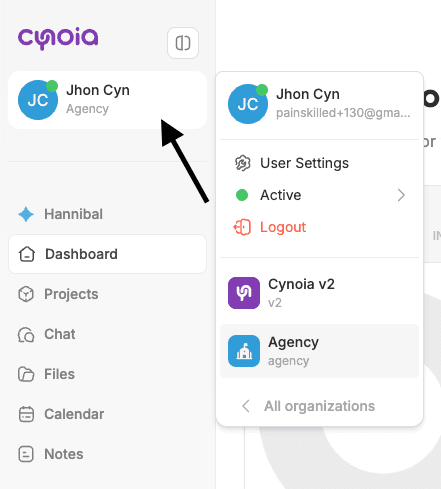
Each workspace is completely separate, with its own members, projects, and permissions.
The Main Content Area
The main content area updates based on what you open from the sidebar.
Examples:
Projects show boards, lists, timelines, or calendars
Chat shows channels and conversations
Notes show collections and documents
Workspace Apps at a Glance
Projects
Projects are where work gets planned and executed.
You can:
Create and assign tasks
Track progress
Use different views (Kanban, List, Gantt, Sprint)
Automate workflows
Chat
Chat keeps conversations connected to work.
You can:
Join channels
Send direct messages
Share files
Send voices
Interact with messages ( react, reply, forward, pin )
Search messages
Mention someone
Call someone
Create call rooms to have a meeting
Notes
Notes help you organize knowledge and documentation.
You can:
Create collections and pages
Share notes internally or externally
Control access per collection
Calendar
Calendar shows tasks and events over time.
You can:
See upcoming deadlines
Track scheduled work
View tasks by date
Integrate with 3rd party calendars
Files
You can:
Create folders and upload files
Manage files & folders permissions
Share them internally & externally
Files are also automatically collected from:
Tasks
Chat messages
Access & Visibility
What you see in the workspace depends on:
Your global role
Your permissions on specific projects, chats, or notes
You may:
Access all public resources
Only see private resources you were invited to
This ensures the right balance between collaboration and control.
Personalizing Your Experience
You can:
Favorite important projects
Adjust notification settings
Join or leave public projects
Customize your workflow without affecting others
You’re All Set 🎉
You’ve now learned how to:
Navigate the workspace
Understand core apps
Know where collaboration happens
Next: Projects
Projects are the foundation of work in Cynoia.
They help teams organize tasks, timelines, and collaboration in one place.
👉 Next section: Creating and Managing Projects