Cynoia team
Chat & Communication Overview
Written by : Cynoia team
Chat & Communication in Cynoia helps teams collaborate in real time without losing context.
Instead of separating conversations from work, Cynoia keeps discussions connected to projects, tasks, and shared files.
What Is Chat in Cynoia?
Chat is where your team communicates day to day.
You can use it to:
Discuss work
Share updates
Ask questions
Make decisions
Share files
Chat is designed to complement projects and tasks, not replace them.
Chat Spaces in Cynoia
Cynoia offers different ways to communicate depending on the context.
Channels
Channels are shared spaces for group conversations.
Use channels to:
Discuss topics relevant to a team or project
Share announcements
Keep everyone aligned
Channels can be:
Public – anyone in the workspace can join
Private – only invited members can access
Direct Messages
Direct messages are private conversations between two or more people.
Use direct messages for:
Quick questions
One-to-one discussions
Private conversations
Messages & Interactions
Inside chat, you can:
Send text messages
Mention teammates using @
Share files
Reply to messages
React to messages
Forward a message
Pin message
Messages are delivered instantly, keeping communication fast and clear.
Mentions & Notifications
Mentions help notify the right people.
@member – notifies a specific person
Mentions trigger notifications automatically
Use mentions to:
Ask for input
Assign responsibility
Highlight important updates

Sharing Files in Chat
You can share files directly in chat conversations.
Files shared in chat:
Are stored in the workspace
Appear in the Files section
Can be accessed later from search
This keeps documents easy to find.
Permissions & Access
What you can do in chat depends on:
Your global role
Your channel-level permissions
Some users may:
Create channels
Manage members
Others may have view-only access.
Best Practices for Chat
Use channels for shared discussions
Use direct messages for quick or private conversations
Keep task-specific discussions inside tasks
Use mentions instead of repeating messages
Avoid duplicating decisions across chat and tasks
Call Rooms
Call Rooms allow teams to communicate using voice and video, directly inside Cynoia.
They are designed for:
Real-time discussions
Quick check-ins
Planned meetings
Ongoing collaboration spaces
Call Rooms live alongside chat, so conversations and meetings stay connected.
Types of Call Rooms
When creating a call room, you can choose between different room types depending on your needs.
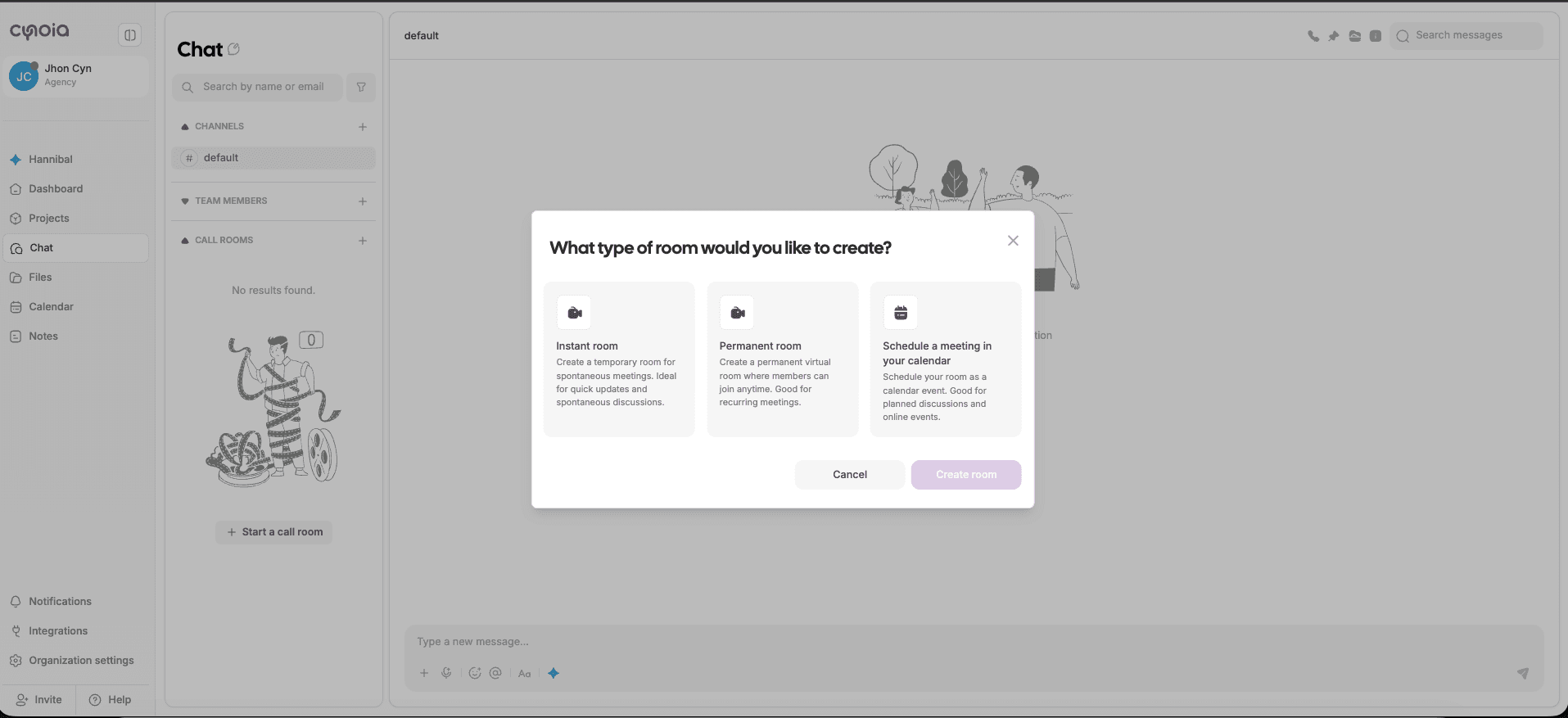
Instant Room
Instant rooms are temporary call rooms designed for quick conversations.
Use instant rooms when you need:
Spontaneous discussions
Quick updates
Fast problem-solving sessions
Instant rooms are ideal for unplanned collaboration.
Permanent Room
Permanent rooms are always available call spaces.
Use permanent rooms for:
Recurring meetings
Dedicated team spaces
Long-running discussions
Members can join permanent rooms at any time.
Scheduled Meeting (Calendar)
You can schedule a call room directly in your calendar.
Use scheduled meetings for:
Planned discussions
Online events
Team meetings
Scheduled call rooms appear as calendar events and help teams stay organized.
Starting or Joining a Call Room
You can:
Start a call room from the Chat section
Join an existing room from the Call Rooms list
Access to call rooms depends on:
Your workspace role
Channel or room permissions
Call Rooms & Permissions
What you can do in call rooms depends on your role.
Some users may:
Create call rooms
Manage room settings
Invite participants
Others may:
Join and participate
View rooms without managing them
Permissions are defined by workspace and room-level access.
Best Practices for Call Rooms
Use instant rooms for quick conversations
Use permanent rooms for recurring meetings
Schedule meetings when participants need advance notice
Keep call room names clear and descriptive
What’s Next?
👉 Next article: Channels & Direct Messages
You’ll learn how to create channels, start conversations, and manage chat spaces effectively.
Related to Chat & Communication