Cynoia team
Channels & Direct Messages
Written by : Cynoia team
Channels and Direct Messages are the two main ways teams communicate inside Cynoia.
They help organize conversations so discussions stay focused, searchable, and easy to follow.
Understanding the Difference
Before creating conversations, it helps to know when to use each option.
Channels
Shared conversation spaces
Designed for teams, projects, or topics
Visible to multiple members
Direct Messages
Private conversations
Designed for one-to-one
Not visible to others
Channels
Channels are ideal for ongoing group discussions.
Use channels to:
Share team updates
Discuss projects or initiatives
Coordinate across departments
Post announcements
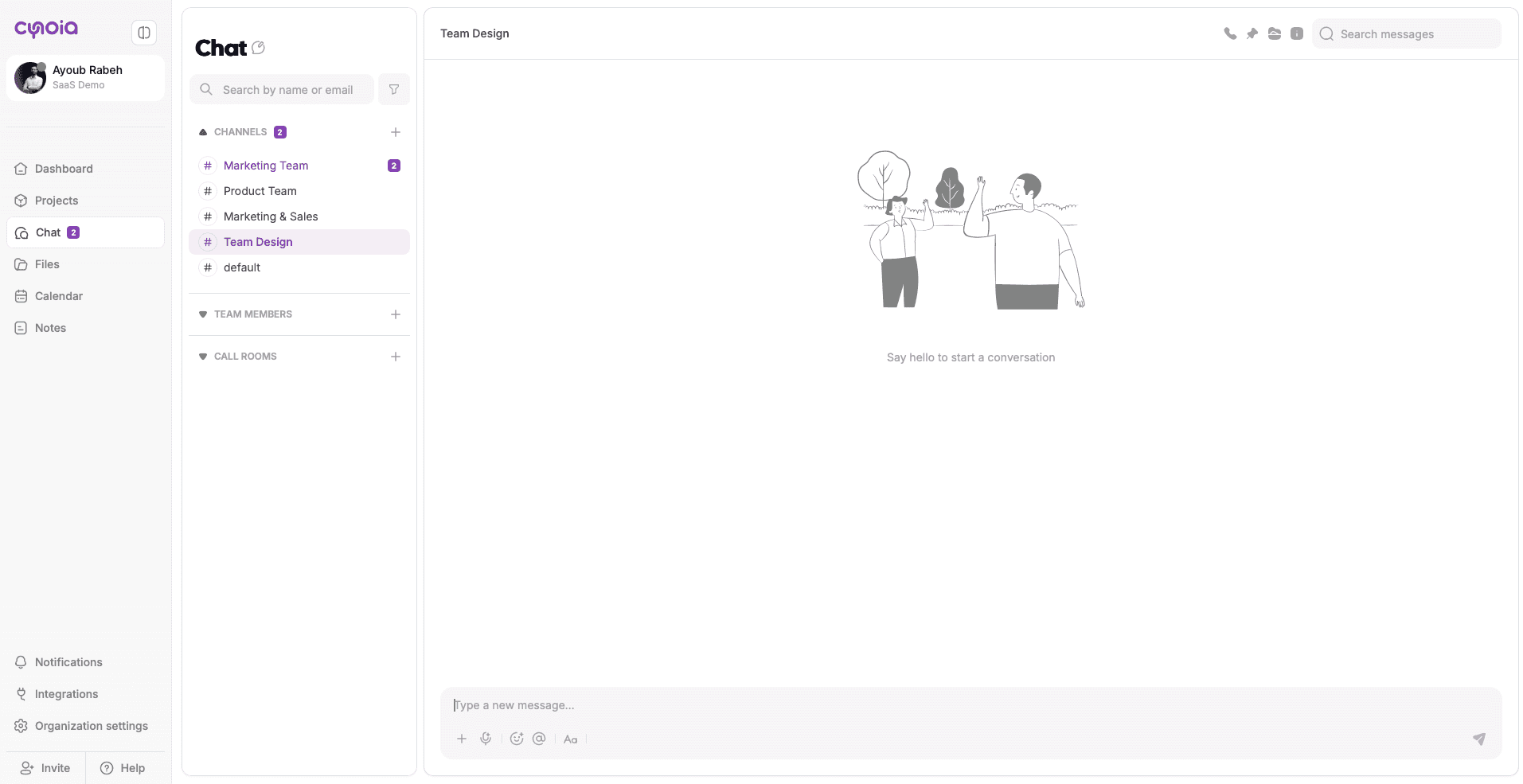
Public Channels
Public channels are open to everyone in the workspace.
Any member can join
Good for general discussions
Promotes transparency
You can click on the + Icon in front of channels then Browse
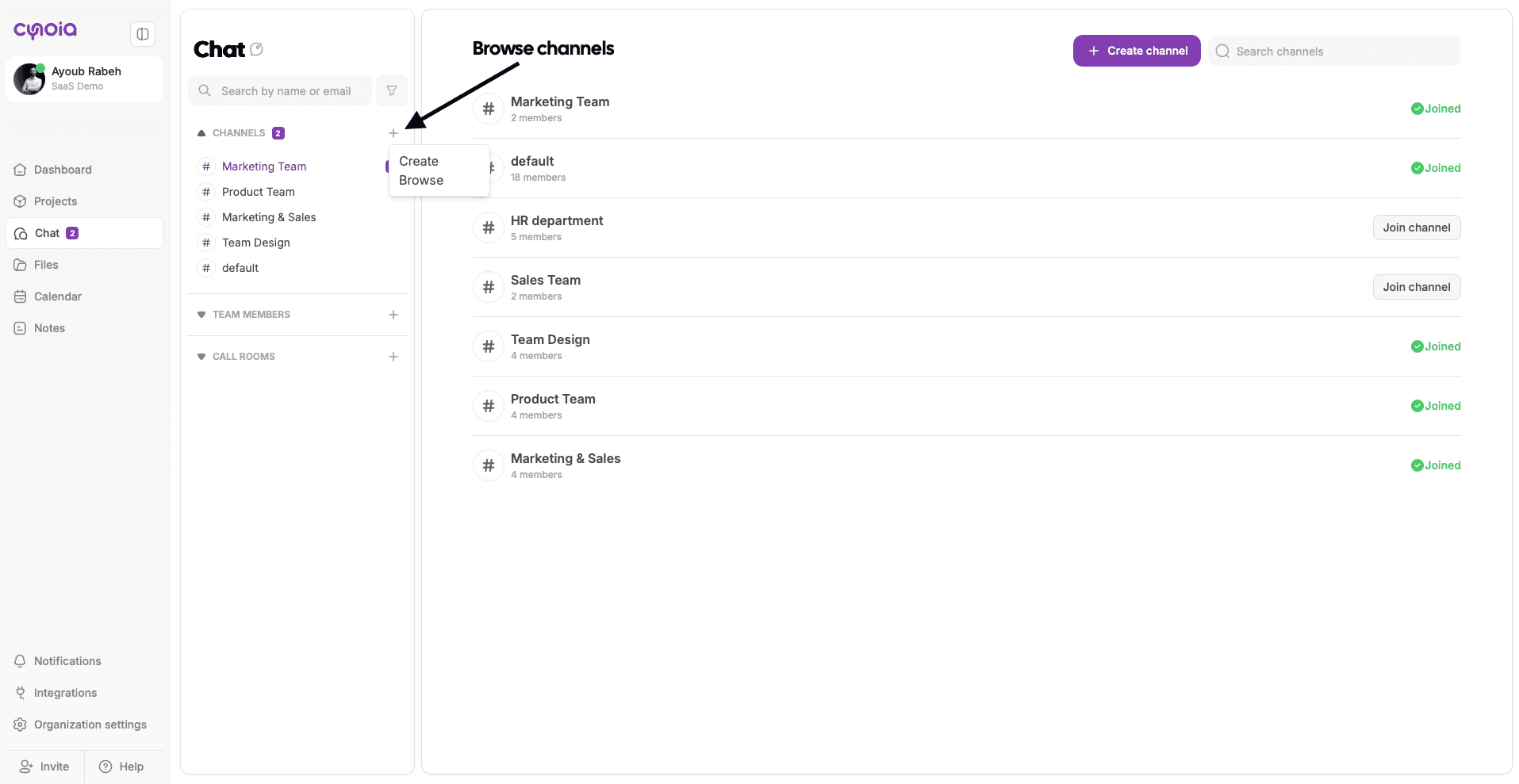
Example:
#Sales, #HR departement
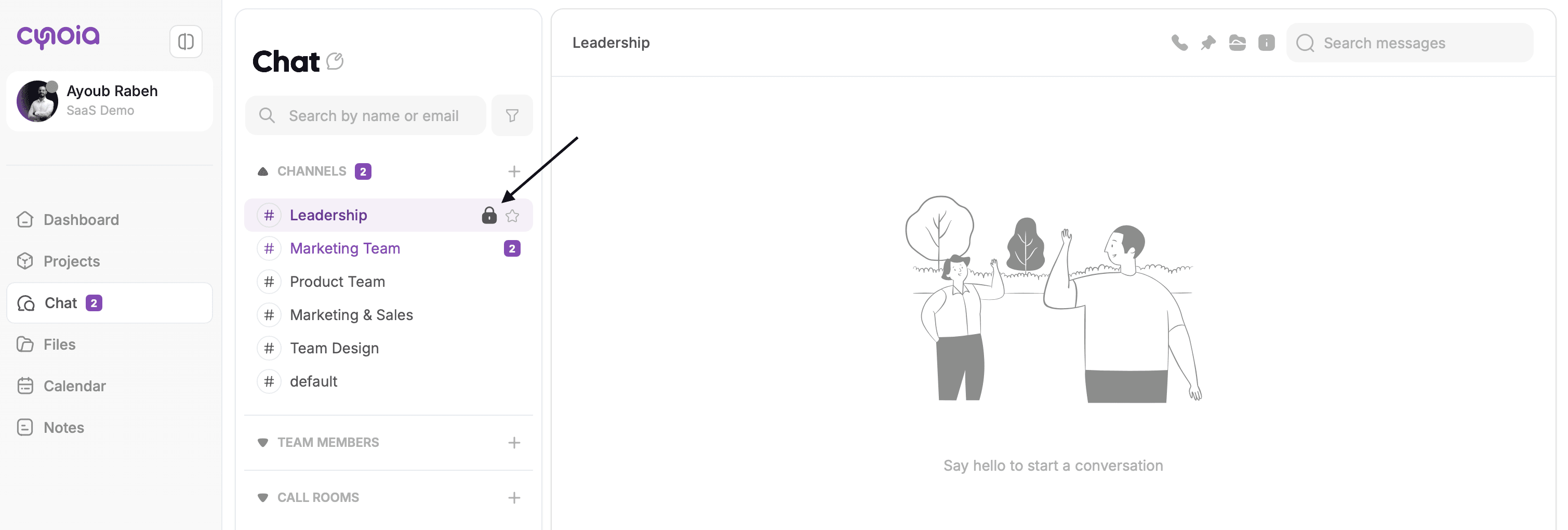
Private Channels
Private channels are restricted.
Only invited members can access
Ideal for sensitive or focused discussions
Example:
Leadership, HR, or client-specific conversations
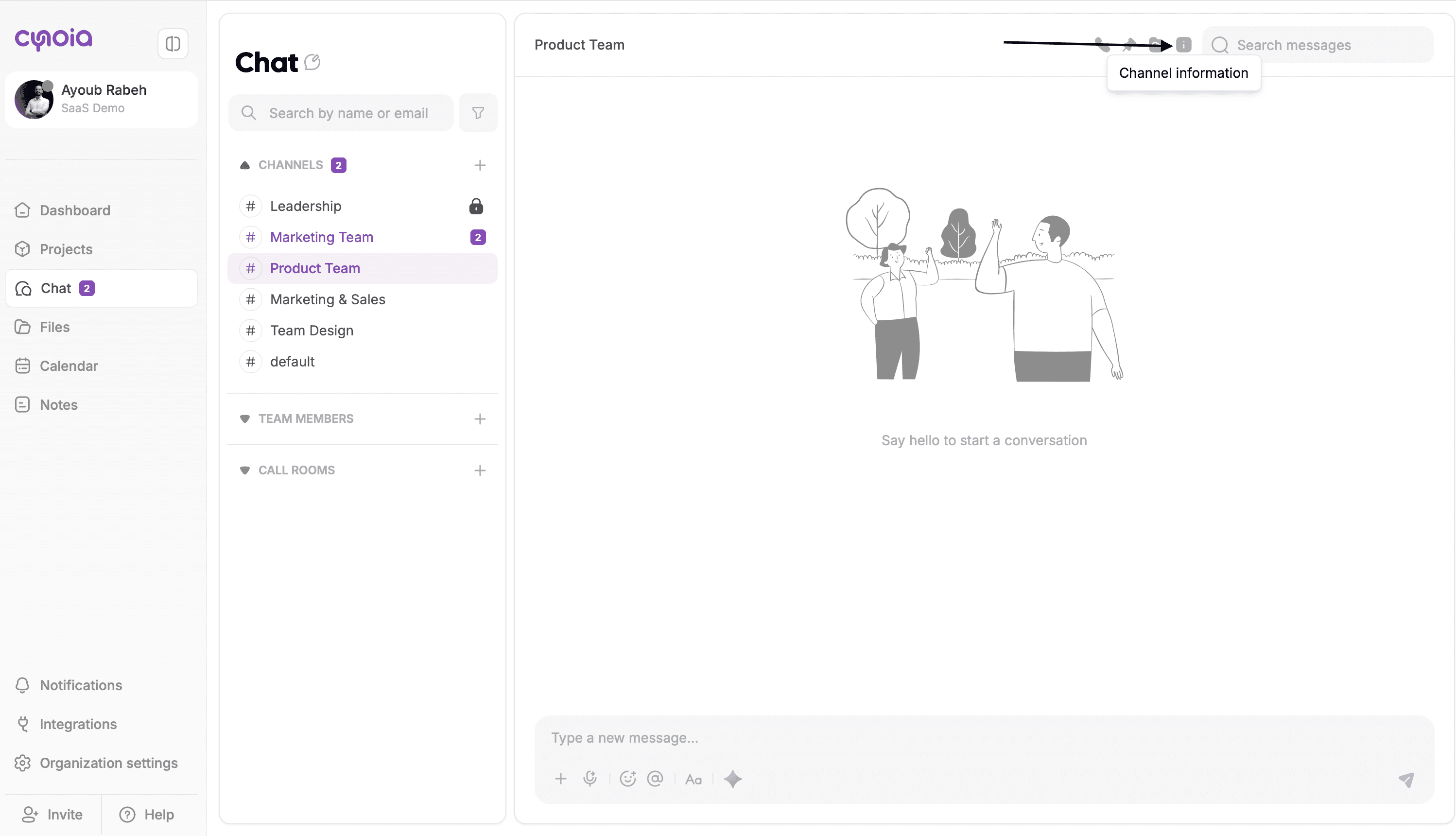
It has a lock in front of it
Creating a Channel
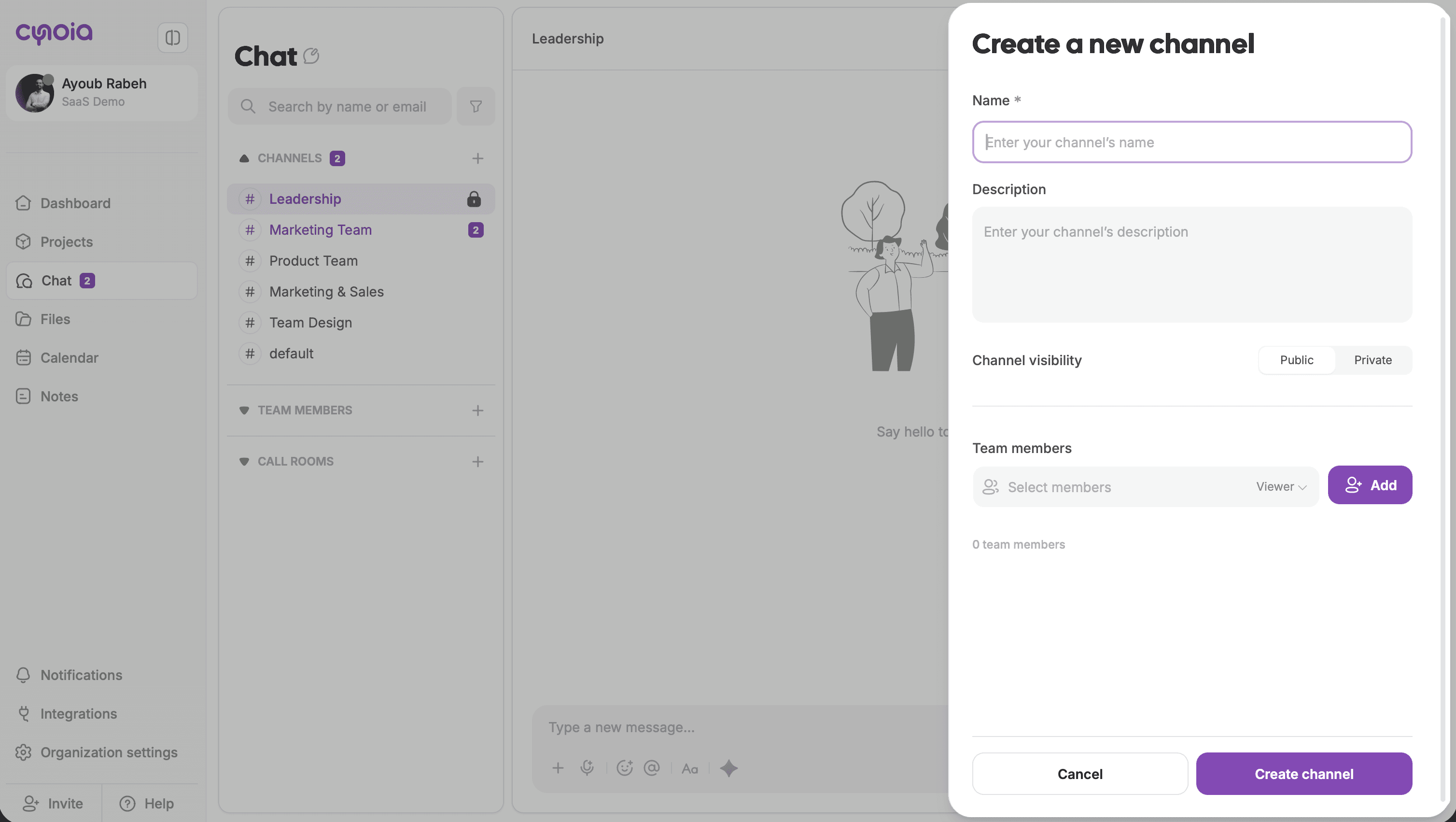
Go to Chat
Click + next to Channels
Enter the channel name
Choose visibility (Public or Private)
Add members (optional)
The channel is created instantly and ready for conversation.
Managing Channel Members
Depending on your permissions, you can:
Add or remove members
Control who can post
Manage channel settings
Channel permissions depend on:
Workspace role
Channel-level access
You can access channel settings clicking the ℹ️ icon
Direct Messages
Direct messages are private conversations between members.
Use direct messages for:
Quick questions
One-to-one discussions
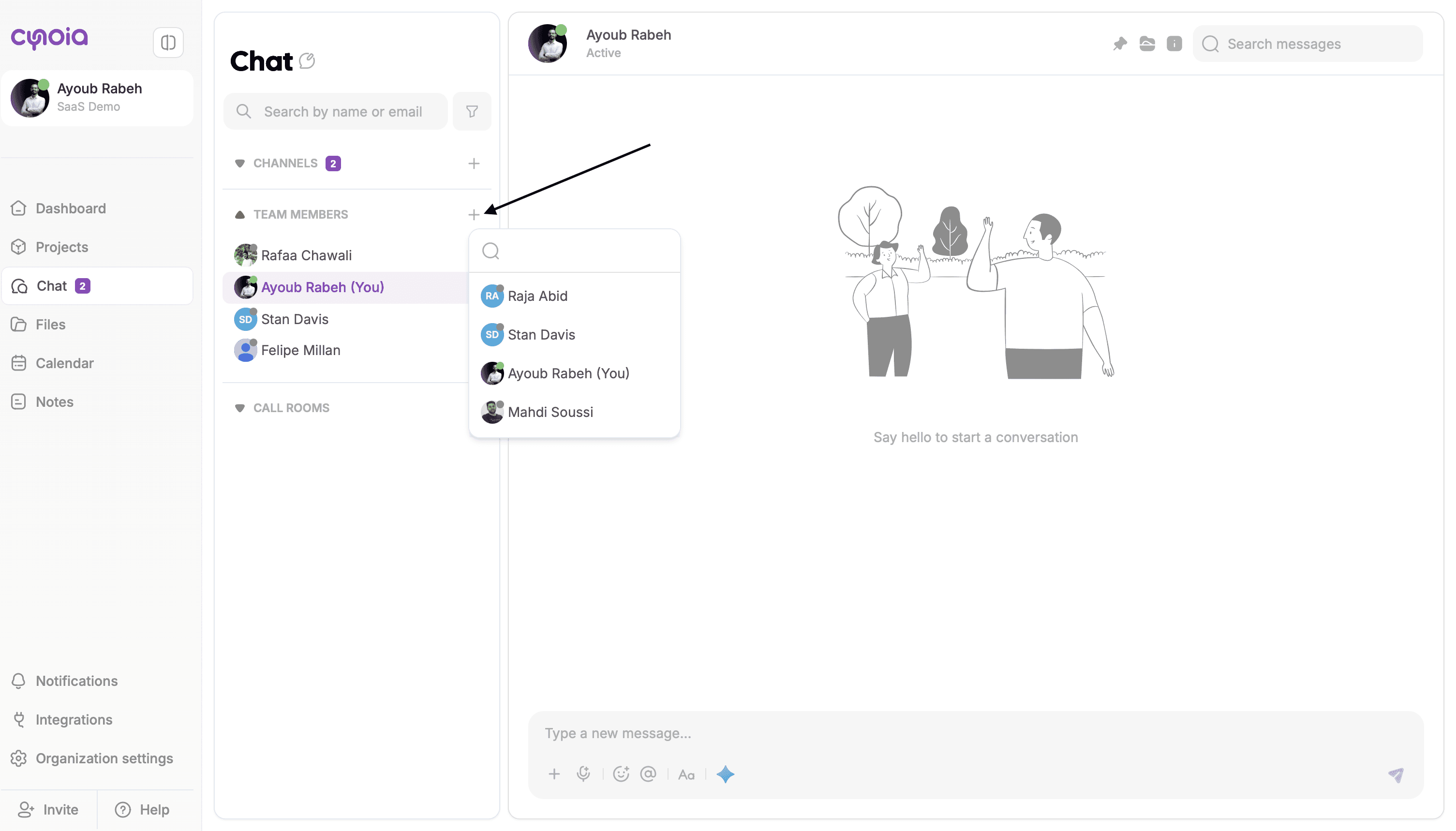
Starting a Direct Message
Go to Chat
Select a team member
Start typing your message
You can also:
Add more members to create a DM
Share files
Use mentions
Messages & Features
In both channels and direct messages, you can:
Send text messages
Mention teammates using @
Share files and attachments
React to messages
Reply in context
Forward
Pin a message
Messages are searchable, making it easy to find information later.
Notifications & Mentions
Mentions notify specific members
Channel activity appears in notifications
Direct messages notify participants instantly
Use mentions to:
Get someone’s attention
Request action
Highlight important updates
Best Practices
Use channels for shared, ongoing discussions
Use direct messages for quick or private conversations
Avoid duplicating task discussions in chat
Keep channel names clear and descriptive
Use mentions instead of repeating messages
What’s Next?
👉 Next article: Chat Notifications & Settings
Learn how to control notifications so you stay informed without distractions.
Related to Chat & Communication