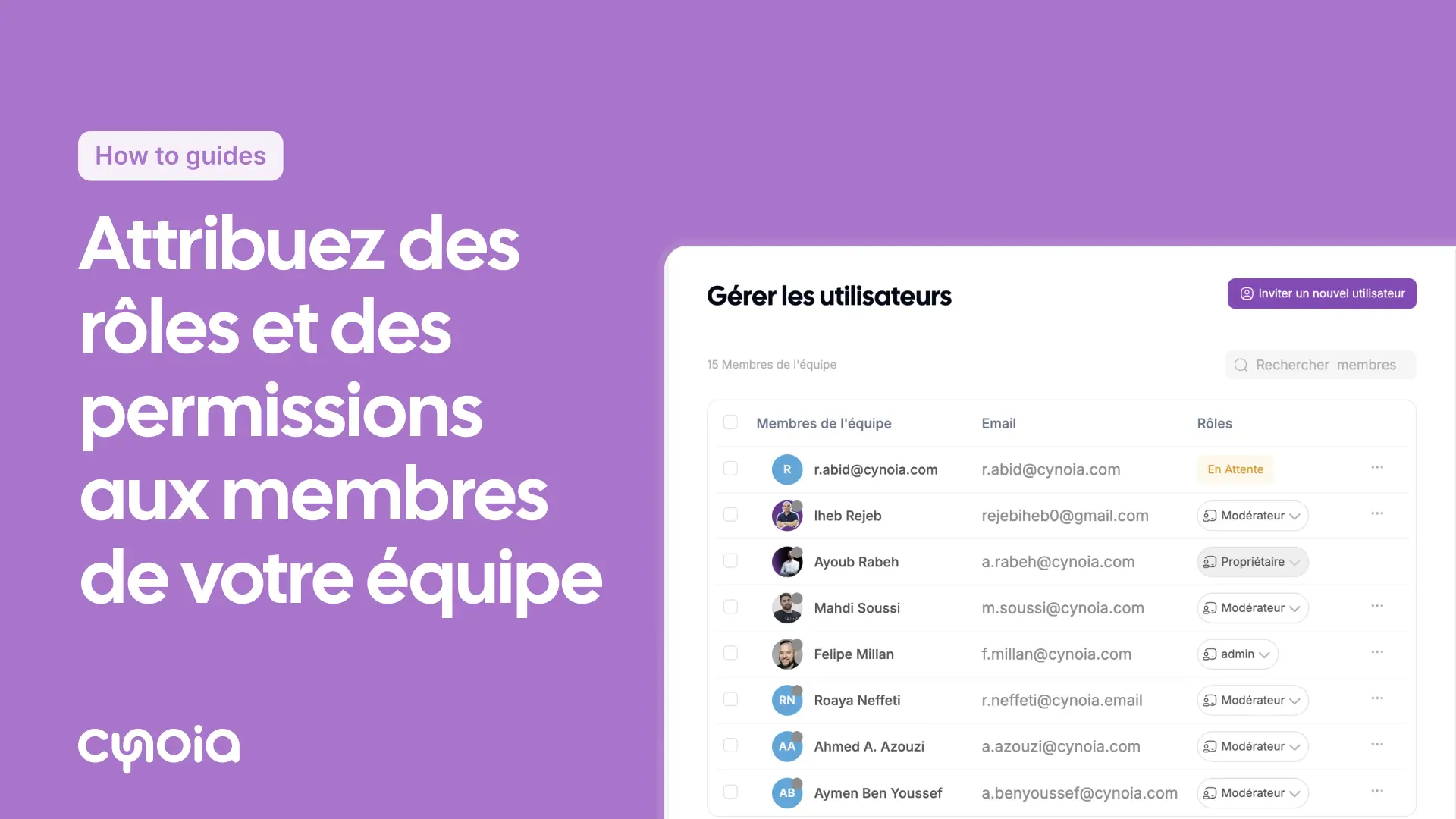
How to assign roles and permissions to team members
Introduction
The assignment of roles allows you to control what team members can access and what they can modify within your organization on Cynoia.
Steps
Step 1: Go to organisation settings
Click on Organisation settings at the bottom left-hand corner of the sidebar.
Step 2: Go to teams
Inside organisation settings, click on the Teams tab.
Step 3: Update roles
Find the team member whose role you want to change
Click on their current role
Choose from the available roles:
Owner: has full access to manage the organisation
Moderator: can manage settings and look after content
Editor: can create and edit content
Viewer: can only view content
Step 4: Confirm changes
The role change takes effect straight away
The member will get a notification
Quick steps
Go to Organisation settings
Click on the Teams tab
Find the team member
Click the current role to change it
Select the new role
Top tips
Check regularly: keep an eye on roles continuously
Keep records: keep track of who is assigned to which role
Keep people informed: let team members know when their roles change
Faqs
Q1: Can I create custom roles?
Yes, this option is available in the Pro Team plans.
Q2: Can roles be temporary?
Currently, roles stay the same until you change them manually.
Q3: What happens if I change an owner's role?
Organisations must keep at least 1 owner.