How to create calendars
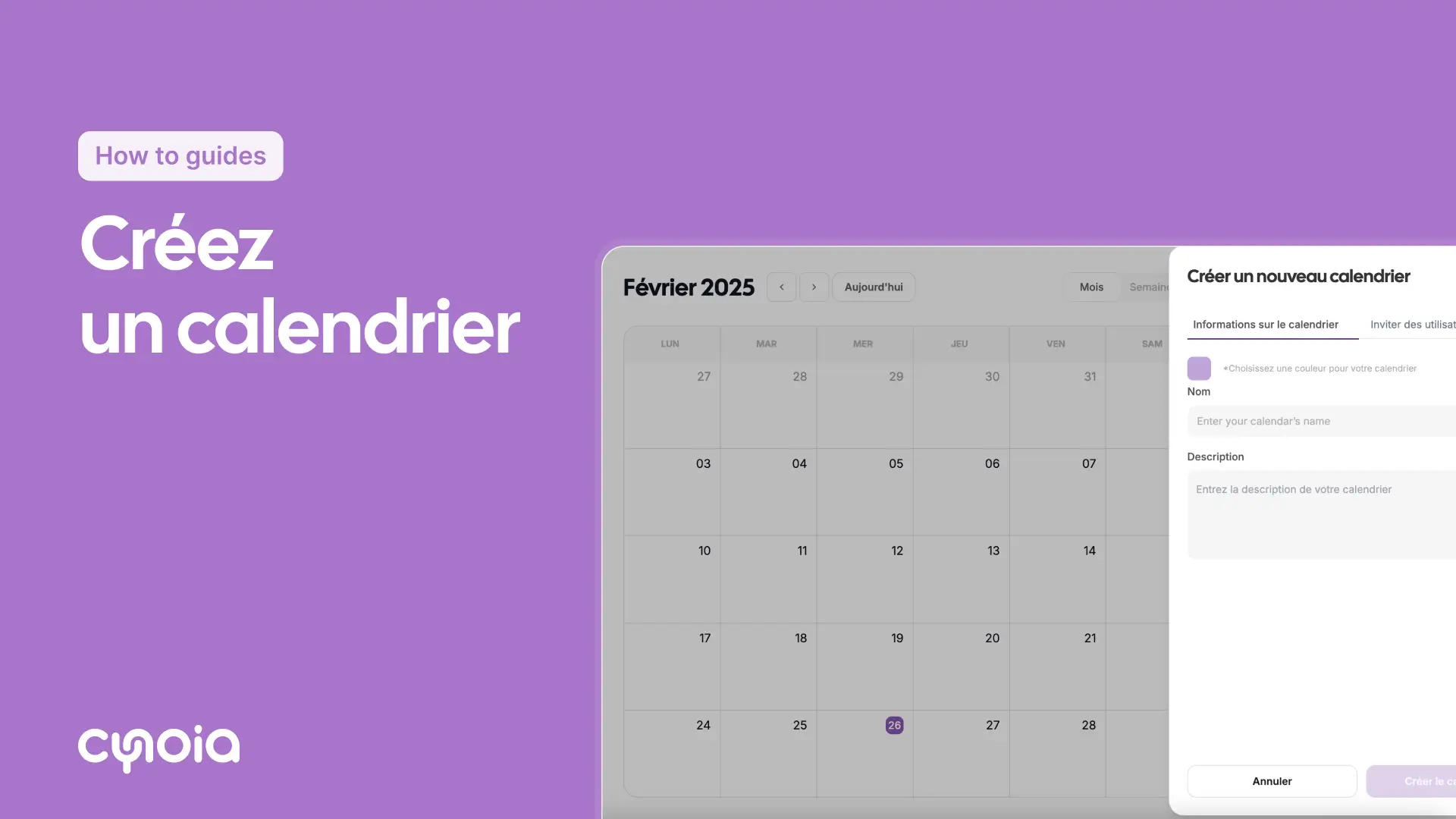
Introduction
Creating calendars helps you organize events and share schedules with your team.
Steps
Step 1: Open the calendar app
Click the Calendar app in the sidebar.
Step 2: Create a new calendar
In the right-hand sidebar, click the + Create button.
Step 3: Set up your calendar details
Name: Type in the name of your calendar
Colour: Choose a distinct colour
Description: Add extra details if needed
Members: Add team members and assign their roles
Step 4: Wrap things up
Double-check all your settings
Click Create calendar
Quick steps
Open the Calendar app
Click + Create new
Fill in the calendar details
Add team members
Click Create calendar
Handy tips
Use colours: Different colours will help you spot your calendars easily
Keep names clear: Use calendar names that make sense at a glance
Set permissions: Choose access levels carefully for your team
FAQ
Q1: Can I sync with external calendars?
The Pro Team plans offer integration with Google Calendar
Q2: How many calendars can I create?
The number varies depending on the plan level.
Q3: Can I share calendars externally?
Sharing is limited to members of the organization.