How to create a new project
Introduction
Creating a new project on Cynoia allows you to organize tasks, collaborate with members, and manage workflows efficiently.
Simplified steps
In the project manager, click on new project.
Fill in the project details (Name, description, etc.).
Choose who can see the project (Public or private).
Invite team members and assign each person's role.
Click “Create project”.
Steps:
Step 1: Go to the project manager
From the dashboard, click on the project manager in the menu on the left.
Step 2: Start a new project
In the project manager, click the “New project” button at the top right.
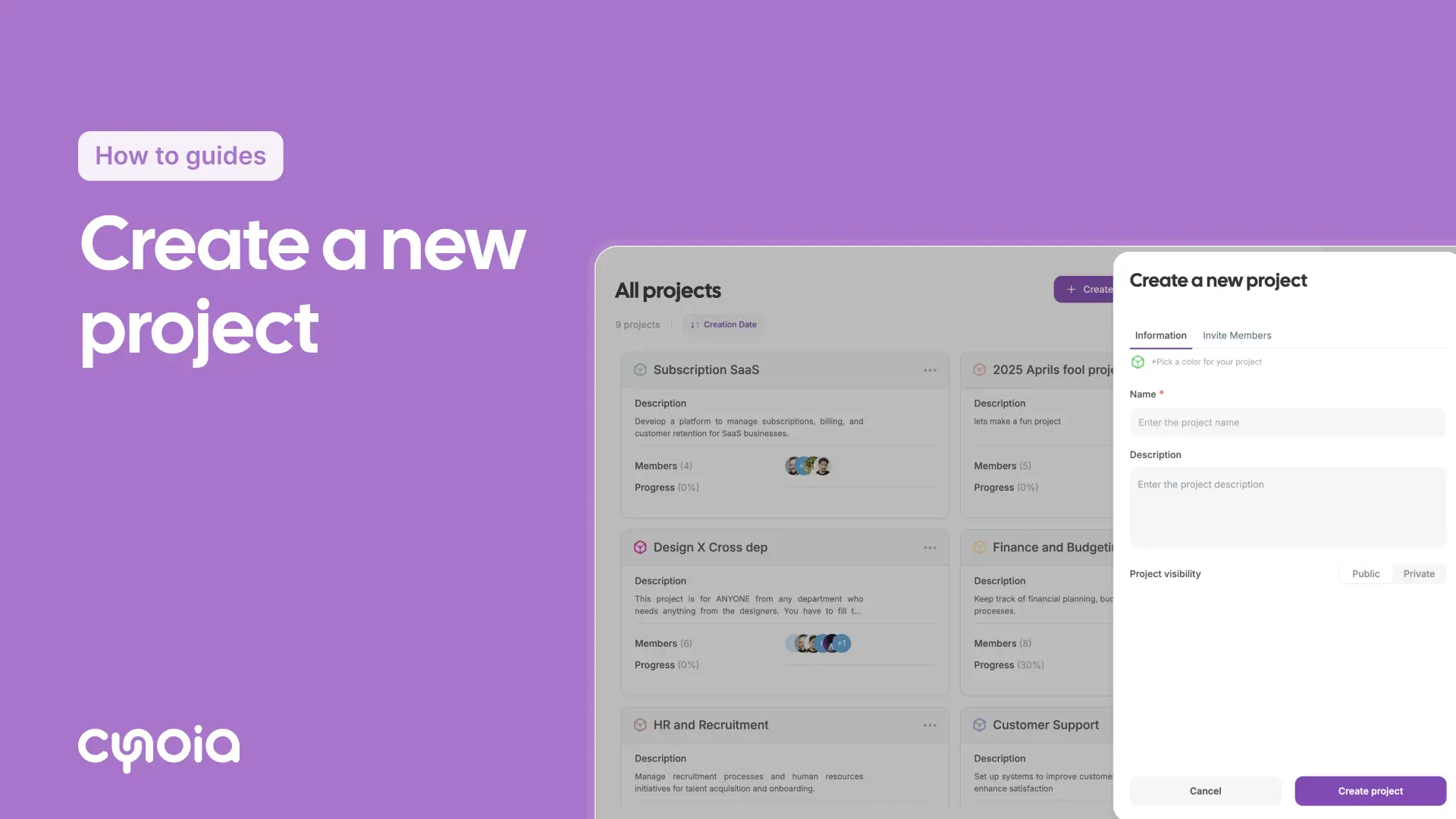
Step 3: Add project details
Colour icon: Pick a colour or icon for your project
Project name: Give your project a clear name.
Description: (Optional) Add a quick summary of the project.
Project visibility: Choose who can see this project:
Public: Everyone in the workspace can access this project.
Private: Only chosen members can see this project.
Click the “Invite members” tab.
Add team members by typing in their names or email addresses.
Choose their roles (editor or viewer).
Add as many team members as you need.
Step 4: Save the project
Double-check your project settings and the members you added.
Click “Create project” to get everything up and running.
Tips:
Pick a unique colour or icon: This helps you spot the project quickly later on.
Add team members early: Inviting everyone while creating the project saves you time.
Choose the correct visibility: This makes sure only the right people have access.
FAQ
Q1: Can I add or remove team members after the project is created?
Yes, you can manage your team members at any time by accessing the settings of the project.
Q2: What is the difference between a public project and a private project?
Public: It is accessible to all workspace members.
Private: It is accessible to all members you have added to the project.
Q3: Can I change the visibility of a project later?
Yes, it is possible to modify the project's visibility from its settings.