How to create a call room
Introduction
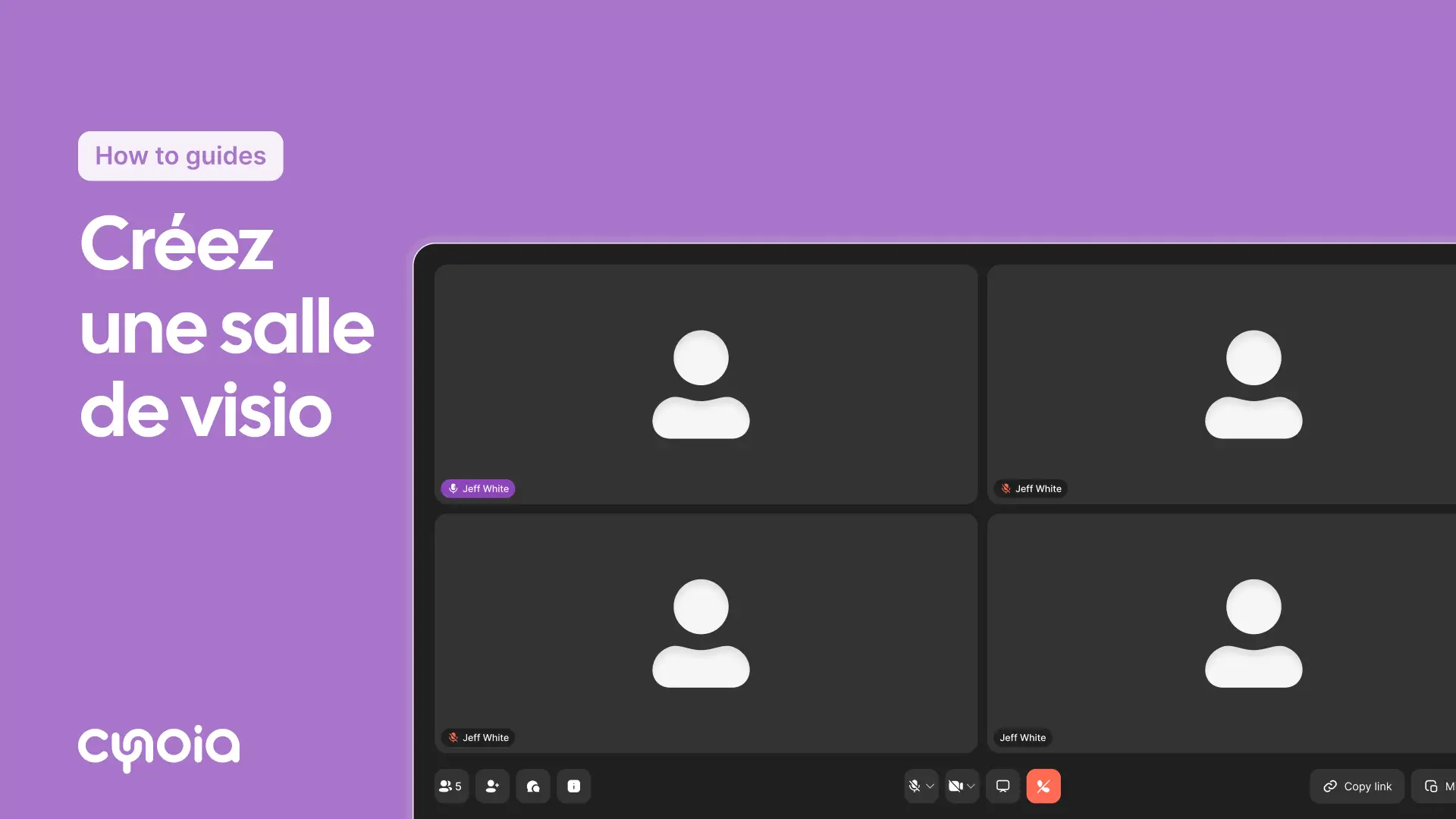
The video rooms allow you to organize audio and/or video meetings with your team directly within the Cynoia application.
Steps
Step 1: Access the video conference rooms
In the Chat app, find the Call rooms section in the main menu.
Step 2: Create a call room
Click the + icon next to Call rooms.
Choose from:
Instant room: for quick, immediate catchups
Permanent room: for your regular, recurring meetings
Schedule in calendar: for future meetings
Step 3: Setup your room
For an instant room:
Click Create room
Copy the call link to share with others
For a permanent room:
Type in the room name
Add a brief description (optional)
Add your team members
Click Create call room
Quick steps
In the Chat app, go to Call rooms
Click + and pick your room type
Follow the quick setup steps for your chosen room
Share the link with those attending
Handy tips
Use instant rooms for quick, impromptu chats
Permanent rooms work best for your regular team catchups
Test your sound and video before any big meetings
FAQ
Q1 : How many participants can join a meeting?
Community Plan : up to 10 users
Pro Team Plans : additional capacity depending on the plan
Q2 : Can external users join a meeting?
Yes, by sharing the call link with them, they can join you
Q3 : Are calls recorded?
Currently, call recording is not available