How to create and assign tasks
Introduction
Tasks are essential elements of any project. Creating and assigning tasks helps organize work and delegate responsibilities among team members.
Steps
Step 1: Access the project
Go to the Projects app.
Select the project where you want to create tasks.
Step 2: Create a task
Inside the project, look for the New task button at the top right.
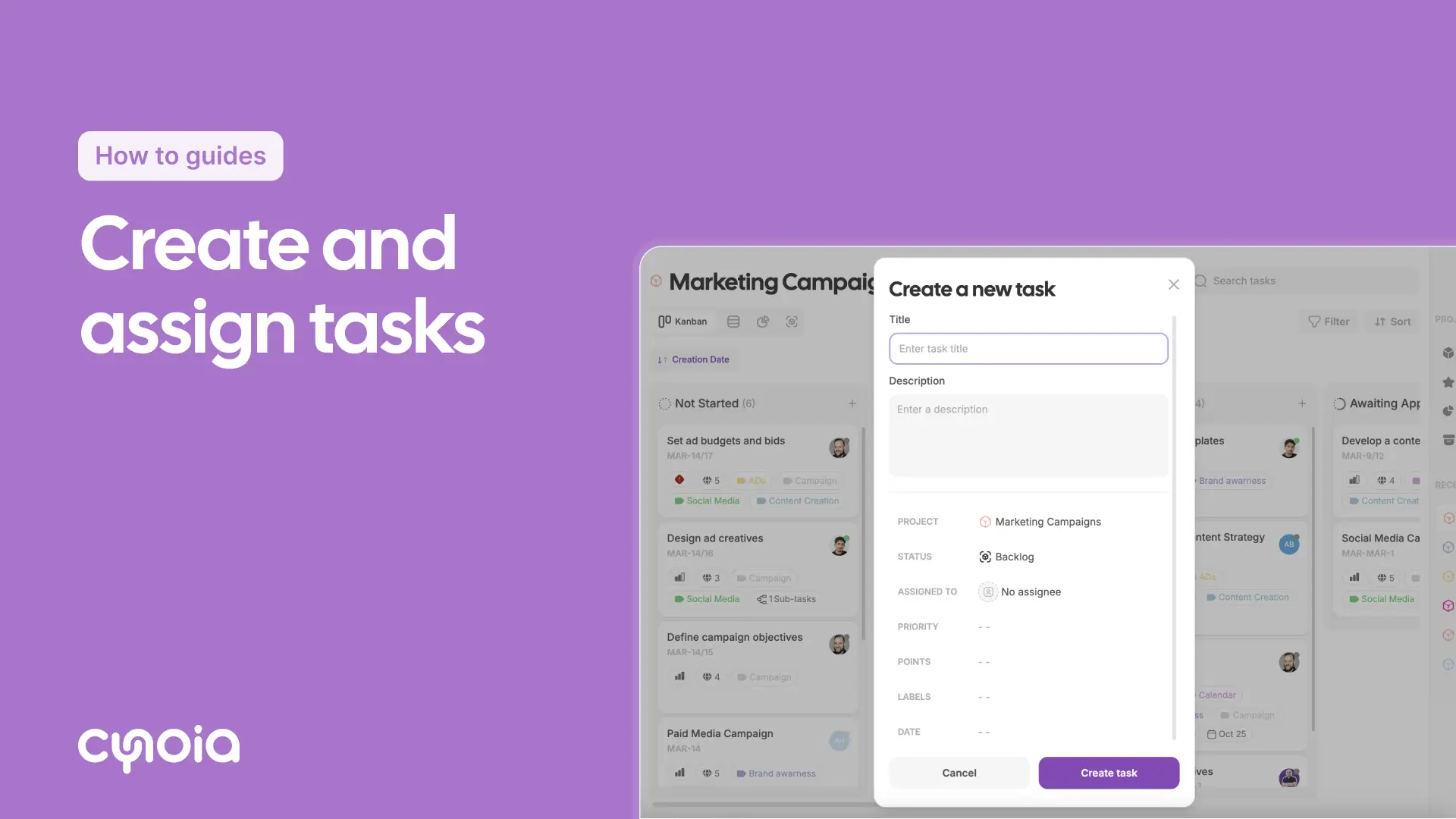
Click on New task to open the task creation menu.
Step 3: Enter the task details
Title: Type in a clear, descriptive title for the task.
Description: Add any setup details or instructions needed.
Status: Set the task status (like Pending, To do, In progress).
Assignee: Choose a team member's name to assign them the task.
Priority: Select the priority level (High, Medium, Low).
Points: For agile planning, set the right story points.
Labels: Add tags to help organise your tasks.
Start and due date: Pick starting and completion dates using the calendar.
Step 4: Save the task
Double-check your task details.
Click Create task to save and add it to the project.
Step 5: Notify the team member
The assigned team member will get an alert about their new task.
Quick steps
Open your specific project in the Projects app.
Click on New task.
Fill in the task details (title, description, and the rest).
Assign it to a team member.
Click Create task.
Tips
Keep instructions clear: A detailed description helps your team member understand exactly what to do.
Set realistic timelines: Make sure the start and due dates are practical and achievable.
Use tags and points: Tags help group jobs, and points make it easier to estimate the workload.
Faq
Q1: Can I assign a task to more than one team member?
Right now, tasks can only be assigned to 1 main person. You can mention other team members in the task comments if you need to.
Q2: How do I edit a task after making it?
Open the task and click Edit to change the details.
Q3: Can I create sub-tasks?
Yes, on the Pro Team plans, you can add sub-tasks to break down big, complex jobs.