How to create an event
Introduction
The creation of events allows for planning meetings, deadlines, and important dates while ensuring team cohesion.
Steps
Step 1: Access the calendar
Open the Calendar app
Select the correct calendar
Step 2: Create an event
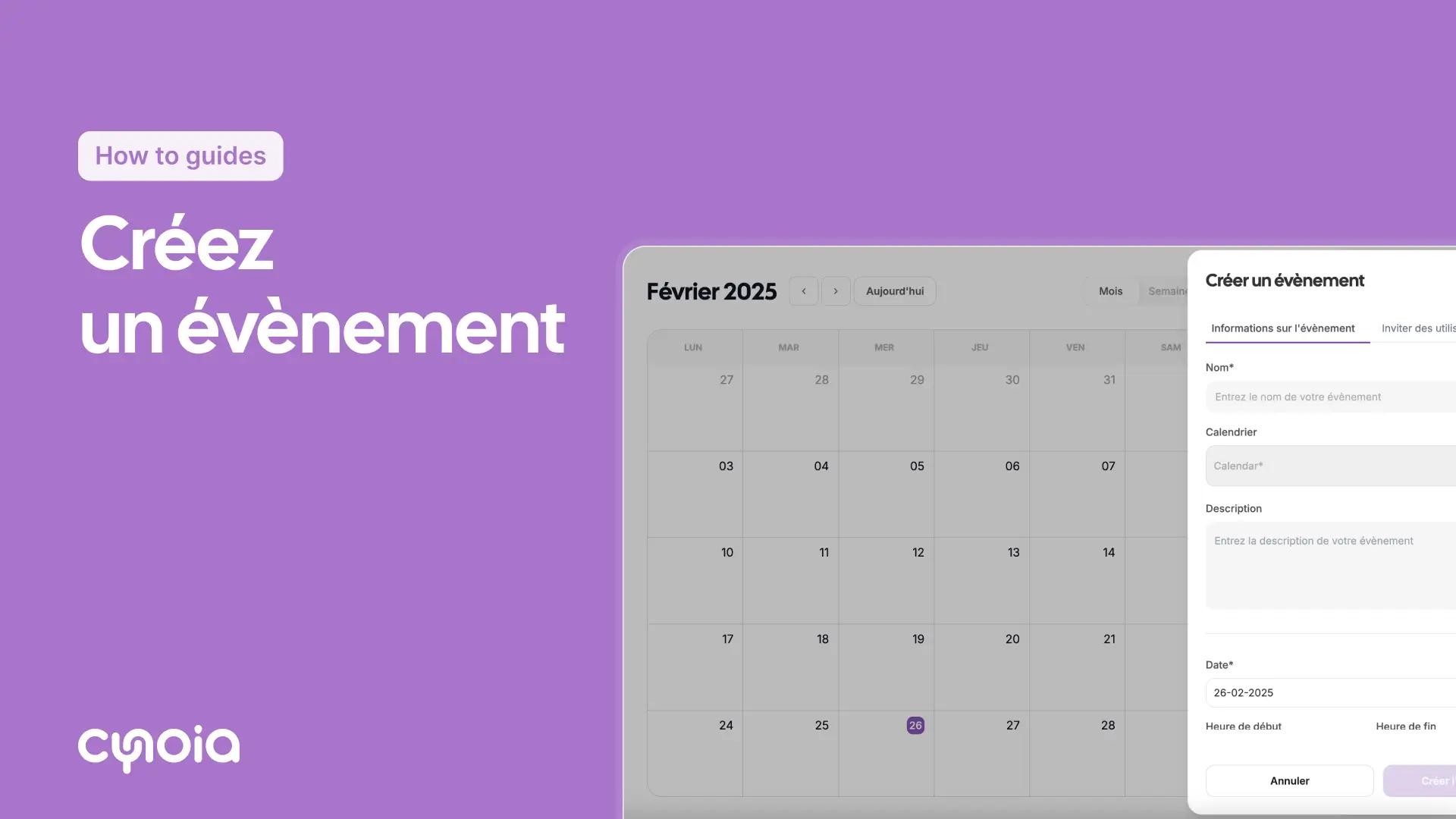
Click the Create event button or click directly on a date.
The event creation form will open up
Step 3: Enter the event details
Title: Enter the name of the event
Date and time: Set the start and end times
Description: Add the event details
Calendar: Select the calendar you want to use
Online meeting: Add a video call link (optional)
Attendees: Invite team members
Step 4: Save the event
Check all the details
Click Create event
Simplified steps
Open the Calendar app
Click Create event
Fill in the event details
Add attendees
Click Create
Tips
Choose good titles: Use descriptive event names
Add details: Include all relevant info
Check time zones: Double-check times for remote team members
FAQ
Q1: Can I set up recurring events?
Yes, this option is available on Pro Team plans.
Q2: Will attendees get notifications?
Yes, they will receive email notifications
Q3: Can I edit events after creating them?
Yes, just click on the event and select Edit.