Cynoia team
Call Rooms & Meetings
Written by : Cynoia team
Call Rooms in Cynoia allow teams to connect instantly through audio and video — without leaving the workspace.
They’re designed for quick discussions, recurring meetings, and scheduled sessions.
What Are Call Rooms?
Call rooms are virtual meeting spaces where team members can:
Join voice or video calls
Collaborate in real time
Keep conversations connected to the workspace
Call rooms live inside Chat, making it easy to switch from messages to live discussions.
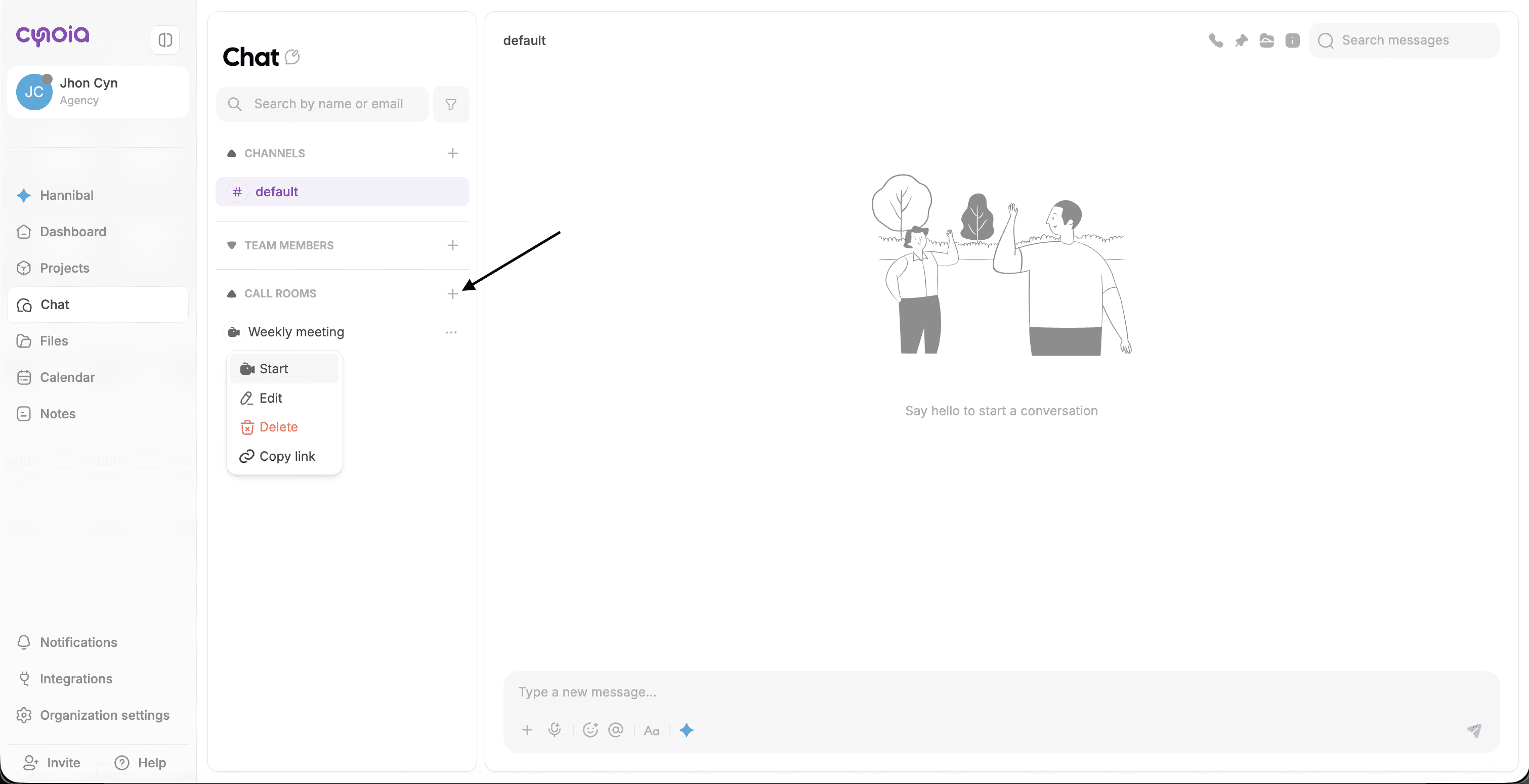
Types of Call Rooms
When creating a call room, Cynoia offers three options.
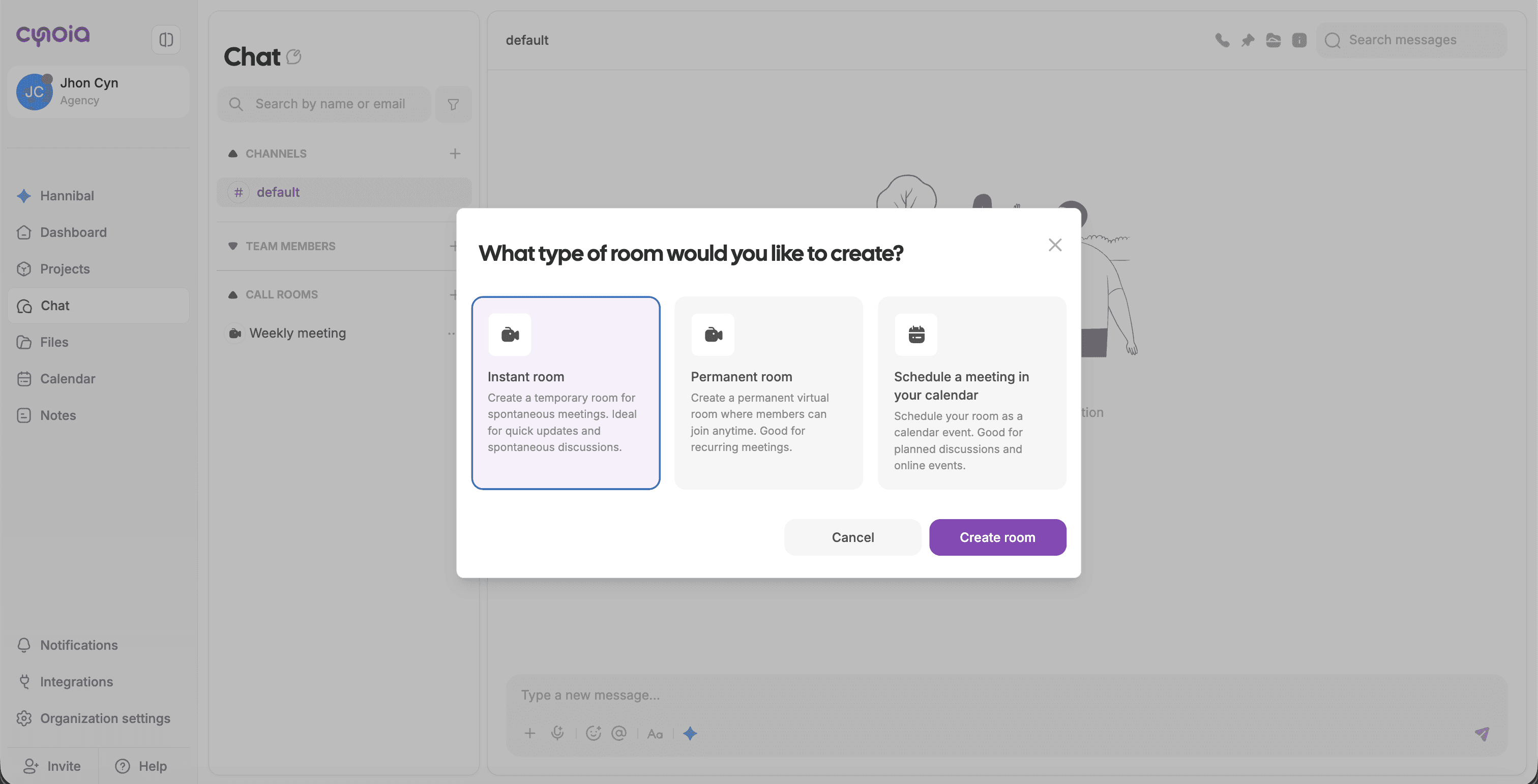
Instant Room
Instant rooms are temporary call rooms.
Use instant rooms to:
Start quick discussions
Jump on spontaneous calls
Resolve blockers fast
Key characteristics:
Created instantly
No scheduling required
Ends when participants leave
Permanent Room
Permanent rooms are always available.
Use permanent rooms for:
Daily standups
Team check-ins
Ongoing collaboration spaces
Key characteristics:
Always accessible
Members can join anytime ( if access was granted for them )
Ideal for recurring meetings
Scheduled Meeting
Scheduled meetings are tied to the calendar.
Use scheduled meetings to:
Plan structured discussions
Host events or reviews
Align with availability
Key characteristics:
Scheduled in advance
Appears in the calendar
Creating a Call Room
Go to Chat
Click Start a call room
Choose the room type:
Instant
Permanent
Scheduled
Confirm to create the room
The room is created and ready for participants to join.
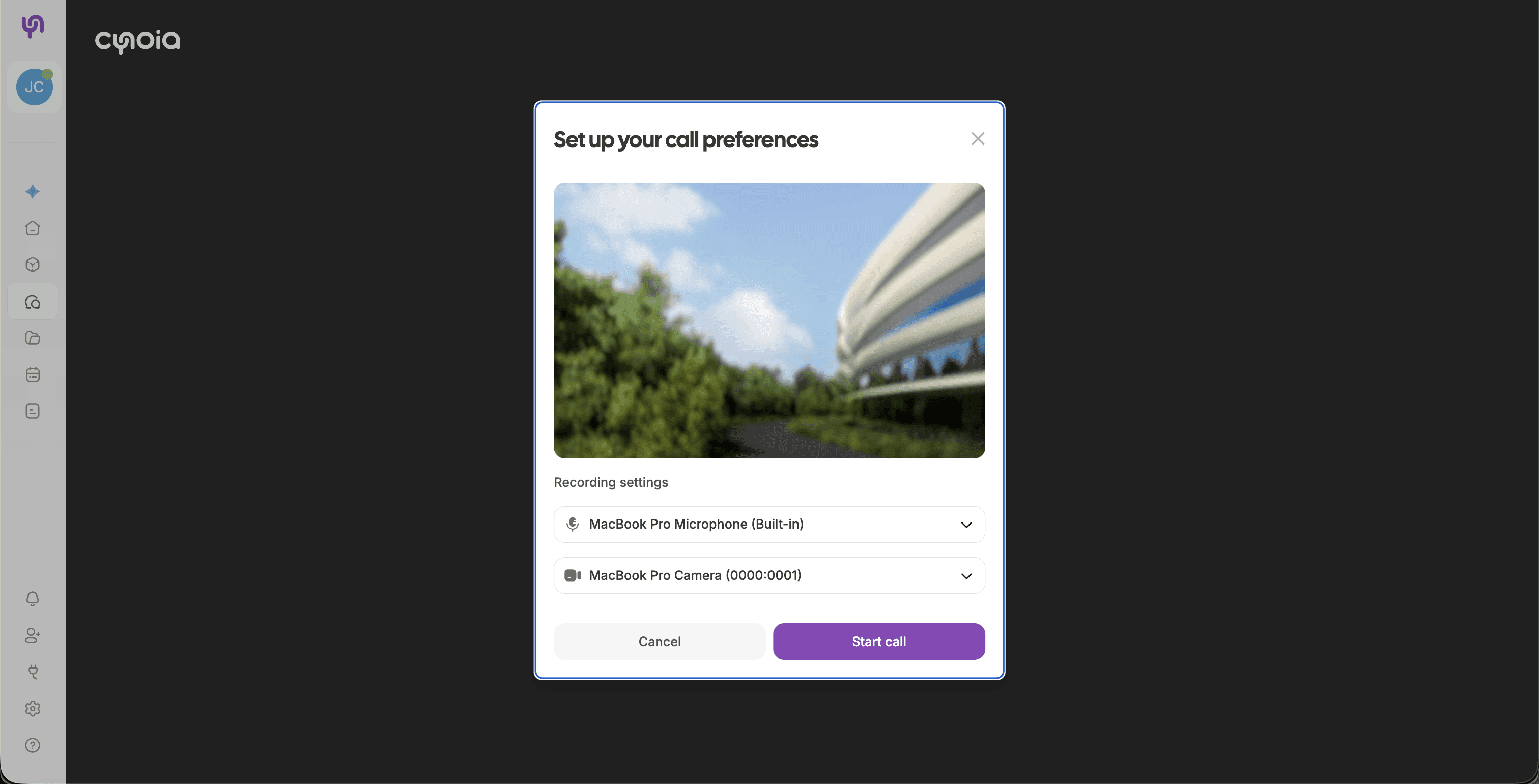
Joining a Call Room
To join a call room:
Click the room name from the Call Rooms list
Join directly if you have access
Access depends on:
Room visibility
Your workspace role
Room permissions
Managing Call Rooms
Depending on your permissions, you can:
Manage room settings
Control participant access
Start or end calls
Call Room Permissions
Call room permissions follow workspace and role rules:
Moderators can manage rooms
Editors can create and join rooms (depending on role)
Viewers have limited access
Room-level permissions may override global roles.
Inside a Call Room
Once you join a call room, Cynoia opens a dedicated call interface designed for focus and collaboration.
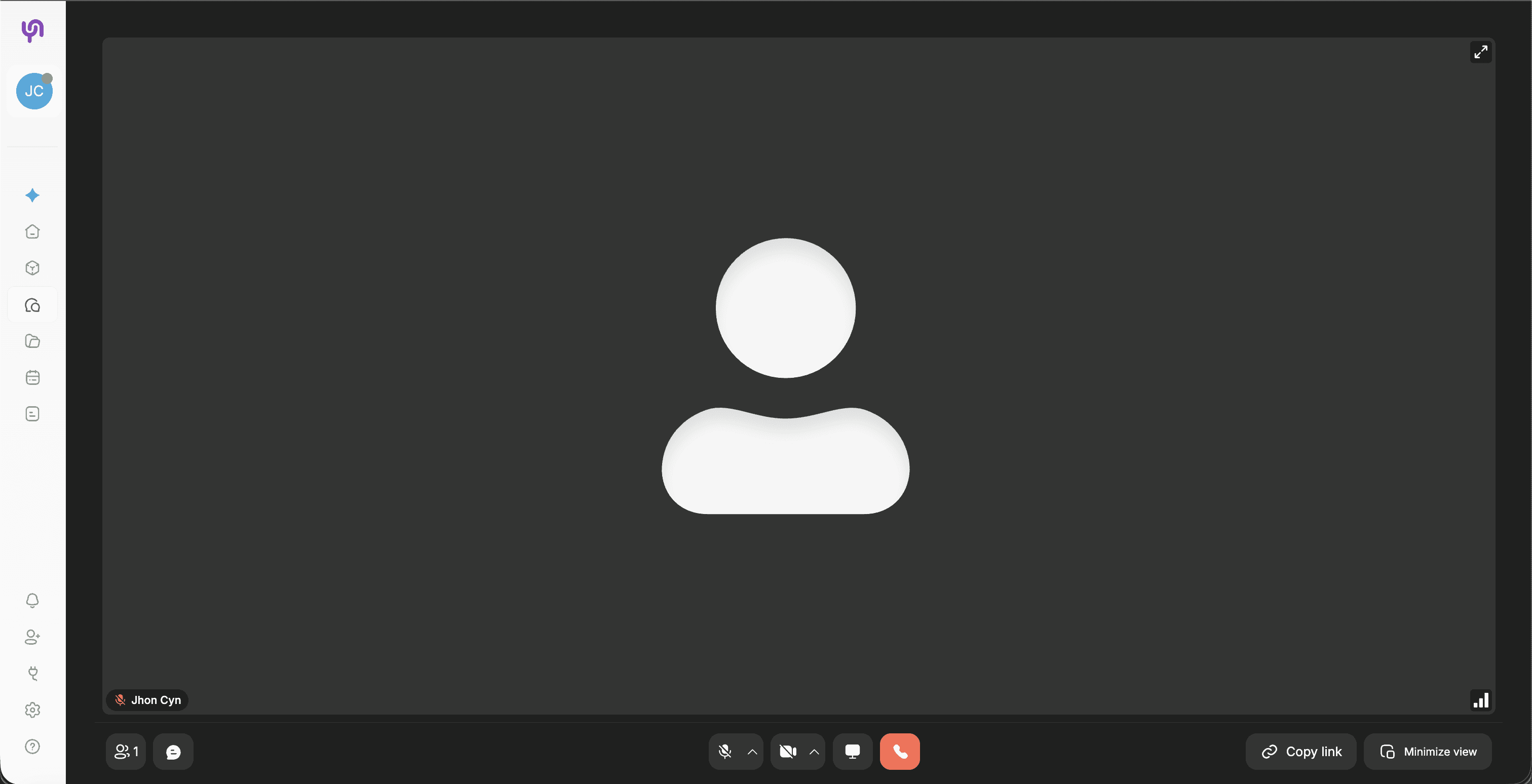
Inside a call room, you’ll find:
Live audio & video area
Call controls bar
Participants list
Sharing and collaboration tools
Call Controls
The call control bar is always accessible at the bottom of the screen.
Available controls include:
Mute / Unmute microphone
Turn camera on / off
Share screen
Open chat
Leave call
These controls allow you to quickly manage your presence during the call.
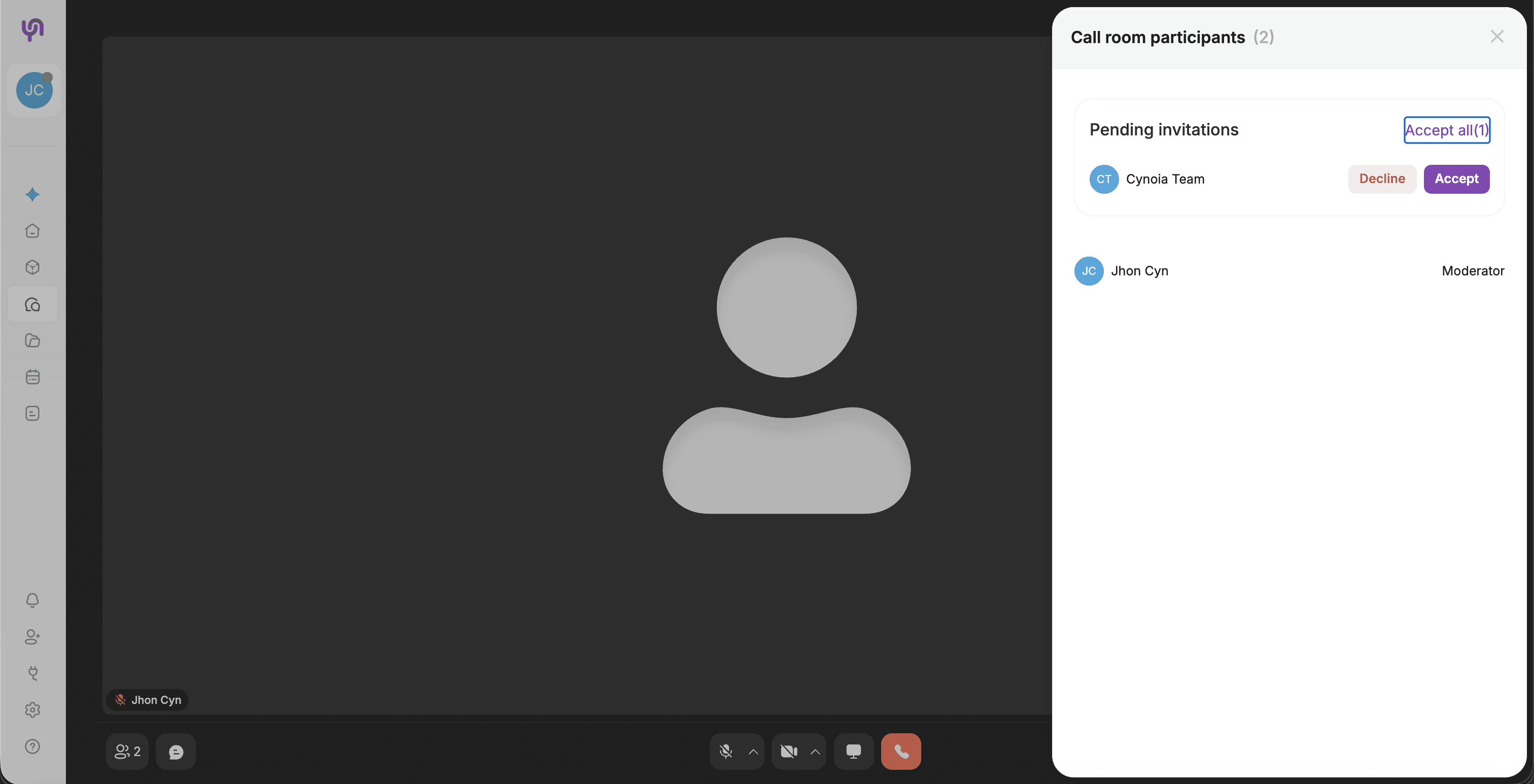
Managing Participants
You can view and manage participants from the Participants panel.
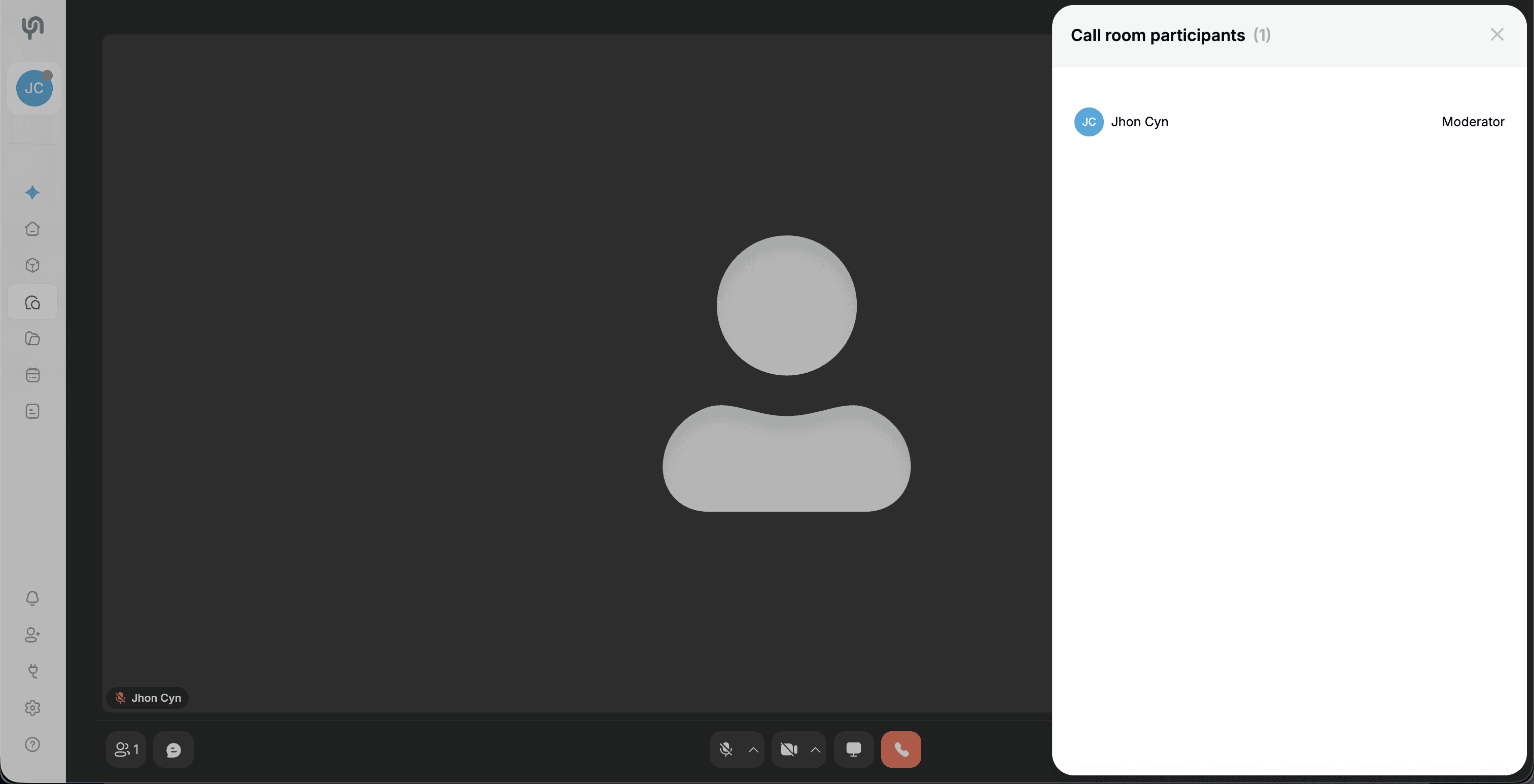
From this panel, you can:
See who is currently in the call
View participant roles (Moderator, Editor, Viewer)
Track pending join requests
Join Requests & Invitations
When someone tries to join a call room that requires approval, a request is sent to moderators.
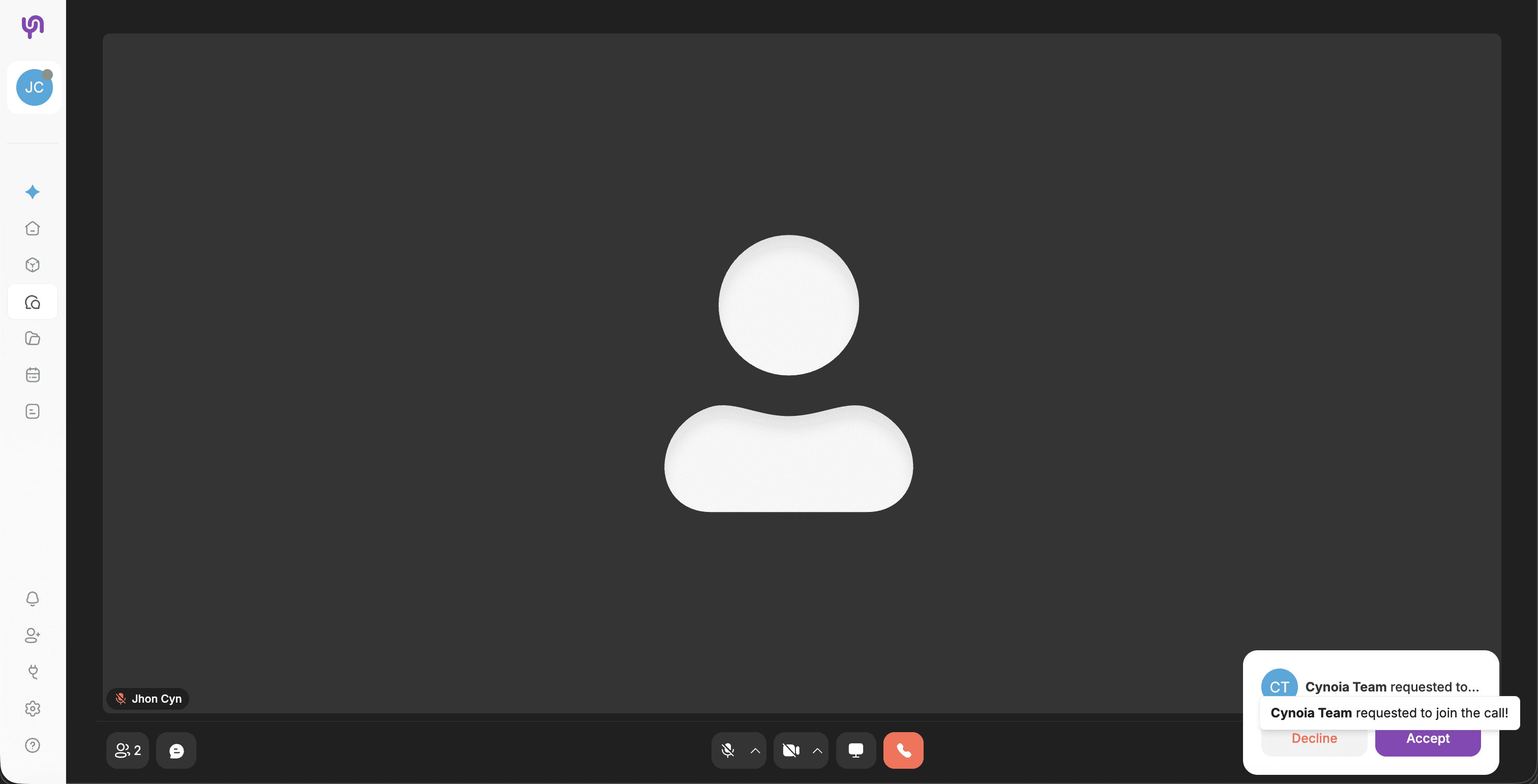
Moderators can:
Accept individual requests
Accept all pending requests
Decline requests
This ensures controlled access to private or focused calls.
Inviting Participants
You can invite others to a call room using a shareable link.
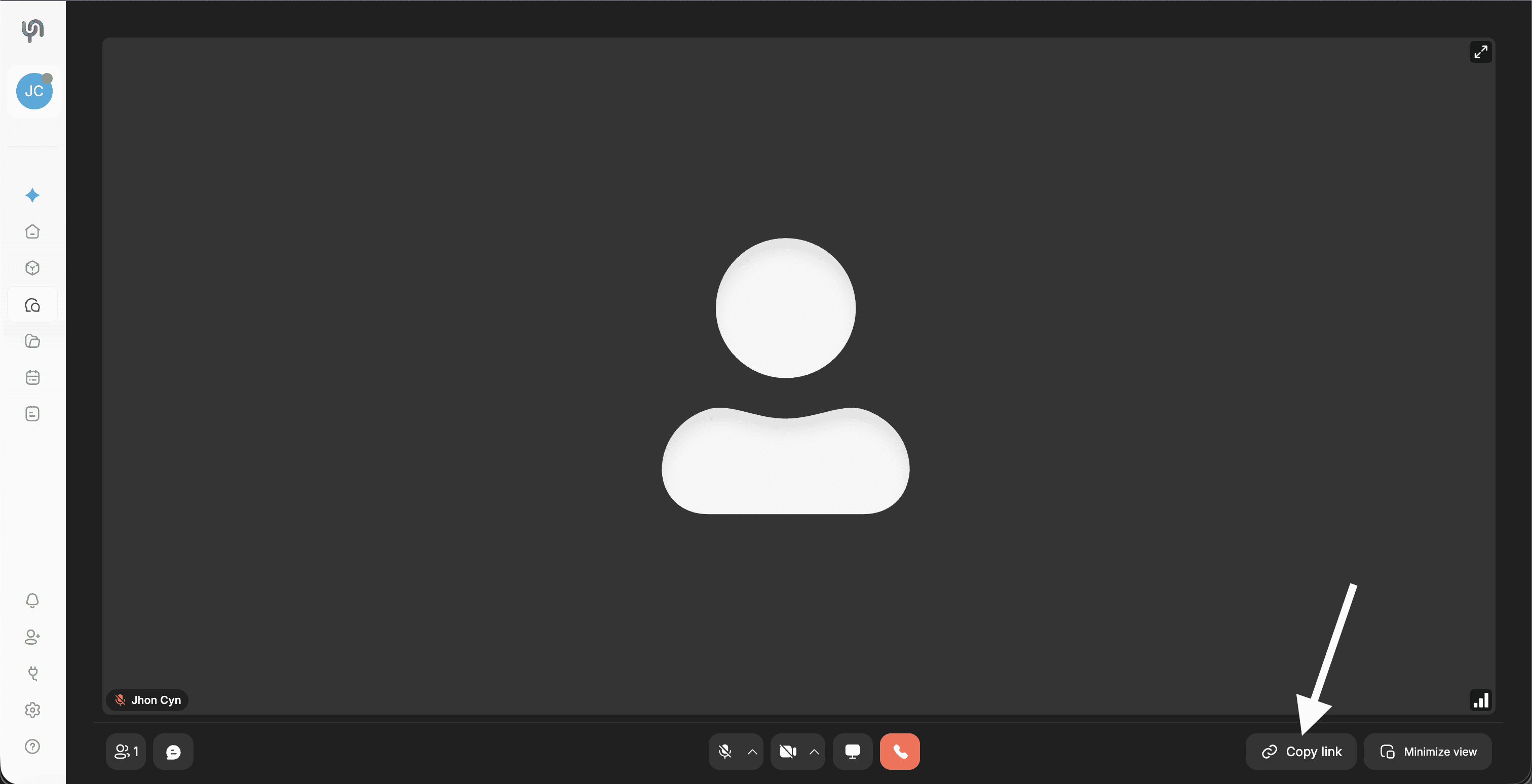
Click Copy link
Share the link with teammates
Invited users must still respect room permissions
Screen Sharing
Cynoia supports screen sharing for collaboration and presentations.
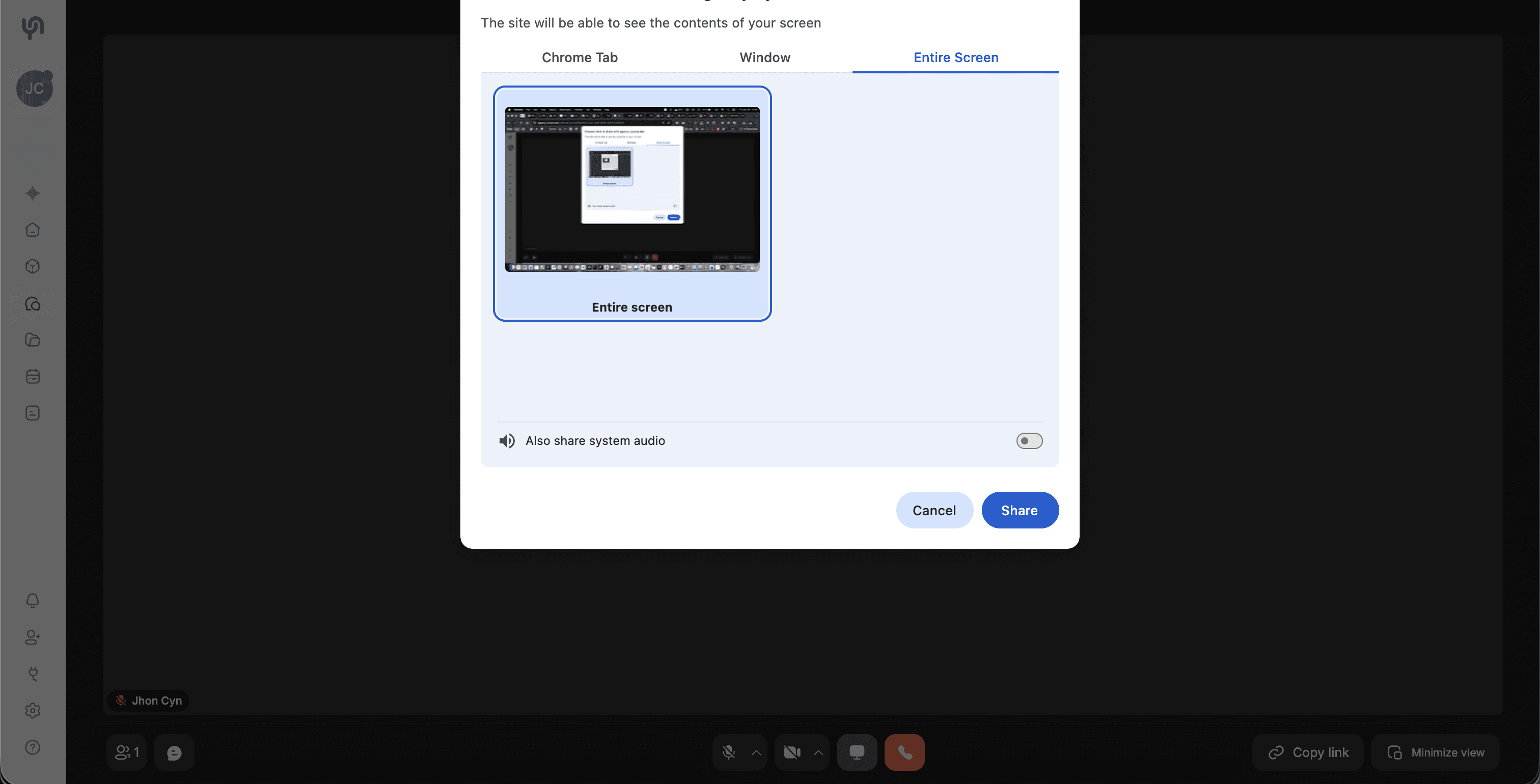
You can choose to share:
A browser tab
A specific window
Your entire screen
Optional:
Share system audio (for demos or videos)
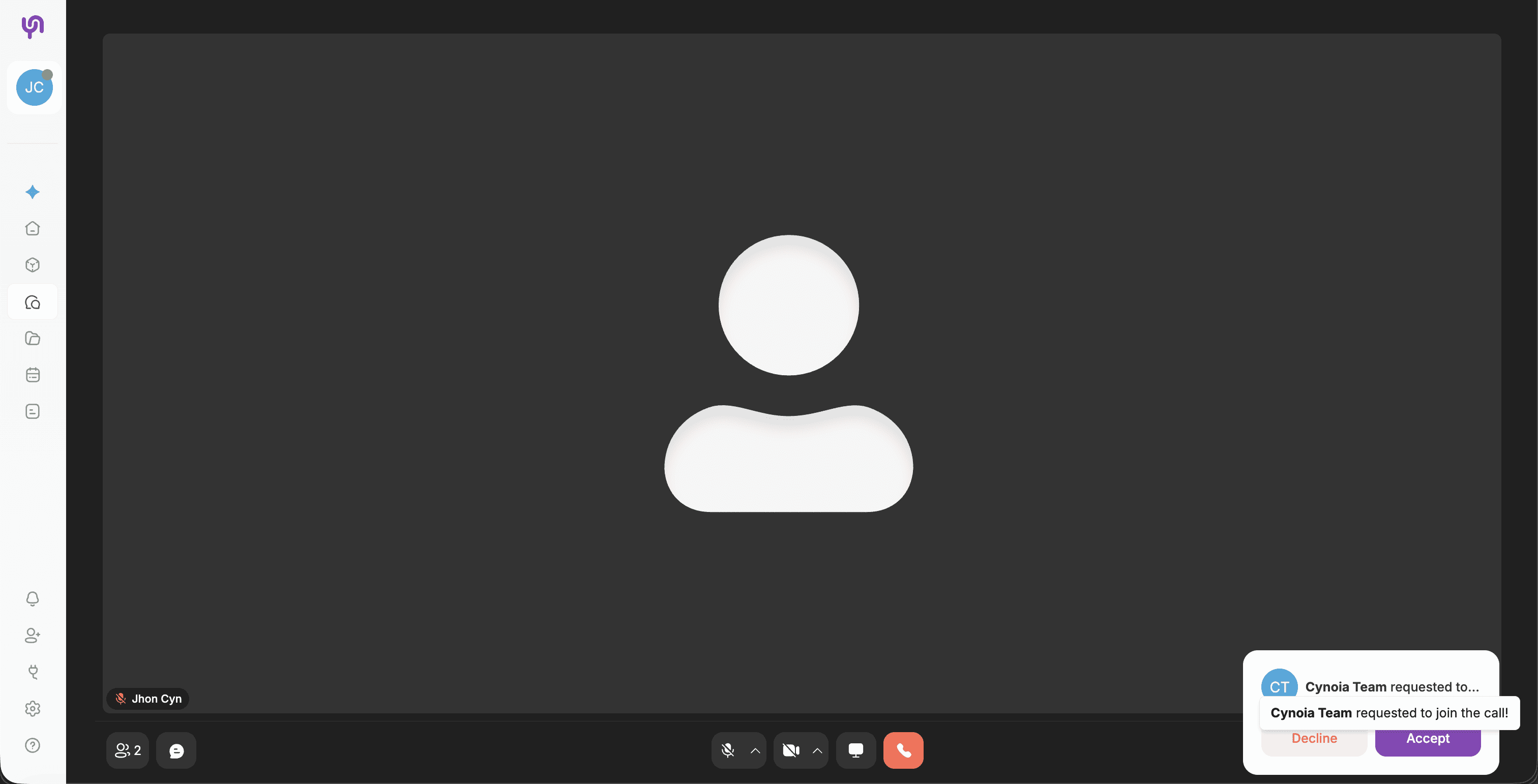
Notifications During Calls
While in a call:
You receive join request notifications
You are notified when participants enter
System alerts appear without interrupting the call
Minimizing & Multitasking
Call rooms can be minimized to allow multitasking.
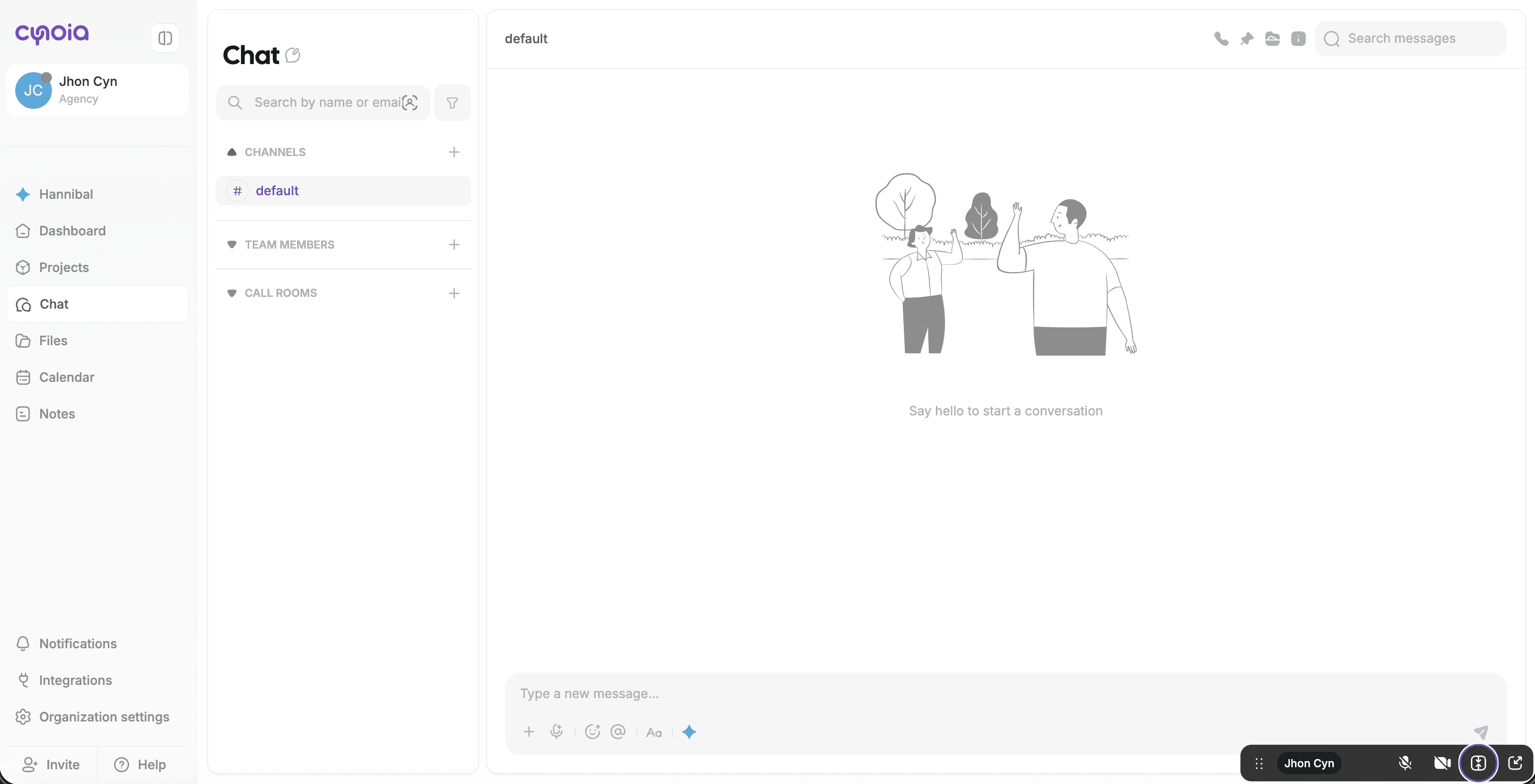
This allows you to:
Continue chatting
Navigate projects or tasks
Keep the call running in the background
Leaving or Ending a Call
Clicking Leave call exits the room
For instant rooms, the call ends when all participants leave
Permanent rooms remain available even after calls end
Permissions & Roles in Call Rooms
Call room permissions depend on:
Workspace role
Moderator settings
In general:
Moderators can manage participants and room behavior
Editors can join and participate
Viewers may have limited access, only can join when invited and cannot create permanent rooms
Specific permissions may vary per workspace configuration.
Best Practices for Call Rooms
Use instant rooms for quick decisions
Use permanent rooms for recurring meetings
Schedule meetings for structured sessions
Keep meetings focused and time-boxed
Use chat for follow-ups and summaries
What’s Next?
👉 Next article: Files & Sharing
Learn how to upload, organize, and share files in chat.
Related to Chat & Communication