Cynoia team
File Sharing in Chat
Written by : Cynoia team
File sharing in Cynoia makes it easy to exchange documents, images, and resources directly inside conversations keeping collaboration fast and contextual.
Files shared in chat remain accessible, and tied to the discussion where they were shared.
Where You Can Share Files
You can share files in:
Channels
Direct Messages
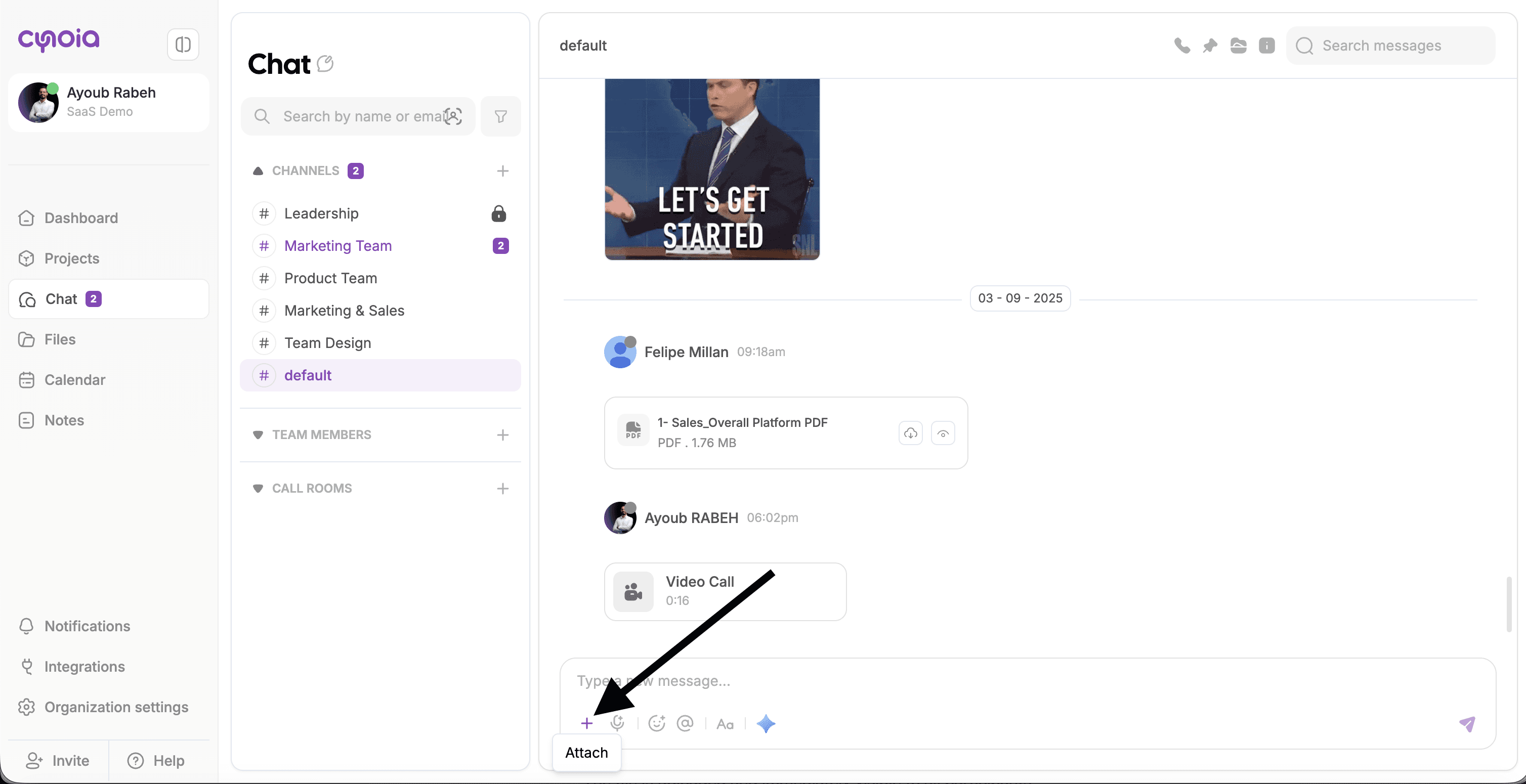
Uploading a File
To share a file in chat:
Open a channel or direct message
Click the attachment ( + ) icon in the message composer
Select a file from your device
Send the message
The file is uploaded and immediately visible to all participants.
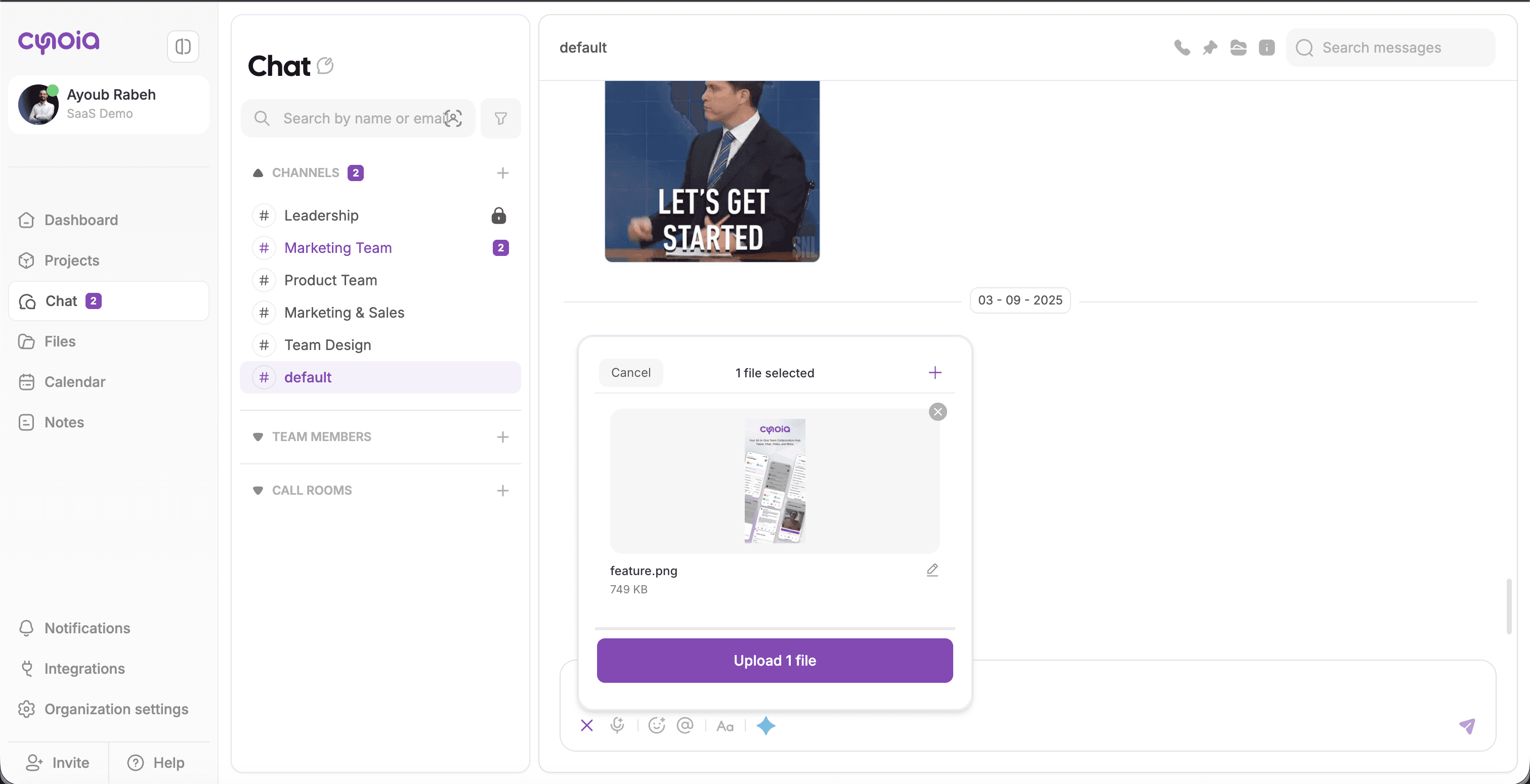
Supported File Types
Cynoia supports sharing common file types, including:
Documents (PDF, DOCX, XLSX, etc.)
Images
Videos
Compressed files
Other standard formats
Maximum file size depends on your workspace plan.
Viewing & Downloading Files
Once shared, files can be:
Previewed directly in chat (for supported formats)
Downloaded by participants
Revisited anytime from the conversation history
Clicking the view shared media
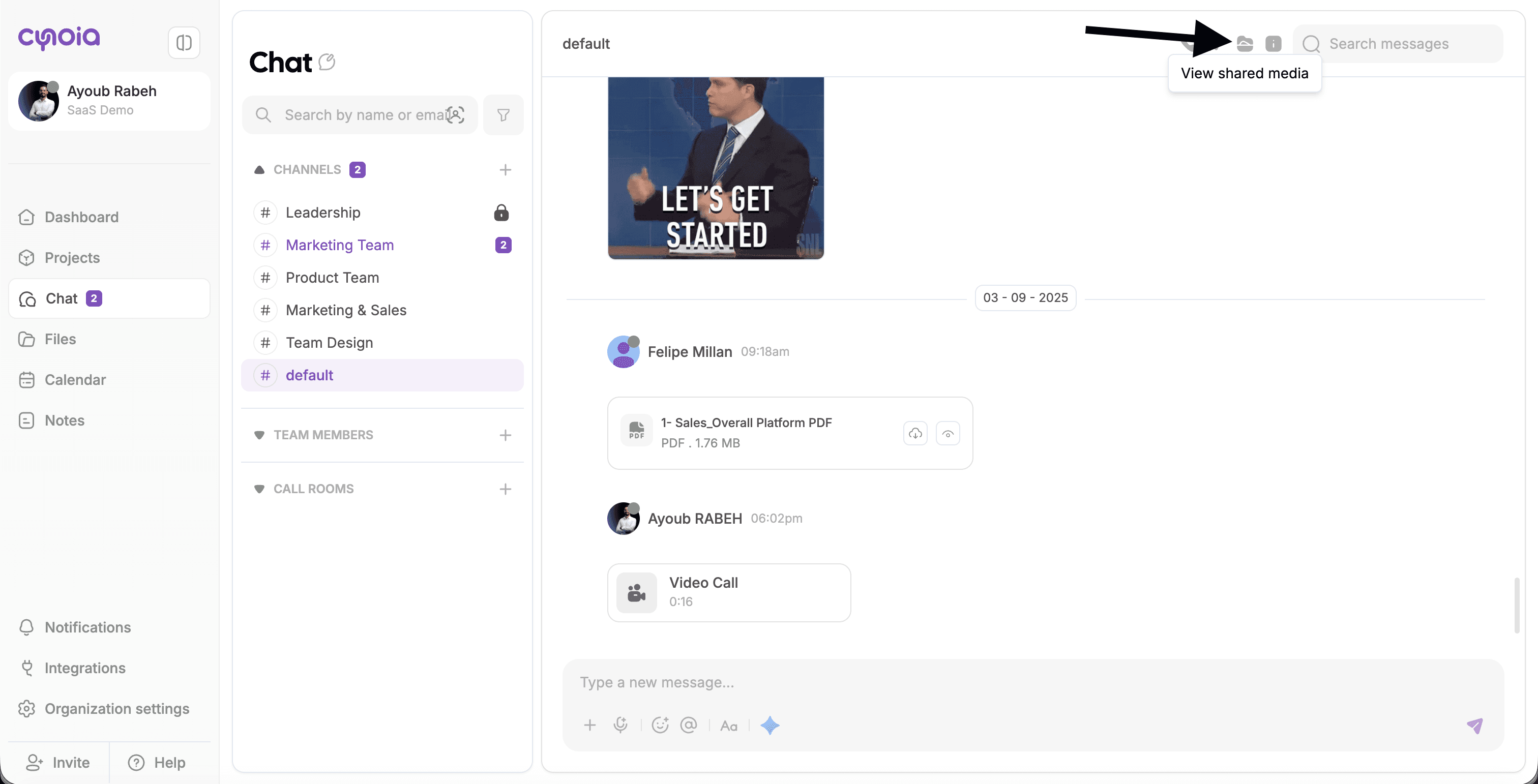
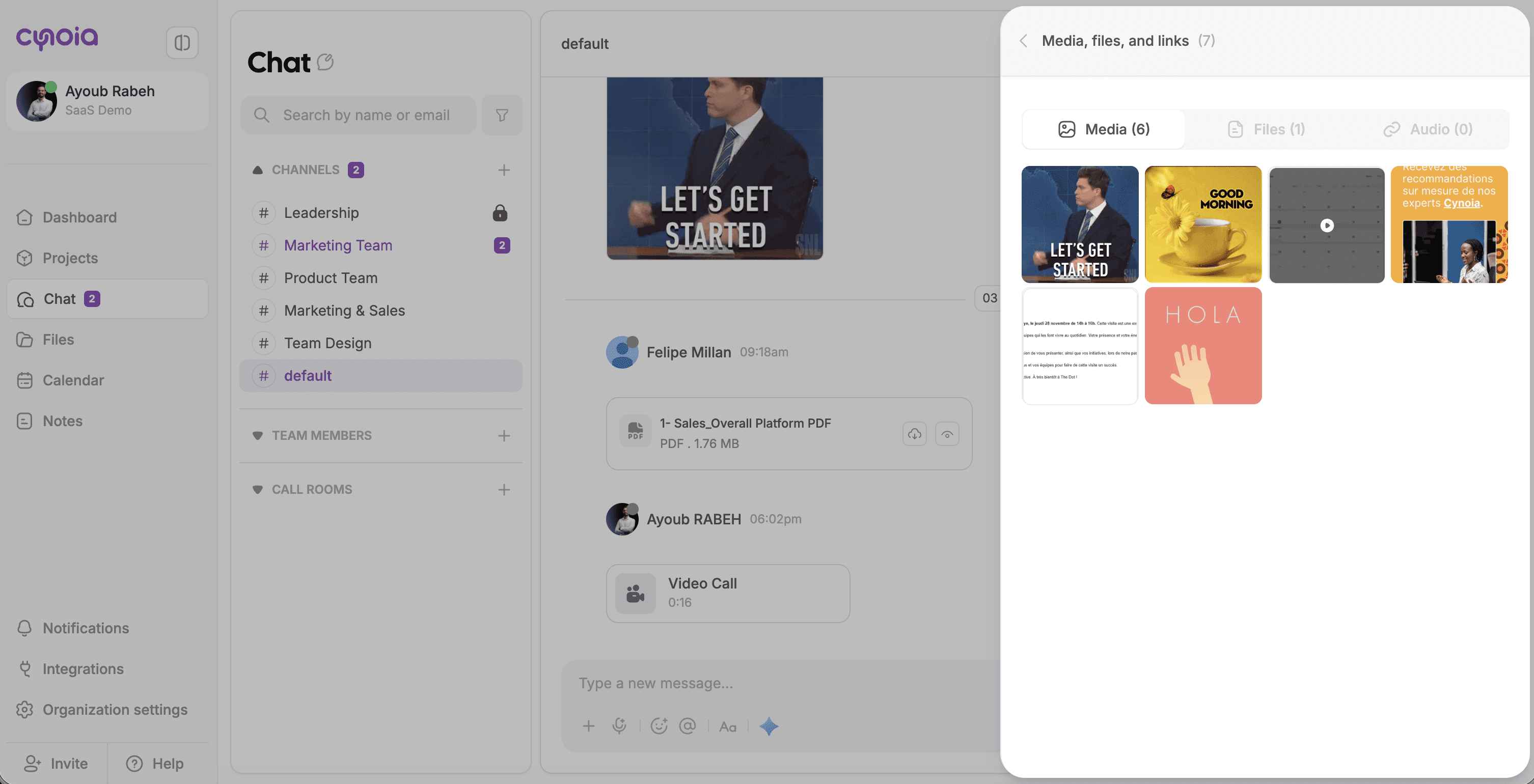
File Context & History
Files stay attached to the message where they were shared, which means:
You always know why the file was shared
Files remain searchable via chat search
Discussions around files stay in one place
This helps avoid lost attachments and duplicate uploads.
Permissions & Access
File access follows chat permissions:
Anyone with access to the channel or DM can view shared files
Private channels restrict file visibility
Removing someone from a channel removes access to its files
Best Practices
Share files in the most relevant channel
Add context in your message when uploading a file
Use tasks or notes for long-term document storage
Avoid re-uploading the same file in multiple places
What’s Next?
👉 Next article: Files & Sharing overview
Learn how to manage your drive.
Related to Chat & Communication