Cynoia team
Chat Notifications & Settings
Written by : Cynoia team
Chat notifications help you stay informed without getting overwhelmed.
Cynoia gives you flexible controls to decide what you’re notified about and when.
How Chat Notifications Work
Notifications are triggered when:
You receive a direct message
You are mentioned in a channel
Activity happens in channels you are part of
You are invited to a channel or call room
Notifications appear:
In-app
As browser notifications (if enabled)
By email (depending on your settings)
Notification Types
Mentions
Triggered when someone uses @yourname or @channel
Always prioritized
Designed for important actions or requests
Direct Messages
Notify you instantly
Cannot be muted individually
Channel Activity
Depends on your notification settings
Global Notification Settings
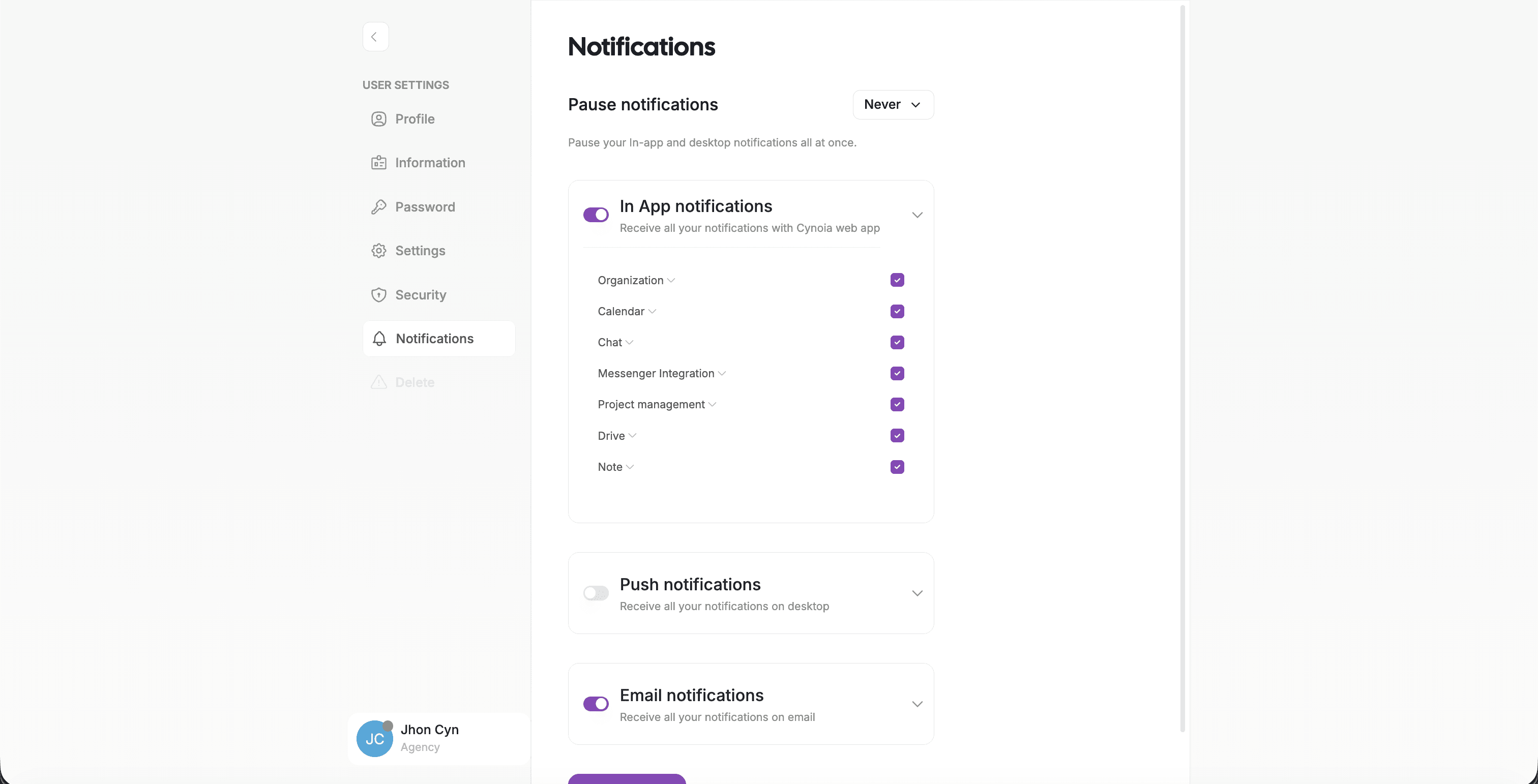
From your Account you can manage:
In-app notifications
Email notifications
Browser notifications
These settings apply across:
Chat
Projects
Tasks
Automations
Calendar
Drive
Notes
Organization
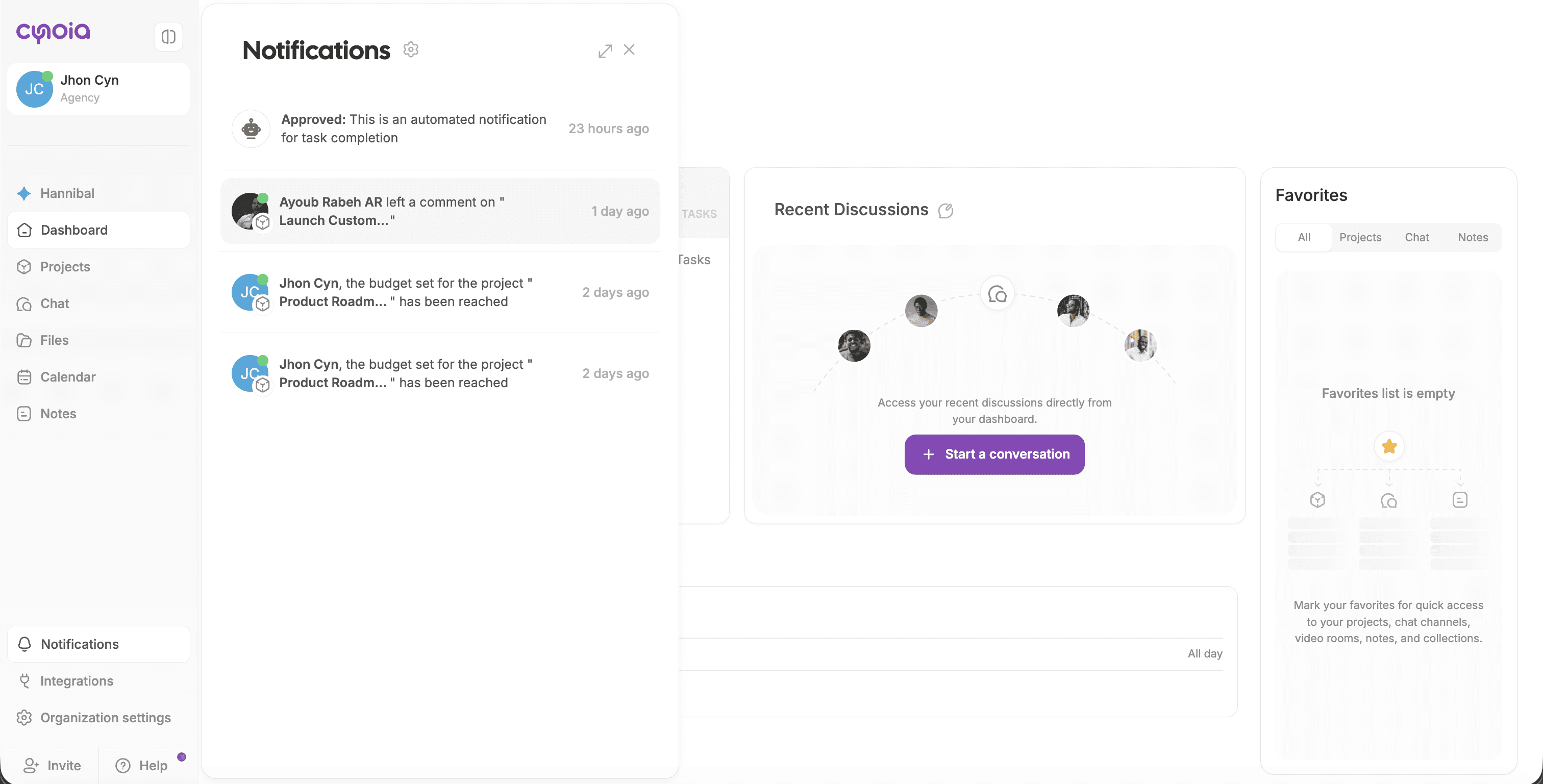
Notification Center
All notifications are centralized in the Notifications panel.
From there you can:
View recent activity
Navigate directly to messages, tasks, or projects
Mark notifications as read
Managing Distractions
To stay focused:
Rely on mentions for urgent communication
Disable email notifications for chat if needed
Keep task-related discussions inside tasks
Best Practices
Use @mentions intentionally
Avoid notifying entire channels unnecessarily
Use tasks instead of chat for actionable work
Keep announcements in dedicated channels
What’s Next?
👉 Next article: Call Rooms & Meetings
Learn how to start instant calls, create permanent rooms, and schedule meetings inside Cynoia.
Related to Chat & Communication