Cynoia team
Managing Collections & Folders
Written by : Cynoia team
Collections and folders help you organize notes at scale from personal ideas to full team knowledge bases. While they may look similar, they serve different purposes in Cynoia.
This article explains how to create, organize, and manage both effectively.
Collections vs Folders (Quick Difference)
Feature | Collections | Folders |
|---|---|---|
Purpose | Knowledge bases & shared docs | Personal organization |
Visibility | Public or Private | Depends on where you create |
Sharing | Yes (members & permissions) | Yes (members & permissions) |
Best for | Teams, projects, documentation | Organization |
Managing Collections
What Is a Collection?
A Collection is a structured group of notes that can be:
Public (anyone on your workspace can view)
Private (invite-only)
Shared with specific roles
Collections are ideal for:
Project documentation
Company handbooks
Shared knowledge bases
Public resources
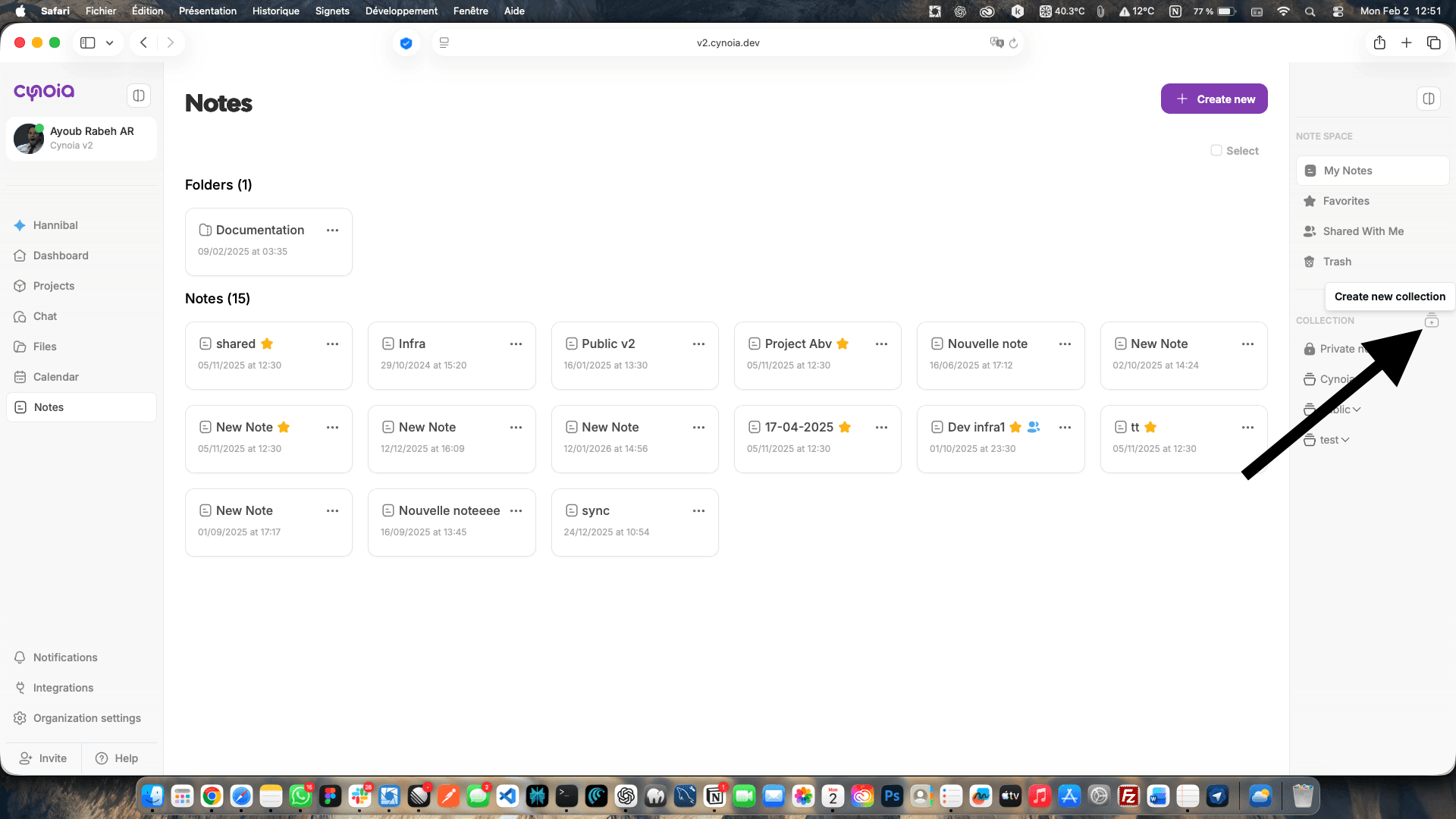
Creating a Collection
Go to Notes
In the right-side panel, click + Create new collection
Enter:
Collection name
Visibility (Public or Private)
(Optional) Invite members and assign roles
Click Create Collection
Collection Visibility & Permissions
Public collection
Anyone on your workspace can discover and view it
Great for open documentation
Private collection
Only invited members can access
Ideal for internal or sensitive content
Permissions are set at the collection level and apply to all notes inside it.
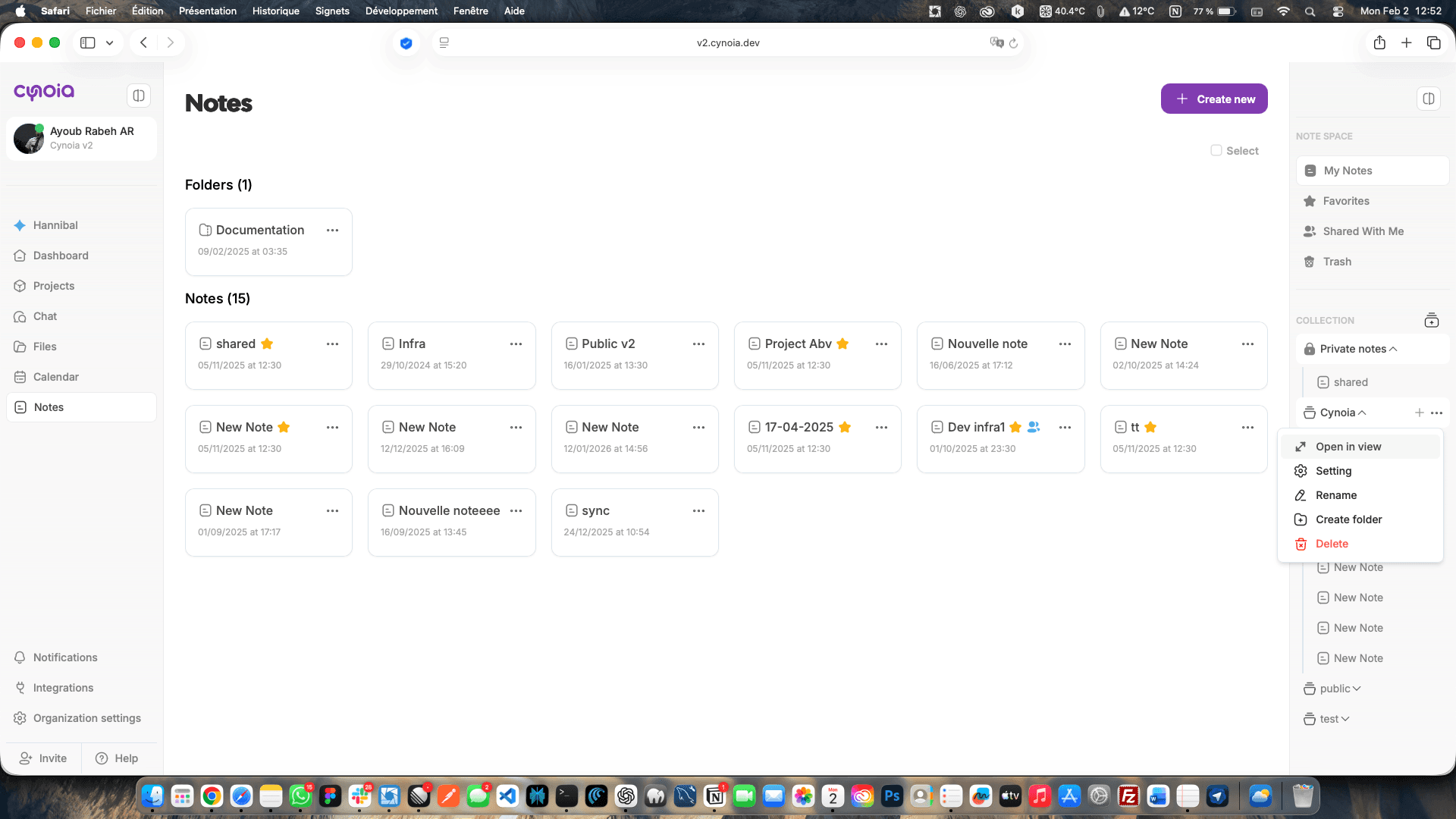
Managing a Collection
From the collection menu (⋯), you can:
✏️ Rename
⚙️ Open collection settings
➕ Create folders inside the collection
🗑️ Delete the collection
Managing Folders
What Is a Folder?
A Folder is a structural container used to organize notes inside a space.
A folder can be created:
✅ Inside Private Notes (personal space)
✅ Inside a Collection (shared or public space)
Folders inherit the visibility and permissions of their parent space.
Folder Locations Explained
Folders in Private Notes
Located under Private notes
Only visible to you
Used for personal organization
Best for
Drafts
Personal ideas
Work-in-progress notes
Folders Inside a Collection
Created inside a collection
Automatically follow the collection’s visibility:
Public collection → public folders
Private collection → restricted folders
Shared with the same members and permissions
Best for
Structuring large documentation
Organizing project knowledge
Grouping notes by topic or module
Folder Capabilities
Folders support the same actions wherever they live:
From the folder menu (⋯), you can:
✔ Rename
✔ Move to another space
✔ Add to favorites
✔ Share (only when inside a collection)
✔ Delete
Revised Mental Model (Simple Rule)
Collections define visibility & access
Folders define structure
Collections = who can see
Folders = how things are organized
This keeps the system flexible and predictable.Organizing Notes at Scale
Recommended Structure
Use Collections for:
Shared documentation
Team knowledge
Public resources
Use Folders for:
Work-in-progress notes
Manage and organize ideas
This keeps collaboration clean while preserving personal workflows.
Deleting Collections or Folders
Deleting a collection removes access for all members
Deleting a folder only affects your personal view
Notes moved to Trash can be restored
⚠️ Tip: Always double-check shared collections before deleting.
Best Practices
✔ One collection per project or topic
✔ Use clear, descriptive names
✔ Keep folders for organizing topics
✔ Avoid mixing private drafts into shared collections
What’s Next?
Now that your notes are organized, let’s talk about collaboration and access control:
👉 Next article: Sharing Notes & Permissions
Related to Notes & Knowledge Base