Cynoia team
Sharing Notes & Permissions
Written by : Cynoia team
Cynoia makes it easy to collaborate on knowledge while keeping full control over who can access what.
Sharing is flexible, contextual, and always tied to collections and notes, not your private space.
🔐 Core Principle
Only notes and folders inside collections can be shared.
Private Notes are always personal and cannot be accessed by others.
Permissions are inherited and predictable, so teams always know who can view or edit content.
What Can Be Shared?
You can share:
✅ Individual notes
✅ Folders inside a collection
✅ Entire collections
You cannot share:
❌ Notes in Private notes
❌ Private folders outside collections
Sharing a Note
How to Share a Note
Open the note
Click Share (top-right)
Select members by name or email
Assign a permission level
Click Add
The note instantly becomes accessible to selected members.
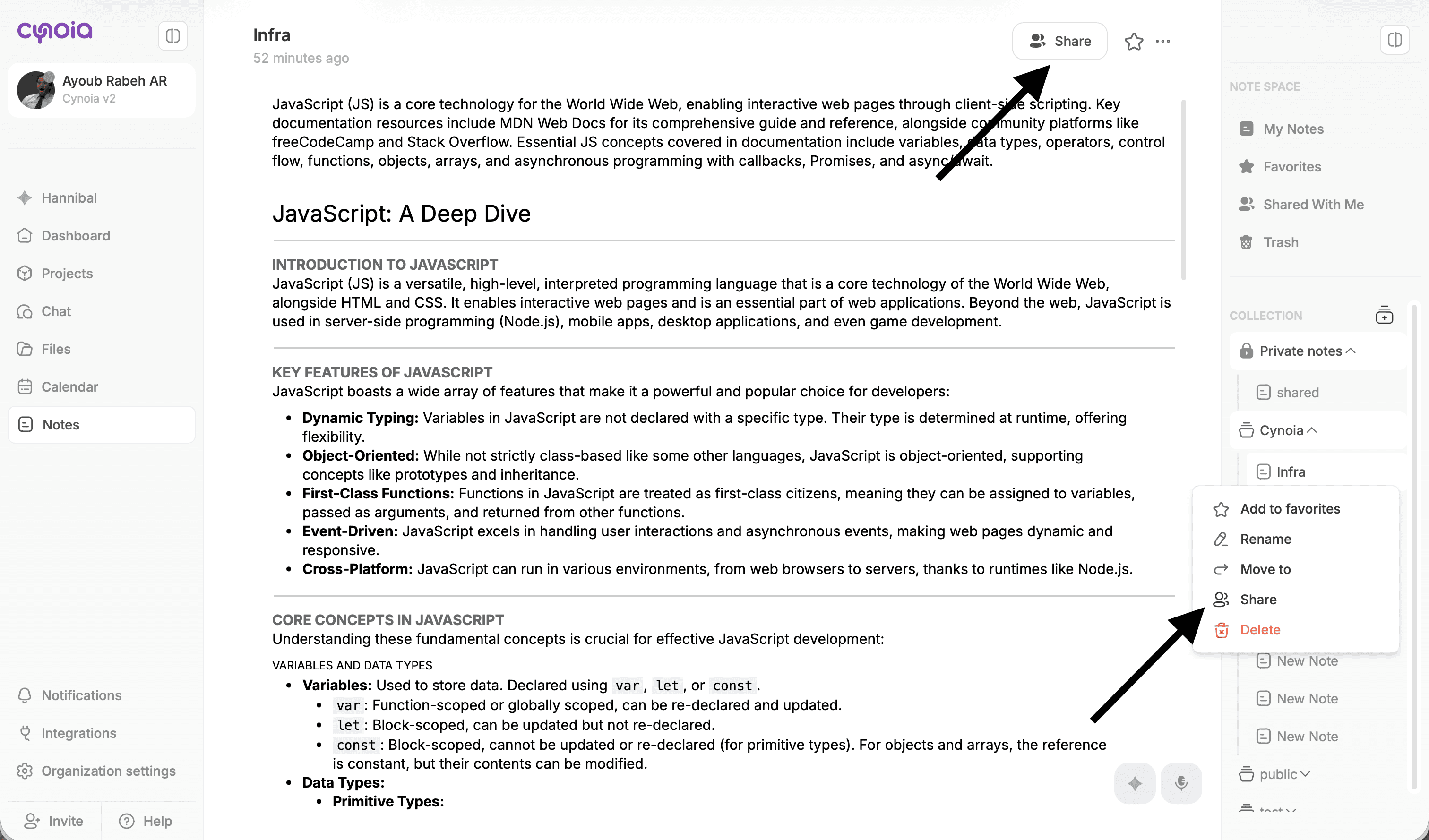
Sharing Folders
When you share a folder inside a collection:
All notes inside the folder are shared
New notes added later inherit the same permissions
This is ideal for:
Documentation sections
Knowledge bases
Project-specific resources
Sharing an Entire Collection
Collections are the main sharing unit in Cynoia.
Collection Visibility Options
Private → Only invited members can access
Public → Visible to everyone with access to the workspace
Sharing a collection automatically shares:
All folders
All notes
The folder structure
Permission Levels Explained
Each shared item supports clear permission roles:
👁 Viewer
Read-only access
Can open and search notes
Cannot edit or delete
Best for
Stakeholders
Read-only documentation access
✏️ Editor
Can edit note content
Can create new notes inside shared folders
Cannot delete the collection or change permissions
Best for
Contributors
Team members maintaining documentation
👑 Owner / Moderator
Full control
Can edit, move, delete
Can manage sharing and permissions
Best for
Knowledge base owners
Project leads
Permission Inheritance (Very Important)
Permissions are inherited downward:
Collection → Folder → Notes
Examples:
If a user is an Editor on a collection, they are automatically an Editor on all folders and notes inside it.
You can add extra permissions at the note level.
Favorites & Shared Notes
Shared notes and folders can be:
⭐ Added to Favorites
Easily found under Shared With Me
This makes large shared knowledge bases easy to navigate.
Best Practices for Teams
✅ Use collections as access boundaries
Create separate collections for:
Public documentation
Internal team knowledge
Sensitive project notes
✅ Share folders, not individual notes (when possible)
This keeps permissions consistent and reduces management overhead.
✅ Keep personal work in Private Notes
Drafts, personal ideas, and unfinished content belong in Private Notes until ready to share.
Quick Summary
🔒 Private Notes = personal only
👥 Sharing works through collections
📁 Folders inherit collection permissions
📝 Notes can be shared individually inside collections
🎯 Permissions are simple: Viewer, Editor, Owner/Moderator
Related to Notes & Knowledge Base