Cynoia team
Creating & Editing Notes
Written by : Cynoia team
Creating and editing notes in Cynoia is designed to feel fast, flexible, and distraction-free whether you’re jotting down quick ideas or building full documentation.
This article walks you through how to create notes, edit content, and use the editor effectively.
Creating a New Note
You can create a note from multiple entry points, depending on how you work.
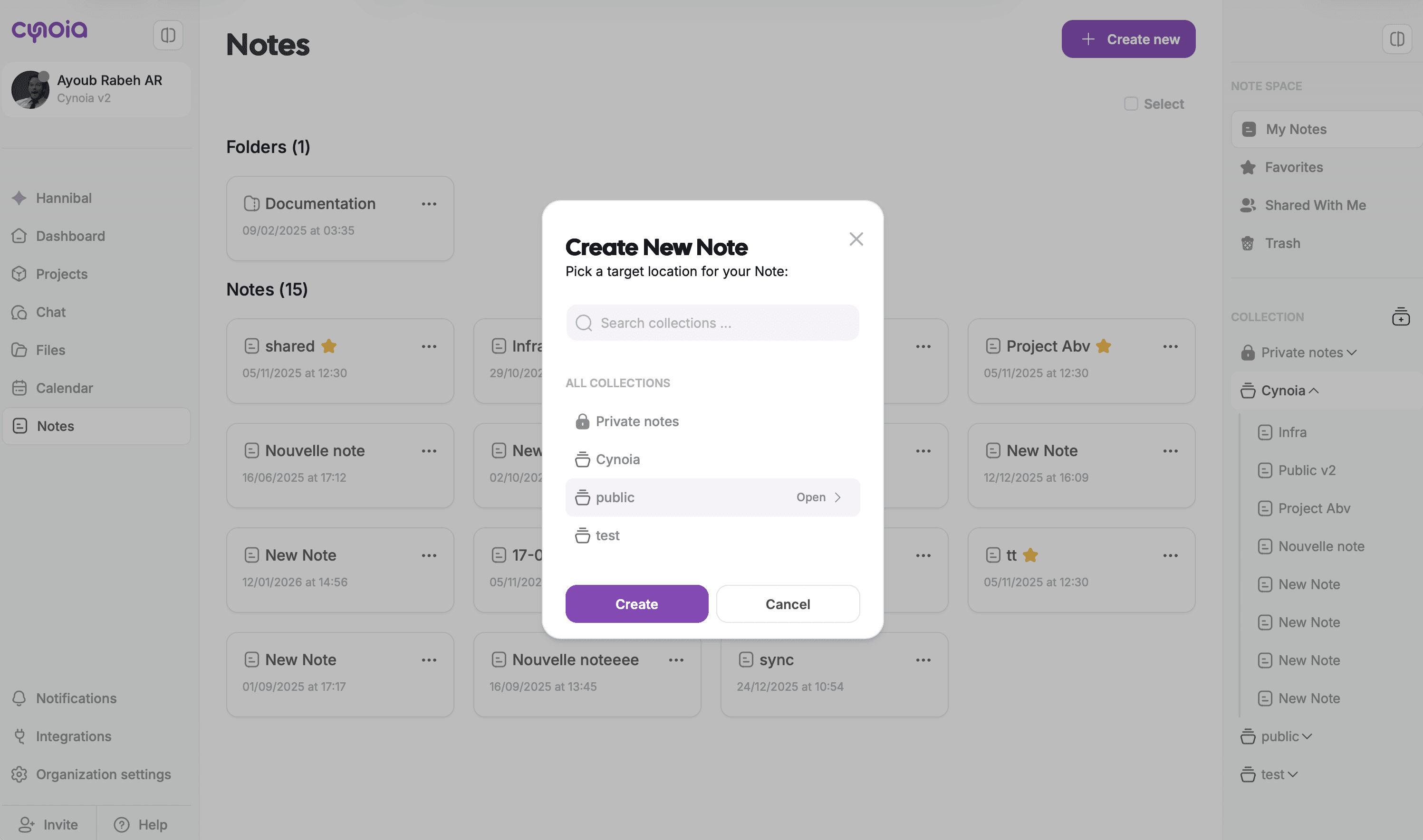
Create from the Notes Page
Go to Notes from the sidebar
Click + Create new (top-right)
Choose where the note should live:
Inside My Notes
Inside a Folder
Inside a Collection
A new blank note opens instantly, ready to edit.
Create a Note Inside a Collection
Collections are ideal for structured documentation.
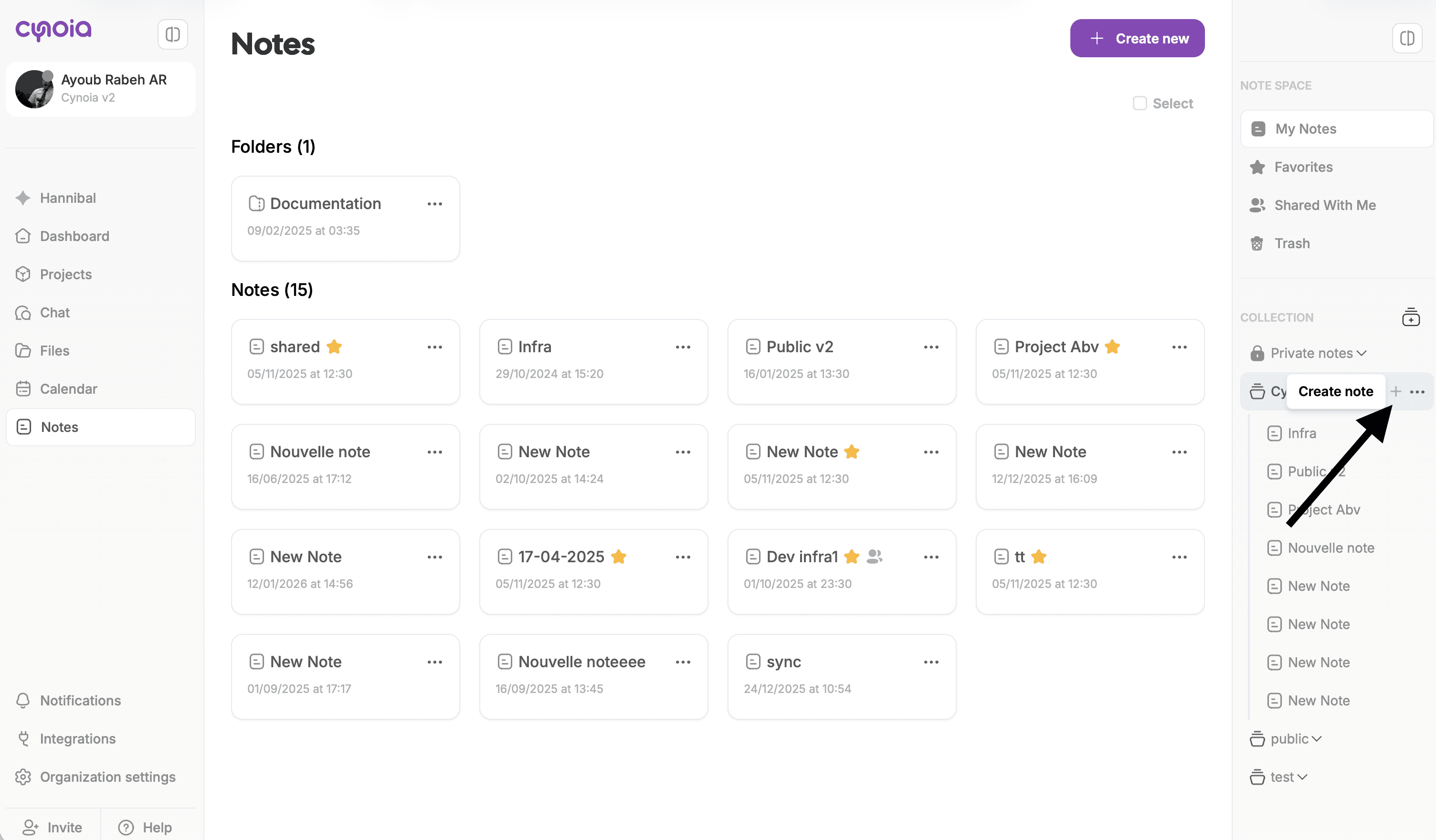
To create a note inside a collection:
Select a collection from the right-side panel
Click + Create new
The note is automatically linked to that collection
This is perfect for:
Project documentation
Team knowledge bases
Public or shared resources
Editing a Note
Once a note is open, editing is seamless and real-time.
Basic Editing
Click anywhere in the note to start typing
Changes are saved automatically
There’s no “save” button, Cynoia handles that for you.
Using the Block Editor
Cynoia Notes uses a block-based editor, giving you structure without complexity.
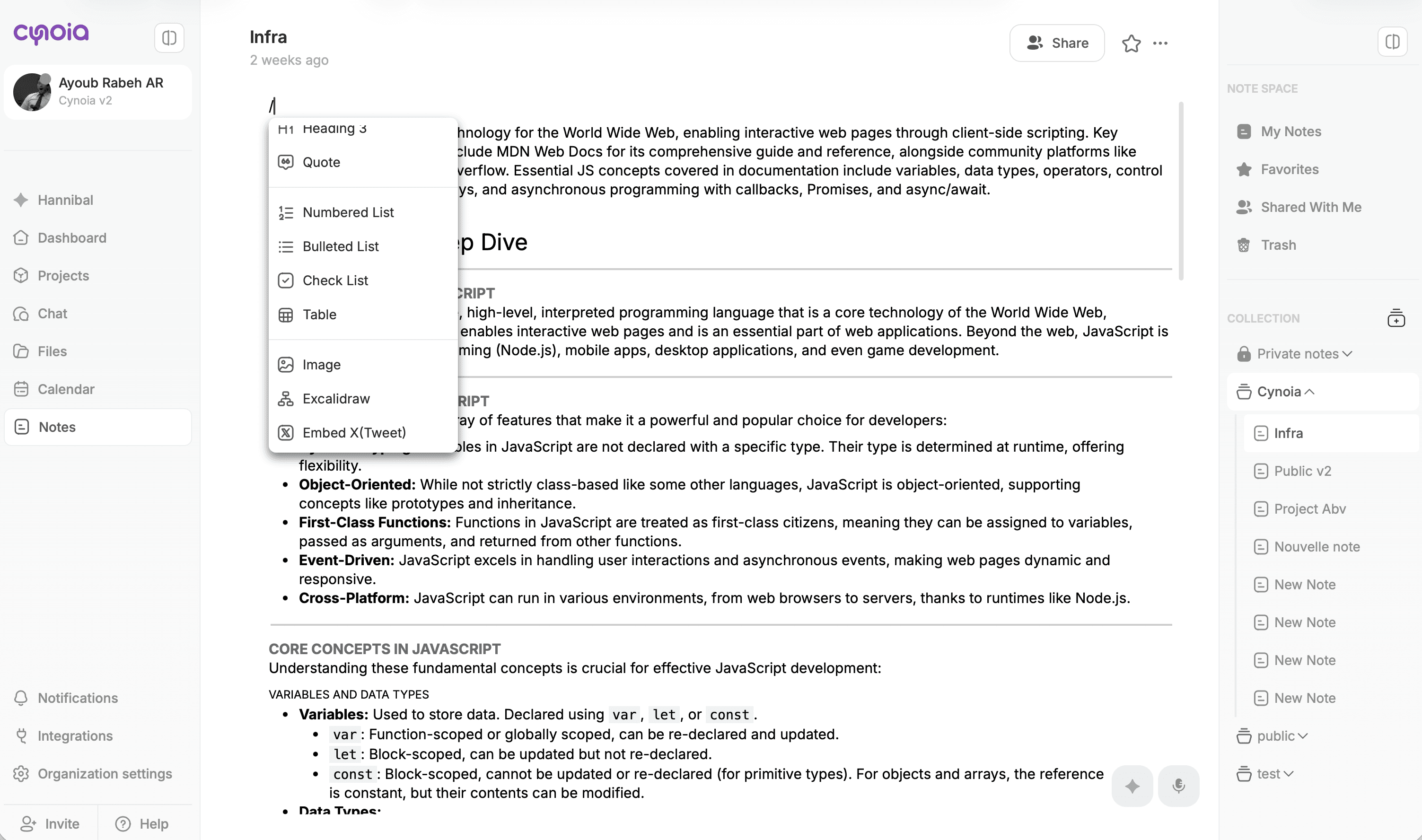
Type / to open the block menu and choose from:
Available Blocks
Paragraph – standard text
Headings (H1, H2, H3) – structure your content
Bullet & numbered lists
Checklists
Quotes
Tables
Image
Excalidraw
Embed X ( Tweet )
Embed Youtube
Embed Figma document
Divider
Code
Columns Layout
Collapsible
Page Break
Blocks help you turn notes into:
Clean documentation
Step-by-step guides
Meeting summaries
Knowledge articles
Formatting & Structure Tips
To keep notes readable and useful:
Use H1 for the note title
Use H2 / H3 to split sections
Use lists for action items
Use tables for comparisons or structured data
Use checklists for tasks or reviews
Well-structured notes are easier to scan and reuse later.
Managing Notes
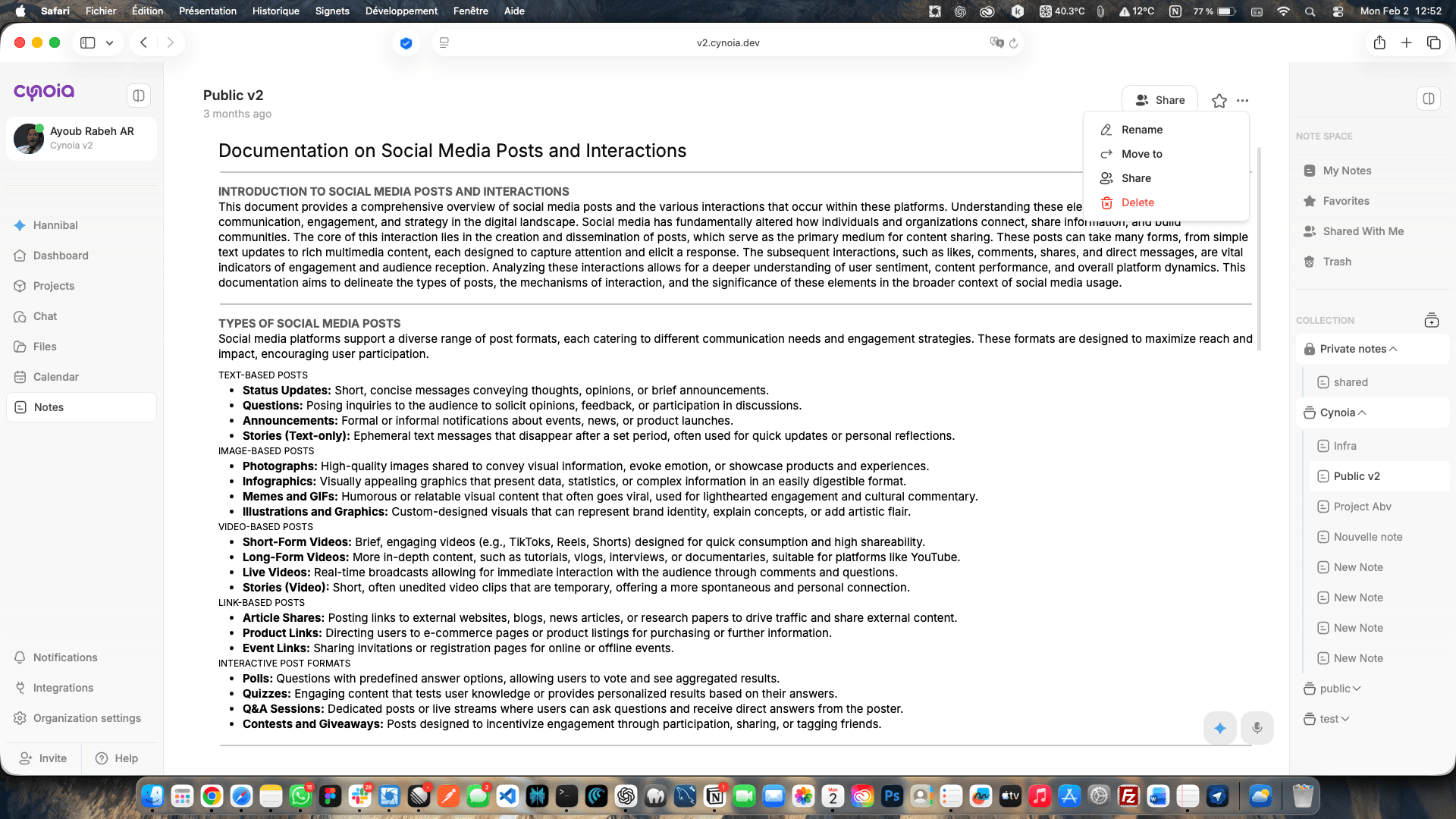
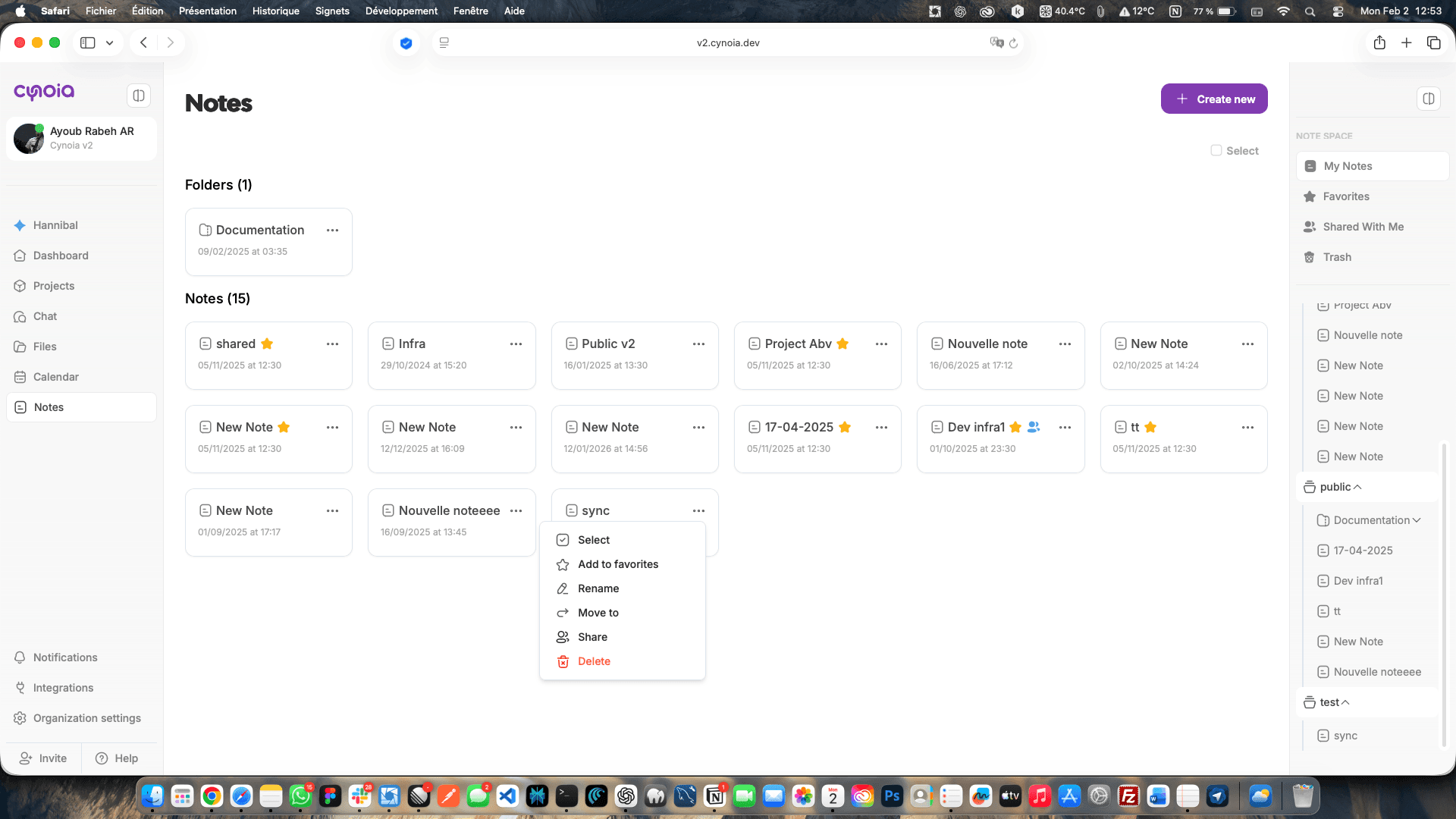
From the note menu (⋯), you can:
⭐ Add to favorites
✏️ Rename
📁 Move to another folder or collection
🤝 Share with others
🗑️ Delete (moves to Trash)
Private vs Shared Notes
Private notes
Only visible to you across all your workspaces
Shared notes
Shared with selected members with Viewer or Editor access
Collection-based notes
Inherit permissions from the collection they belong to
This gives you full control over visibility and collaboration.
Best Practices
✔ Create notes inside collections when working with teams
✔ Use headings early to structure content
✔ Favorite important notes for quick access
✔ Keep one topic per note for clarity
What’s Next?
Now that you know how to create and edit notes, the next step is organizing and sharing them at scale:
👉 Next article: Managing Collections & Folders
Related to Notes & Knowledge Base