Cynoia team
Files & Sharing Overview
Written by : Cynoia team
Cynoia includes a built-in file system that lets you upload, organize, share, and collaborate on files across your workspace from personal documents to project assets and chat attachments.
Files in Cynoia are context-aware: they live where the work happens (projects, chats, teams) while still being accessible from one central place.
What Is the Cynoia File Space?
The File Space is your centralized hub for everything uploaded or shared in Cynoia.
From here, you can access:
Personal files
Project files
Files shared in chat
Files shared with you by others
File Spaces Explained
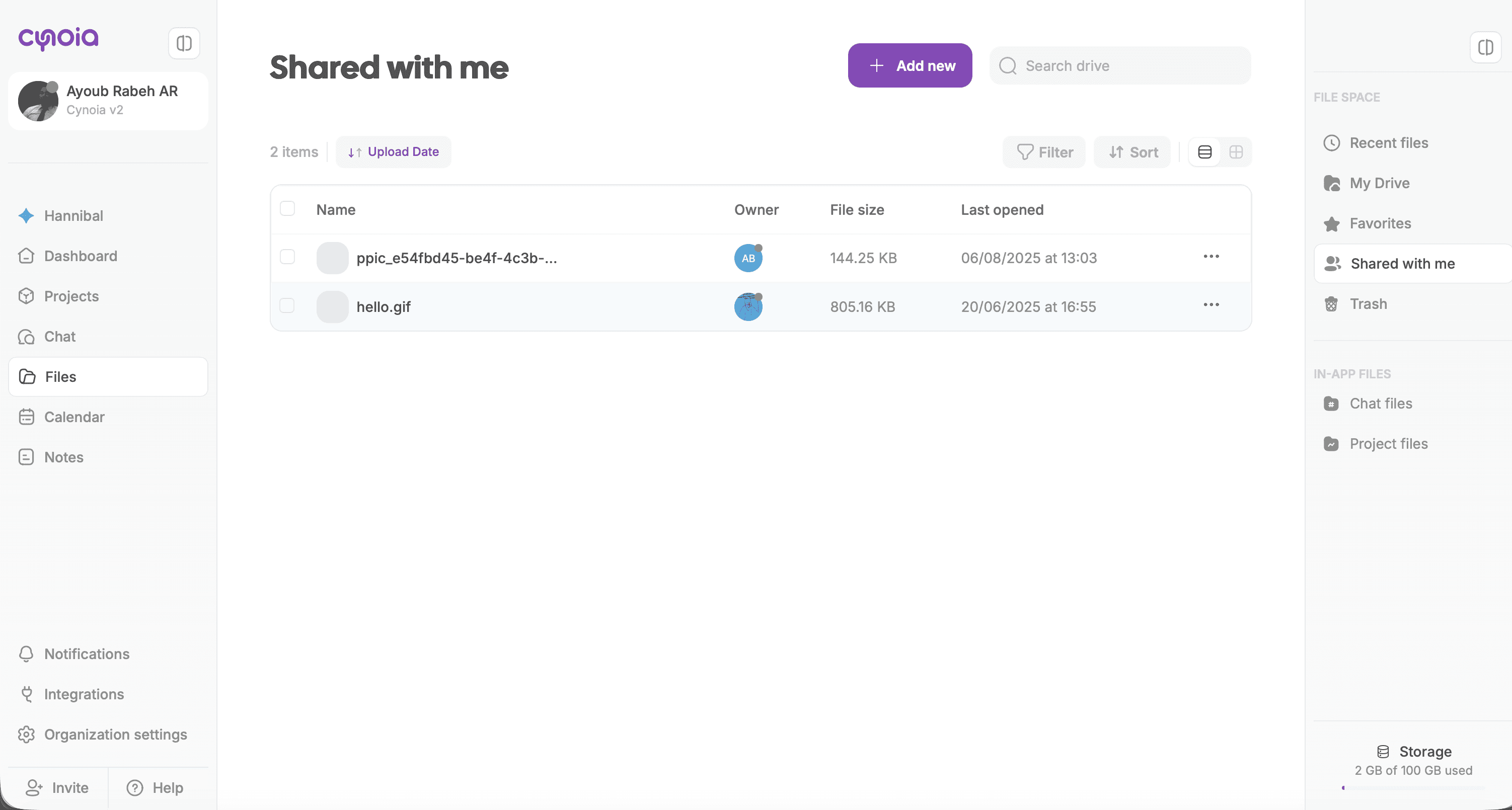
My Drive
Your personal workspace for files and folders.
Upload documents, images, videos, archives, and more
Create folders to organize your content
Only visible to you unless explicitly shared
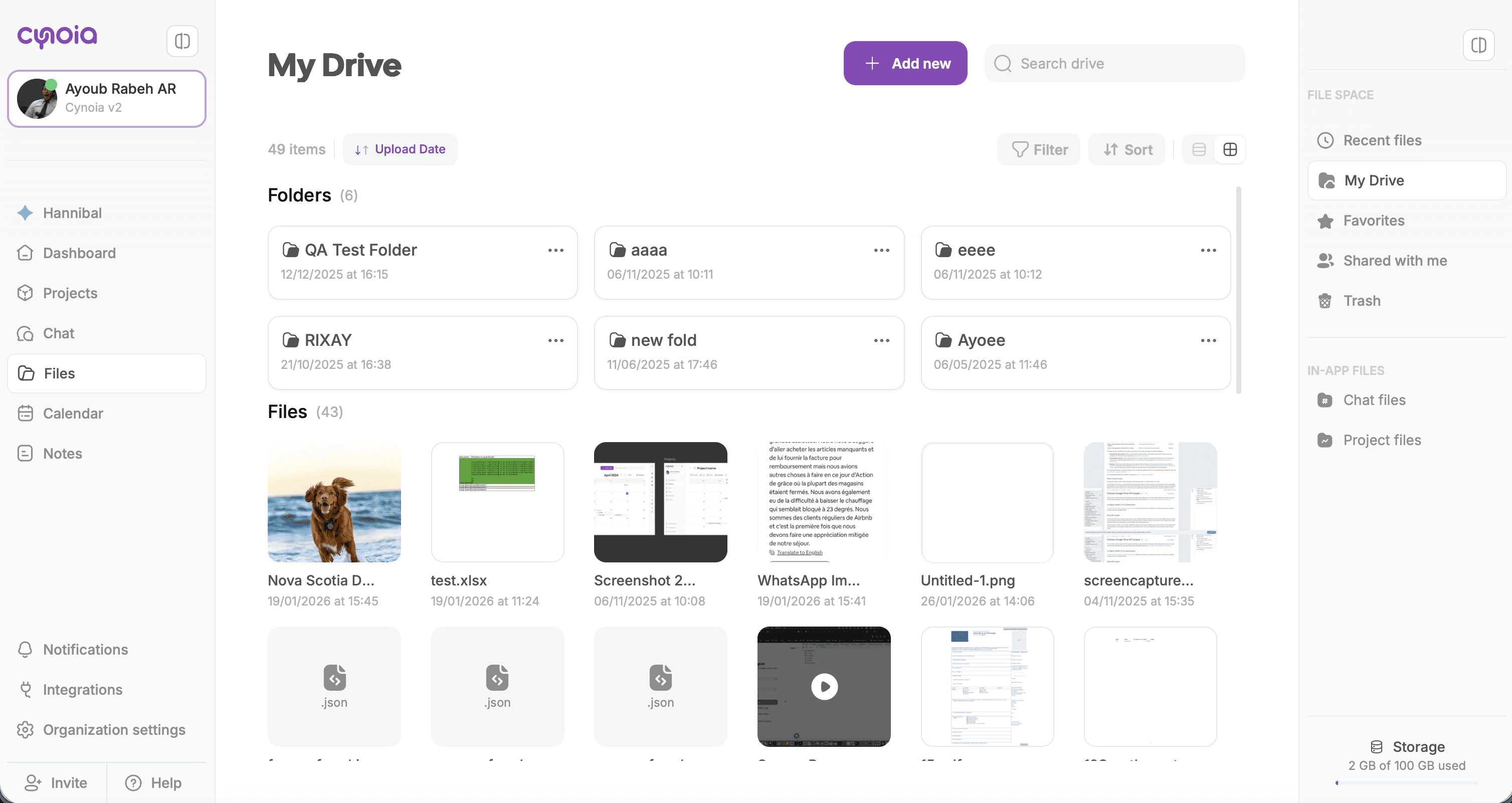
Project Files
All files linked to projects you’re part of.
Automatically collects files uploaded inside projects
Shows file location (which project it belongs to)
Permissions follow project access rules
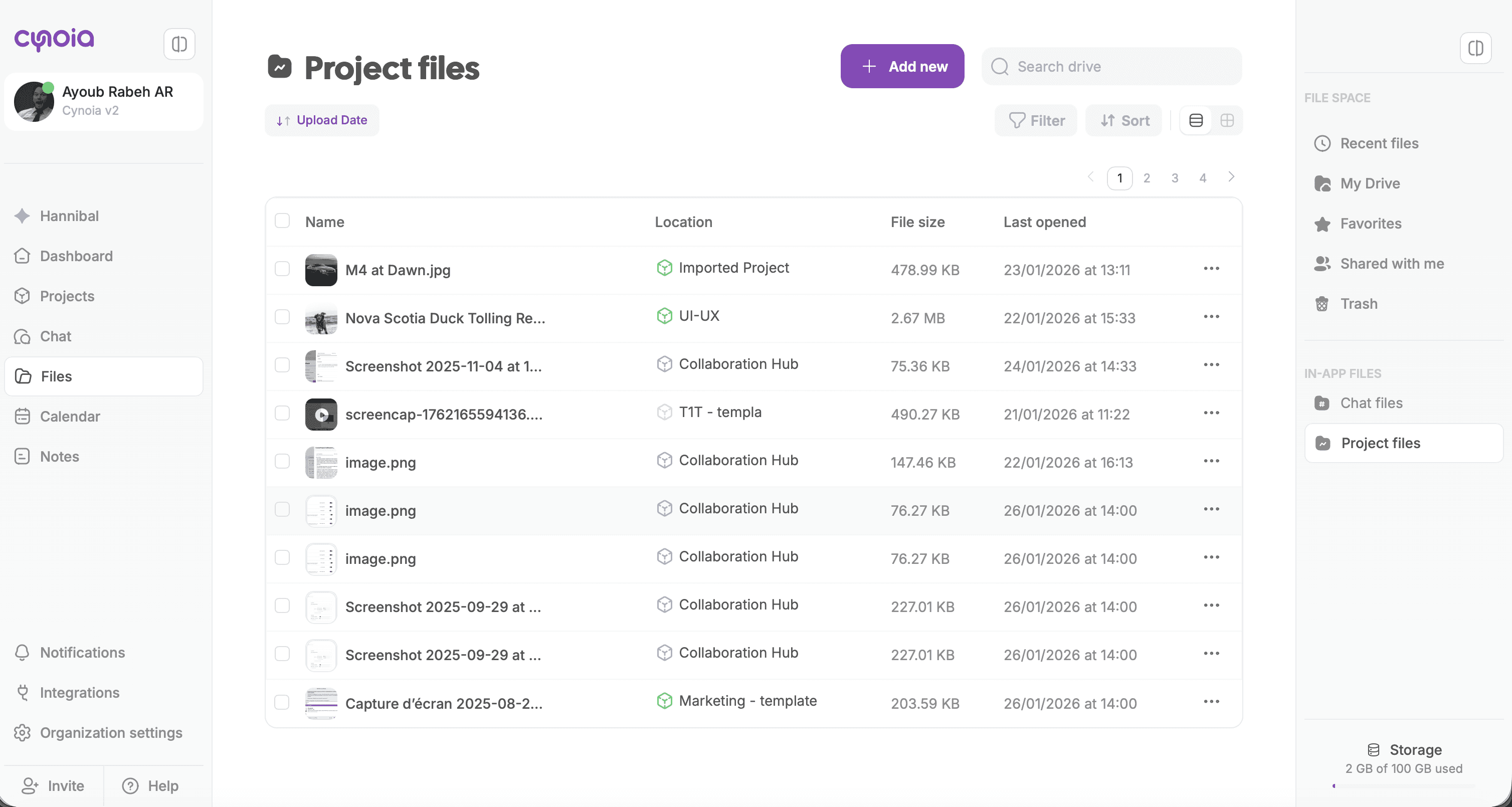
Chat Files
All files shared in channels and direct messages.
See where each file was shared
Quickly find attachments without scrolling through conversations
Permissions follow chat/channel visibility
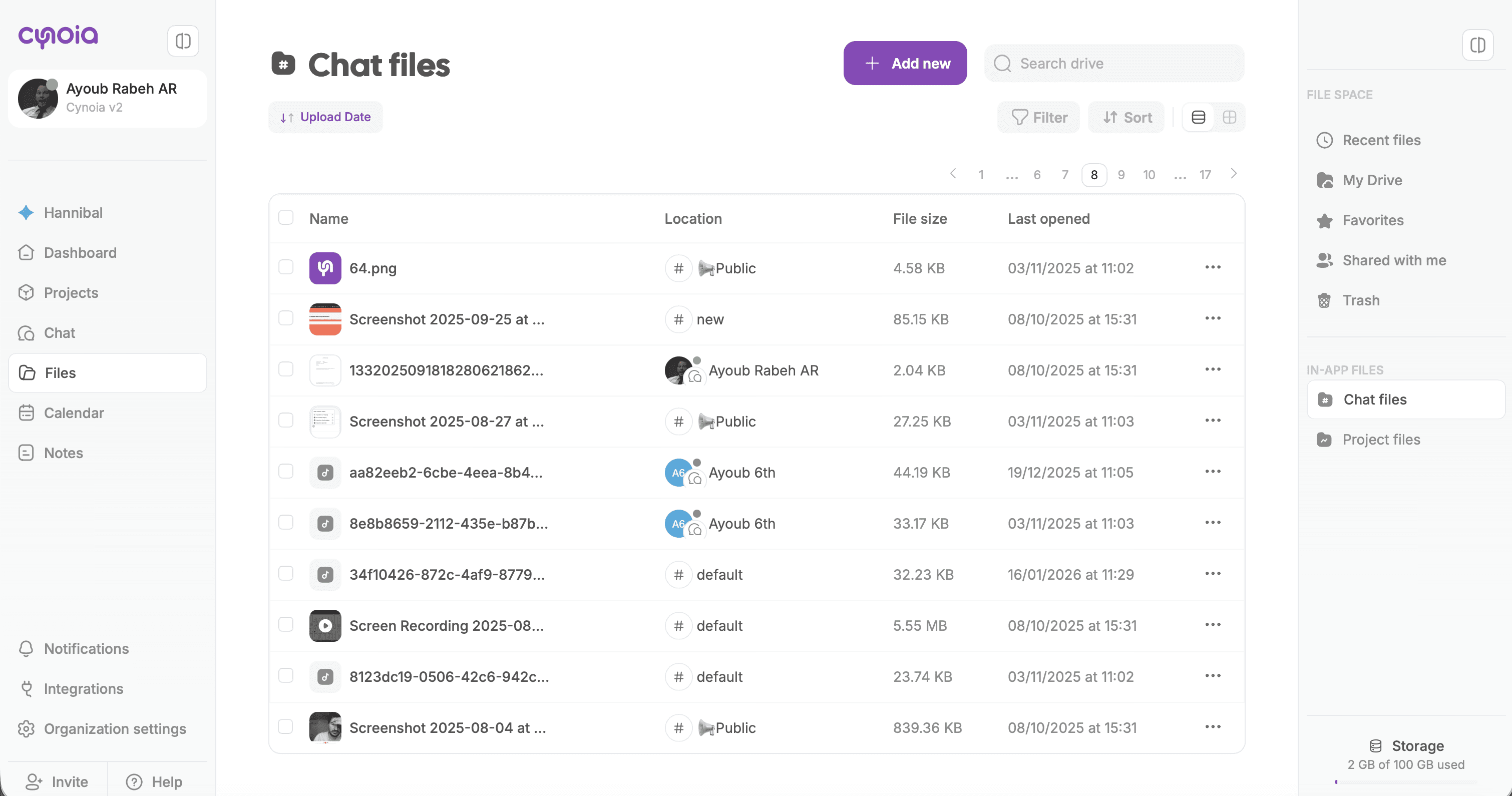
Shared with Me
Files that other members shared directly with you.
Easy access to external or cross-team files
Permissions are controlled by the file owner
Recent Files
Quick access to files you recently opened or uploaded.
Sorted by last activity
Great for jumping back into ongoing work
Trash
Deleted files are moved to Trash.
Restore files if needed
Permanently delete when you’re sure
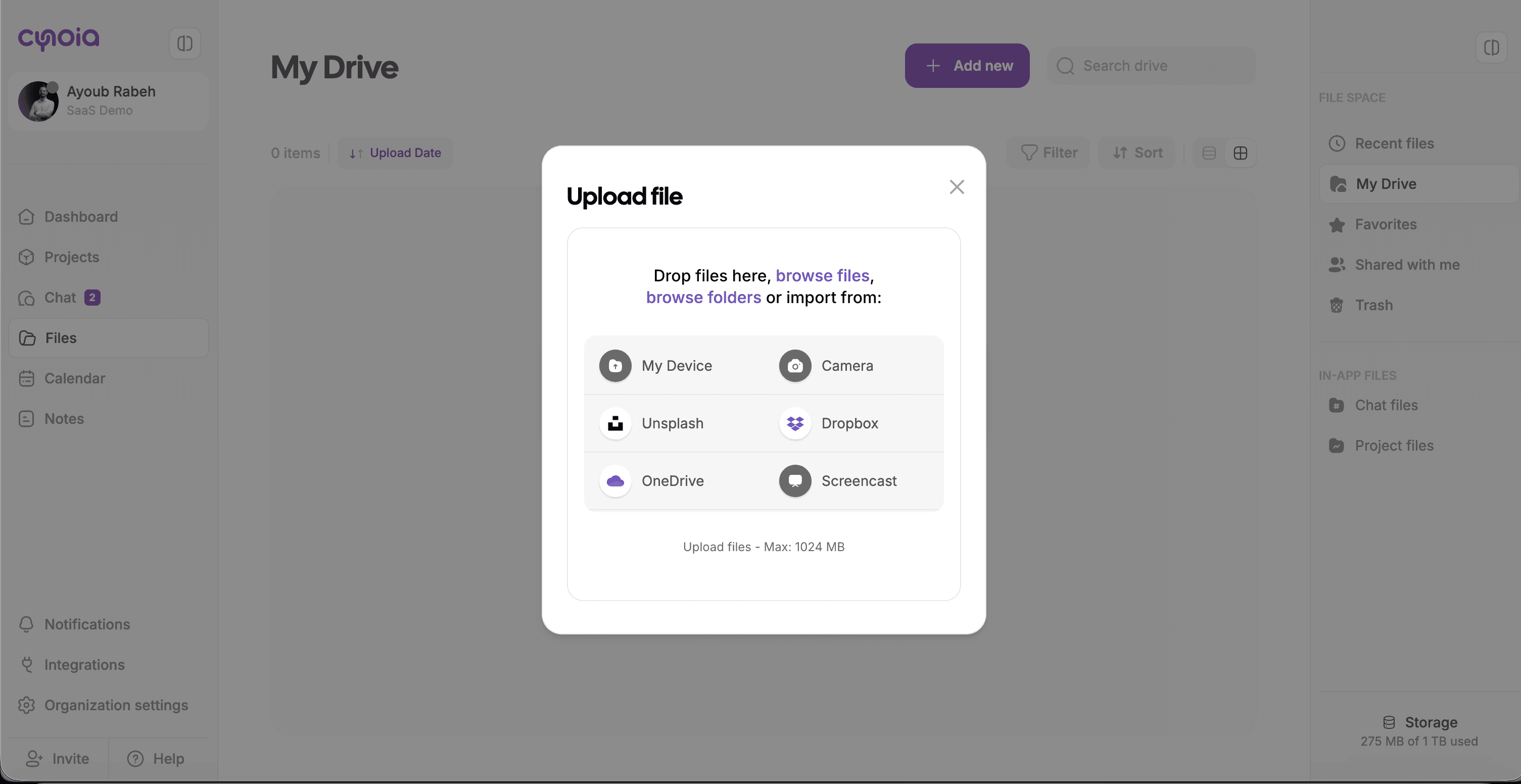
Uploading Files
You can upload files from multiple places:
Files section using Add new
Supported file types include:
Documents
PDFs
Images
Videos
Audio files
ZIP archives
Organizing Files
Folders
Create folders inside My Drive
Rename and move folders anytime
Keep personal work structured
Favorites
Star important files or folders for quick access.
Filtering & Sorting
Use filters to quickly find what you need:
File type (documents, images, videos, etc.)
Upload date
Last opened
File Actions & Management
Each file supports common actions:
Open / Preview
Rename
Download
Add to favorites
Share
View file information
Delete
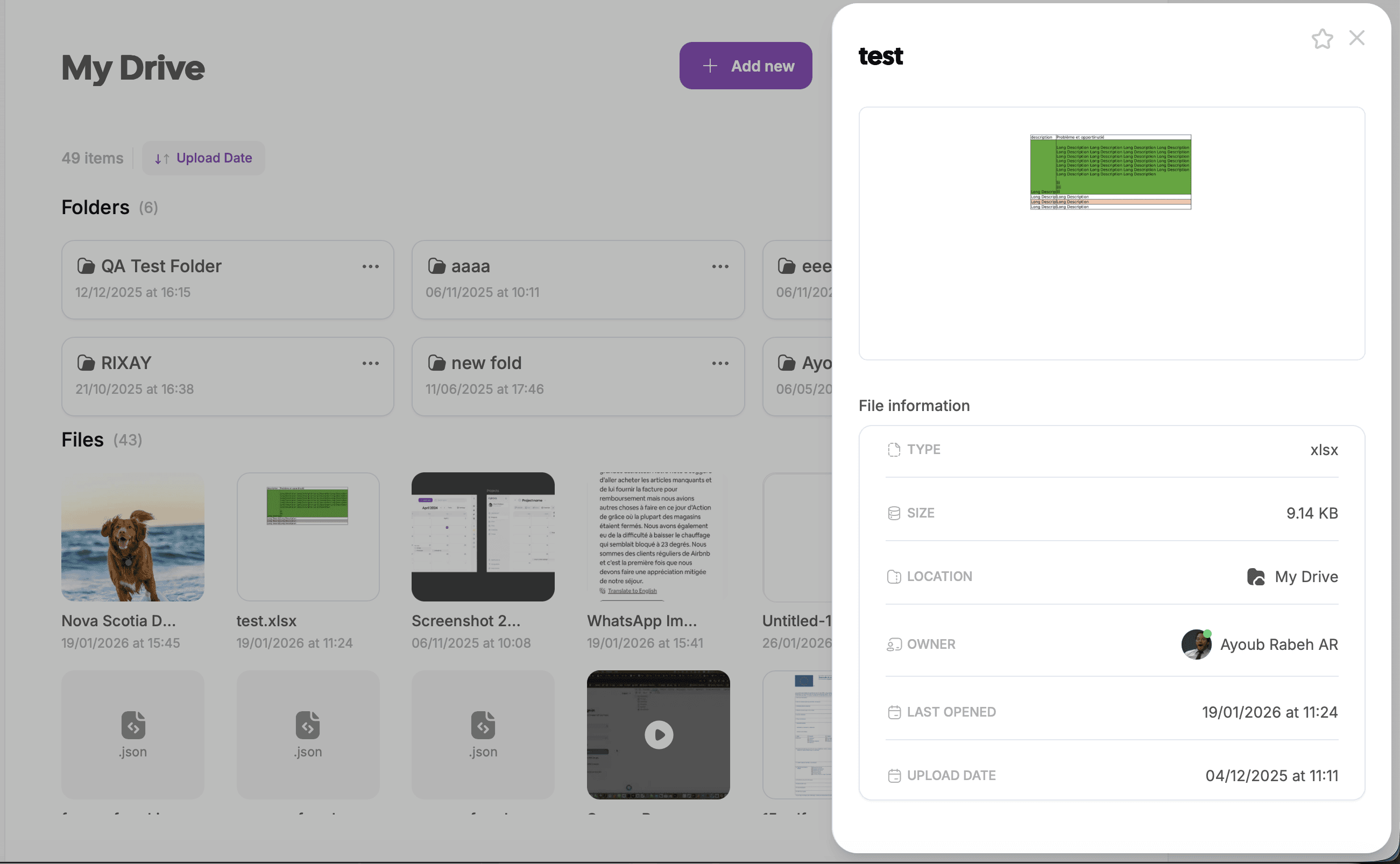
File Information Panel
View detailed metadata for any file:
File type
Size
Owner
Location
Upload date
Last opened
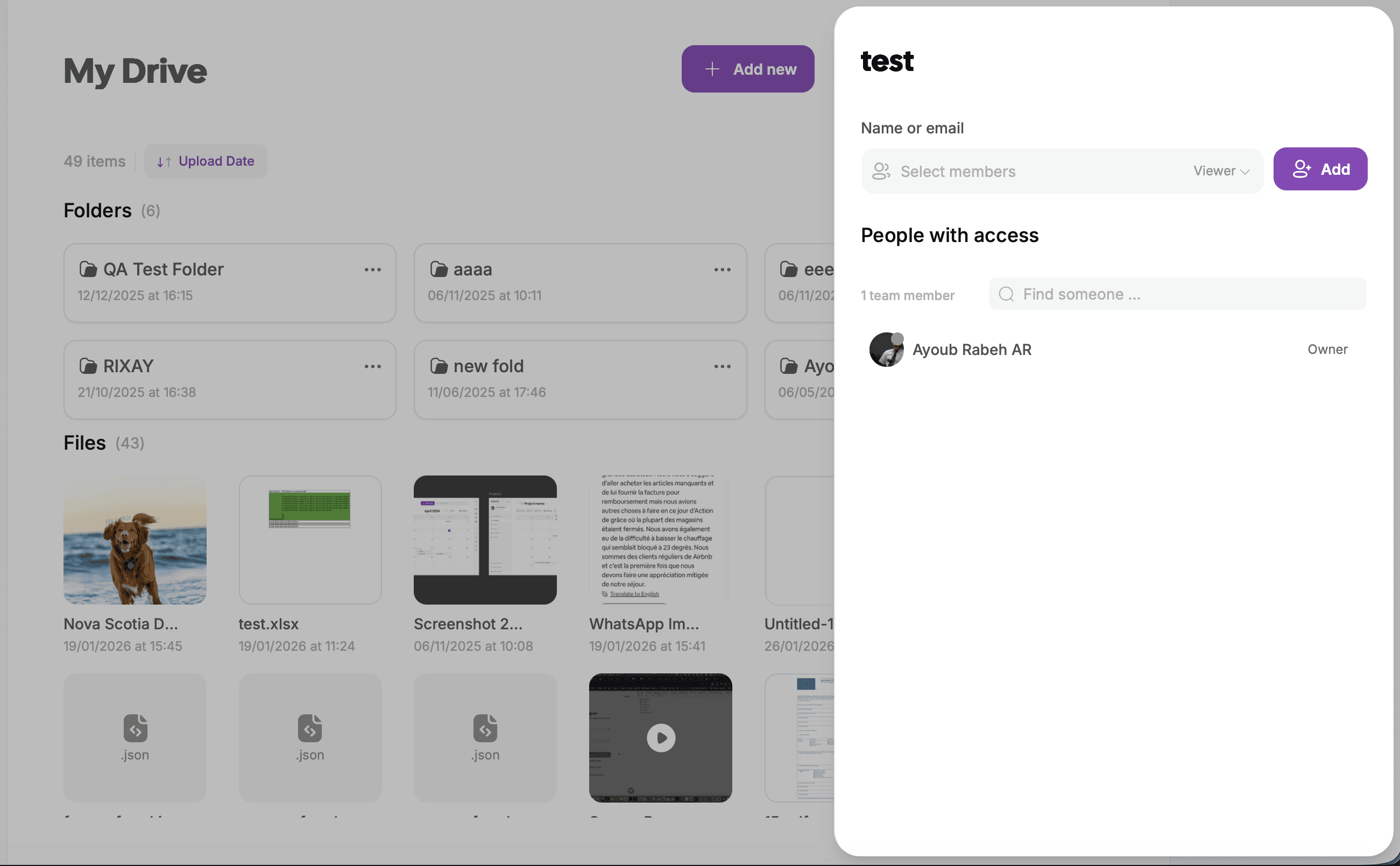
Sharing Files
Files can be shared with:
Specific members
You can control access levels (viewer, editor) depending on context.
Permissions follow Cynoia’s role system even if someone is a global moderator, they can still be a viewer on a specific file.
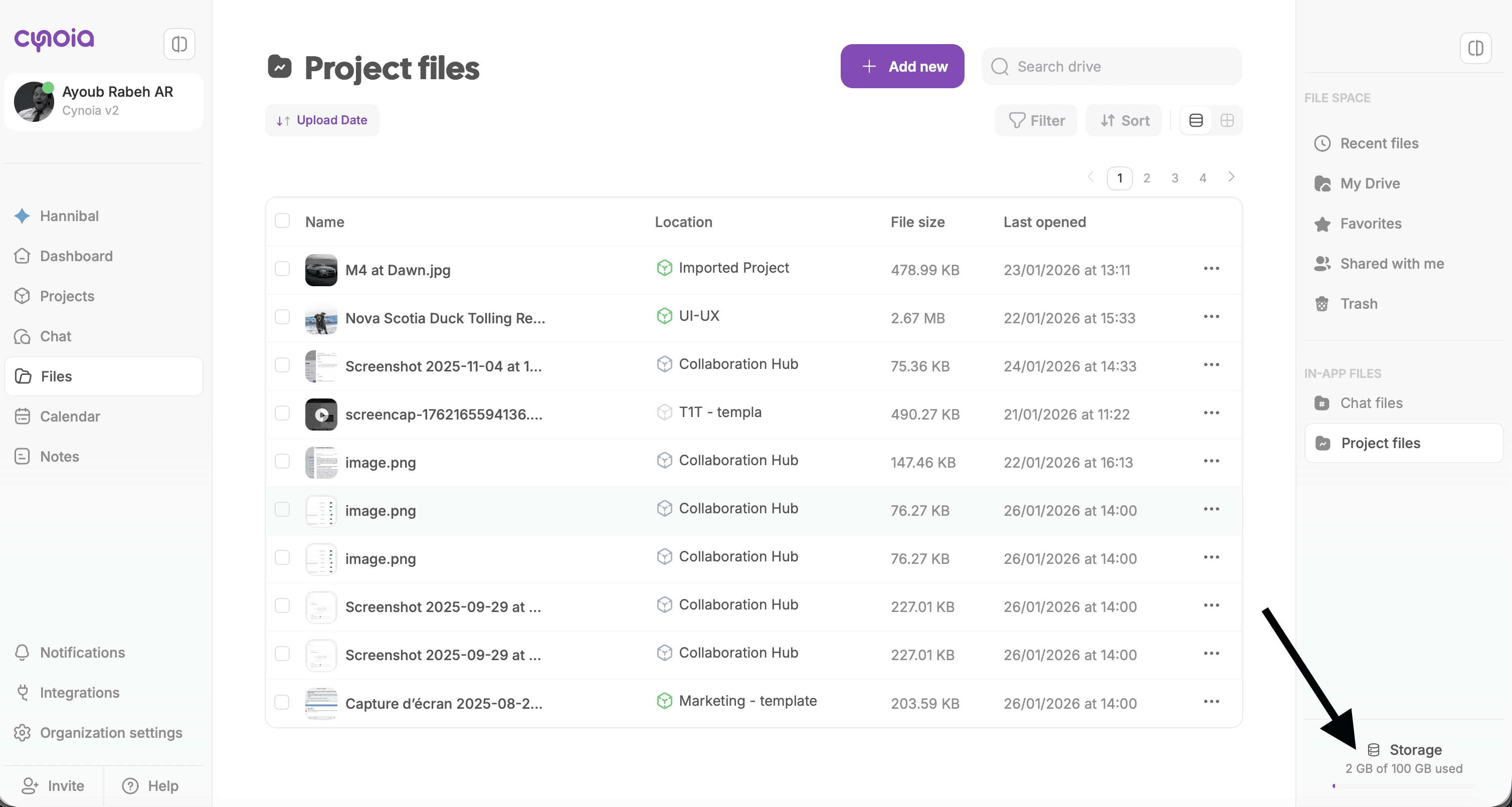
Storage Overview
At the bottom of the File Space, you can see:
Used storage
Total available storage
This helps teams manage uploads efficiently.
How Files Connect Across Cynoia
One of Cynoia’s strengths is contextual files:
Upload in chat → appears in Chat Files
Upload in project → appears in Project Files
Upload to My Drive → stays personal unless shared
Everything stays connected, searchable, and permission-aware.
What’s Next?
Now that you understand how files work in Cynoia, let’s dive deeper into:
👉 File Permissions & Access Control
👉 Best Practices for Team File Organization