Cynoia team
File Permissions & Access Control
Written by : Cynoia team
Cynoia’s file permissions are designed to be simple, flexible, and context-aware.
Access to a file depends on where the file lives, how it was shared, and the role of the person accessing it.
This approach ensures teams can collaborate freely without losing control.
How File Permissions Work in Cynoia
File access in Cynoia is determined by three layers:
File location (My Drive, Project, Chat)
Sharing method (direct share, project access, chat visibility)
User role (global role + contextual role)
Think of permissions as inherited first, then overridden when needed.
File Locations & Their Default Permissions
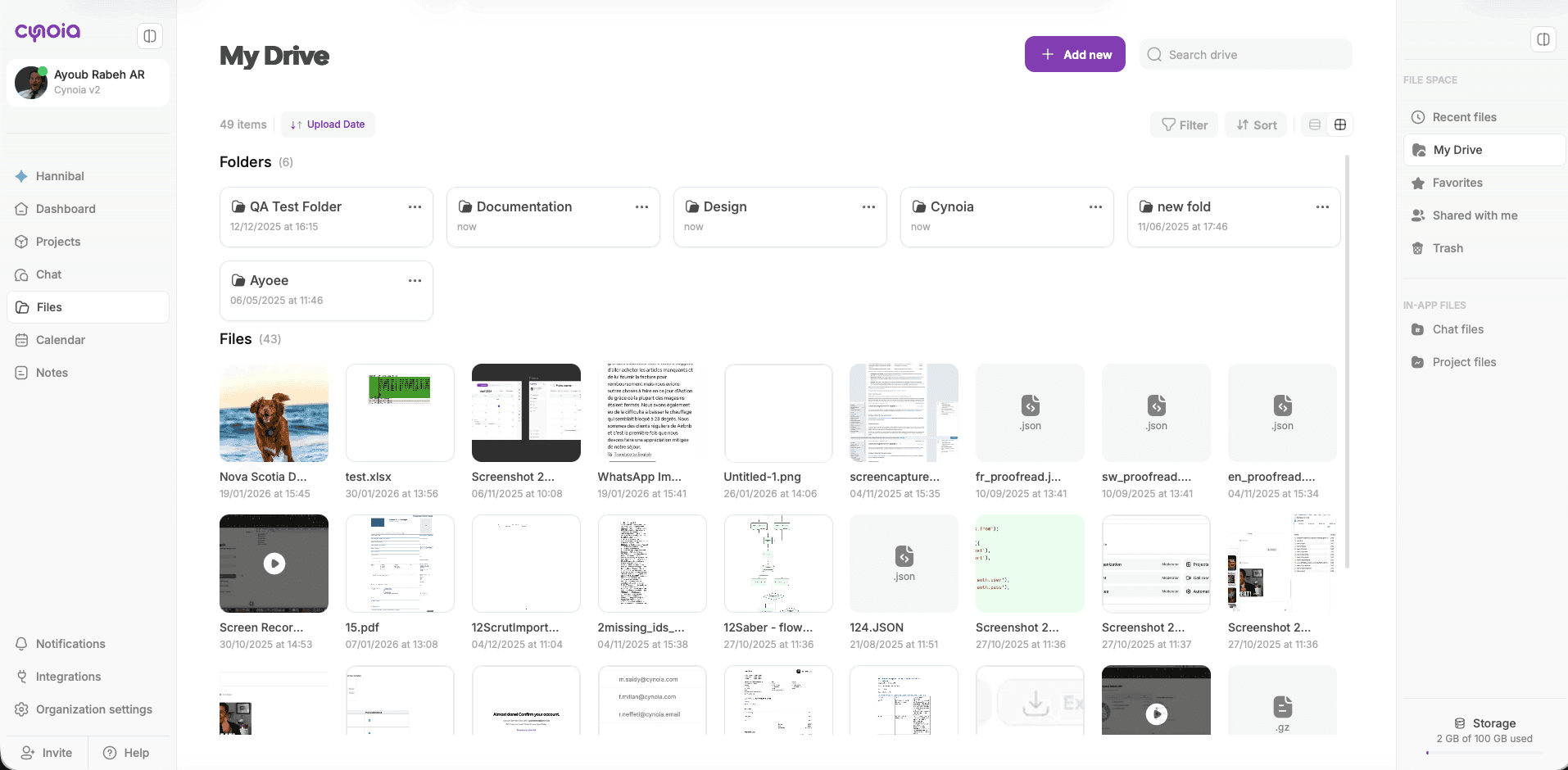
My Drive (Personal Files)
Files in My Drive are private by default.
Only visible to you
No one else can access unless you explicitly share the file
You are always the Owner
Best for: drafts, personal work, files you’re not ready to share yet
Project Files
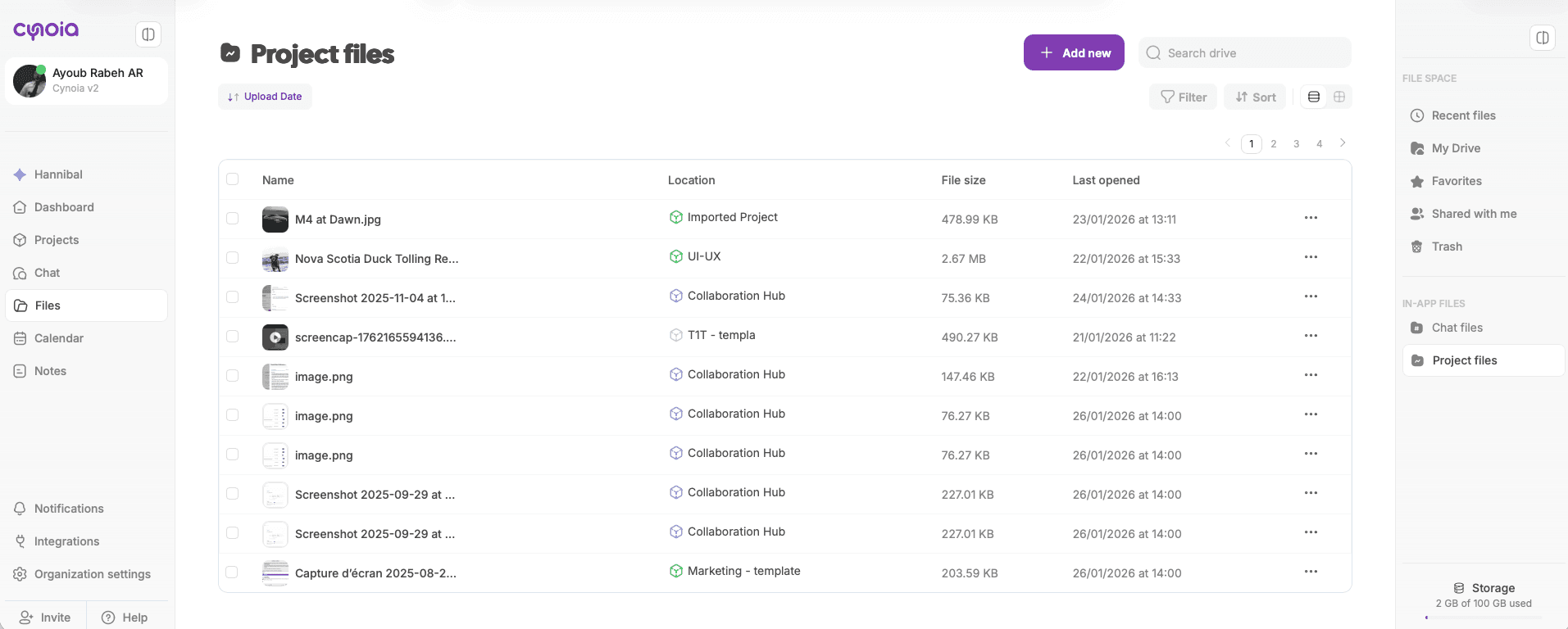
Files uploaded inside a project automatically inherit project permissions.
Anyone with access to the project can see the file
Editing rights depend on their project role
File visibility changes if project access changes
Best for: shared deliverables, assets, documentation
Chat Files
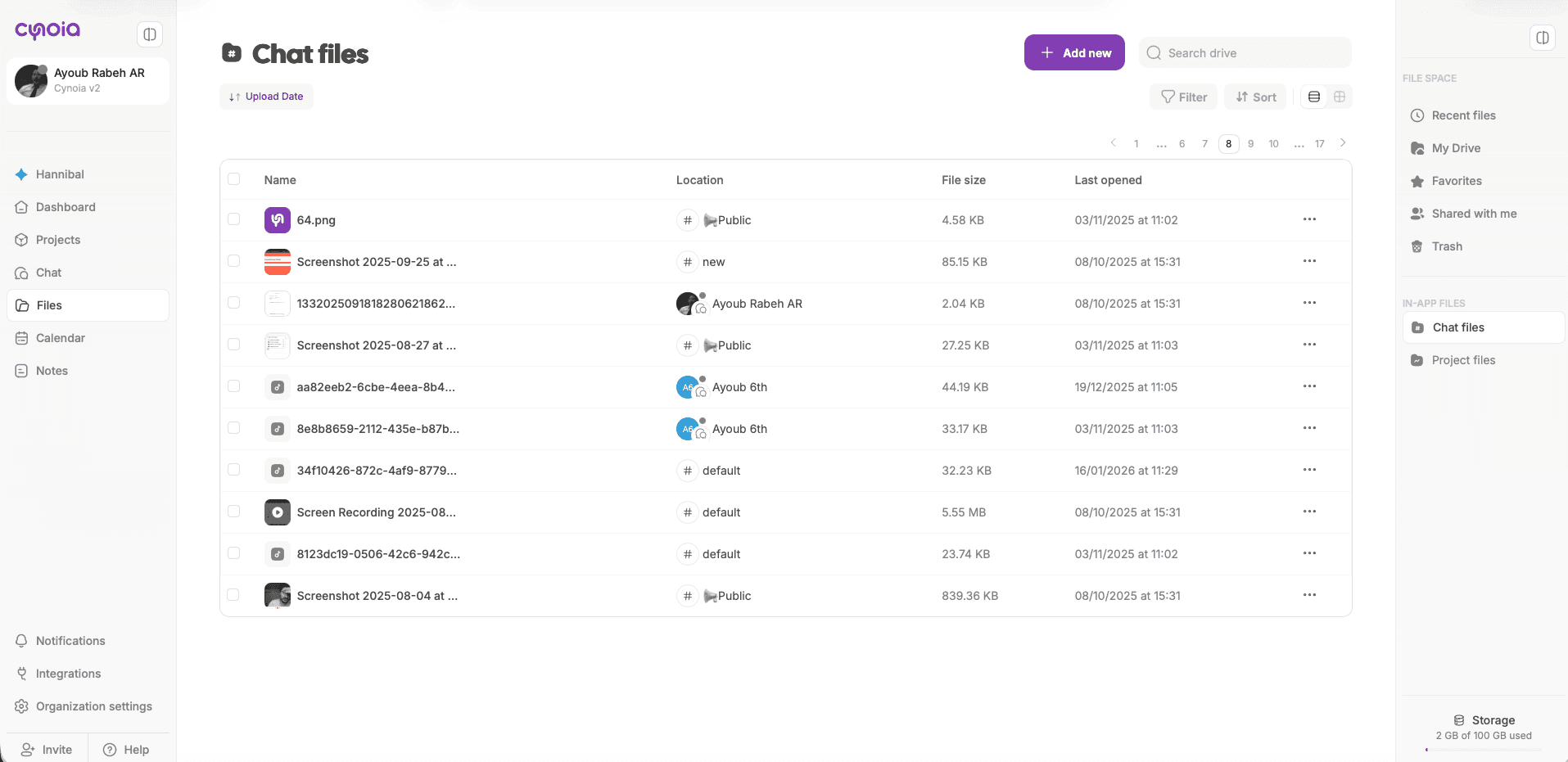
Files shared in chat follow chat visibility rules.
Channel files → visible to channel members
Direct message files → visible only to participants
Public channels → files visible to anyone who joins
Roles & Permissions (Important Rule)
Cynoia uses contextual permissions, meaning:
A user’s global role does not override file-level or project-level permissions
Example:
A global moderator can still be a viewer on a specific project file
A project viewer cannot edit files, even if they have higher permissions elsewhere
This ensures least-privilege access by default.
File Permission Levels
Depending on context, files can be shared with different access levels:
Viewer
Can view and download the file
Cannot edit or re-share
Editor
Can modify the file (where supported)
Can rename and update content
Owner
Full control
Can share, revoke access, or delete the file
Sharing Files with People
You can share files:
From My Drive
From Project Files
From Chat files
When sharing:
Select users by name or email
Assign their permission level
Access is immediate
Shared with Me: What You Can & Can’t Do
Files under Shared with me depend entirely on the owner’s permissions.
You may:
View
Download
Edit (if allowed)
You may not:
Change permissions ( unless your permission is moderator )
Delete the file (unless owner)
Permission Inheritance Rules (Quick Reference)
File Location | Who Can See It | Who Can Edit |
|---|---|---|
My Drive | Only you | Only you |
Project Files | Project members | Based on project role |
Chat Files | Chat participants | Depends on role |
Shared File | Selected users | Based on assigned permission |
Removing or Changing Access
Only file owners / moderator (or project owners, depending on context) can:
Change permissions
Remove access
Delete files
Changes apply instantly.
Best Practices for File Access Control
✅ Keep personal drafts in My Drive
✅ Use Project Files for team deliverables
✅ Share files instead of re-uploading duplicates
✅ Review access before sharing sensitive files
✅ Use Viewer access by default, upgrade only when needed
Common Scenarios Explained
“Why can’t I edit this file?”
→ You likely have Viewer access or limited project permissions.
“Why can someone see my file?”
→ It’s inside a project or chat they’re part of.
“Why doesn’t my global role apply?”
→ Contextual permissions always take priority.
What’s Next?
Now that permissions are clear, we can move to:
👉 Next article: Storage Management & Limits