Cynoia team
Project Settings
Written by : Cynoia team
Project settings allow you to customize how a project works, who can access it, and which features are enabled.
Each project has its own settings, giving teams flexibility to adapt projects to different workflows and needs.
Accessing Project Settings
To open project settings:
Open the project
Click Settings in the project header
Only members with sufficient permissions (Project Moderator or higher) can modify project settings.
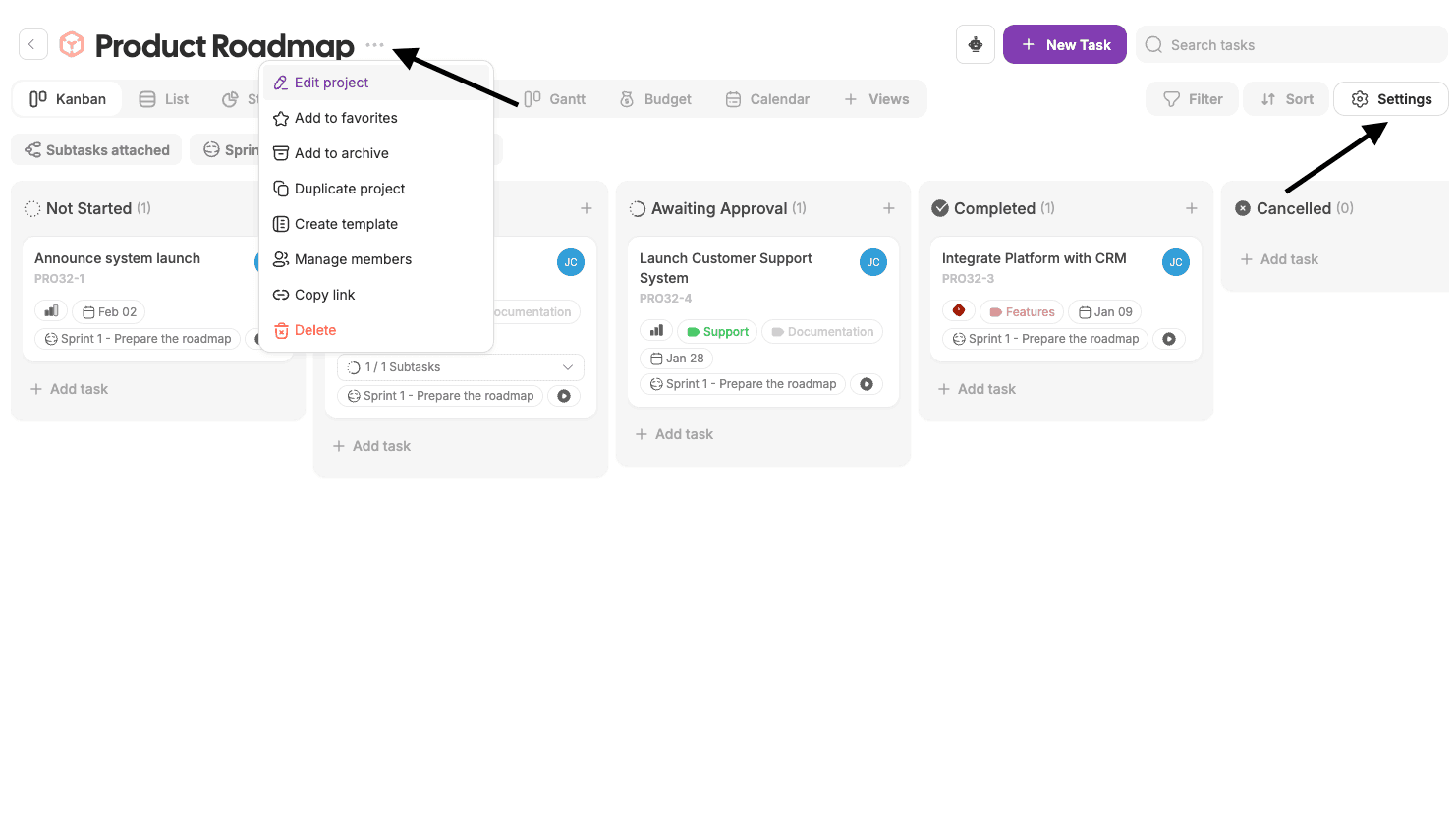
Project Settings Sections
Project settings are organized into multiple sections.
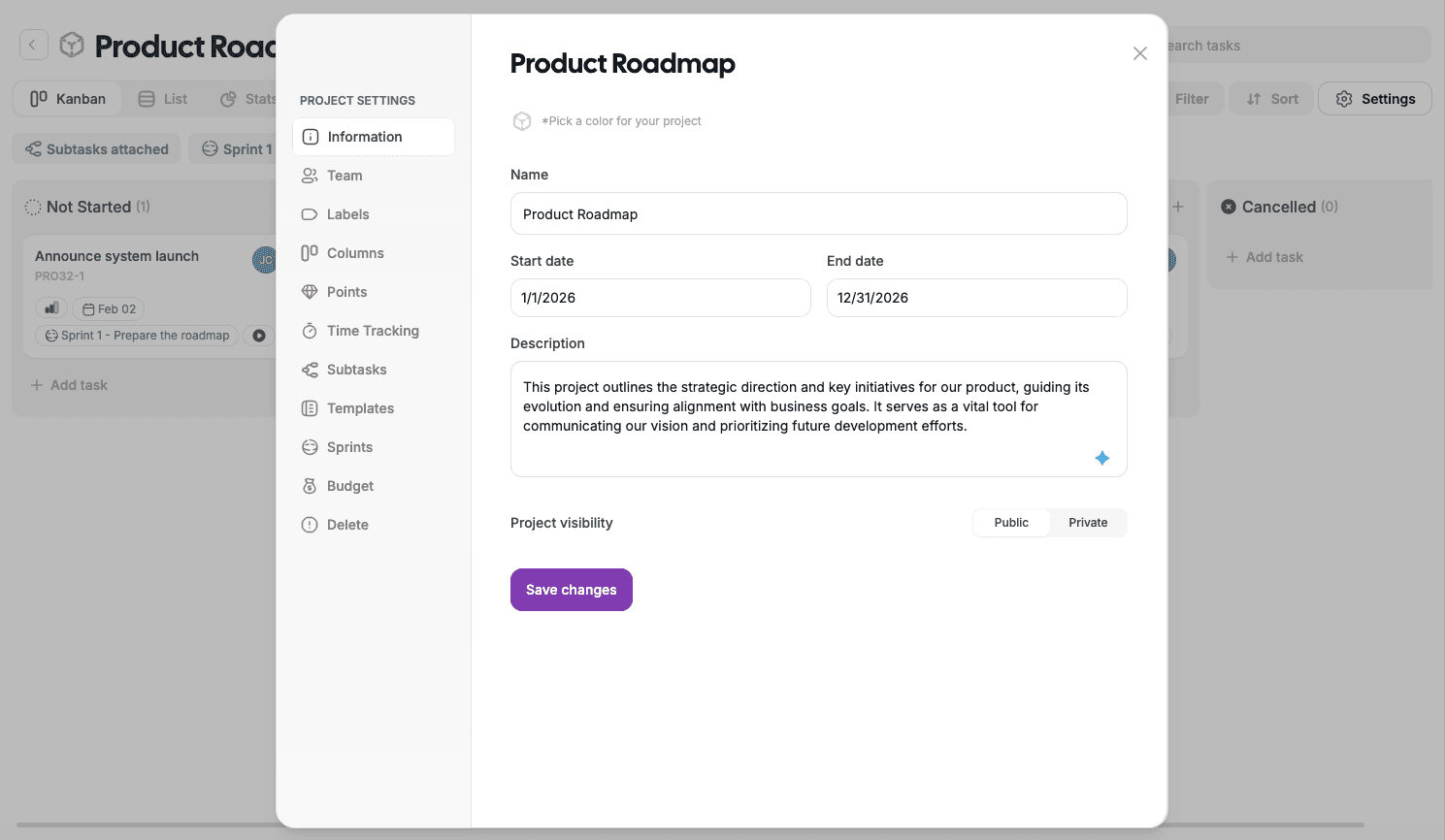
Information
The Information section defines the basic identity of the project.
You can manage:
Project name
Project color
Description
Start date (optional)
End date (optional)
Project visibility (Public or Private)
Changes are applied immediately.
Team
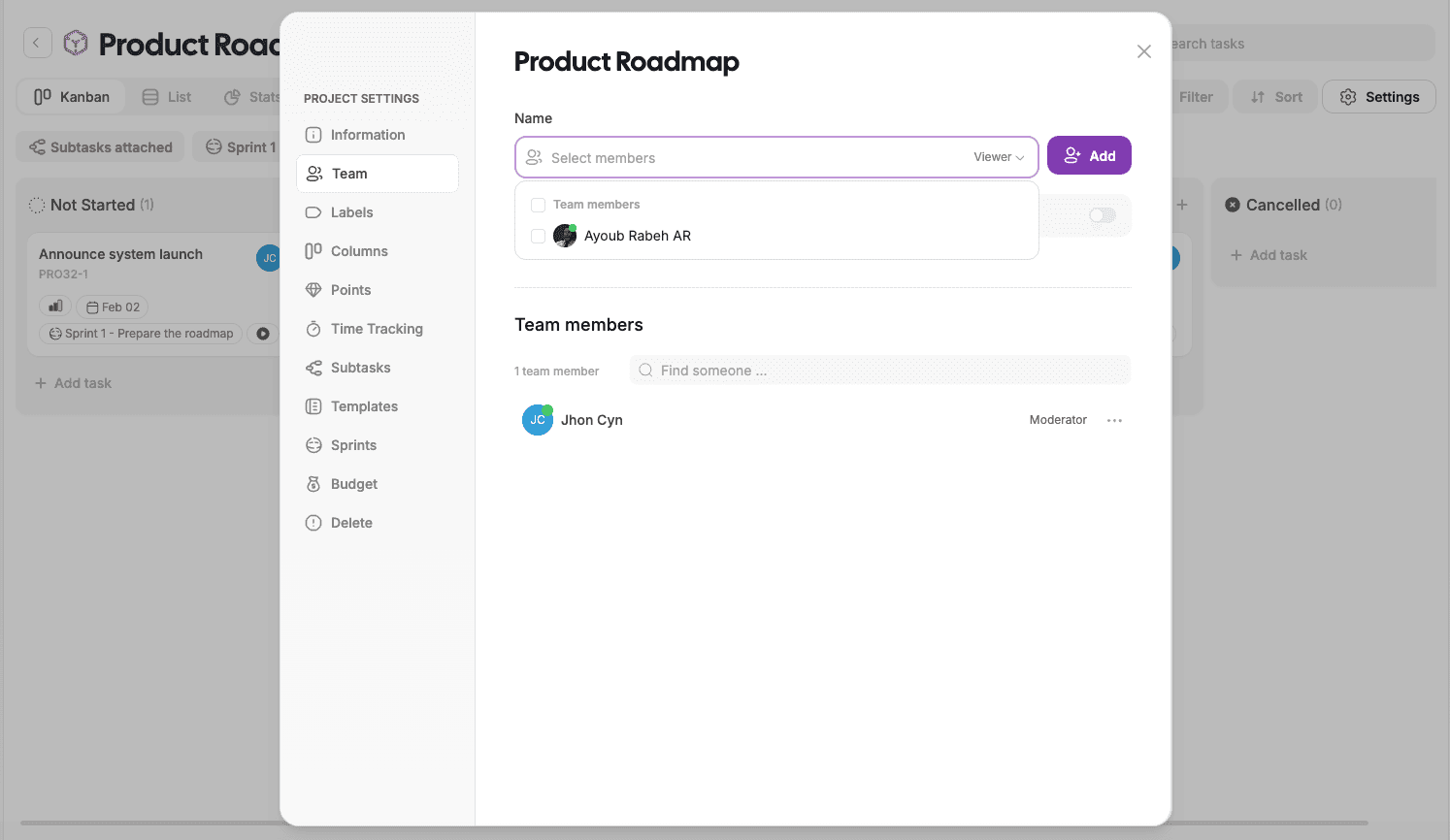
The Team section controls who can access the project and what they can do inside it.
You can:
Invite members to the project
Assign project-level roles
Remove members from the project
Share the project using a link (if enabled)
📌 Project permissions can override global workspace roles.
Labels
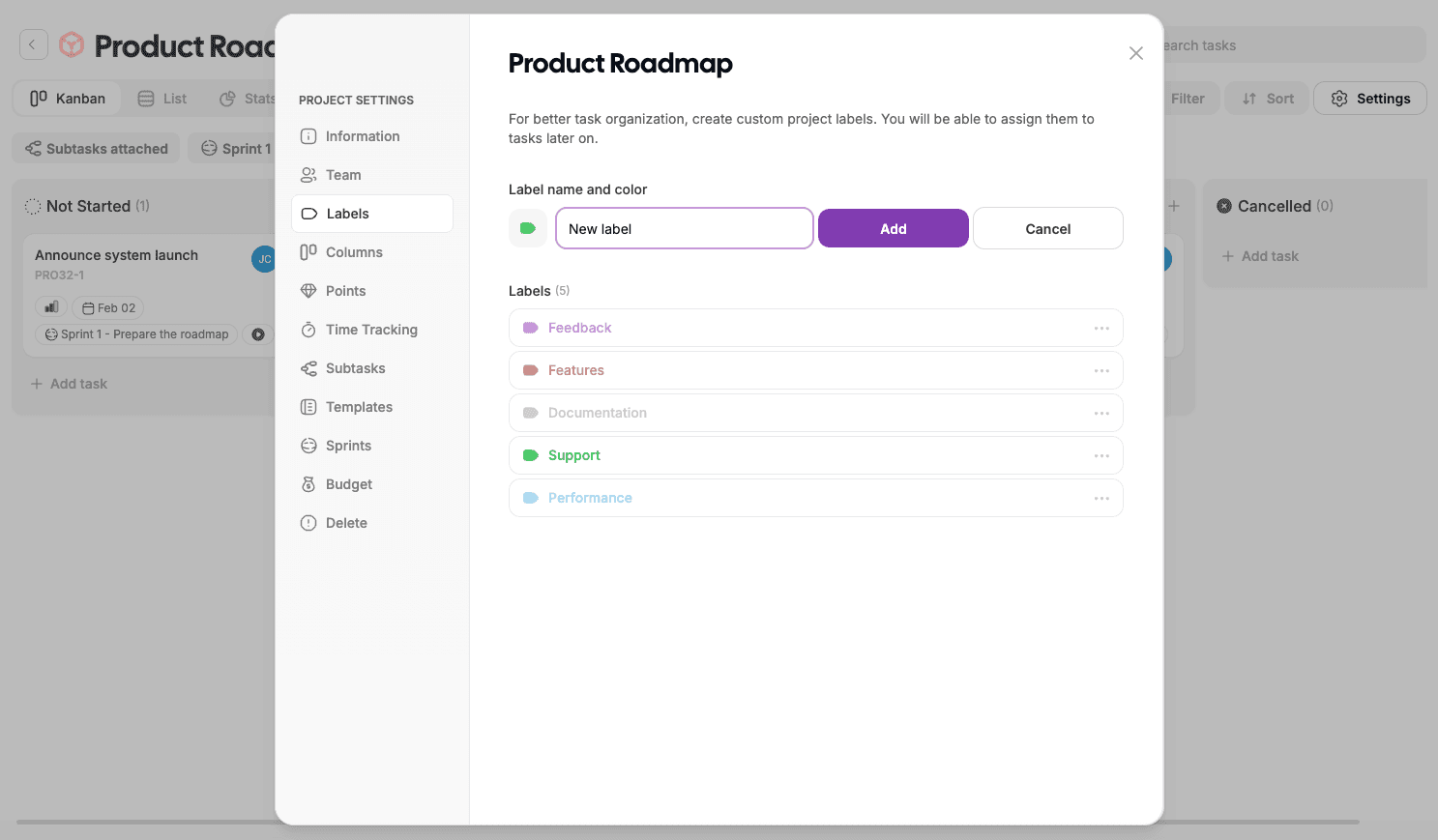
Labels help categorize and organize tasks inside a project.
You can:
Create custom labels
Assign colors to labels
Use labels for filtering and automations
Common use cases:
Bug tracking
Feature requests
Priority tagging
Columns (Workflow)
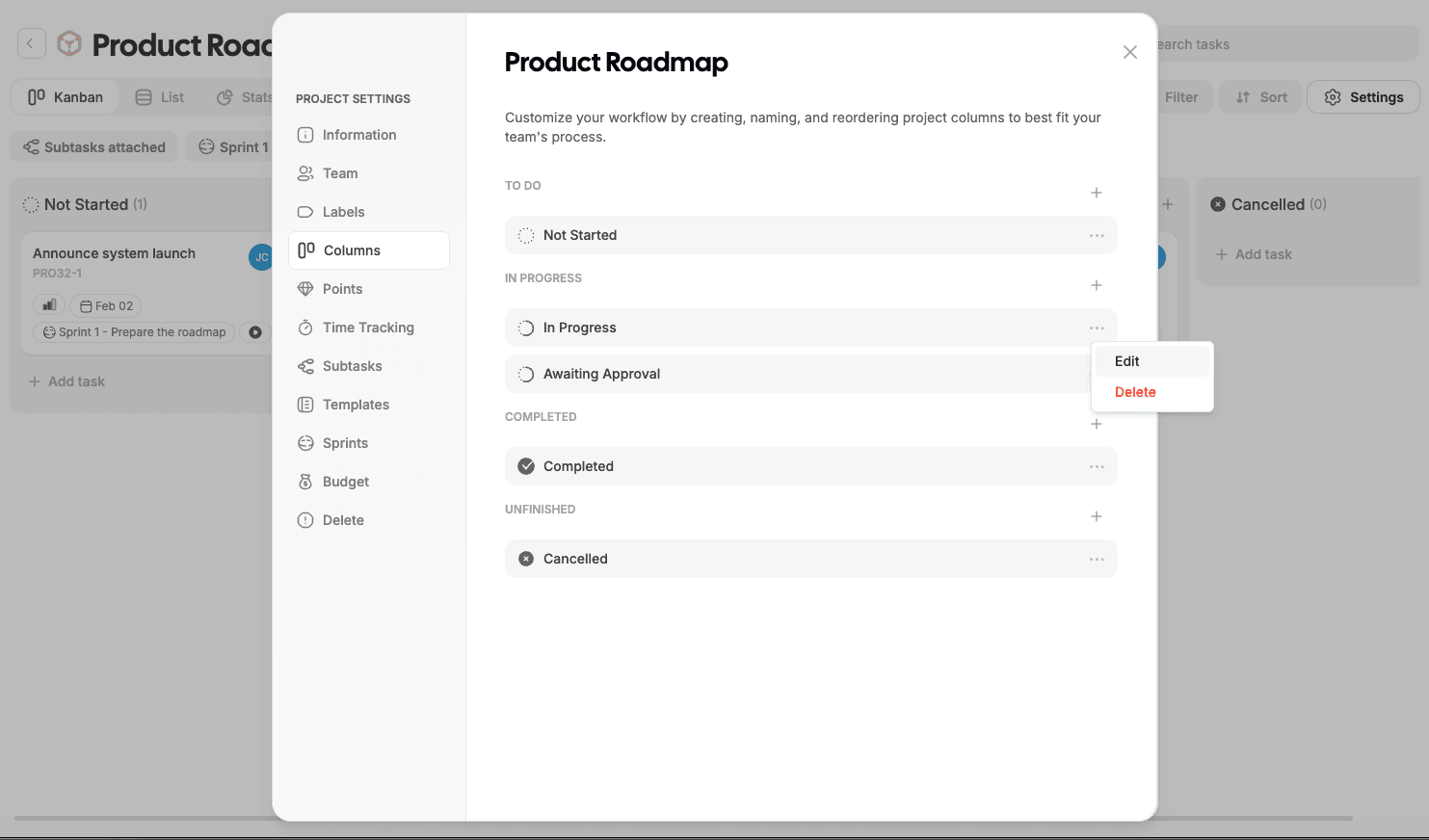
Columns define the workflow statuses for tasks.
You can:
Add new statuses
Rename existing statuses
Reorder columns
Remove unused statuses
Each project can have a completely different workflow.
Points (Estimation)
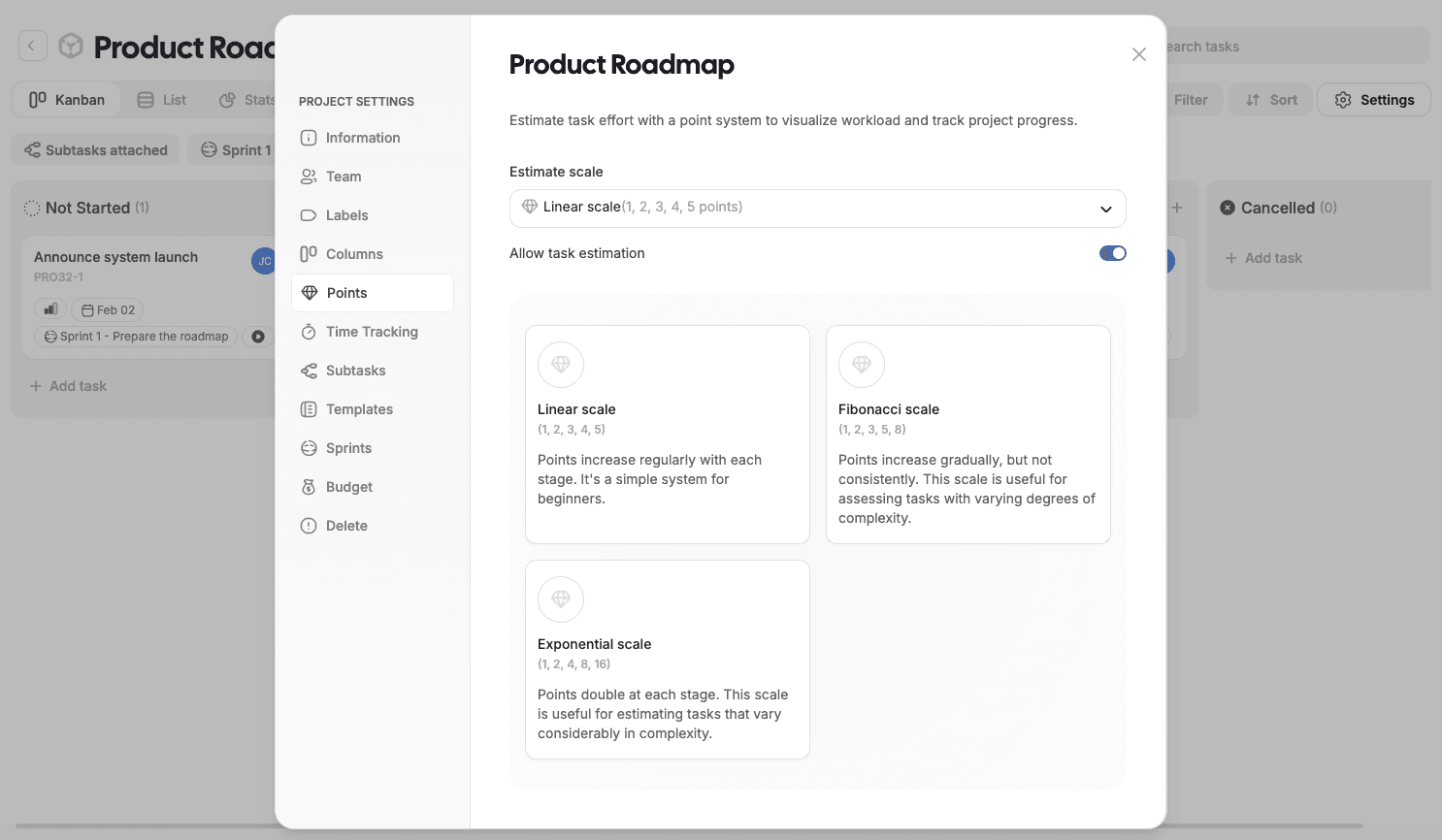
Points are used to estimate task effort.
You can choose an estimation scale:
Linear (e.g. 1–5)
Fibonacci (1, 2, 3, 5, 8)
Exponential (1, 2, 4, 8, 16)
Points are optional and can be changed anytime.
Time Tracking
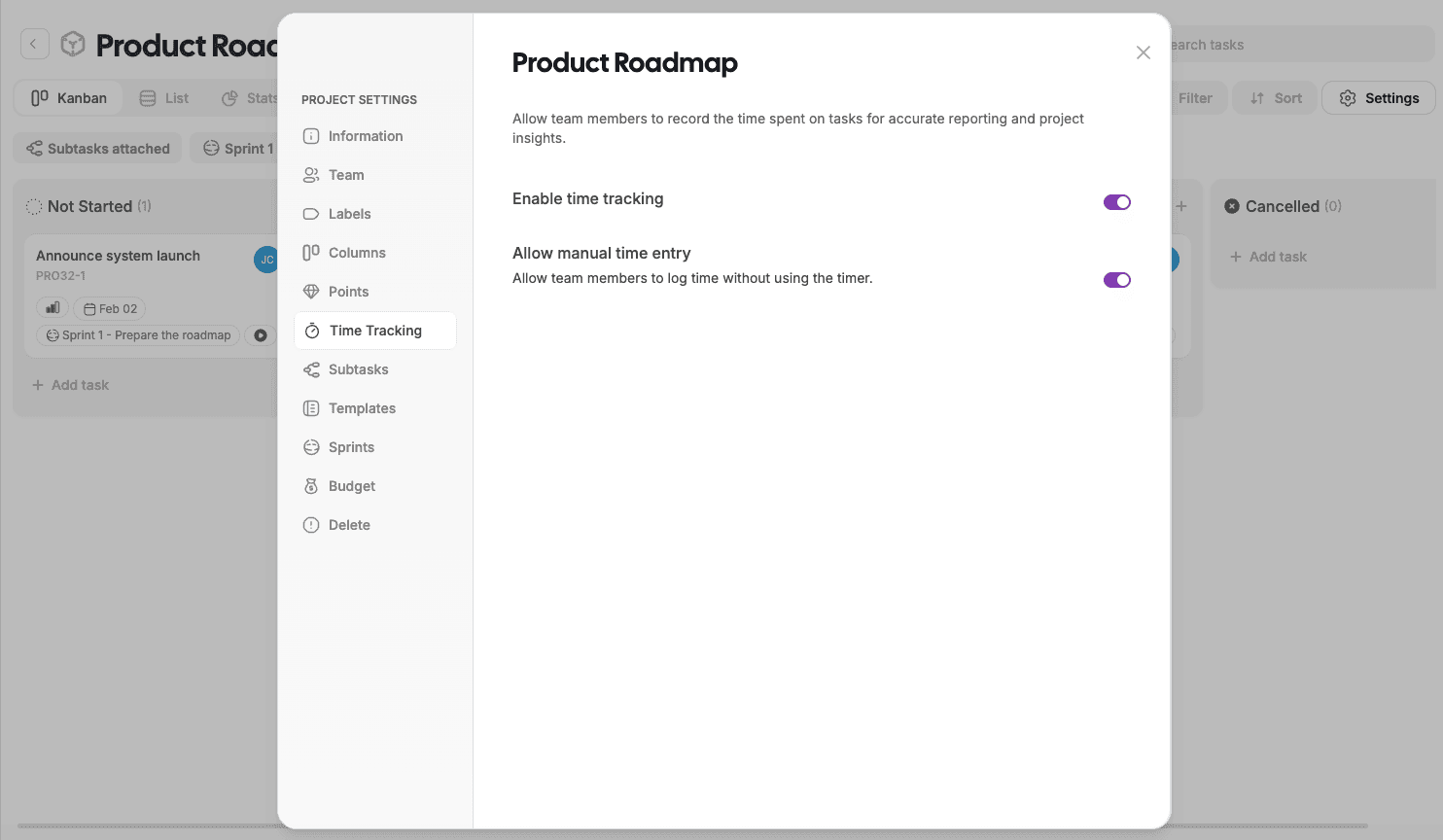
Allow team members to record the time spent on tasks for accurate reporting and project insights.
You can configure:
Enable time tracking
Allow manual time entry to let the team members log time without using the timer.
This helps to keep track of time spent on each task online & offline.
Subtasks
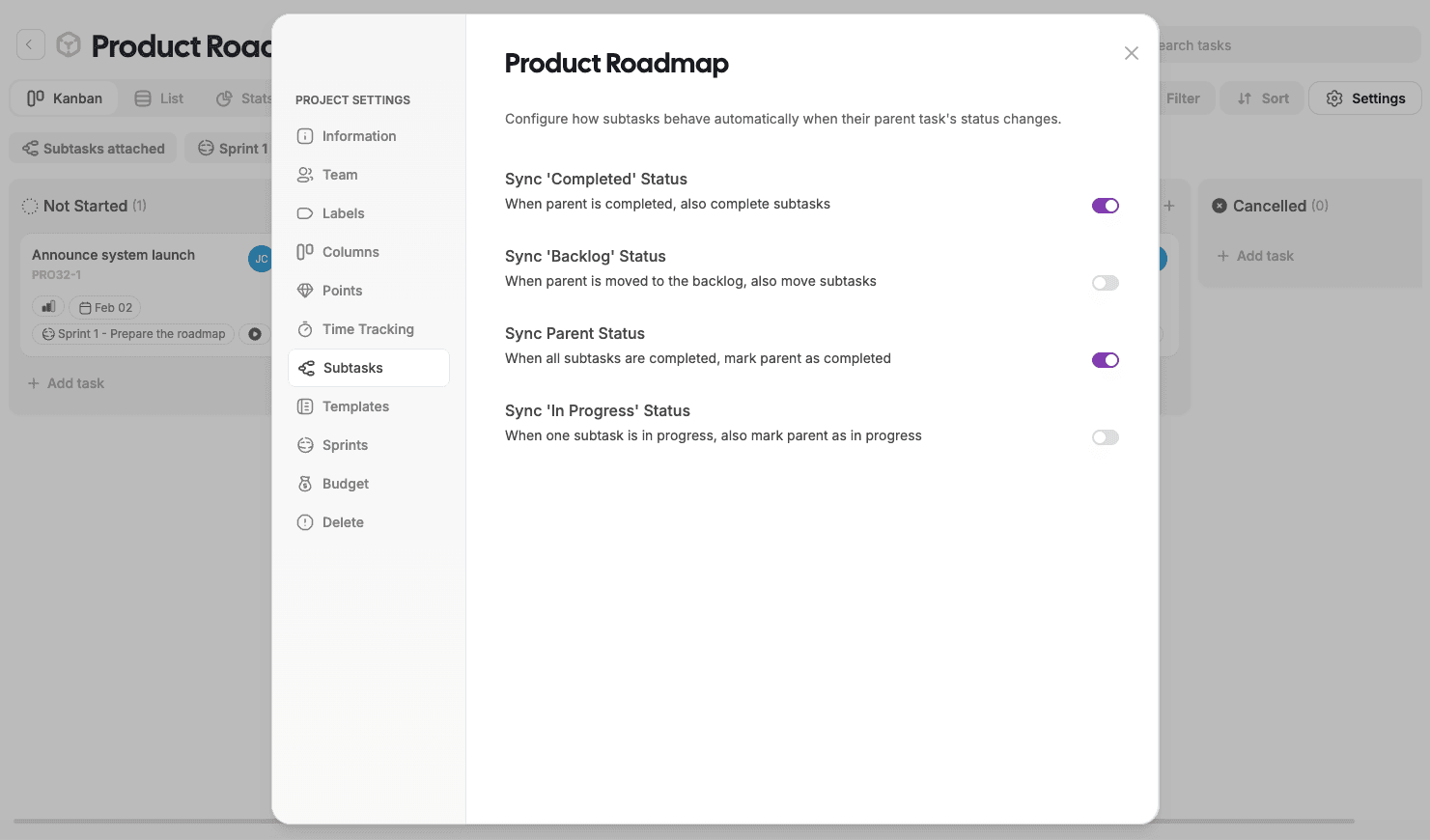
Subtask settings control how parent tasks behave.
You can configure:
Automatic status synchronization
Backlog behavior
Auto-completion of parent tasks
This helps keep complex tasks organized.
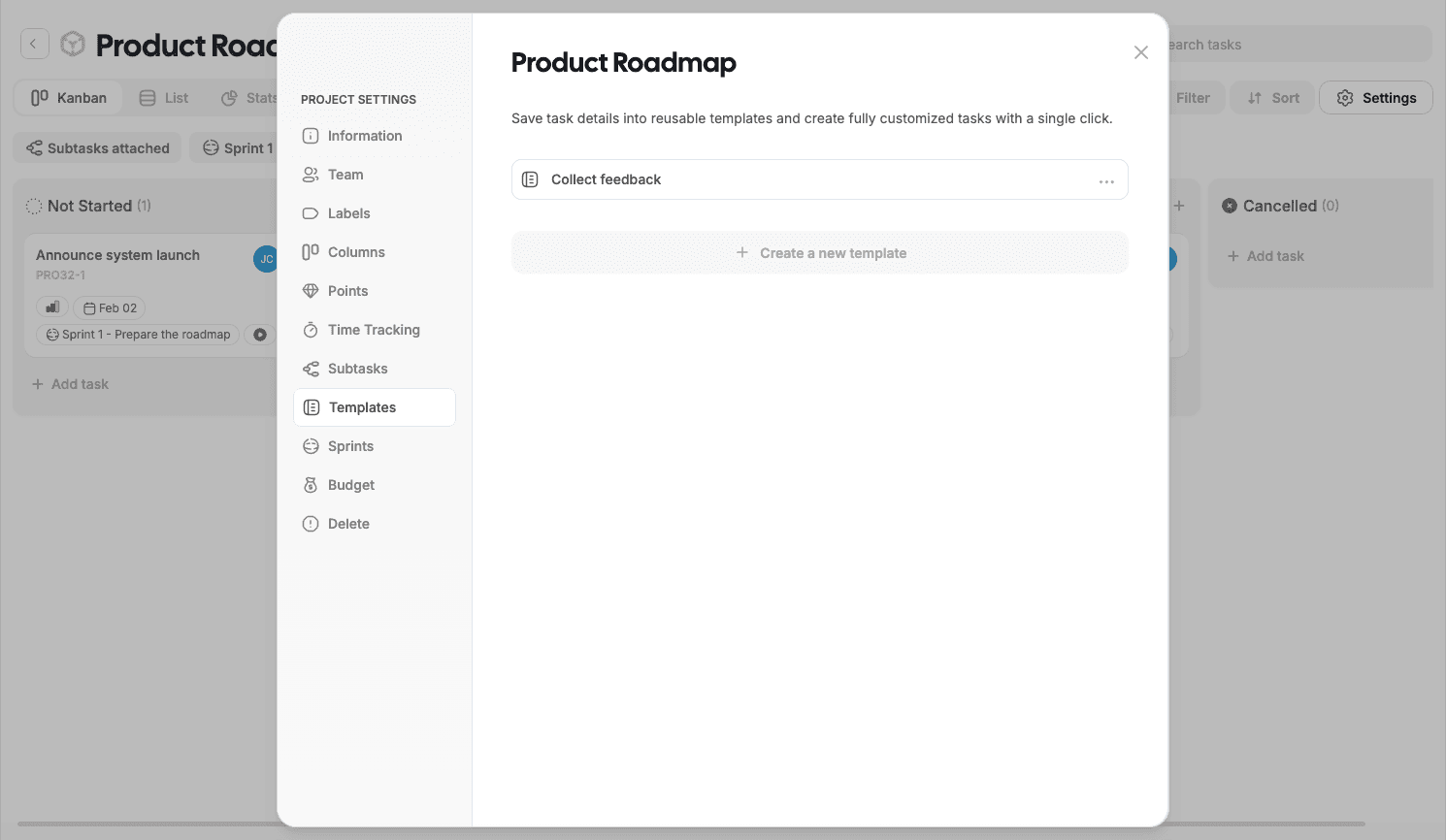
Templates
Templates allow you to reuse task structures.
You can:
Save tasks as templates
Create standardized workflows
Speed up repetitive work
Templates are especially useful for recurring processes.
Sprints
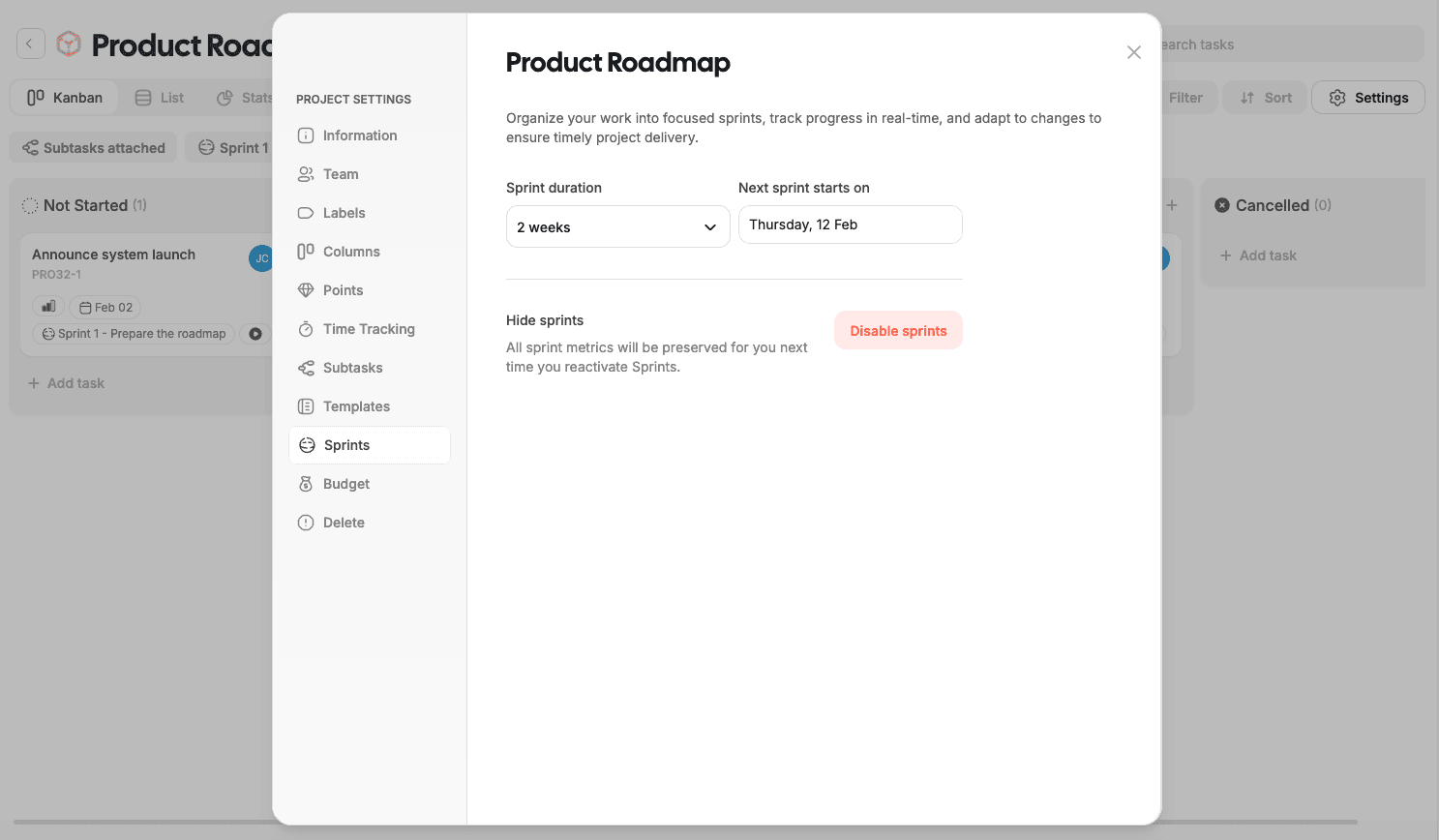
Sprints enable time-boxed planning.
You can:
Enable or disable sprints
Set sprint duration
Define sprint start dates
Disabling sprints does not delete sprint data.
Budget
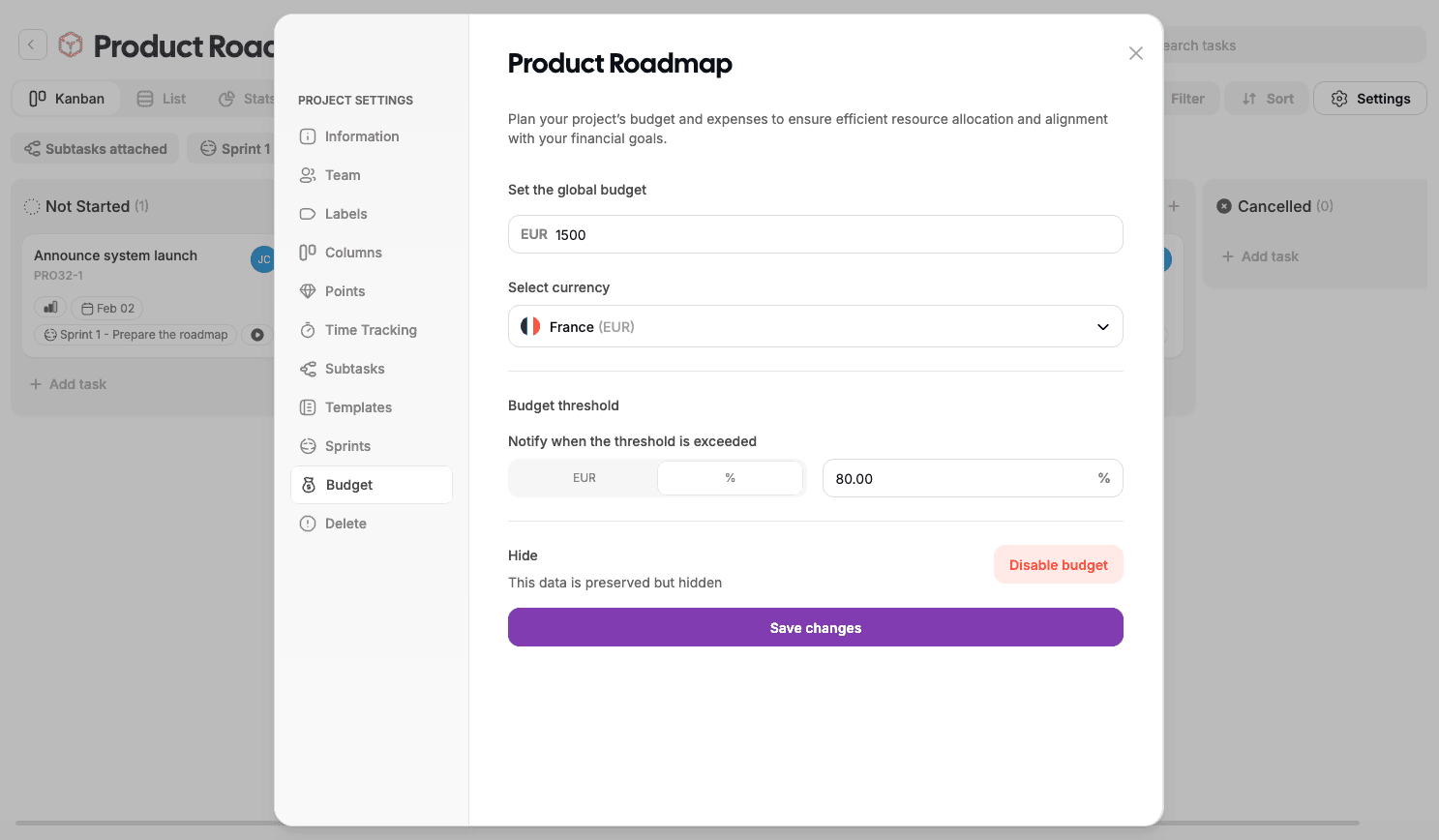
Budget settings help track project costs.
You can:
Set a project budget
Choose a currency
Configure alert thresholds
Hide the budget without deleting data
Useful for client projects and cost-controlled work.
Delete Project
The Delete project option permanently removes the project.
⚠️ This action cannot be undone.
Only users with appropriate permissions can delete a project.
Best Practices
Define workflow and labels before adding many tasks
Use project-level permissions for sensitive work
Enable advanced features only when needed
Keep project descriptions clear and up to date
What’s Next?
👉 Next article: Managing Tasks and subtask in Projects
Learn how to create tasks, assign work, use task properties, and collaborate effectively inside a project.