Cynoia team
Tasks & Subtasks
Written by : Cynoia team
Tasks are the core units of work inside a project.
They represent everything your team needs to do, from small to complex pieces of work.
Subtasks help break larger tasks into smaller, manageable steps.
Creating a Task
You can create tasks from any project view.
Steps
Open a project
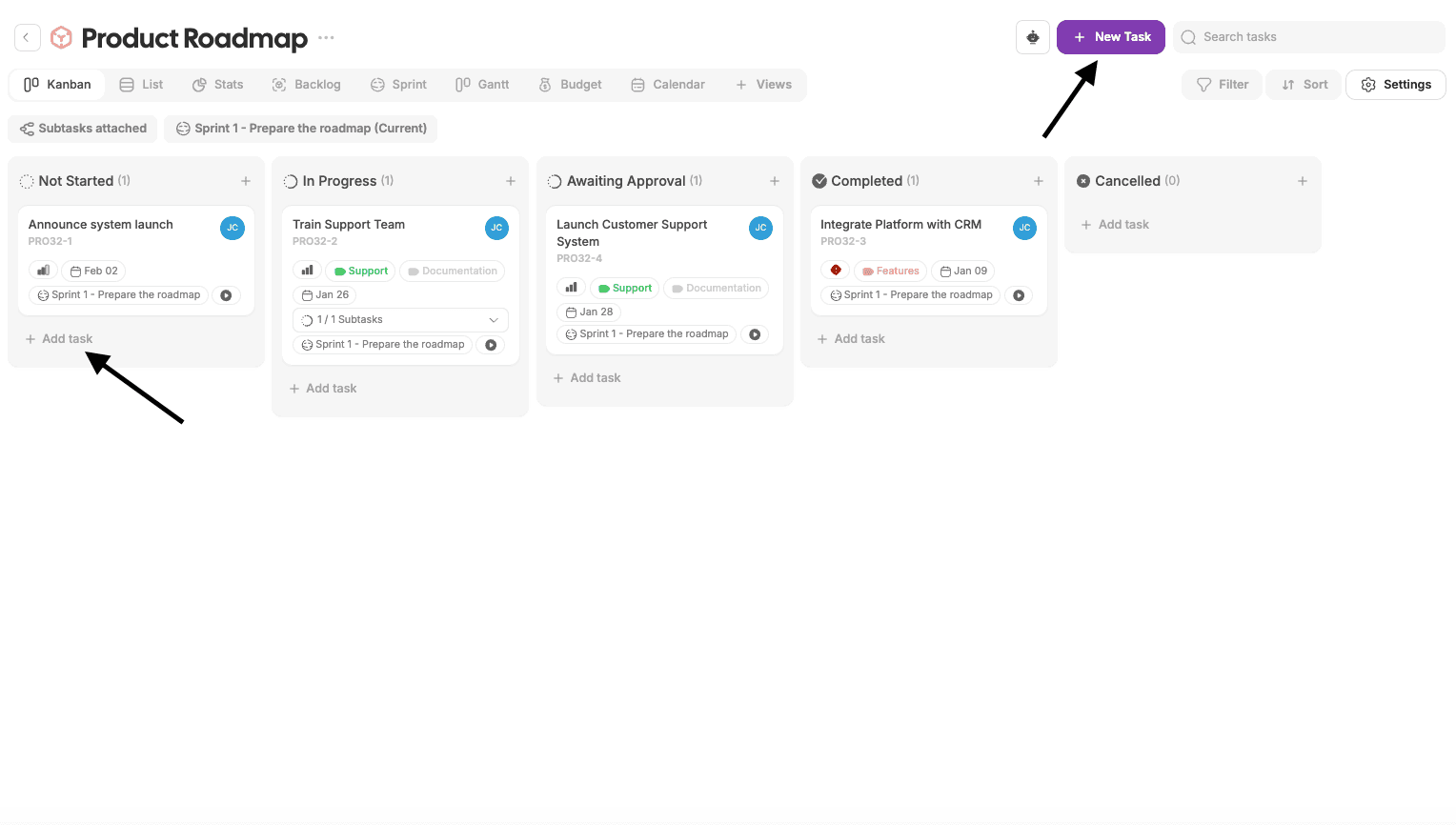
Click Add task (or + Add task) in a column or view
Enter a task name
Press Enter or click Create
The task is added immediately to the project.
Task Details Overview
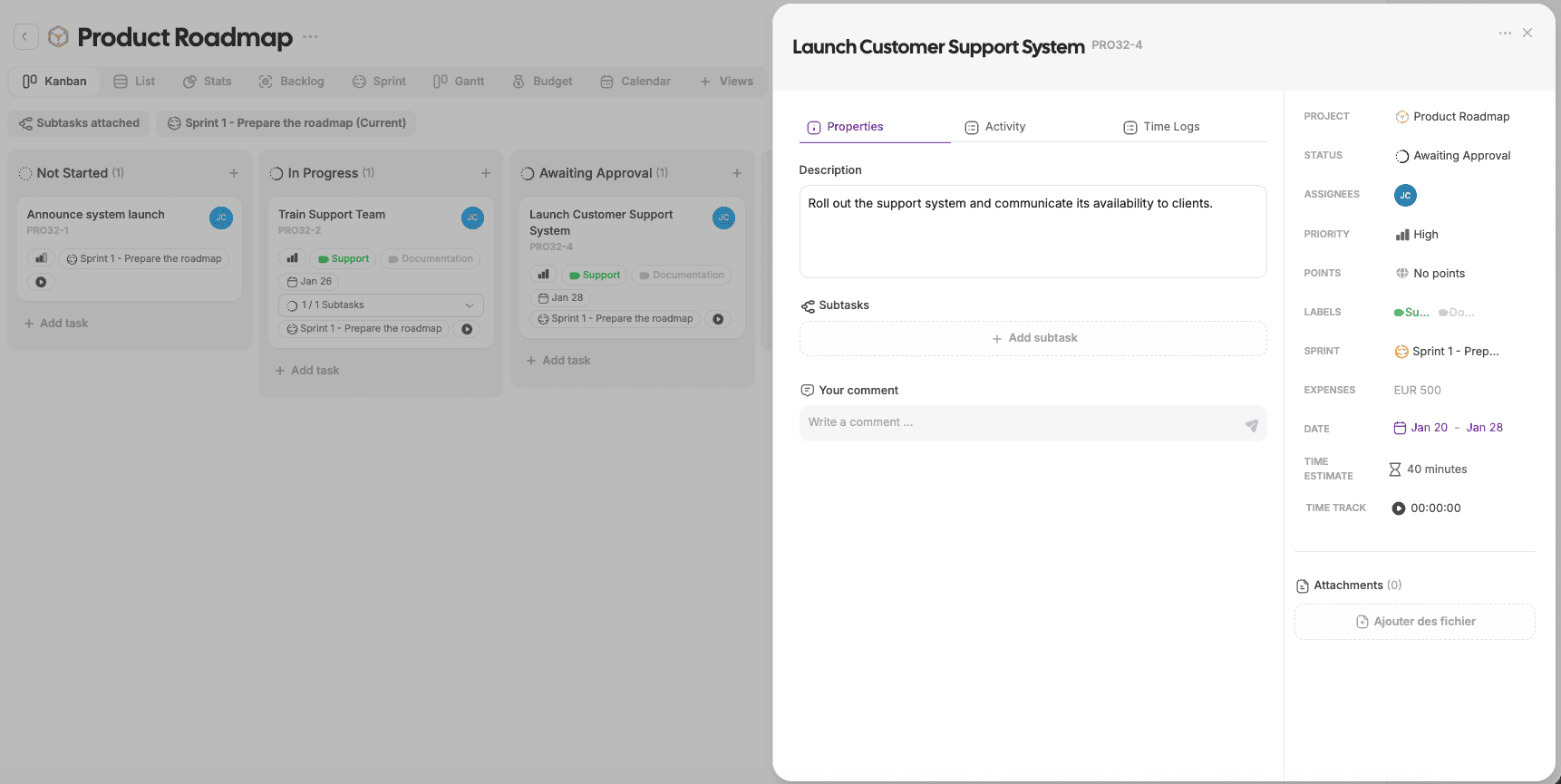
Clicking on a task opens the task details panel.
A task is composed of:
Task name and unique ID
Main content tabs
Properties sidebar
Task Properties
Tasks include several properties that help organize and track work.
Common Task Properties
Status – Current stage in the workflow
Assignees – One or more team members
Priority – Importance level (if enabled)
Points – Effort estimation (if enabled)
Labels – Custom categories
Sprint – Assigned sprint (if enabled)
Dates – Start and/or due date
Time estimate – Planned effort
Attachments – Files related to the task
Properties depend on the project’s settings.
Task Description & Comments
Description
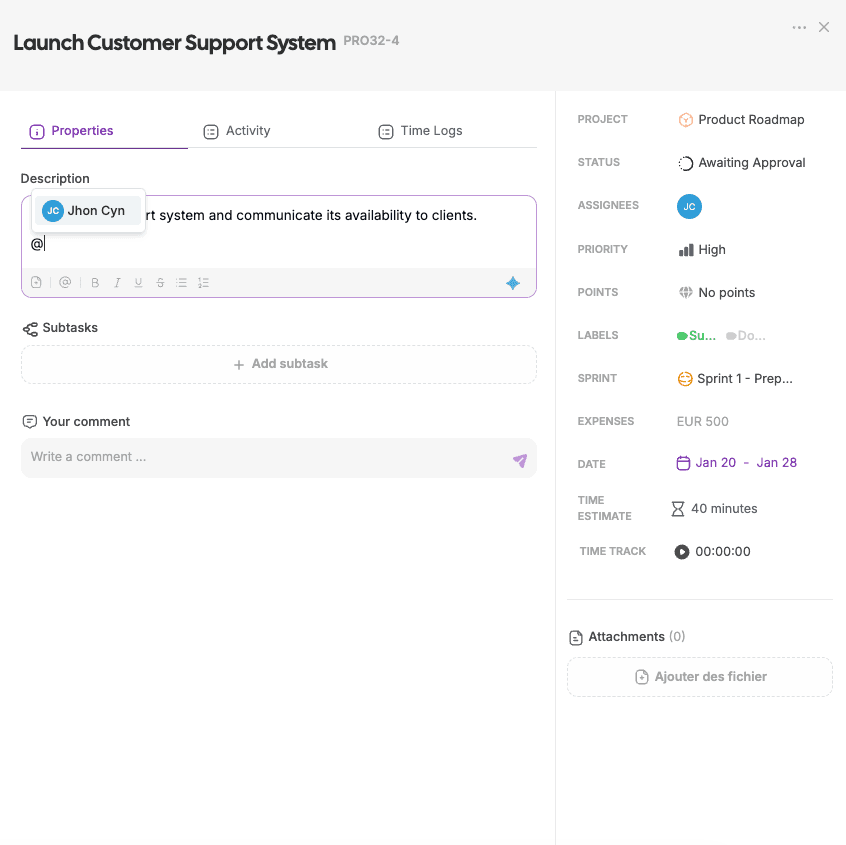
Each task has a rich-text description where you can:
Add details and instructions
Use formatting (lists, headings, bold text)
Mention teammates
Attach files
Comments
Comments are used for discussion around the task.
Mention teammates to notify them
Comments are logged in activity history
Activity & Time Logs
Activity
The Activity tab tracks everything that happens on a task:
Status changes
Assignment updates
Description edits
System actions
This provides full visibility and traceability.
Time Logs
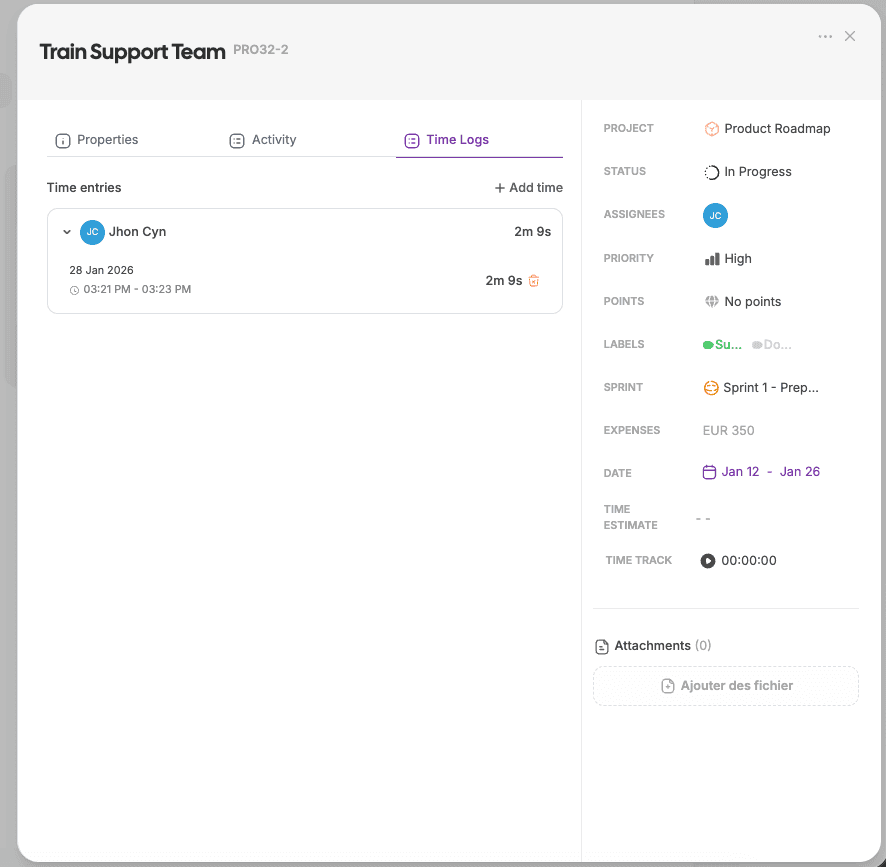
The Time Logs tab lets you:
Track time spent on tasks
View logged time per member
Compare actual time vs estimates
Creating Subtasks
Subtasks allow you to break a task into smaller steps.
Steps
Open a task
Scroll to the Subtasks section
Click Add subtask
Enter a name and press Enter
Subtasks appear nested under the parent task.
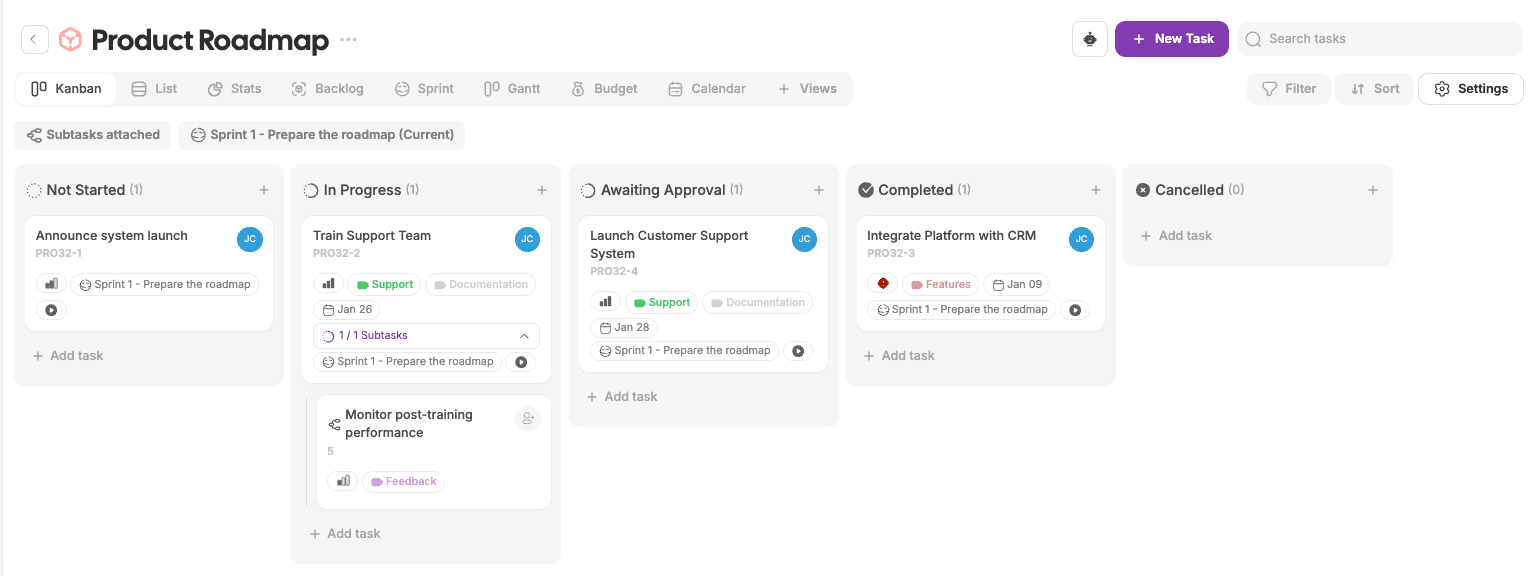
How Subtasks Work
Subtasks inherit the project workflow
They can have their own status, assignees, and properties
Subtask behavior depends on Project Subtask Settings
Examples:
Completing all subtasks can automatically complete the parent task
Parent status can sync with subtask progress
When to Use Tasks vs Subtasks
Use tasks when:
Work can be completed independently
Ownership is clear
No breakdown is needed
Use subtasks when:
Work needs multiple steps
Different people handle parts of the work
Progress needs granular tracking
Best Practices
Keep task names short and clear
Use descriptions for context, not titles
Assign owners to avoid confusion
Use subtasks for complex work, not everything
Keep workflows consistent across tasks
What’s Next?
👉 Next article: Automations in Projects
Learn how to automate actions, notifications, and workflows to save time and keep your team aligned.