Cynoia team
Project Views Explained
Written by : Cynoia team
Project views let you visualize and manage work in different ways, depending on how your team plans, tracks, and delivers tasks.
Each project can use multiple views, and you can switch between them at any time.
Accessing Project Views
Project views are available at the top of every project.
From the project header, you can:
Switch between available views
Enable or disable specific views
Add additional views as needed

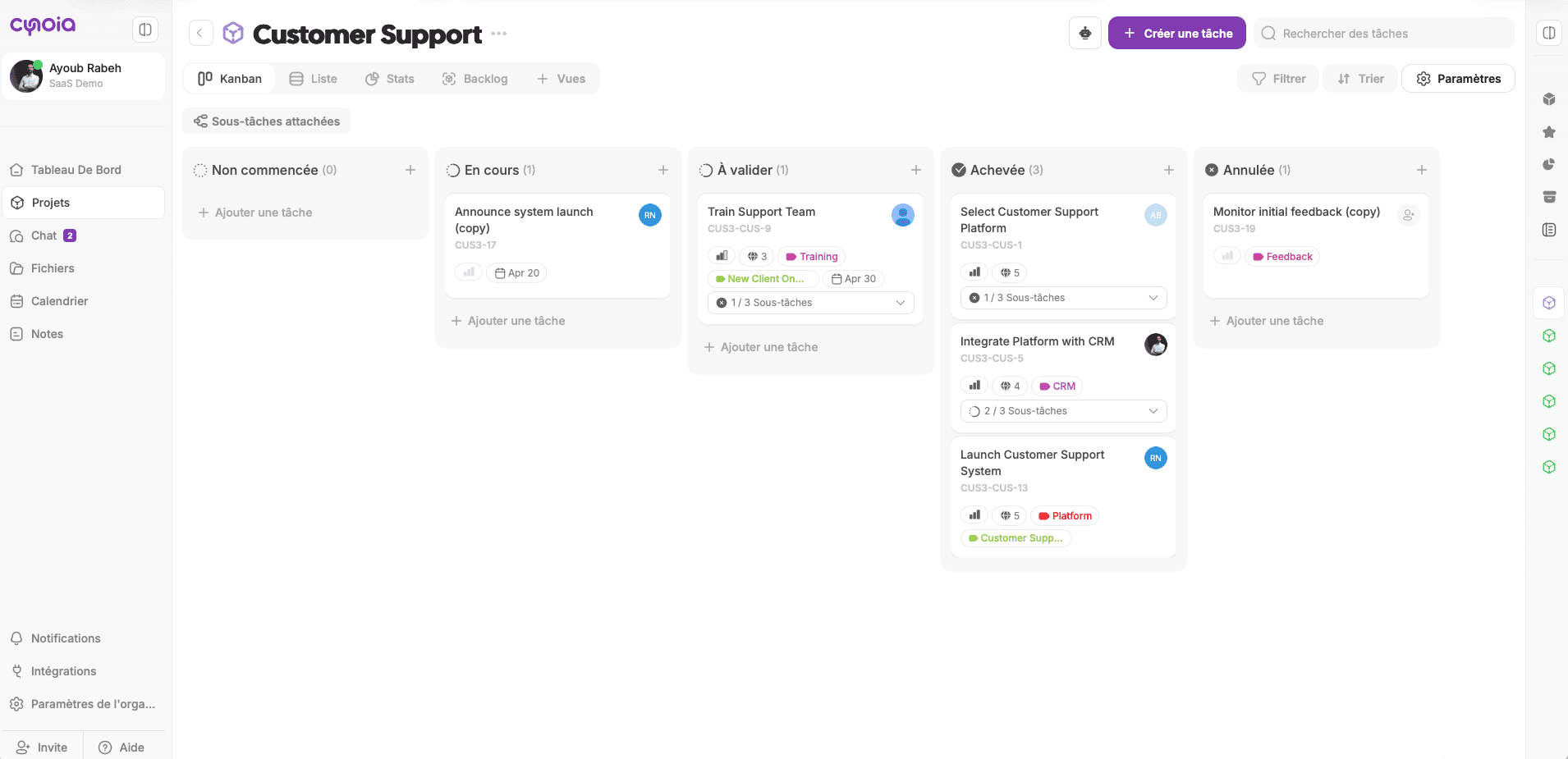
Kanban View
Kanban is the default view for all projects.
It displays tasks as cards grouped by status (columns).
Use Kanban to:
Visualize workflow stages
Drag and drop tasks between statuses
Quickly see work in progress
Add tasks directly inside columns
Screenshot hint:
List View
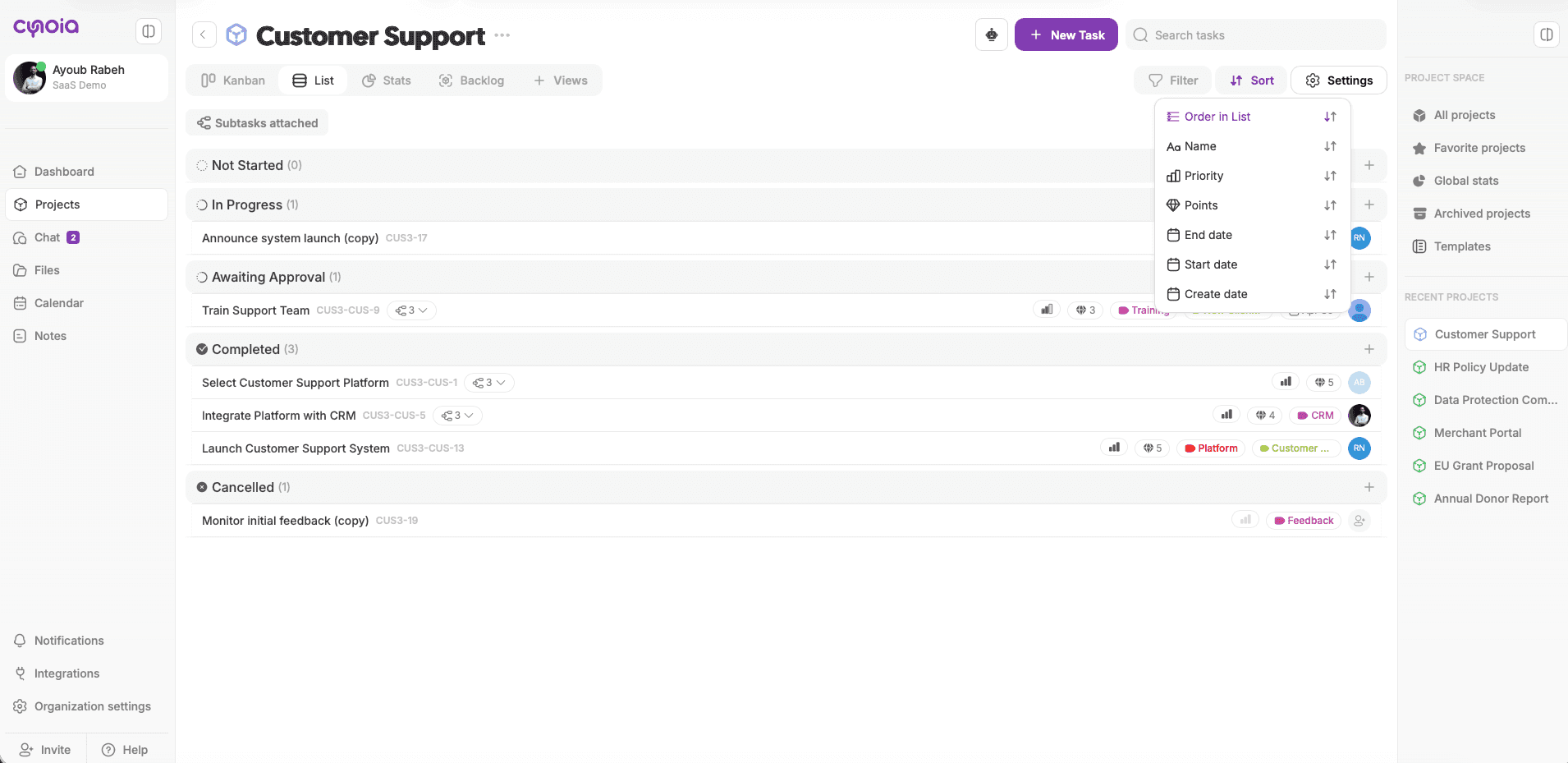
List view displays tasks in a structured table format.
Use List view to:
See all tasks in one place
Sort tasks by different fields
Scan task details quickly
Available sorting options include:
Name
Priority
Points
Start date
End date
Creation date
Calendar View
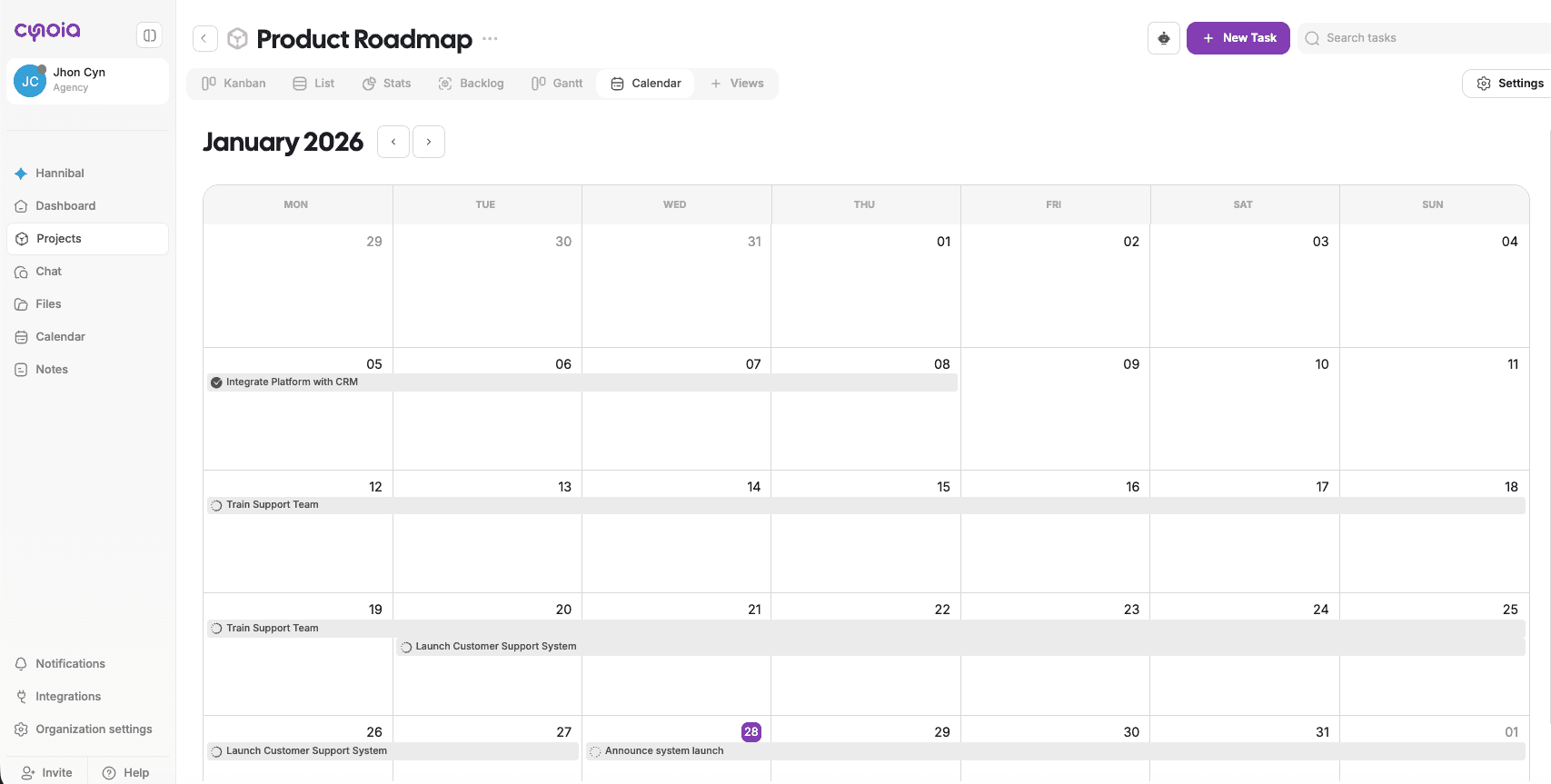
Calendar view displays tasks based on their assigned dates.
Use Calendar view to:
Track deadlines and milestones
Plan work over days, weeks, or months
Visualize scheduled tasks
Only tasks with dates appear in the calendar.
Gantt View
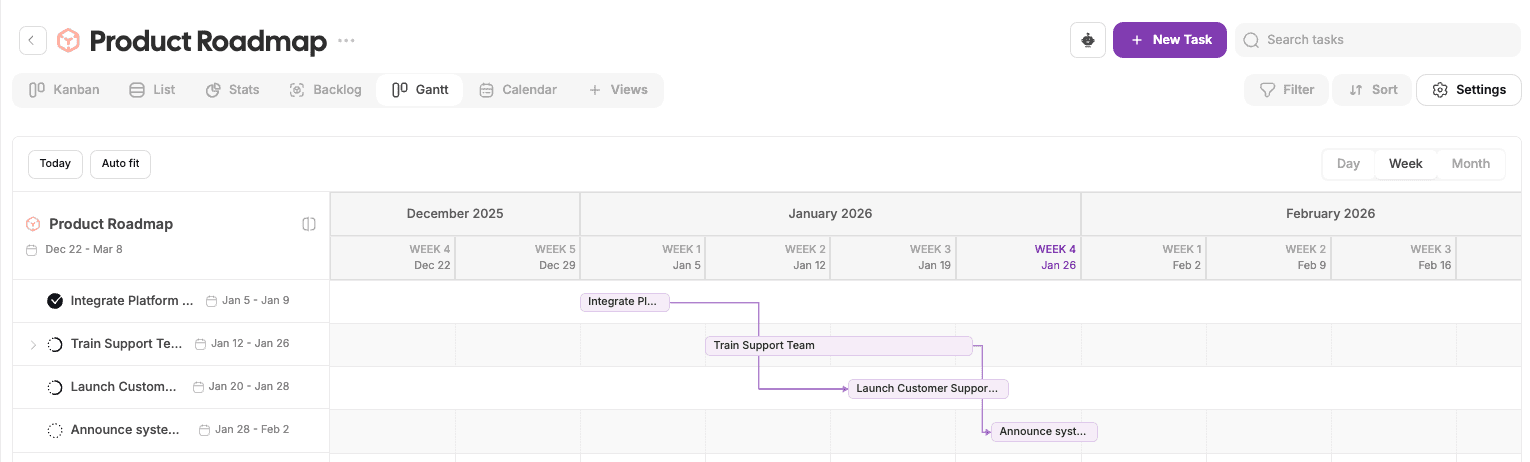
Gantt view shows tasks on a timeline.
Use Gantt view to:
Plan long-term work
Visualize task durations
Understand dependencies and overlaps
Track progress over time
This view is ideal for roadmap planning and delivery tracking.
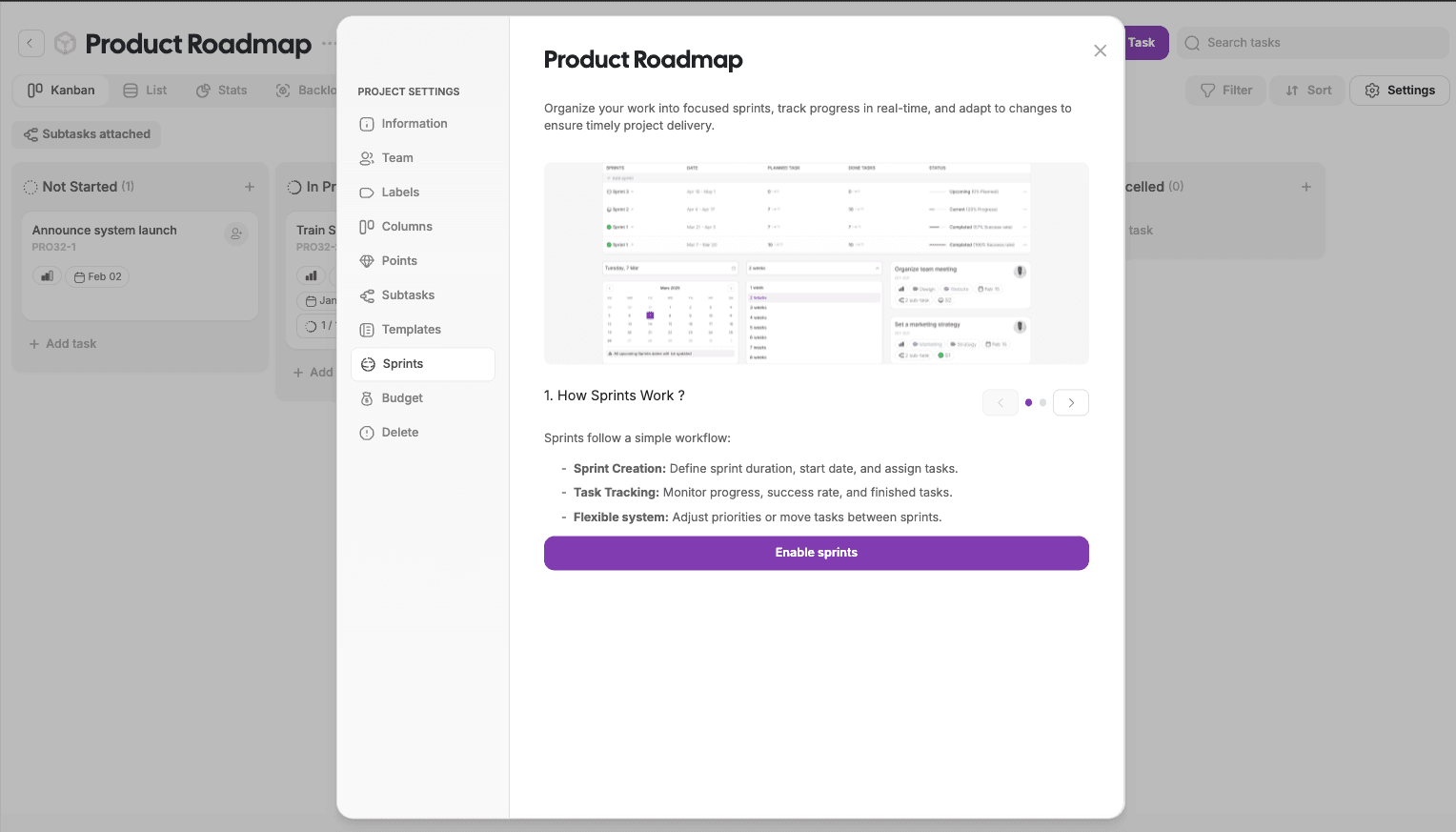
Sprint View
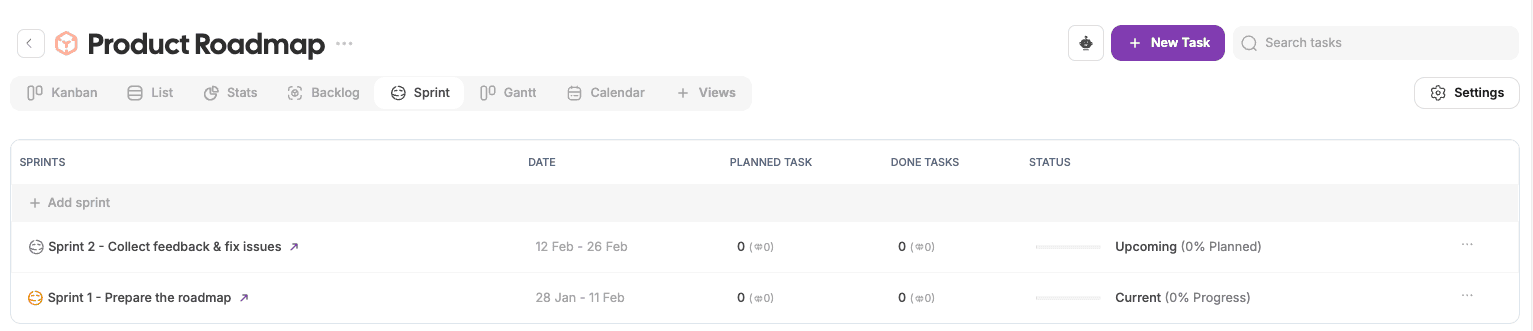
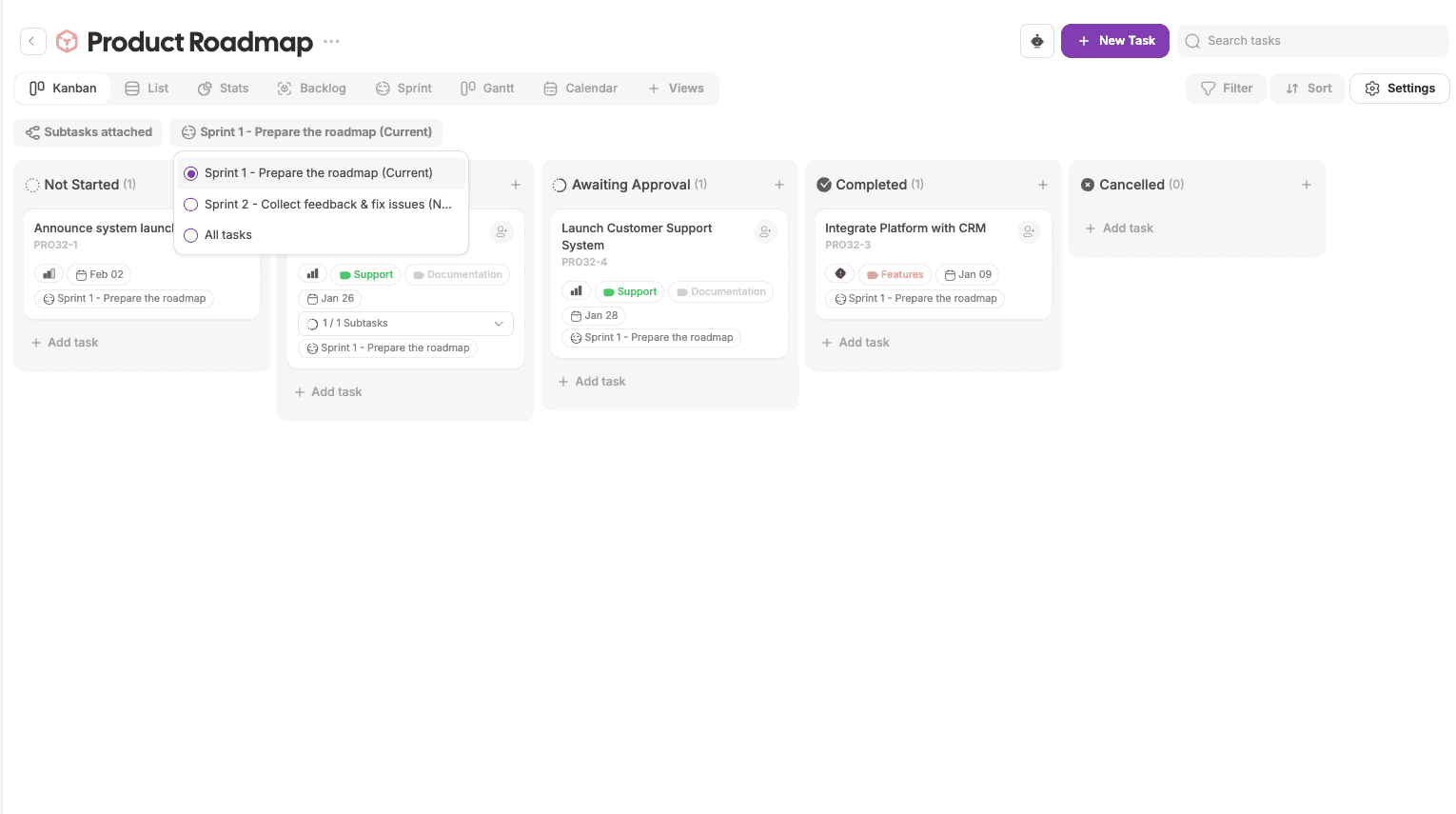
Sprint view is used for time-boxed iterations.
Use Sprint view to:
Plan work in sprints
Assign tasks to specific sprint cycles
Track sprint progress
Review completed vs planned work
Sprint view is available when sprints are enabled in project settings.
Backlog View
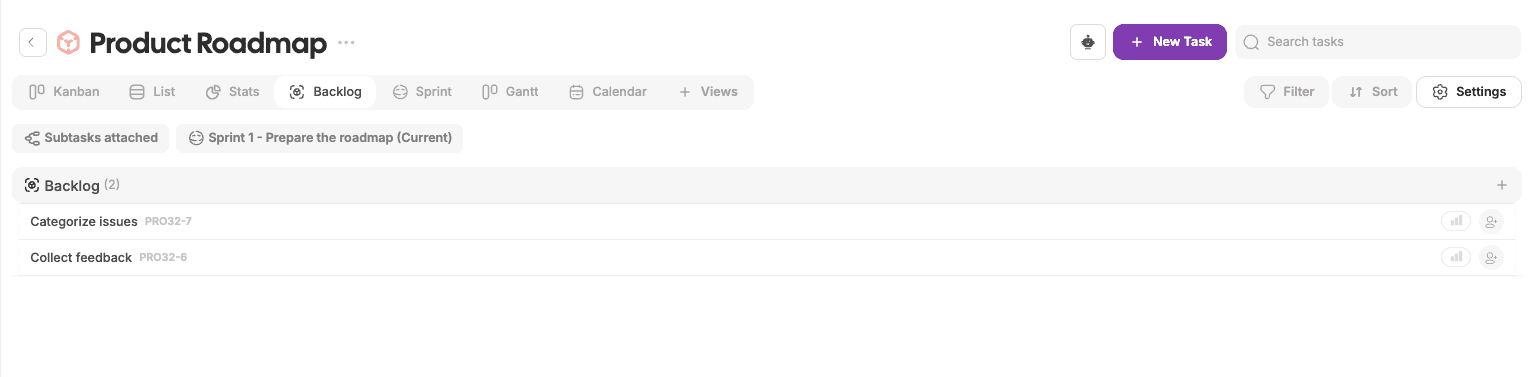
Backlog view shows tasks that are not yet assigned to a sprint or active workflow.
Use Backlog view to:
Store upcoming work
Prepare tasks before moving them into active sprints
Prioritize future tasks
Backlog helps teams stay organized and plan ahead.
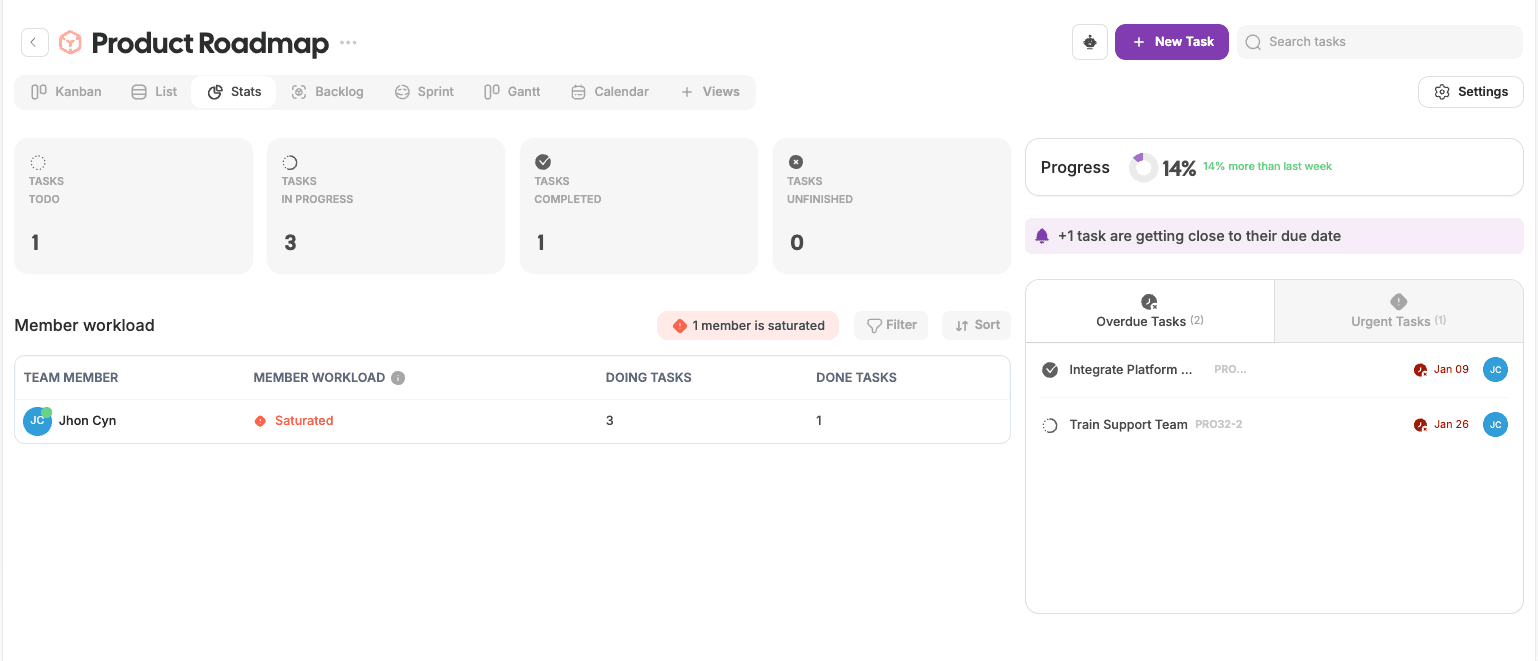
Stats View
Stats view provides insights into project progress and workload.
Use Stats view to:
Monitor task completion
Track workload per team member
Identify blocked or overdue tasks
View progress indicators
This view is helpful for reporting and decision-making.
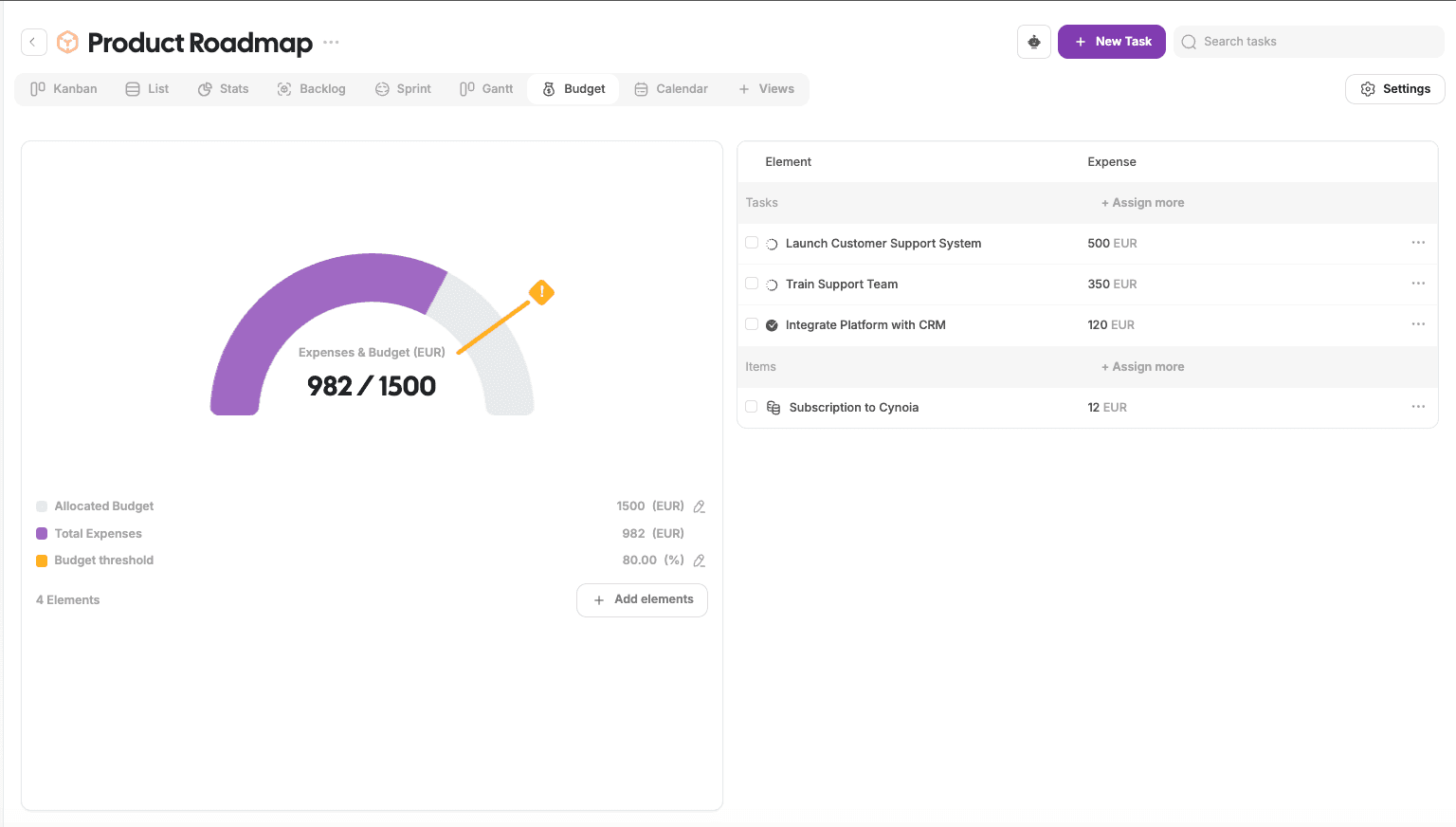
Budget View
Budget view helps track project costs.
Use Budget view to:
Monitor expenses
Compare actual costs vs budget
Receive budget threshold alerts
Budget view is available when budget tracking is enabled.
Managing Project Views
You can customize which views are available per project.
From Project settings:
Enable or disable views
Control access based on permissions
Each project can have a different set of views depending on its needs.
Choosing the Right View
Different views serve different purposes:
Kanban → day-to-day task execution
List → structured task management
Calendar → deadline planning
Gantt → timeline and roadmap planning
Sprint & Backlog → agile workflows
Stats & Budget → monitoring and reporting
You can switch views at any time without losing data.
What’s Next?
👉 Next article: Managing Tasks in Projects
This will cover creating tasks, assigning work, and using task properties effectively.