Cynoia team
Storage Management & Limits
Written by : Cynoia team
Cynoia uses a user-based storage model, meaning each user has their own personal storage quota based on their subscription plan.
This article explains:
How storage works per user
What counts toward your storage
How to monitor and manage your usage efficiently
How Storage Works in Cynoia
Storage in Cynoia is assigned per user, not per workspace.
That means:
Each user has their own storage limit
Files you upload consume your personal storage
Shared files only affect the storage of the original uploader
Deleting your files permanently frees up your own storage
Storage Limits by Plan
Your available storage depends on your Cynoia plan:
Plan | Storage Limit |
|---|---|
Free | 100 MB |
Basic | 10 GB |
Pro | 100 GB |
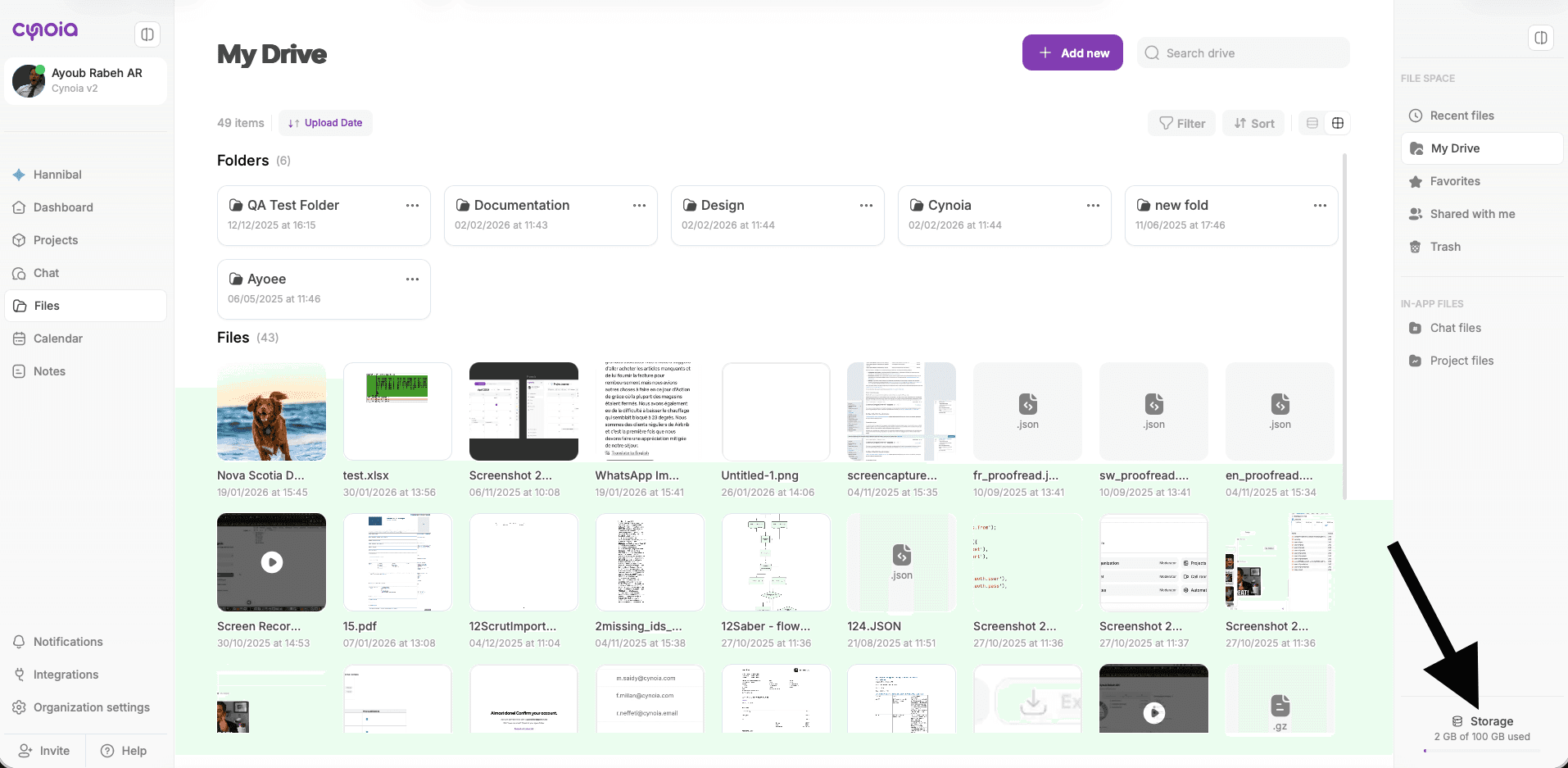
📌 Storage usage is always visible in the Files section.
What Counts Toward Your Storage?
The following items do count toward your personal storage:
Files uploaded to My Drive
Files uploaded to Projects
Files shared in Chat
Images, videos, documents, PDFs, audio files
Files in Trash (until permanently deleted)
The following do NOT count:
Text messages
Tasks, comments, or notes
External links (Google Drive, Dropbox, URLs)
Files uploaded by other users
Storage Locations Explained
My Drive
Your personal file space
Files are private by default
Uses your storage quota
Project Files
Shared within projects
Ownership remains with the uploader
Uses the uploader’s storage
Chat Files
Files shared in channels or direct messages
Still belong to the uploader
Uses the uploader’s storage
Checking Your Storage Usage
To view your storage usage:
Open Files
Look at the bottom-right corner
You’ll see:
Total storage available
Used storage
Remaining space
Managing Your Storage
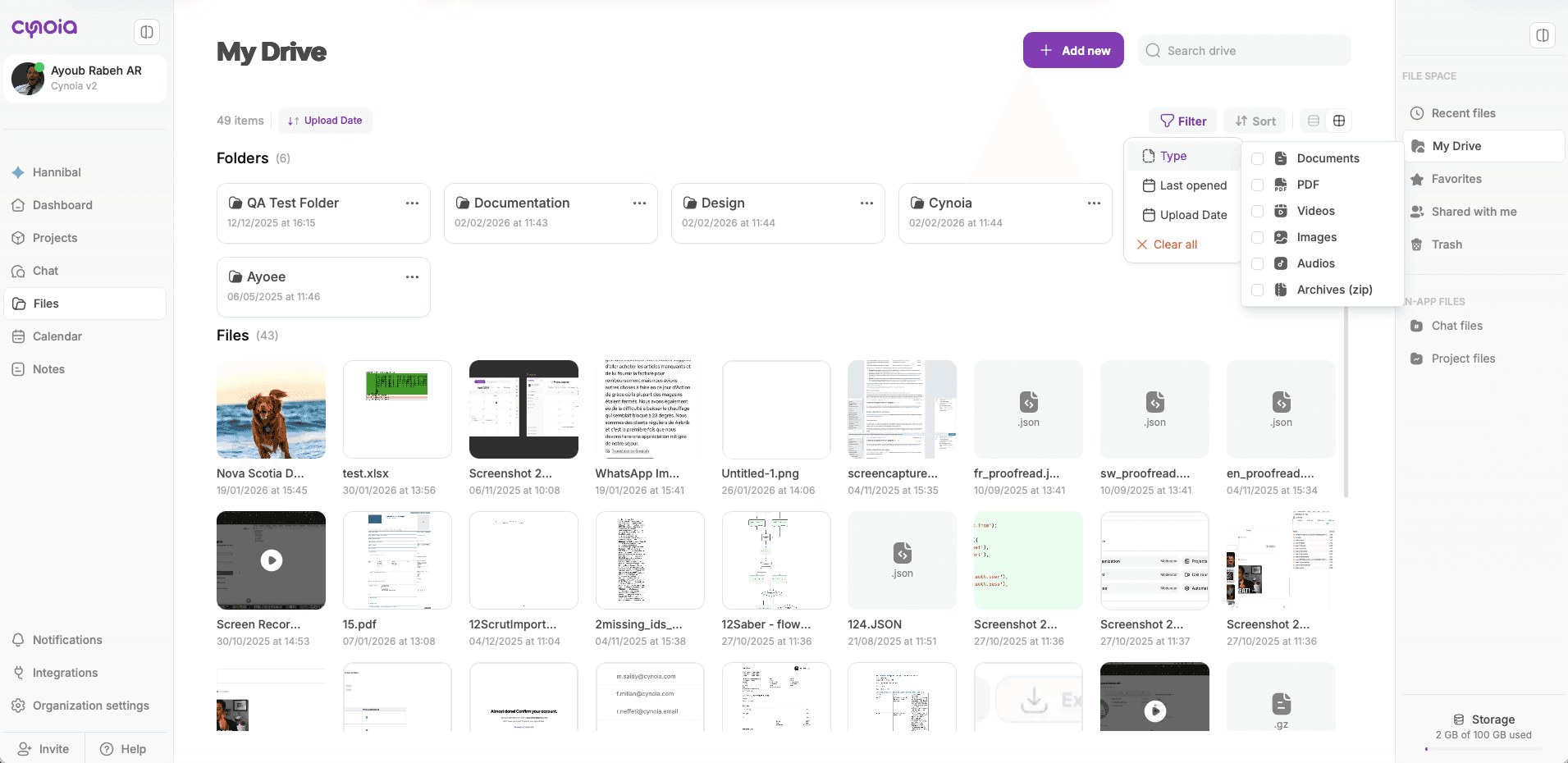
Find Large Files Quickly
Use Filter → Type to locate:
Videos
Images
Archives (.zip)
These usually consume the most storage.
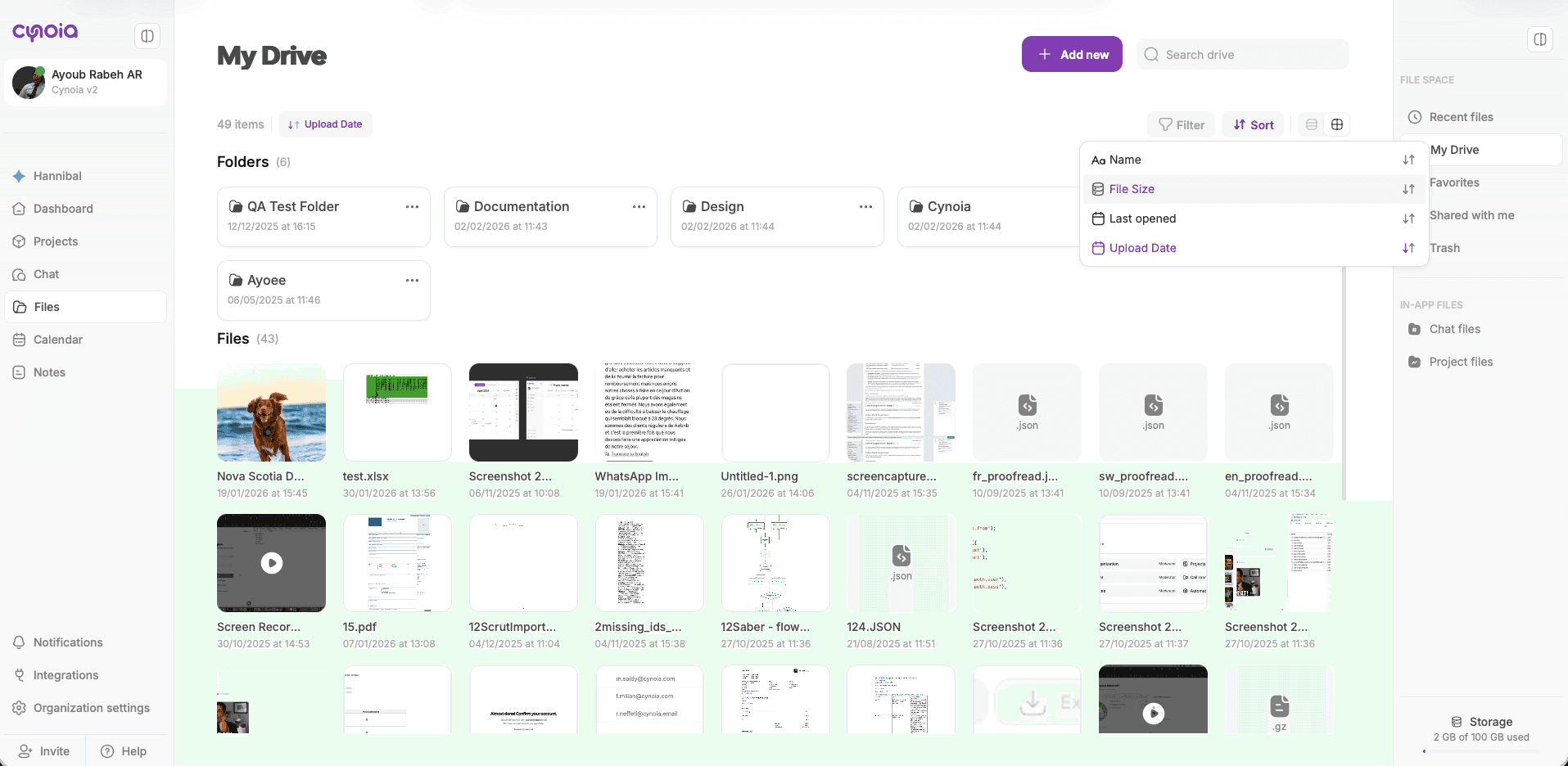
Sort by File Size
Switch to list view and sort by File size to identify heavy files.
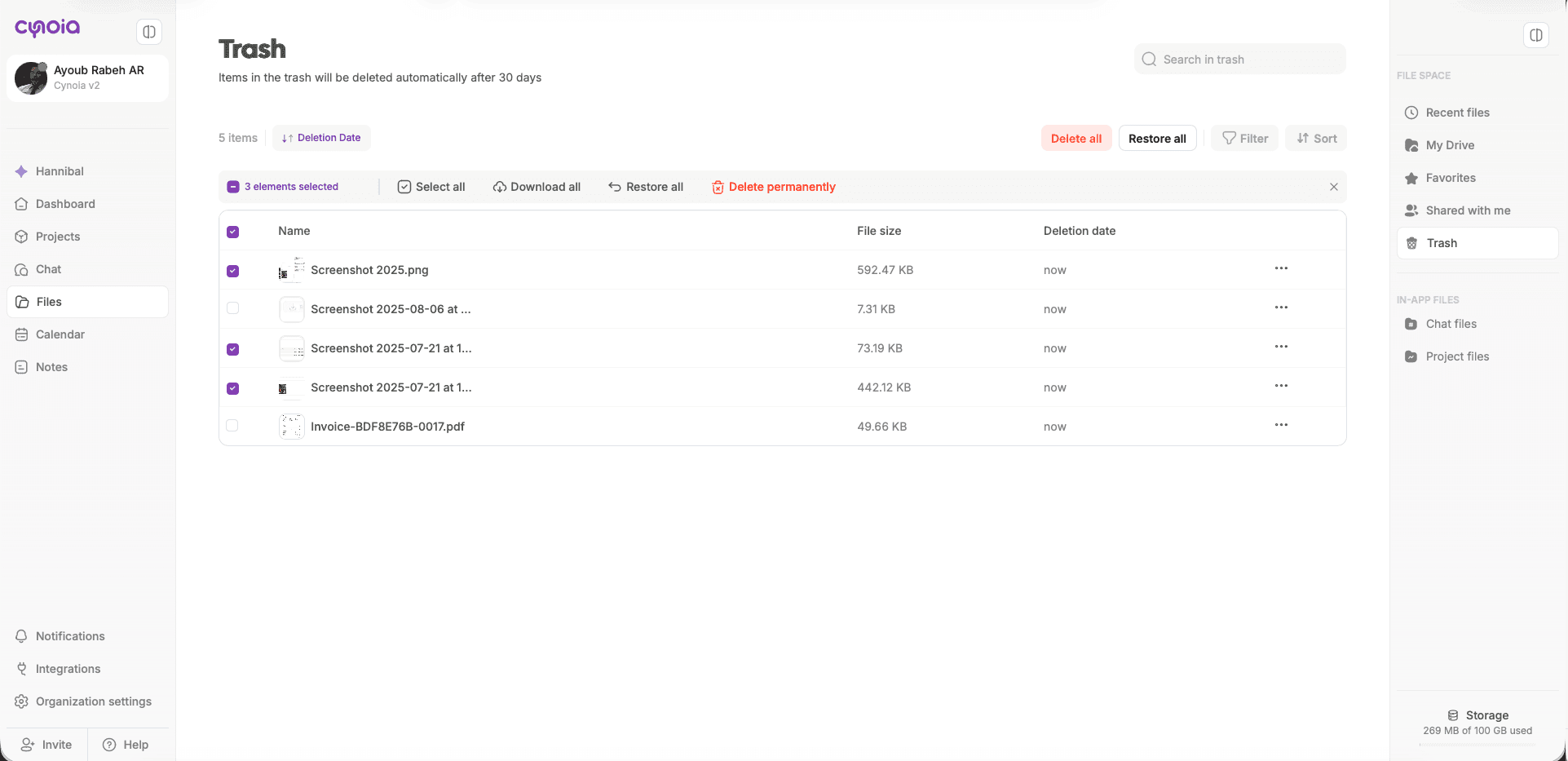
Delete & Empty Trash
Deleting files moves them to Trash
Files in Trash still count toward storage
Empty Trash to permanently free space
Favorites & Storage
Marking a file as Favorite:
Does NOT duplicate the file
Does NOT increase storage usage
Only improves access and visibility
Shared Files & Storage Impact
Files shared with you do not use your storage
Files you upload and share use your storage
Ownership determines storage usage
📌 Even if a file is used in multiple projects or chats, it only counts once, for the uploader.
Storage Warnings & Limits
When you approach your storage limit:
You’ll see warnings in the Files section
Uploads may be restricted once the limit is reached
You’ll need to:
Delete files, or
Upgrade your plan
Best Practices
✅ Avoid duplicate uploads
✅ Reuse files across projects
✅ Clean up old chat files
✅ Delete unused videos and archives
✅ Empty Trash regularly
✅ Use external links when possible
What’s Next?
You’ve completed Files & Storage Management.
👉 Next article: Calendar & Scheduling