Cynoia team
Calendar & Scheduling Overview
Written by : Cynoia team
Cynoia’s Calendar brings all your work, meetings, and reminders into a single unified timeline.
It helps you plan your days, coordinate with your team, and stay on top of deadlines—without switching tools.
The calendar is tightly connected to projects, tasks, and call rooms, while still supporting external calendars like Google Calendar.
What You Can Do with the Calendar
The Calendar allows you to:
View all your events in one place
Create personal or team calendars
Schedule meetings and calls
Track project and task-related dates
Sync external calendars (Google Calendar)
Control which calendars are visible at any time
Calendar Views
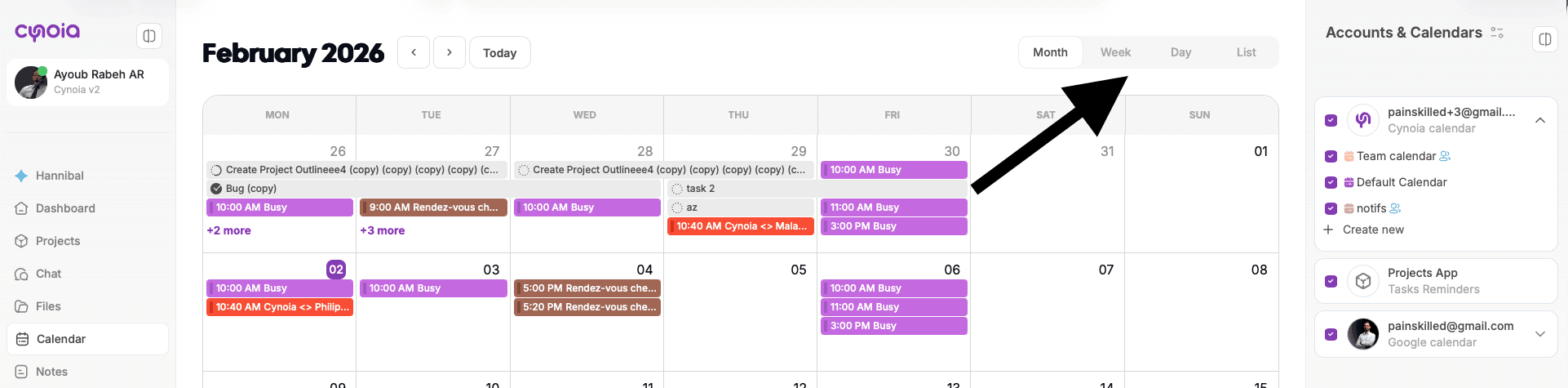
You can switch between multiple views depending on how you prefer to plan your time:
Month view – High-level planning and overview
Week view – Focus on weekly workload
Day view – Detailed daily schedule
List view – Chronological list of upcoming events
Calendars & Accounts Panel
On the right side of the calendar, you’ll find the Accounts & Calendars panel.
This panel lets you manage which calendars are displayed.
Calendar Sources
You can enable or disable calendars from:
Cynoia Calendars
Personal calendar
Team calendars
Custom calendars you create
Projects App
Task-related dates
External Calendars
Google Calendar accounts
Each calendar has a color and visibility toggle.
Creating a New Calendar
You can create additional calendars to organize different types of events.
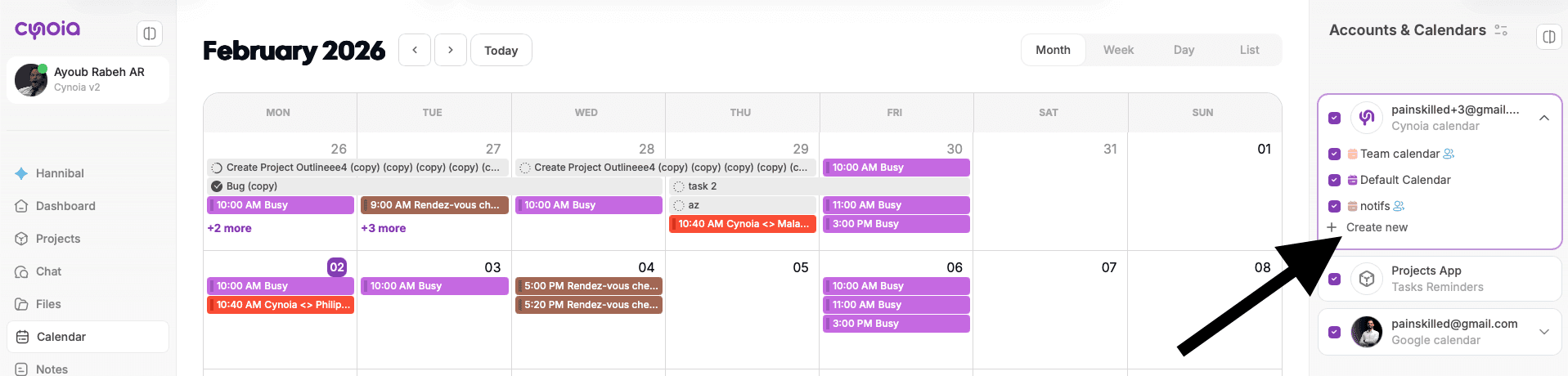
How to create a calendar
Open Calendar
In the Accounts & Calendars panel, click Create new
Choose:
Calendar name
Calendar color
Optional description
(Optional) Invite members to the calendar
Click Create calendar
Calendars are useful for:
Team schedules
Department planning
Personal reminders
Special event tracking
Creating Events
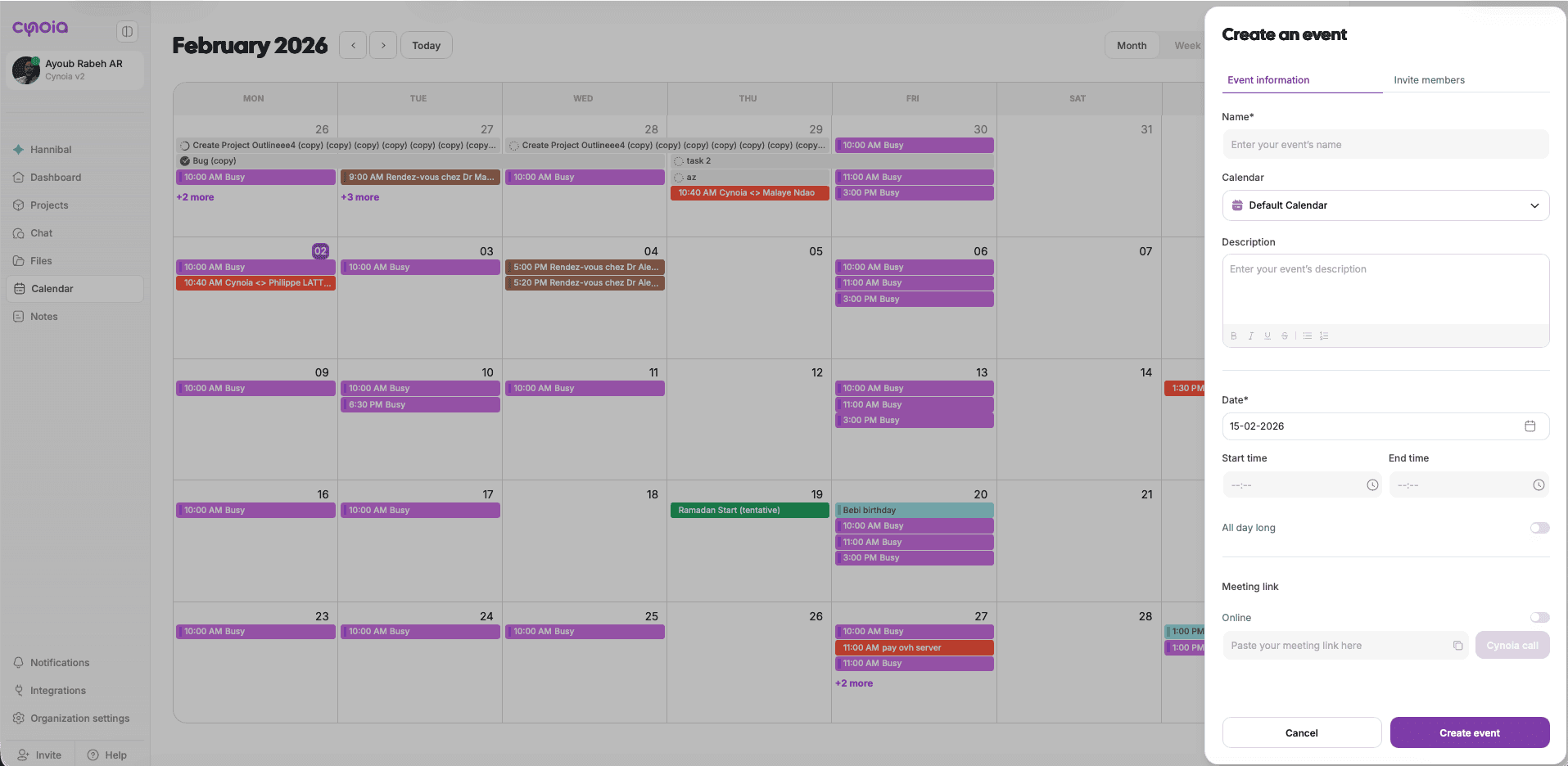
Events are individual entries on your calendar.
Event details include:
Event name
Calendar selection
Description (rich text)
Date
Start & end time
All-day option
Online meeting link (Cynoia Call or external link)
You can create events by:
Clicking + New event
Clicking directly on a date/time slot in the calendar
Online Meetings & Call Rooms
Events can include an online meeting:
Use Cynoia Call directly from the event
Or paste an external meeting link
When a Cynoia Call is attached:
Participants can join directly from the calendar
The call room opens when the organizer starts it
This makes the calendar a central hub for both planning and execution.
Task & Project Integration
The calendar automatically displays:
Task due dates
Task start/end dates
This means your calendar reflects real work, not just meetings.
📌 Example:
A task with a due date appears on the calendar
Google Calendar Integration
You can connect one or more Google Calendar accounts.
Once connected:
Google events appear alongside Cynoia events
You can toggle visibility per account
Calendars stay in sync automatically
When to Use the Calendar vs Projects
Use Projects to manage work, tasks, and progress
Use Calendar to manage time, deadlines, and meetings
They work together, not separately.
What’s Next?
Now that you understand how scheduling works in Cynoia let's move to:
👉 Next article: Creating & Managing Calendars
Related to Calendar & Scheduling