Cynoia team
Time Tracking & Time Logs
Written by : Cynoia team
Time tracking helps teams understand how much time is spent on tasks, improve planning, and measure actual effort versus estimates.
In Cynoia, time tracking is handled directly inside each task using Time Logs.
What Are Time Logs?
Time logs record the actual time spent working on a task.
They allow teams to:
Track effort per task
See how time is distributed across work
Compare estimated time vs real time
Improve future planning
Time logs are optional and can be used only when needed.
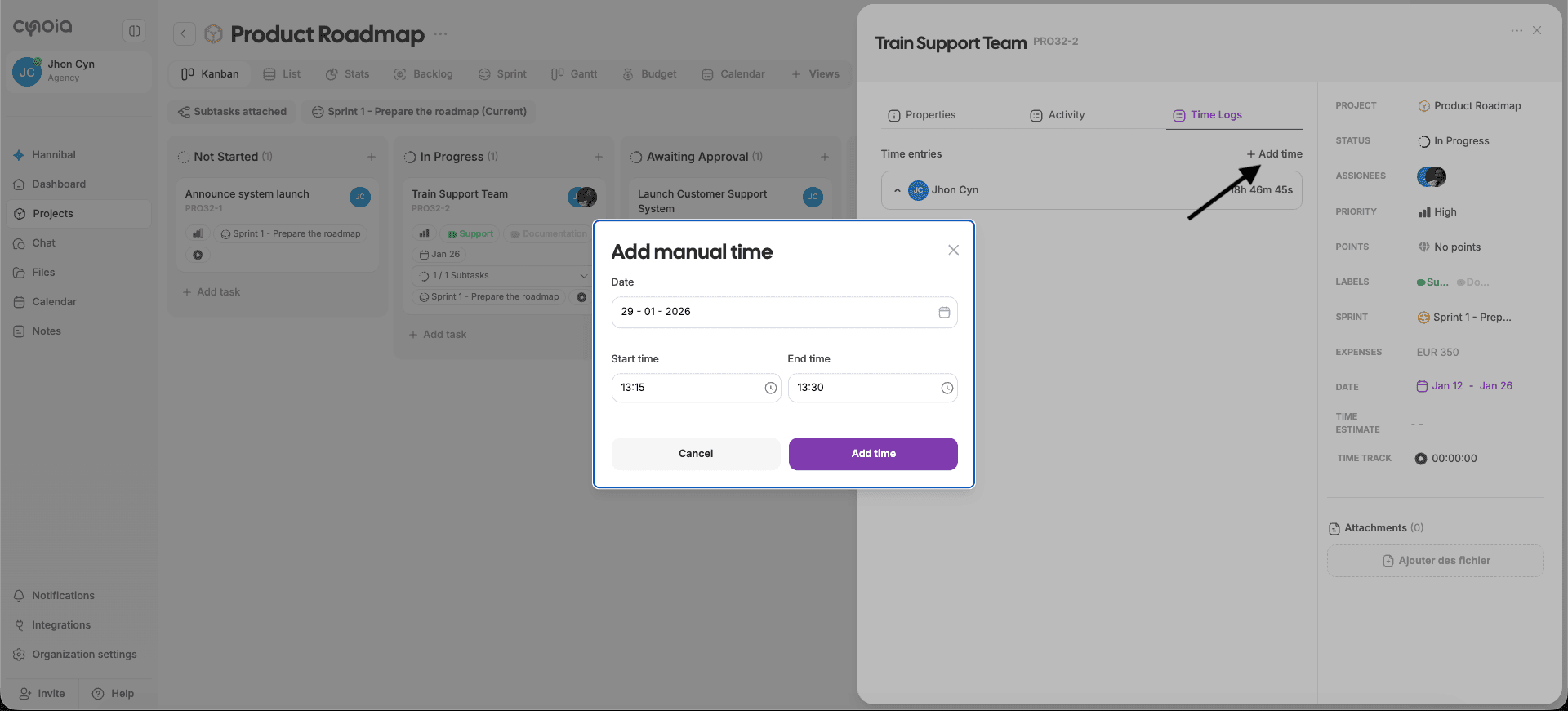
Logging Time on a Task manually ( if enabled )
Steps
Open the task
Select the Time Logs tab
Add a time entry
Enter the amount of time spent
Save the entry
Time entries are added instantly and reflected in the task total.
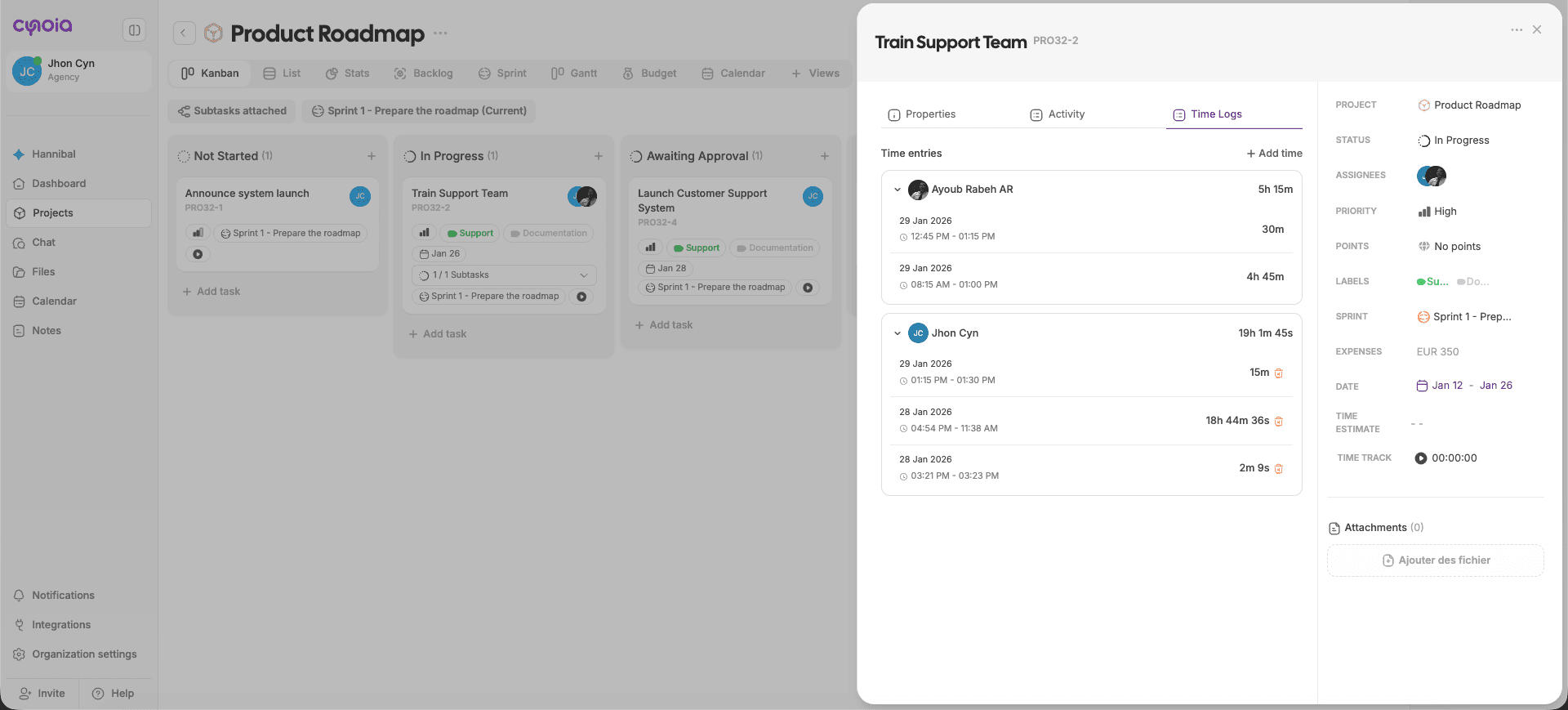
Viewing Logged Time
Inside the Time Logs tab, you can see:
Total time spent on the task
Time entries grouped by user
Individual time records
This provides transparency across the team.
Time Estimates vs Time Logs
Time estimate → planned or expected duration
Time logs → actual time spent
Comparing the two helps teams:
Identify underestimated tasks
Improve workload planning
Adjust future estimates
When to Use Time Tracking
Time tracking is especially useful for:
Client or billable projects
Time-boxed work
Performance and workload analysis
Retrospectives and reporting
It may not be necessary for every task.
Best Practices
Log time regularly to avoid forgetting
Keep entries simple and accurate
Use estimates for planning, not control
Review time logs during retrospectives
Avoid over-tracking small tasks
Permissions & Visibility
Depending on your role:
You may log time only for yourself
Or view time logs for the entire team
Access rules depend on project-level permissions.
Viewer can only start timer on tasks he's assigned to.
Viewer can visit Time logs only on tasks he's assigned to.
What’s Next?
👉 Next article: Organizing Work at Scale
Learn how to use filters, sorting, search, and favorites to stay productive as your workload grows.
Related to Tasks & Work Management