Cynoia team
Automation & Workflows Overview
Written by : Cynoia team
Automations in Cynoia help you reduce manual work, enforce consistency, and keep your team informed by automatically reacting to task events.
Each automation follows a simple rule structure:
WHEN something happens → IF conditions are met → THEN Cynoia performs actions
Automations are configured per project and apply only within that project.
What Are Automations Used For?
You can use automations to:
Notify teammates when something important happens
Automatically update task properties
Assign work based on rules
Enforce project workflows
React to budget or expense changes
Automations are especially useful for busy teams, time-sensitive work, and process-driven projects.
Automation Structure Explained
Each automation is made of three building blocks.
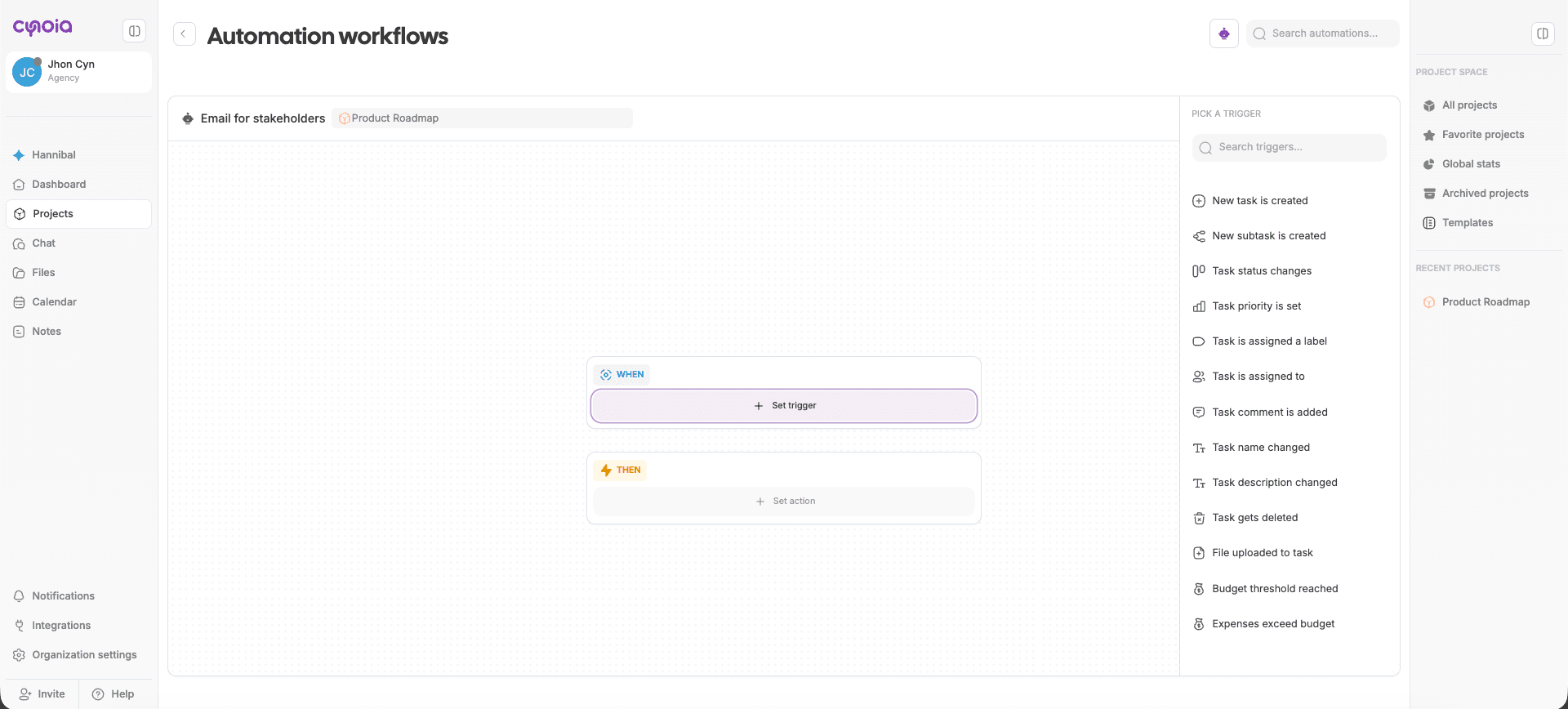
1. WHEN — Triggers
Triggers define when the automation starts.
Available triggers include:
New task is created
New subtask is created
Task status changes
Task priority is set
Task is assigned a label
Task is assigned to a member
Task comment is added
Task name changed
Task description changed
Task gets deleted
File uploaded to task
Budget threshold reached
Expenses exceed budget
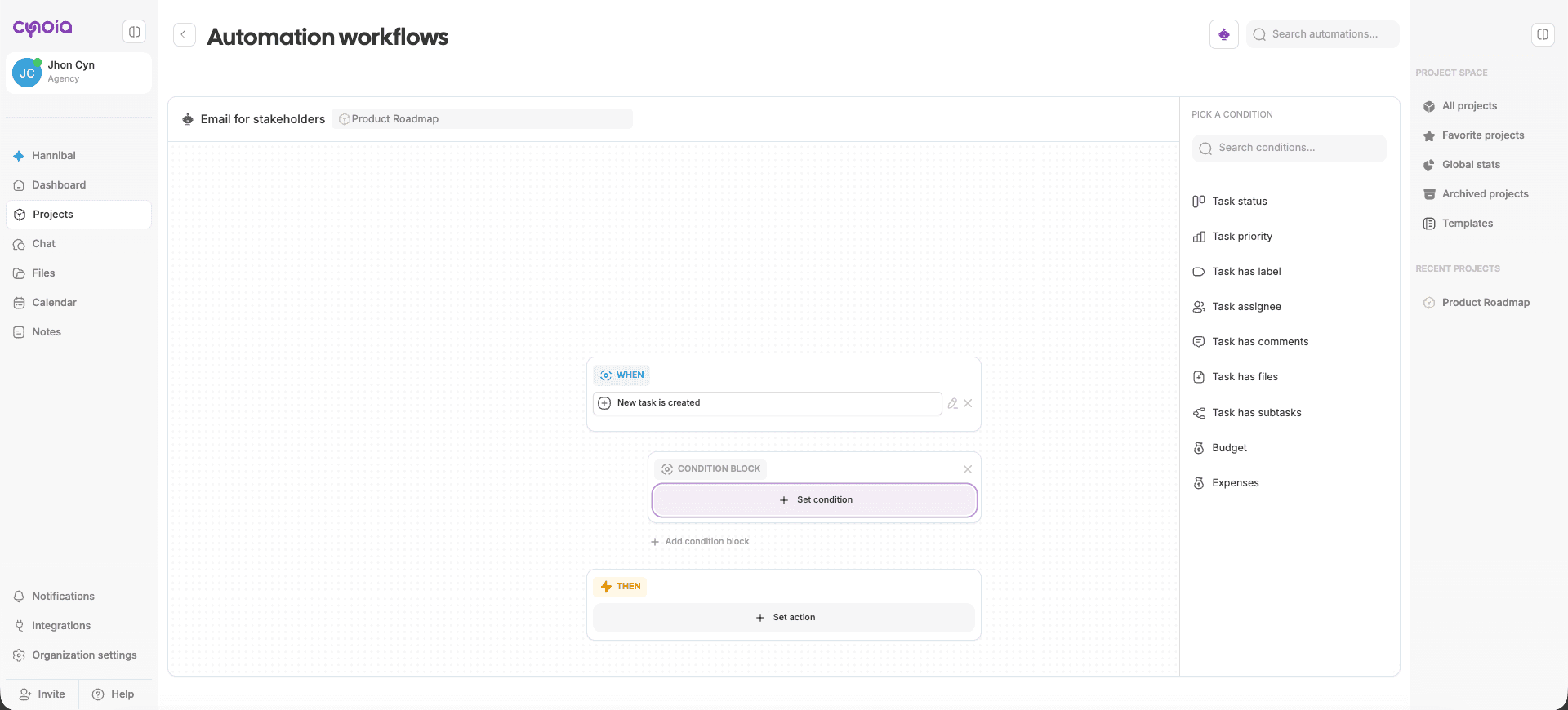
2. IF — Conditions (Optional)
Conditions define additional rules that must be true for the automation to continue.
You can add one or multiple conditions, such as:
Task status
Task priority
Task has a specific label
Task assignee
Task has comments
Task has files
Task has subtasks
Budget conditions
Expense conditions
Conditions can be combined to create precise automations.
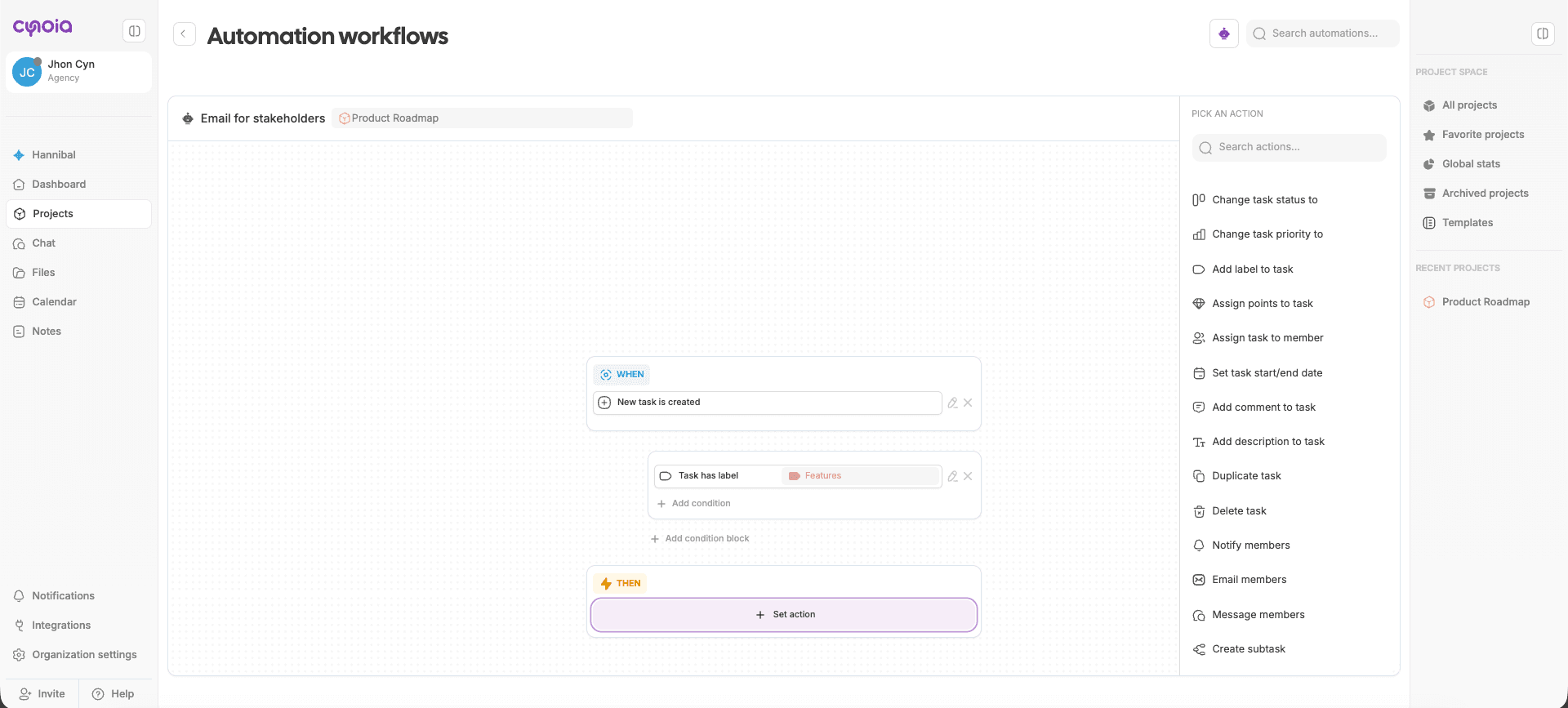
3. THEN — Actions
Actions define what Cynoia should do automatically when the trigger and conditions match.
Available actions include:
Change task status
Change task priority
Add label to task
Assign points to task
Assign task to member
Set task start/end date
Add comment to task
Add description to task
Duplicate task
Delete task
Notify members
Email members
Message members
Create subtask
You can add multiple actions to a single automation.
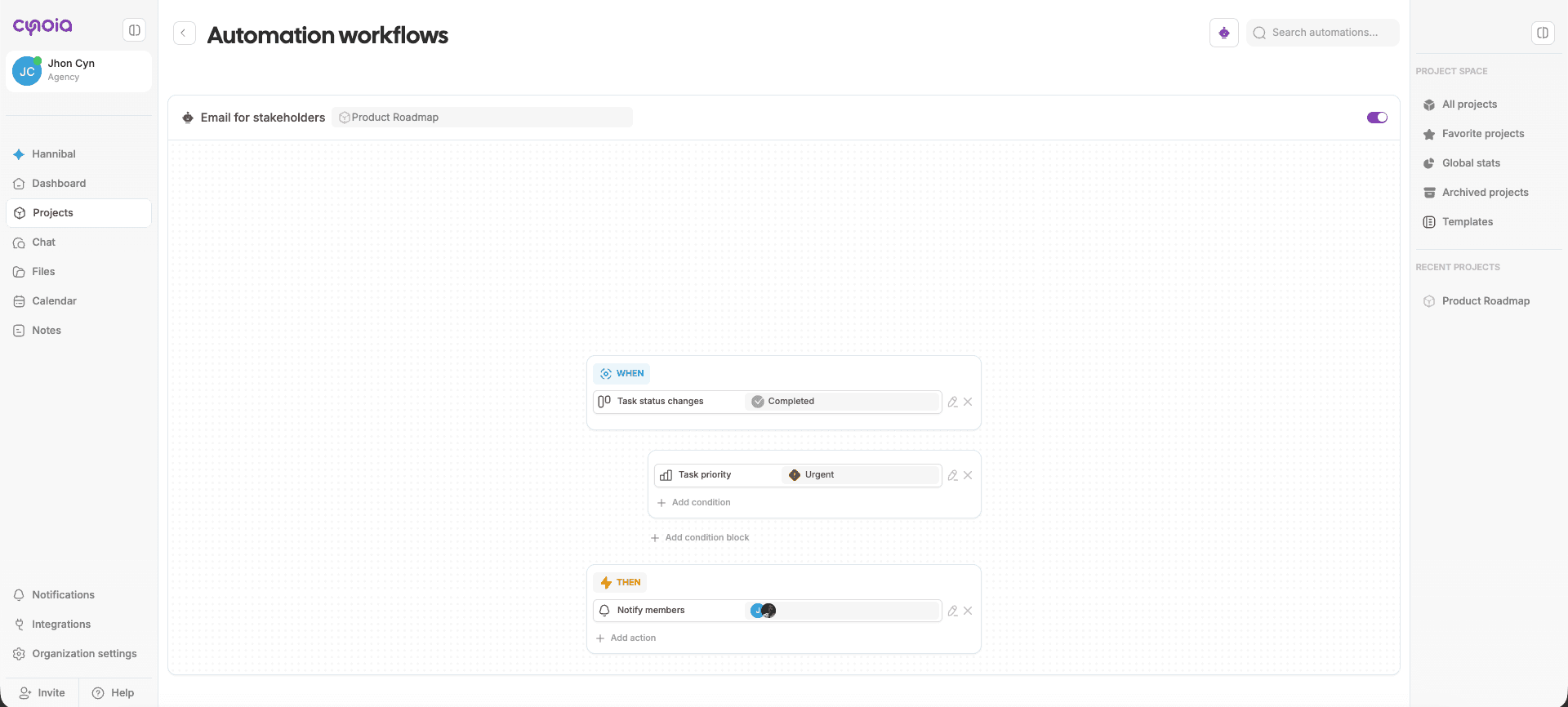
Example Automation
Notify the team when an urgent task is completed
Rule setup:
WHEN: Task status changes → Completed
IF: Task priority = Urgent
THEN: Notify selected members
Result:
Whenever an urgent task is completed, Cynoia automatically sends a notification to the selected team members.
Automation Scope & Permissions
Automations are project-specific
Only users with the appropriate project permissions can create or edit automations
Automations run automatically once enabled
Best Practices
Start with simple automations
Avoid over-notifying users
Use clear status and priority naming
Test automations before relying on them
Document important automations for your team
What’s Next
In the next articles, we’ll dive deeper into:
Available triggers (detailed)
Conditions explained
Actions explained
Real-world automation recipes
Related to Automation & Workflows