Cynoia team
Budget & Expenses
Written by : Cynoia team
Budget and expenses help teams track project costs and stay within financial limits.
This feature is especially useful for client work, internal cost tracking, and budget-controlled projects.
What Is the Project Budget?
The project budget represents the total amount of money allocated to a project.
Once enabled, Cynoia helps you:
Track expenses linked to tasks
Monitor remaining budget
Get notified when limits are reached
Enabling Budget Tracking
Budget tracking is enabled at the project level.
Steps
Open the project
Go to Project Settings
Select Budget
Enable budget tracking
You can configure the budget at any time.
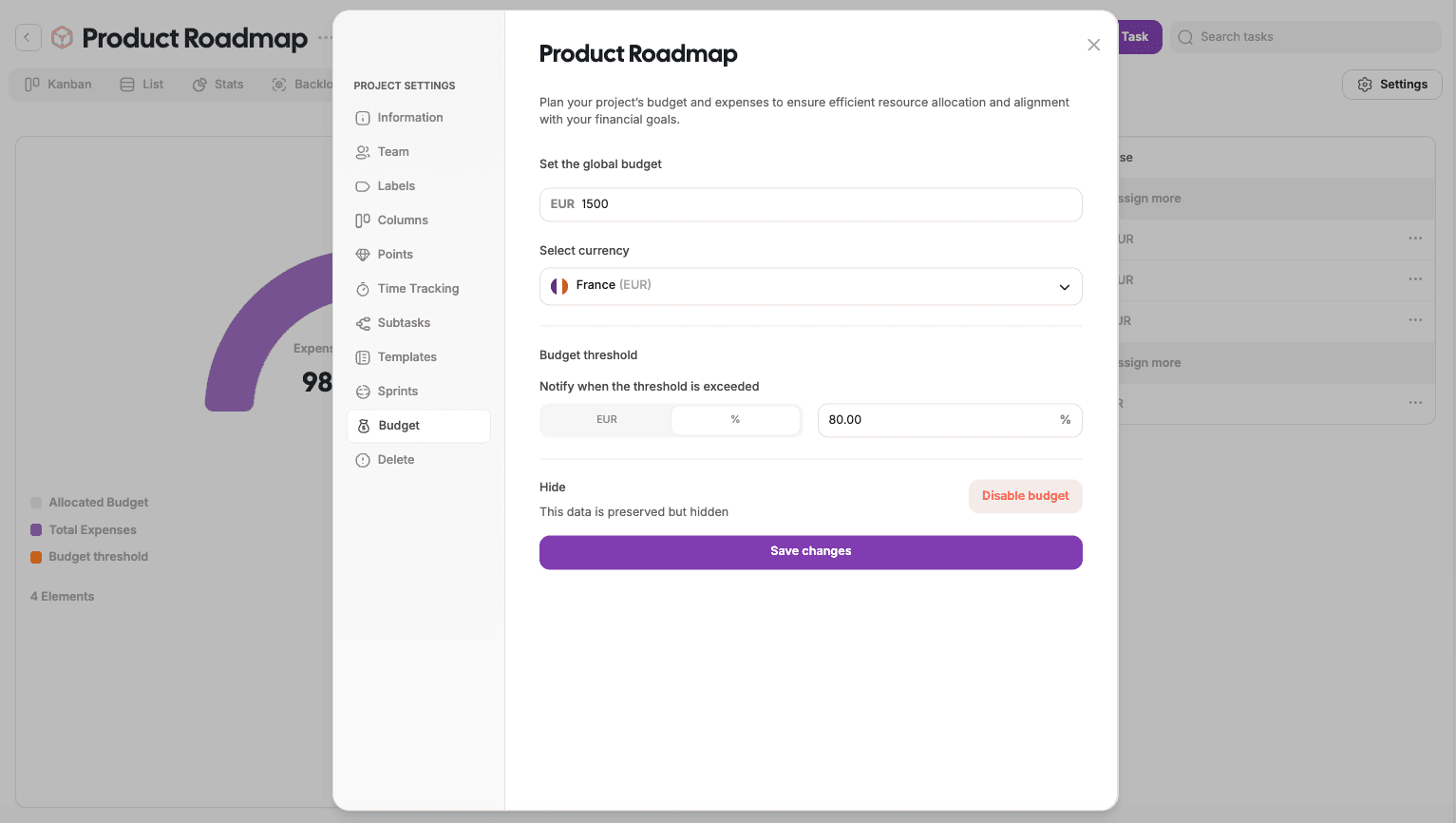
Setting a Project Budget
When budget tracking is enabled, you can define:
Total budget amount
Currency
Budget thresholds (amount or percentage)
Thresholds help trigger alerts when spending reaches a certain level.
Tracking Expenses
Expenses are tracked at the task level.
Each task can include:
One entry
Cost amounts linked to the project budget
Expenses automatically update the project’s total spending.
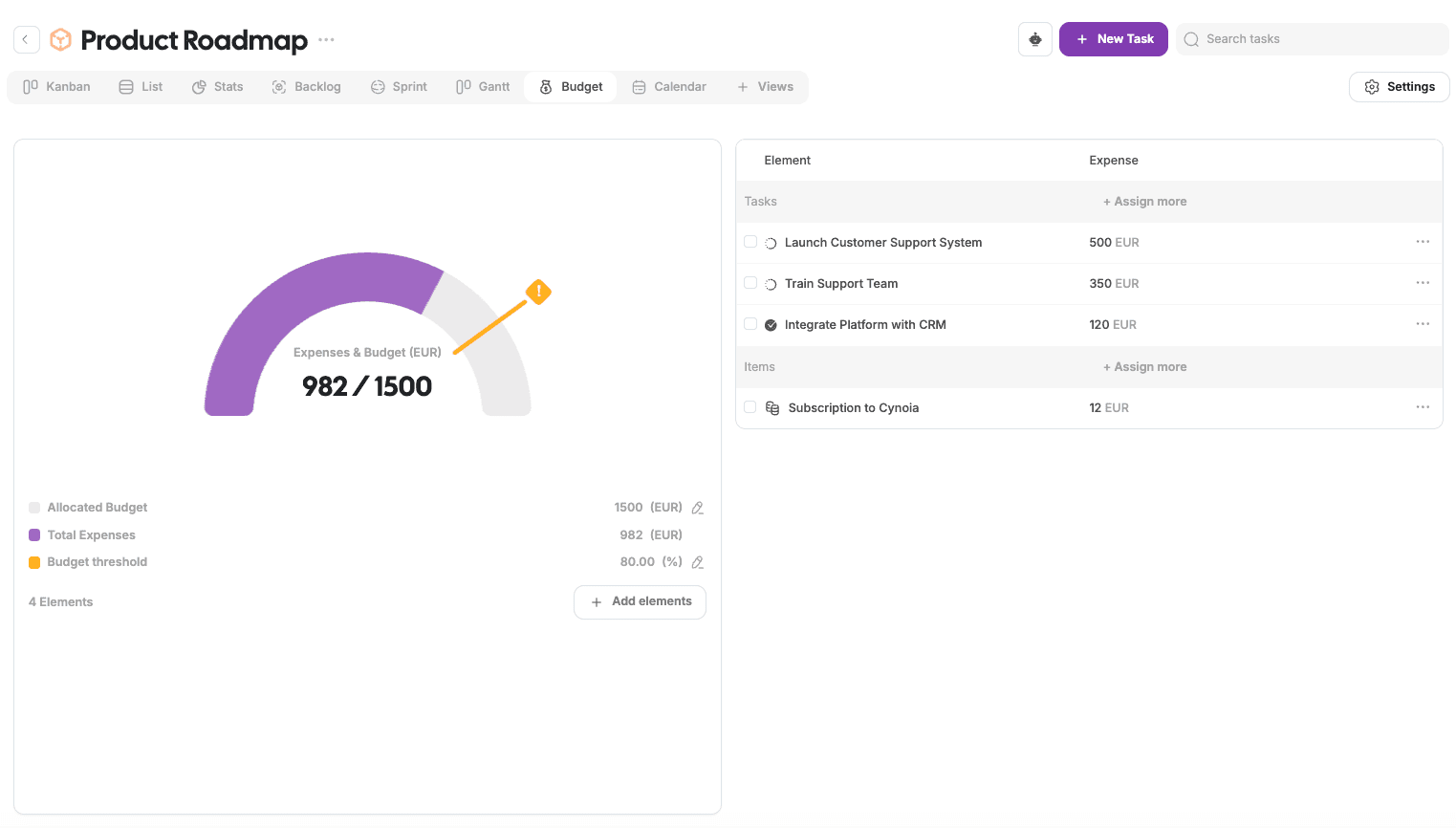
Budget View
The Budget view gives you a clear overview of project costs.
From this view, you can see:
Total budget
Total expenses
Remaining budget
Expense distribution across tasks
This view updates in real time as expenses are added.
Budget Notifications & Alerts
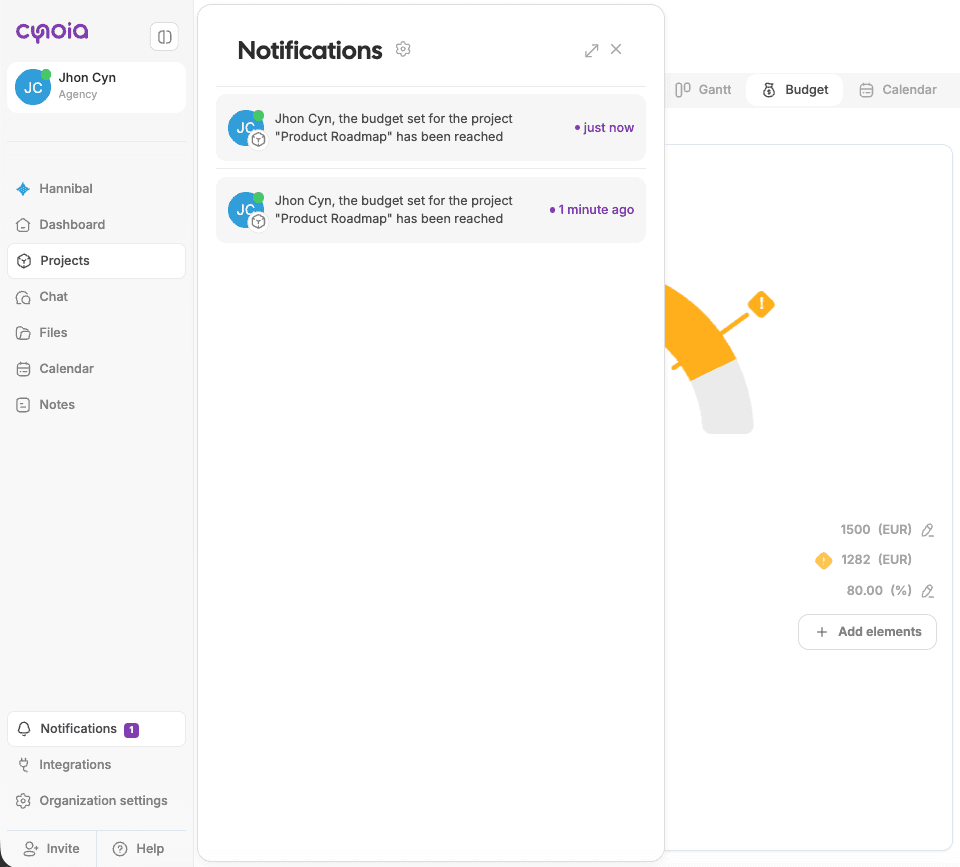
Cynoia can notify you when:
A budget threshold is reached
Expenses exceed the allocated budget
Notifications help teams react early and avoid overspending.
Hiding or Disabling Budget
You can:
Hide the budget view without deleting data
Disable budget tracking temporarily
Disabling budget tracking does not remove existing expense data.
Permissions & Access
Only users with sufficient permissions can:
Enable or edit project budgets
Add or edit expenses
Other members may only view budget information based on their role
Access rules depend on project-level permissions.
Best Practices
Define budgets before adding expenses
Use clear expense naming
Review budget status regularly
Set thresholds early to avoid surprises
Restrict budget editing to responsible roles
What’s Next?
You’ve now completed the Projects (Essential) section 🎉
👉 Next category: Tasks & Work Management
This section will go deeper into:
Task workflows
Advanced task management
Time tracking best practices
Productivity tips