Cynoia team
Creating & Managing Calendars
Written by : Cynoia team
Calendars in Cynoia help you organize events, meetings, and reminders across your workspace.
You can create multiple calendars to separate personal schedules, team planning, or specific workflows.
What Is a Calendar in Cynoia?
A calendar is a container for events.
Each calendar:
Has its own color
Can be shown or hidden
Can be personal or shared
Can include meetings, reminders, and project-related events
You can manage multiple calendars at the same time.
Creating a New Calendar
You can create custom calendars directly from the Calendar view.
Steps to create a calendar
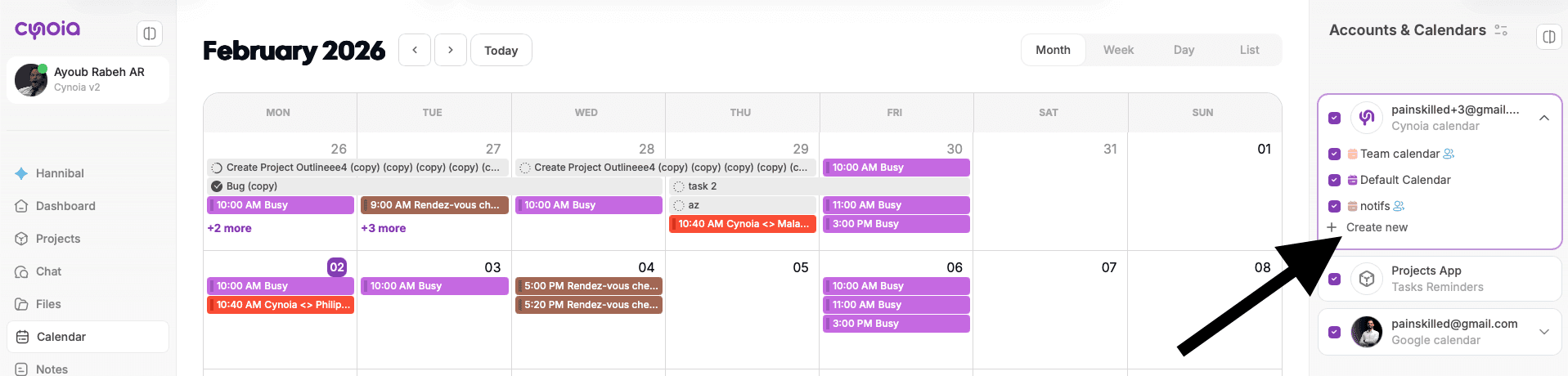
Open Calendar from the left sidebar
In the Accounts & Calendars panel (right side), click Create new
Choose:
Calendar name
Calendar color
(Optional) Description
Click Create calendar
Your new calendar appears instantly in the list and is enabled by default.
Inviting Members to a Calendar
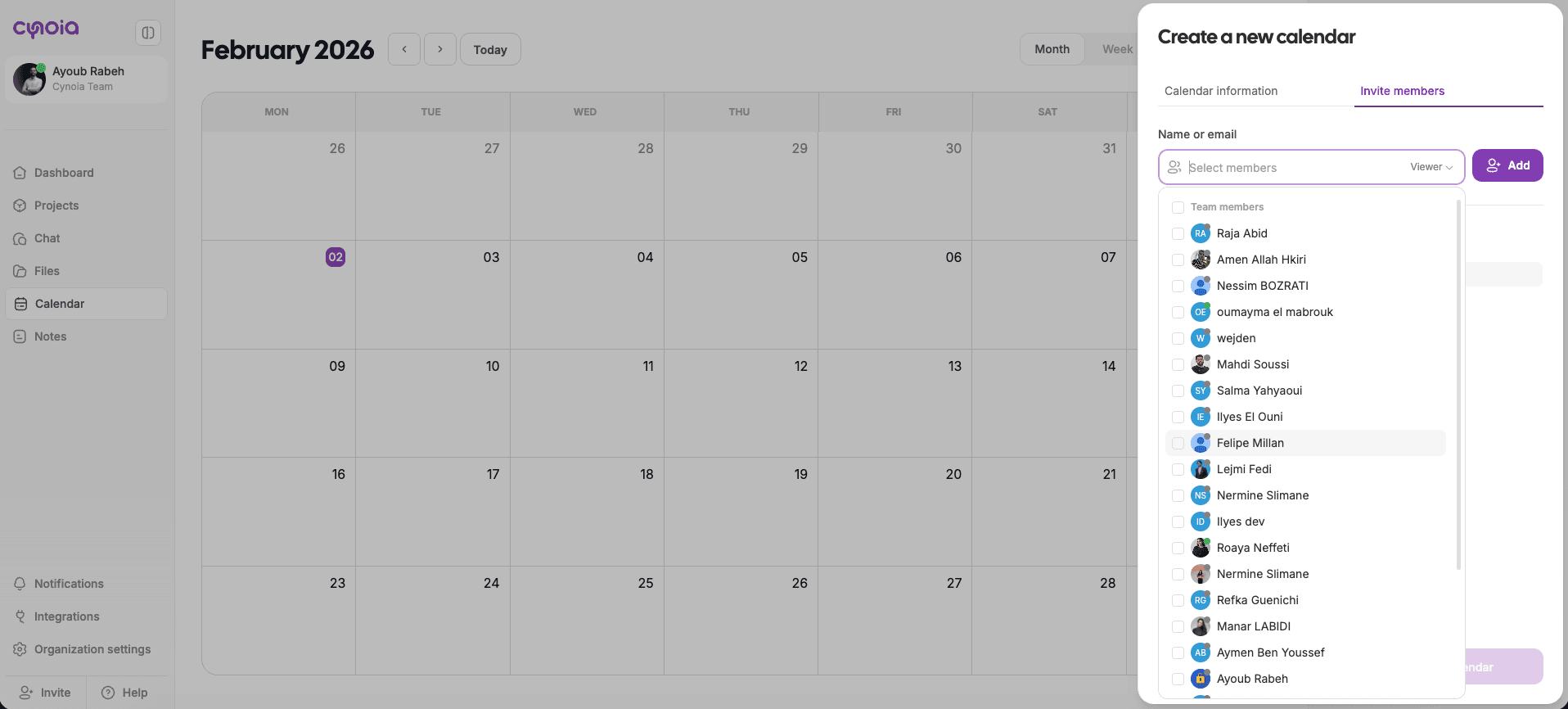
Calendars can be shared with specific workspace members.
How calendar sharing works
You can invite members when creating the calendar
Or invite members later from calendar settings
Each member can have a different access level
Typical use cases:
Team calendars
Department schedules
Shared availability planning
Managing Calendar Visibility
You can control which calendars are visible at any time.
Show or hide calendars
Use the checkbox next to each calendar in the Accounts & Calendars panel
Hidden calendars do not display events in the main view
This is useful when:
You want to focus on a single calendar
You’re filtering noise from multiple sources
Editing Calendar Information
You can update a calendar after it’s created.
What you can edit
Calendar name
Calendar color
Description
Shared members
Changes apply instantly and affect all users with access.
Calendar Colors & Event Clarity
Each calendar has a unique color.
Why this matters:
Events are color-coded in the calendar view
You can quickly distinguish between:
Personal events
Team meetings
Project deadlines
💡 Tip: Use consistent colors across teams or workflows.
Deleting a Calendar
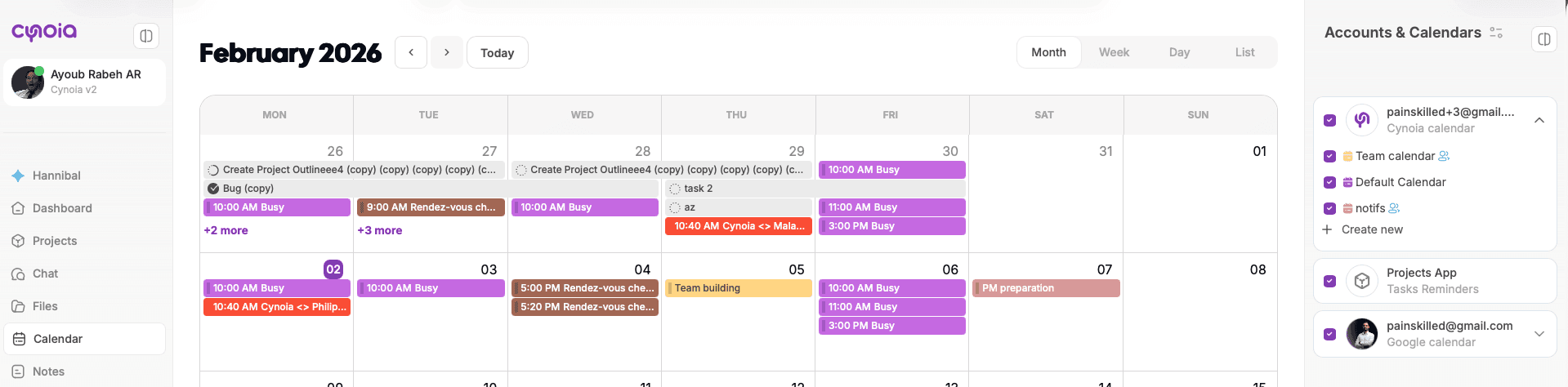
If a calendar is no longer needed, it can be removed.
Important notes:
Deleting a calendar removes all events inside it
This action cannot be undone
Only users with sufficient permissions can delete calendars
Calendars vs External Calendars
Cynoia calendars work alongside external calendars.
Cynoia calendars are fully editable
External calendars (e.g. Google Calendar):
Can be shown or hidden
Are synced automatically
Best Practices
Create separate calendars for teams or purposes
Use clear names and colors
Hide calendars you don’t need temporarily
Keep personal and team calendars separate
Use project-linked calendars for deadlines and milestones
What’s Next?
Now that you know how to create and manage calendars, the next step is learning how to create events, schedule meetings, and link calendars to work.
👉 Next article: Creating Events & Scheduling Meetings
Related to Calendar & Scheduling