Cynoia team
Creating Events & Scheduling Meetings
Written by : Cynoia team
Events are the core building blocks of calendars in Cynoia.
They allow you to schedule meetings, block time, add reminders, and invite participants all from one place.
What Is an Event in Cynoia?
An event represents a scheduled activity in a calendar.
Events can be used for:
Meetings
Calls
Personal reminders
Team availability
Project-related deadlines
Each event belongs to a specific calendar.
Creating a New Event
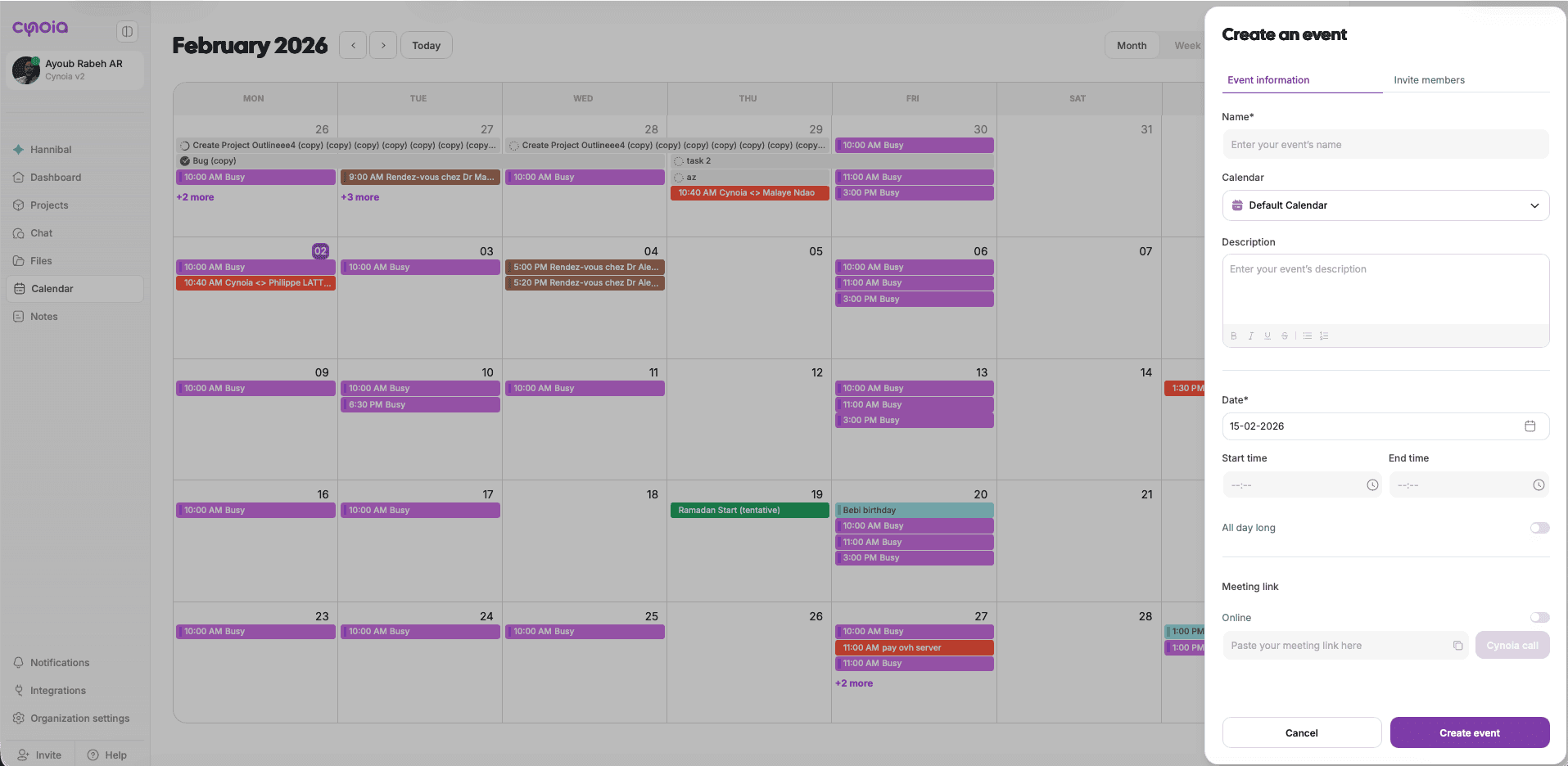
You can create events directly from the Calendar view.
Steps to create an event
Open Calendar from the left sidebar
Click New event (bottom-right)
Or click directly on a date/time slot
Fill in the event details:
Event name
Calendar
Description (optional)
Date
Start time & end time
Click Create event
The event appears immediately in the calendar.
Choosing the Right Calendar
When creating an event, you must select a calendar.
Why this matters:
The event inherits the calendar’s color
Visibility depends on who has access to that calendar
It keeps personal, team, and project events organized
💡 Tip: Always double-check the selected calendar before creating the event.
All-Day Events
You can mark an event as All day.
Use all-day events for:
Holidays
Birthdays
Company-wide reminders
Milestones
When enabled:
Time selection is disabled
The event spans the full day
Scheduling Online Meetings
Cynoia lets you attach a meeting link to events.
Online meeting options
Enable Online meeting
Use a Cynoia Call Room
Or paste an external meeting link
This makes the event:
Clickable
Joinable directly from the calendar
Inviting Members to an Event
You can invite participants to events.
How invitations work
Add members from your workspace or externals by email address
Invited members receive notifications
Participants can see the event on their calendar
Events respect calendar permissions:
If someone doesn’t have access to the calendar, they won’t see the event unless invited
Editing an Event
You can update an event at any time.
Editable fields:
Event name
Description
Date and time
Calendar
Participants
Meeting link
Changes are reflected instantly for all participants.
Moving & Rescheduling Events
Events can be rescheduled easily.
Ways to reschedule
Edit the date or time from event details
This is useful for:
Quick schedule adjustments
Visual planning
Managing conflicts
Event Notifications & Reminders
Events trigger notifications automatically.
When you’re invited to an event
When event details change
Reminder timing depends on:
Calendar settings
Personal notification preferences
Best Practices
Use clear, descriptive event names
Choose the correct calendar
Add meeting links for remote calls
Use all-day events sparingly
Keep descriptions short and useful
What’s Next?
Now that you can create and manage events.
👉 Next article: Notes & Knowledge Base
Related to Calendar & Scheduling