Cynoia team
Creating & Managing Tasks
Written by : Cynoia team
This guide shows you how to create tasks, assign work, and manage tasks throughout their lifecycle.
Creating a Task
You can create tasks from any project view.
Create a Task from a Project
Open a project
Choose a view (Kanban, List, Sprint, etc.)
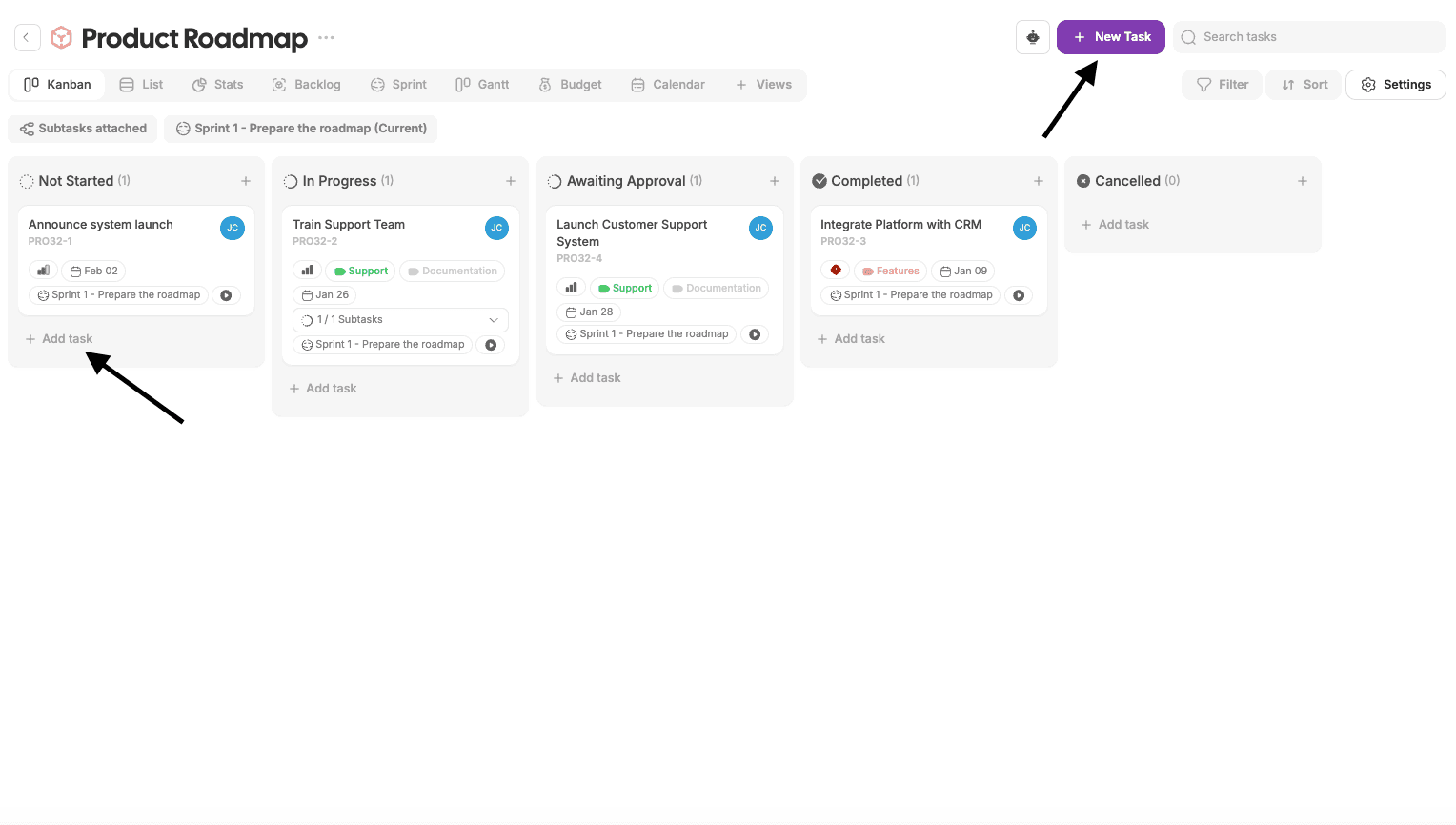
Click Add task or + Add task
Enter a task name
Press Enter or click Create
The task is created immediately.
Opening Task Details
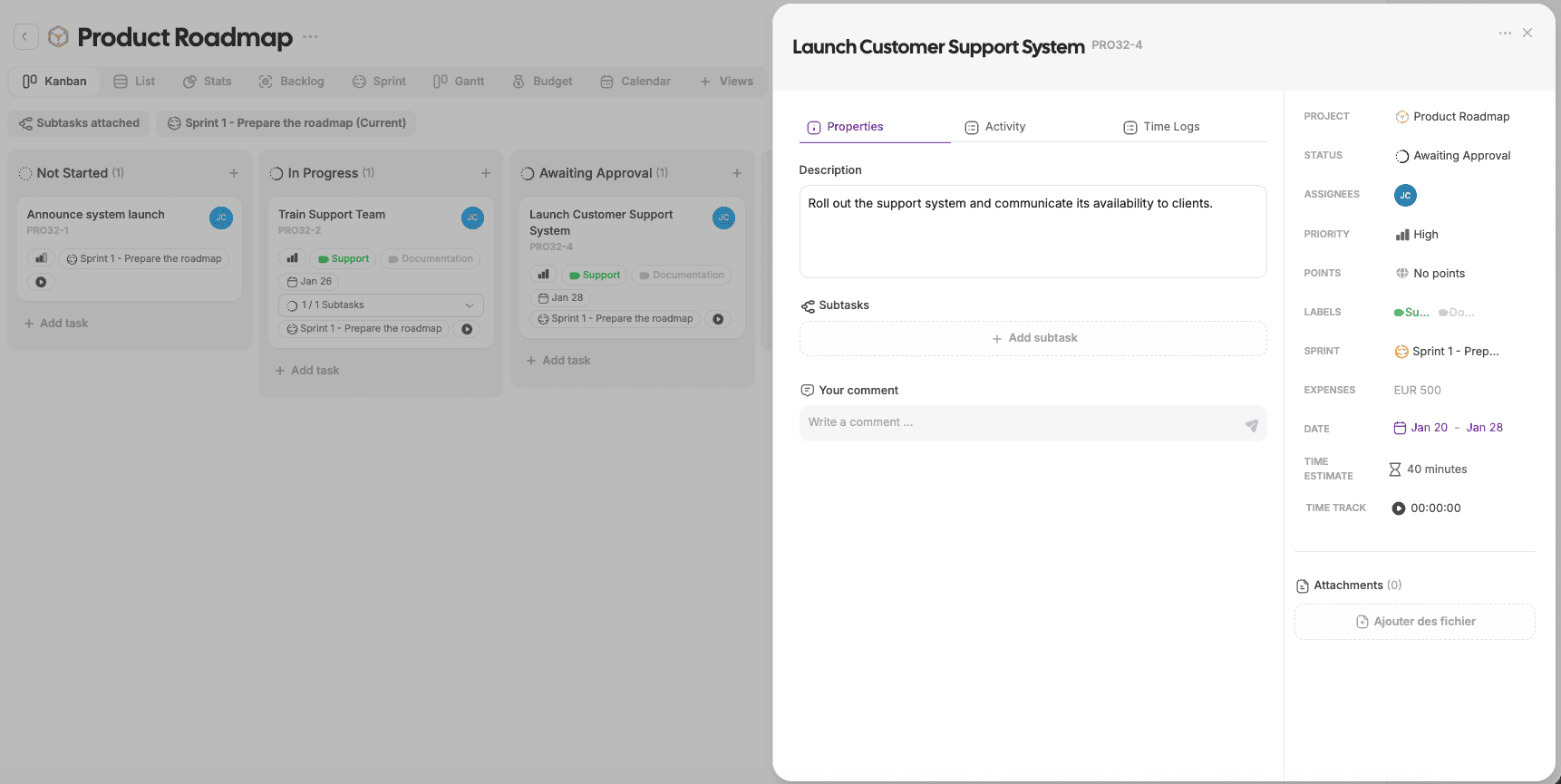
Clicking on a task opens the task details panel, where all task information is managed.
From here, you can:
Edit task details
Assign members
Update status and properties
Add comments and attachments
Assigning a Task
Assigning a task clarifies ownership and responsibility.
Steps
Open the task
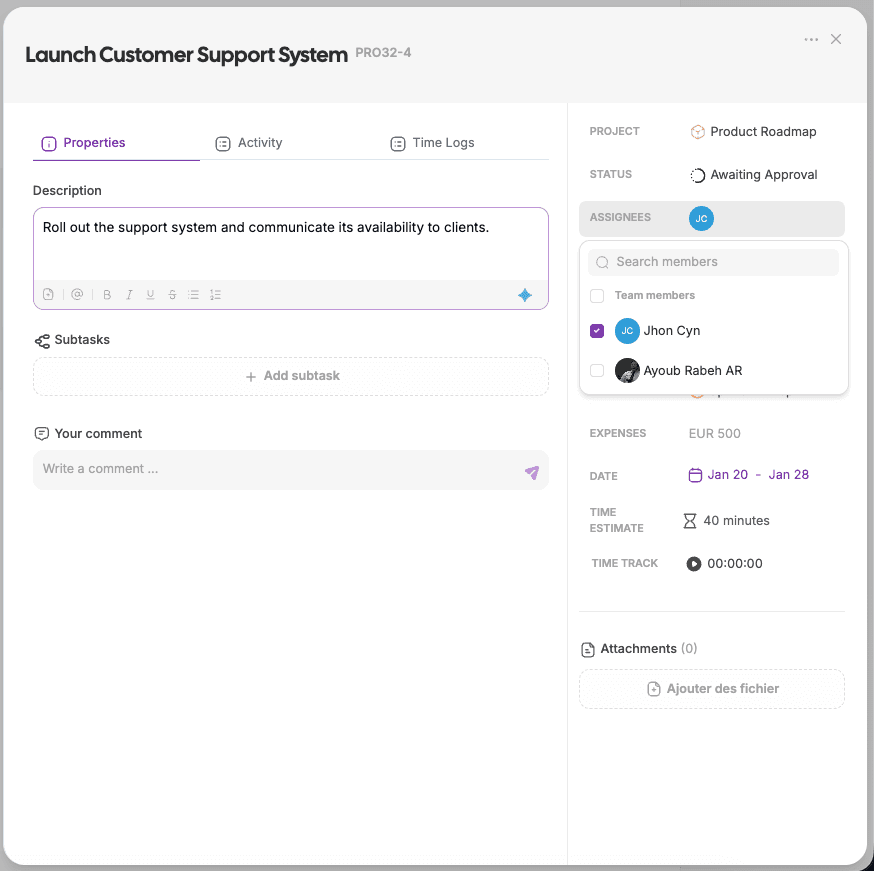
Click Assignees
Select one or more members
Assigned members receive notifications and see the task in their workload.
Updating Task Status
Task status reflects progress and workflow stage.
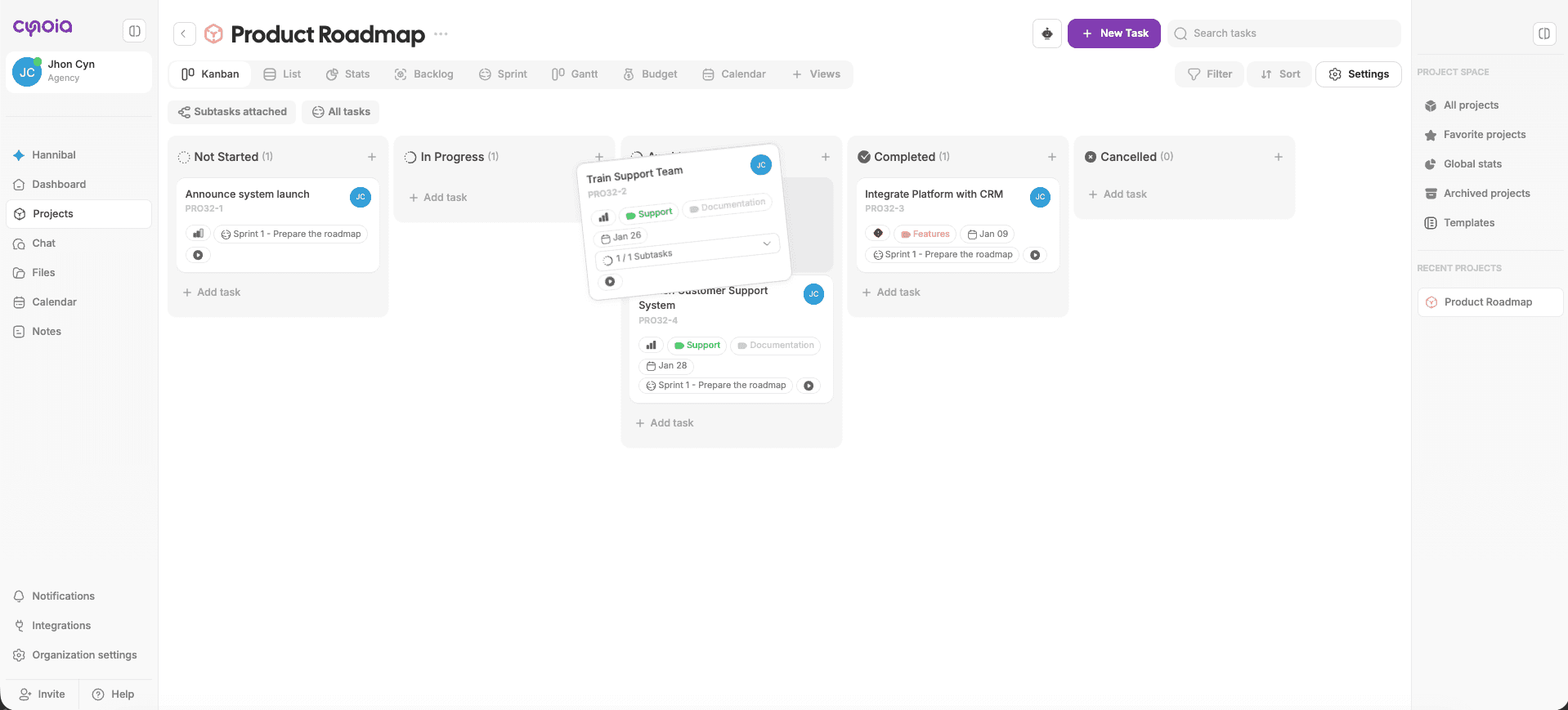
You can update status by:
Dragging the task between columns (Kanban)
Selecting a new status from the task sidebar
Statuses are defined by the project workflow.
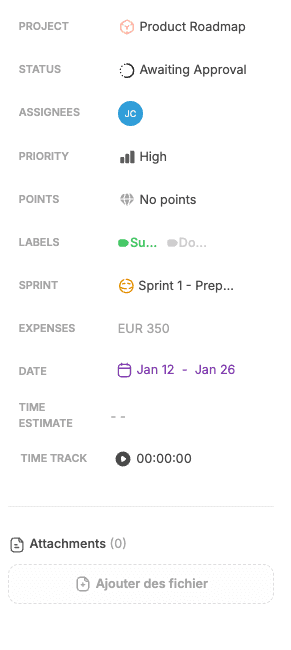
Editing Task Properties
Tasks include several editable properties depending on project settings.
Common Properties
Priority
Labels
Points
Dates (start / due)
Sprint
Time estimate
Updating properties helps teams plan, prioritize, and track work.
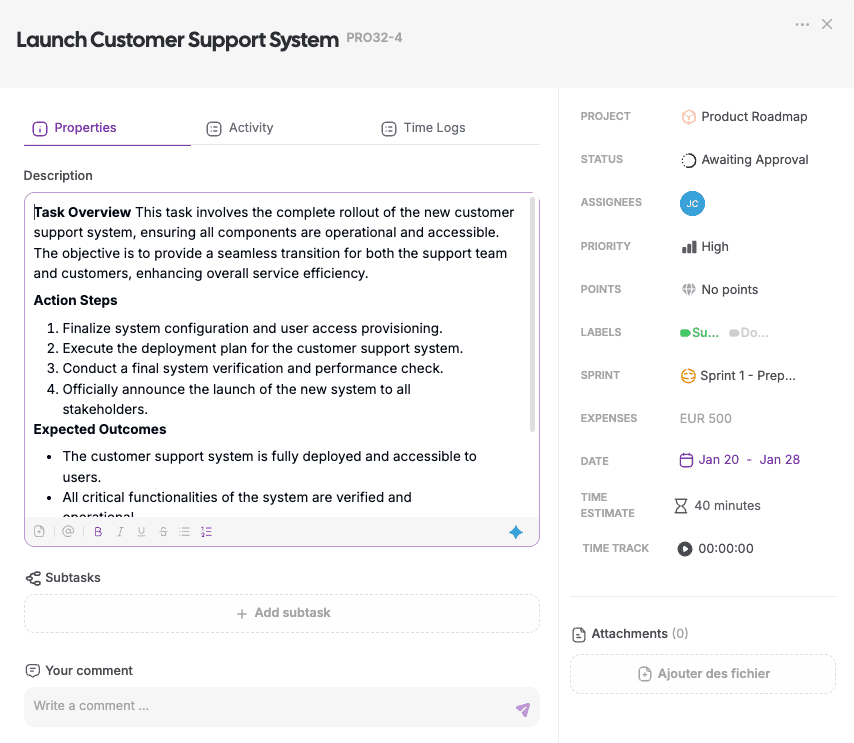
Adding a Description
Use the task description to provide context.
You can:
Write instructions
Add checklists
Format text
Mention teammates
Attach files
Descriptions help reduce back-and-forth.
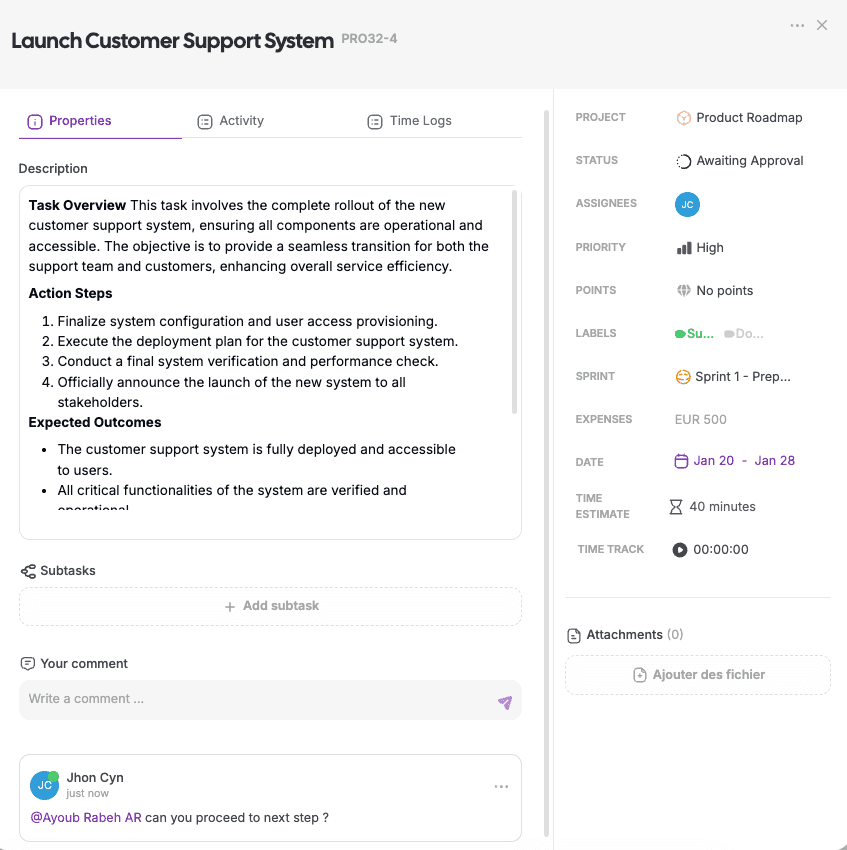
Collaborating with Comments
Comments are used for discussion related to a task.
Mention teammates to notify them
Keep conversations tied to the work
All comments appear in the task activity log
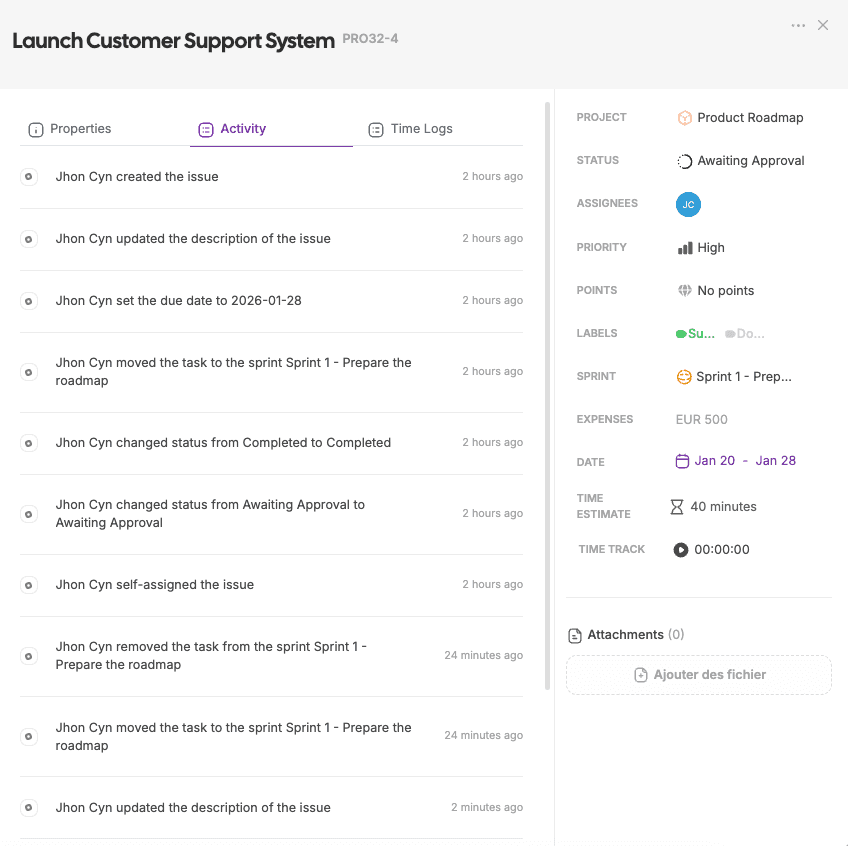
Tracking Task Activity
The Activity tab shows a complete history of the task.
It tracks:
Status changes
Assignments
Property updates
System events
This provides transparency and accountability.
Managing Tasks Across Views
You can manage the same task across different views:
Move tasks in Kanban
Sort and filter in List
Assign dates in Calendar
Plan timelines in Gantt
Organize work in Sprints & Backlog
Changes sync across all views instantly.
Best Practices
Use clear, action-oriented task names
Always assign an owner
Update task status regularly
Use labels and priorities consistently
Keep discussions inside task comments
What’s Next?
👉 Next article: Task Properties Explained
You’ll learn what each task property does and how to use them effectively.
Related to Tasks & Work Management