Cynoia team
Security, Privacy & Compliance
Written by : Cynoia team
Cynoia is built with security, data protection, and privacy by default, ensuring your work, conversations, and data remain safe at every level from individual users to large organizations.
This section explains how Cynoia protects your data and helps you stay compliant.
Security by Design
Cynoia follows industry best practices to secure your workspace and user accounts.
Key Security Measures
Secure authentication and session handling
Encrypted communication between client and servers
Role-based access control across all apps
Continuous monitoring and system updates
🔐 Security controls apply across
Projects, Chat, Calls, Files, Calendar, Notes, and Automations
Two-Factor Authentication (2FA)
To add an extra layer of protection, Cynoia supports Two-Factor Authentication (2FA).
How 2FA Works
After entering your password, a verification code is required
Prevents unauthorized access even if credentials are compromised
Availability
Free, Basic, and Pro plans
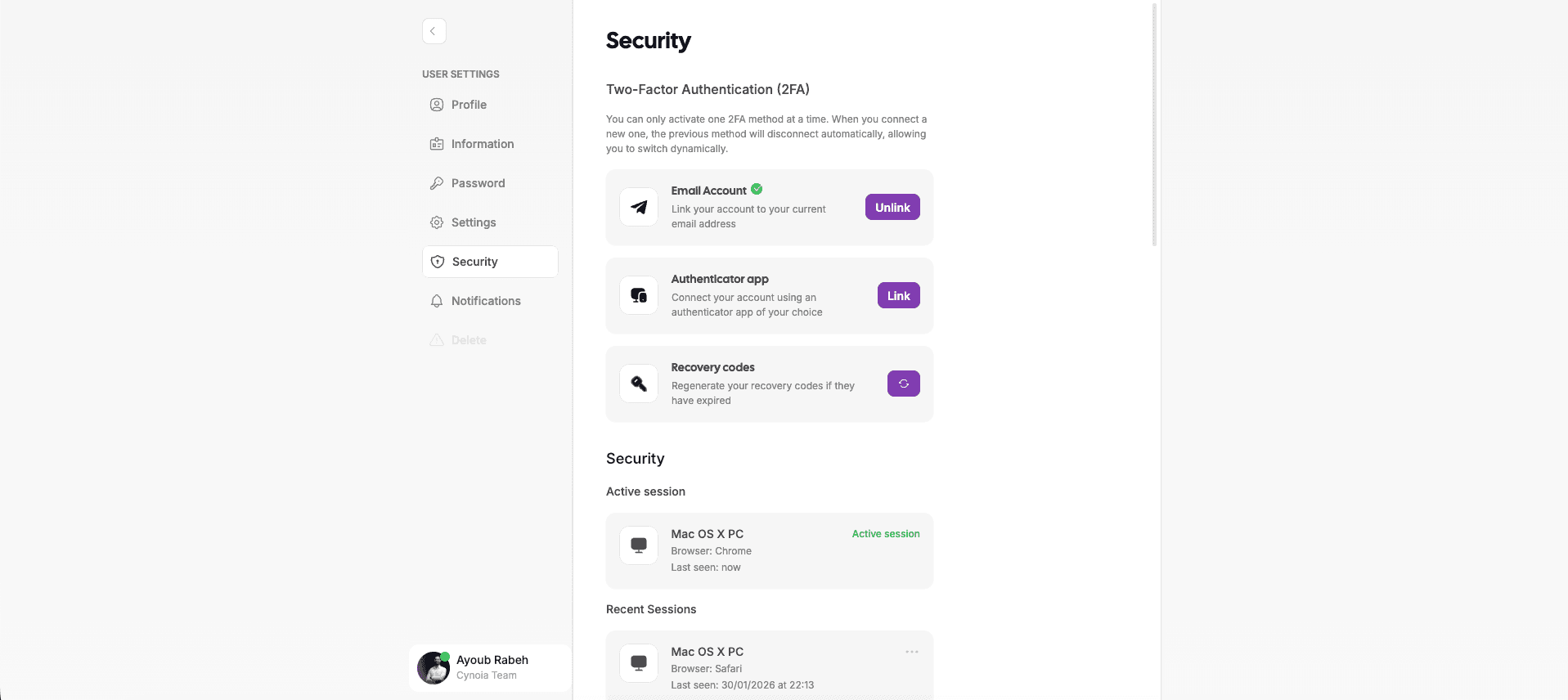
Session Management
Cynoia gives users visibility and control over their active sessions.
Session Features
View currently active sessions
Identify device and location information
Manually terminate suspicious sessions
This helps prevent unauthorized access and improves overall account security.
Roles, Permissions & Access Control
Cynoia uses a granular permission system to control access at both workspace and resource levels.
Global Roles
Owner
Moderator
Editor
Viewer
Custom Roles (Pro plan)
Global roles define default permissions across:
Public projects
Public chat channels
Shared note collections
Resource-Level Permissions
Even if a user has a high global role, permissions can be overridden per resource:
Projects
Chat channels
Notes & collections
Call rooms
Example:
A global Moderator can be assigned as Viewer on a specific project or channel.
Custom Roles & Advanced Controls (Pro)
Organizations on the Pro plan can create fully custom roles.
Custom Role Capabilities
Define permissions per app (Projects, Chat, Notes, Automation, Calls)
Control who can manage users, settings, and workflows
Adapt roles to internal policies and team structures
Organization Settings → Roles → Create Role
Data Privacy
Cynoia is committed to protecting user data and respecting privacy.
Privacy Principles
User data belongs to the user or organization
No selling or misuse of personal data
Data access is limited strictly to authorized users
Cynoia only processes data necessary to deliver its services.
Data Isolation & Workspace Boundaries
Each organization workspace is logically isolated.
What This Means
Users can only access data within their workspace
Cross-organization data access is not possible
Shared resources require explicit permission
This ensures confidentiality between teams and organizations.
File & Content Access Protection
Files, messages, notes, and documents follow strict access rules:
Access depends on role and resource permissions
Public sharing must be explicitly enabled
Shared links respect size limits and visibility settings
Compliance Readiness
Cynoia is designed to support compliance needs for modern teams.
Compliance-Friendly Features
Access control and permissions
User and role management
Secure authentication & session tracking
Data ownership clarity
📌 Cynoia continuously improves its security and compliance posture as the platform evolves.
Best Practices for Secure Workspaces
We recommend:
Enabling 2FA for all team members
Using custom roles instead of shared admin accounts
Reviewing permissions regularly
Removing inactive users promptly
Related to Workspace and Organization Settings