Cynoia team
Task Properties Explained
Written by : Cynoia team
Task properties help you organize, prioritize, and plan work more effectively.
They add structure to tasks and make it easier to manage work at scale.
Status
Status shows the current stage of a task in the project workflow.
Status values are defined at the project level
Common examples:
Not Started
In Progress
Completed
Cancelled
You can update status by:
Dragging tasks in Kanban
Selecting a new status from the task sidebar
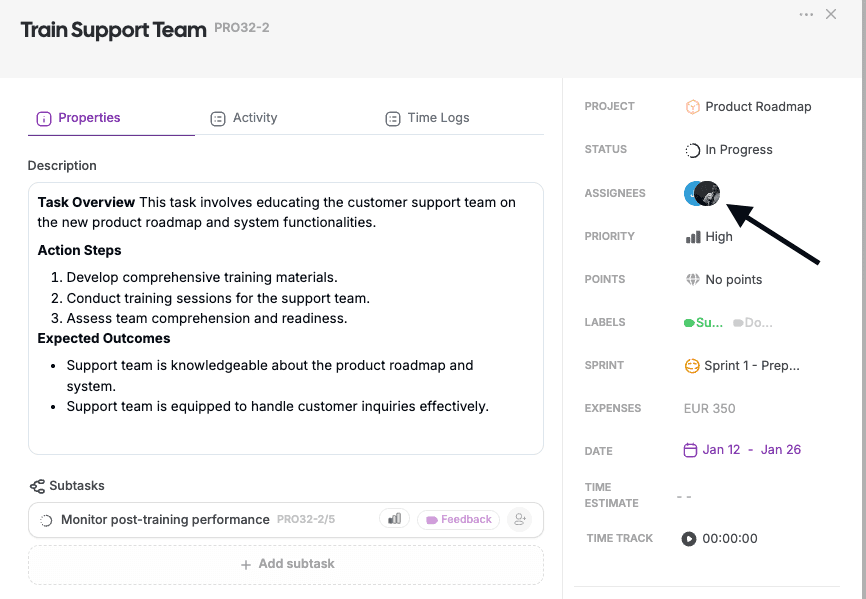
Assignees
Assignees define who is responsible for completing the task.
Tasks can have one or multiple assignees
Assigned members receive notifications
Tasks appear in the assignee’s workload
Priority
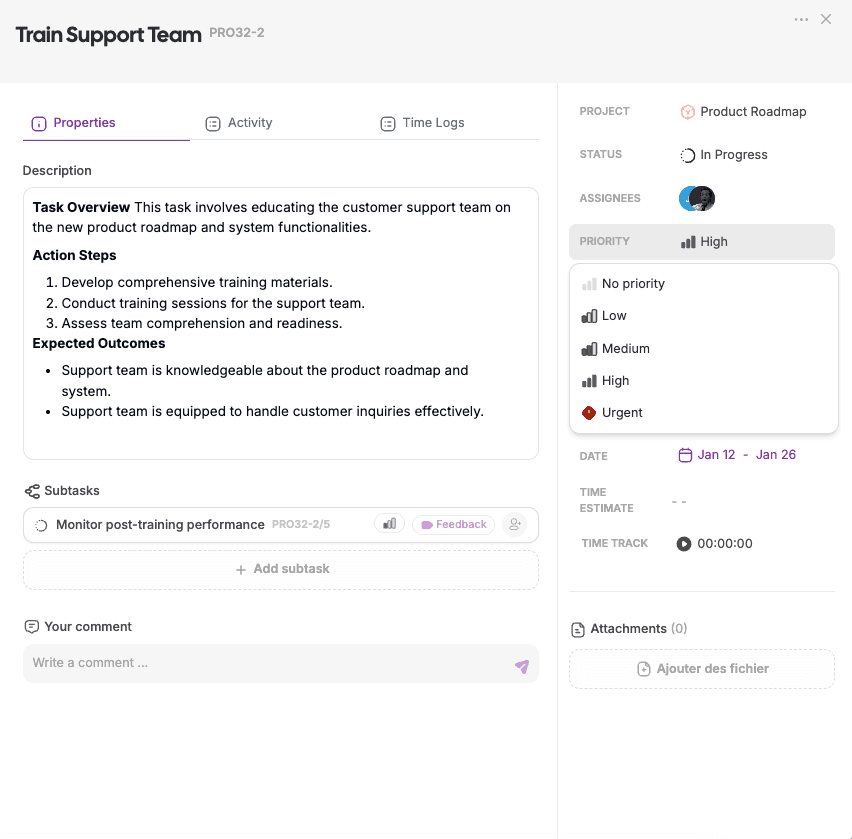
Priority helps teams identify urgent or important work.
Typical priority levels include:
Low
Medium
High
Urgent
Priority can be used for:
Sorting tasks
Filtering views
Triggering automations
Labels
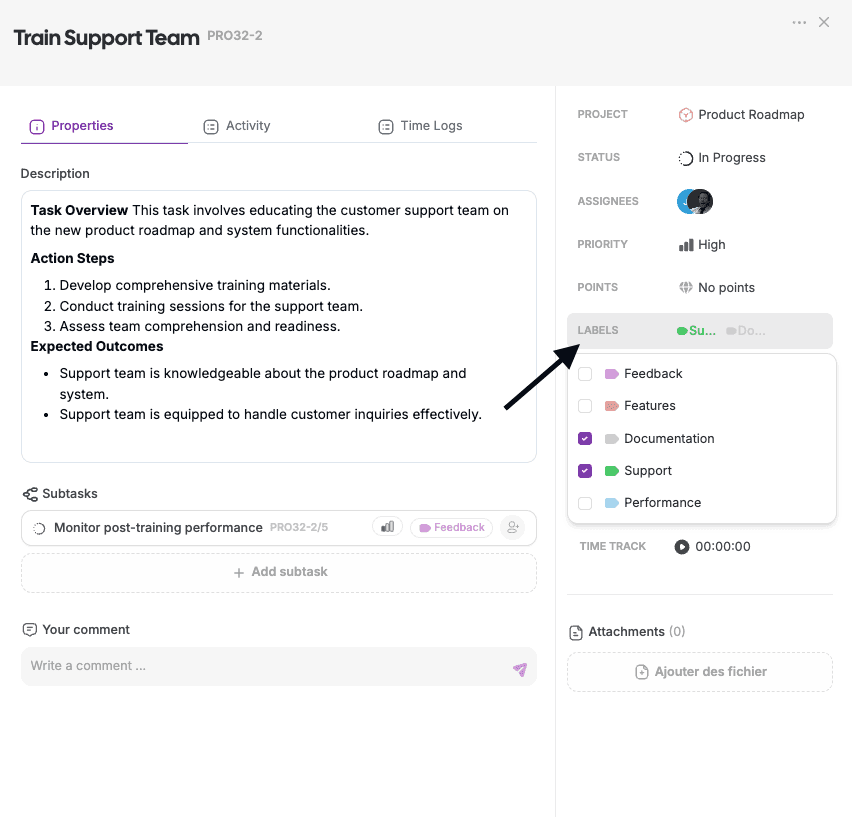
Labels are customizable tags used to categorize tasks.
Use labels to:
Group related tasks
Identify work types (Bug, Feature, Design)
Create filtered views
Power automation rules
Labels are managed at the project level.
Points (Estimation)
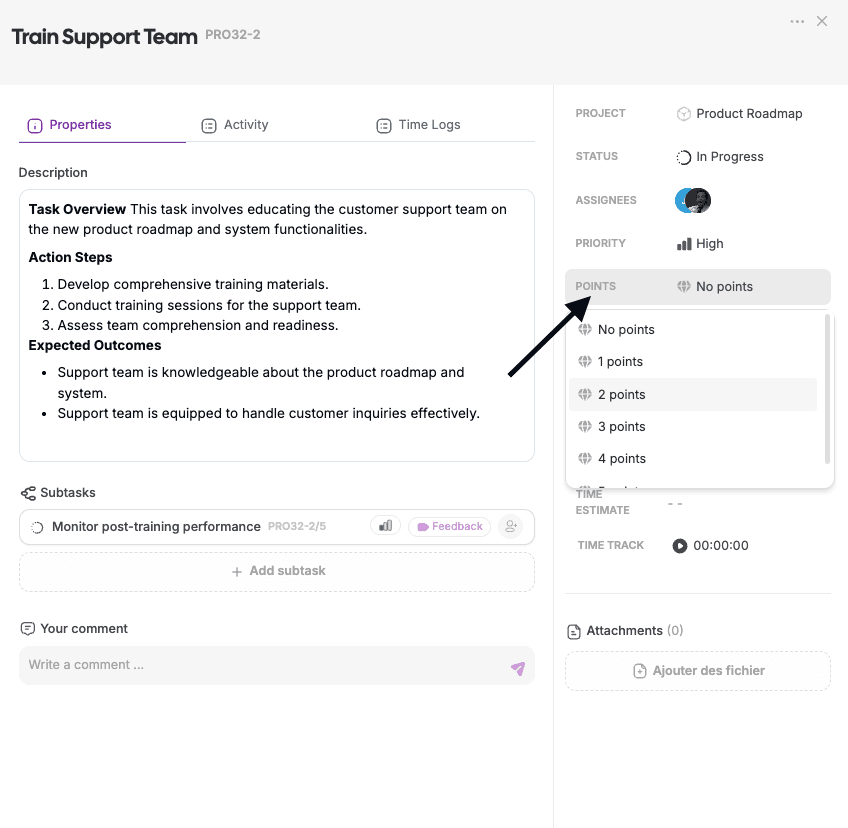
Points represent the relative effort required to complete a task.
Point scales are defined per project
Common scales:
Linear
Fibonacci
Exponential
Points help teams:
Estimate workload
Plan sprints
Balance capacity
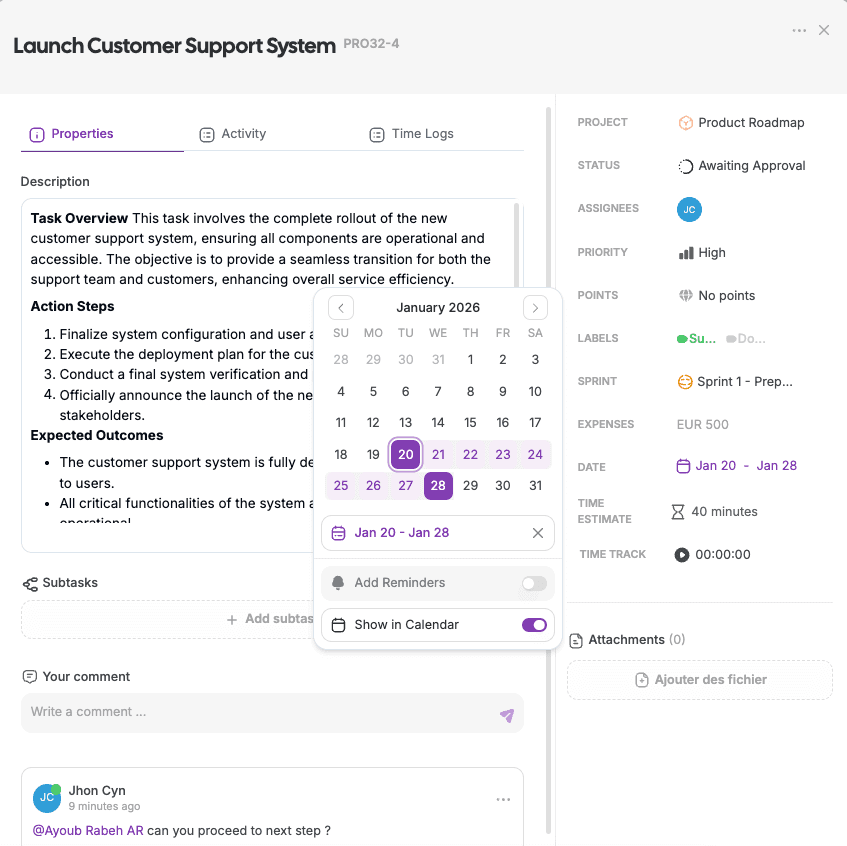
Dates
Tasks can have dates to support planning and scheduling.
Available date options:
Start date
Due date
Dates allow tasks to:
Appear in Calendar view
Be used for reminders and notifications
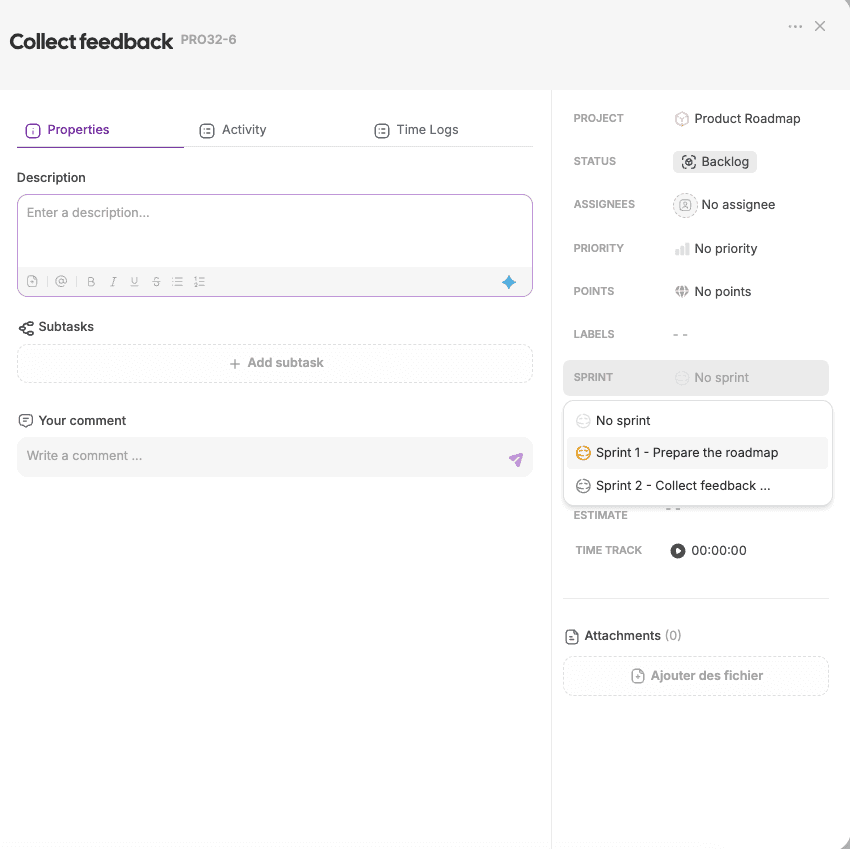
Sprint
When sprints are enabled, tasks can be assigned to a sprint.
Use sprint assignment to:
Plan work in iterations
Track sprint progress
Organize backlog vs active work
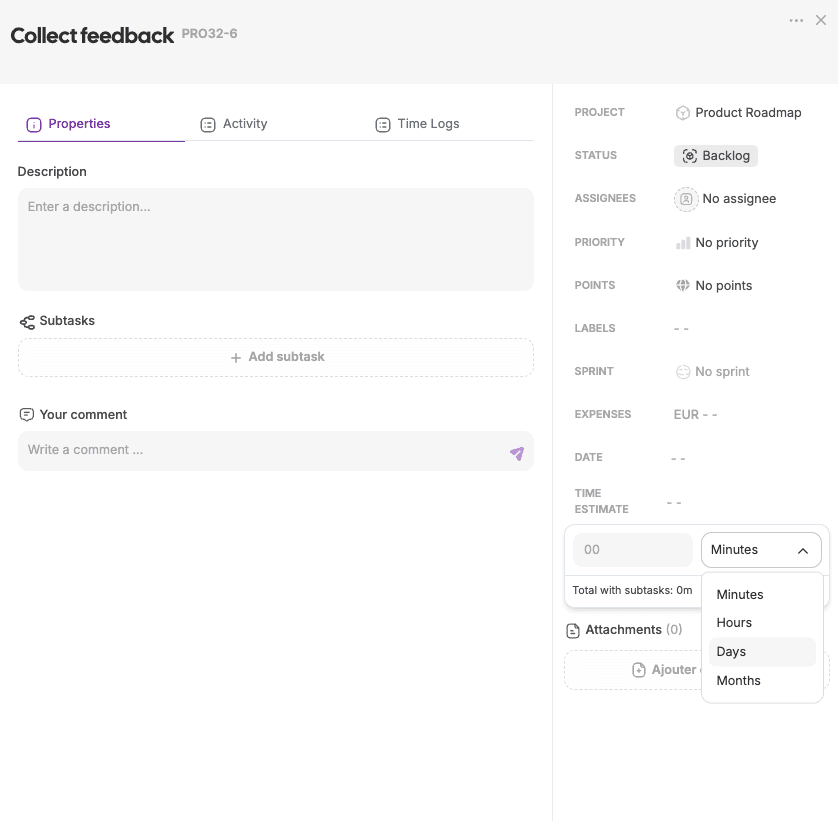
Time Estimate
Time estimates represent the expected duration of a task.
Expressed in hours or time units
Used for planning and workload estimation
Separate from time tracking
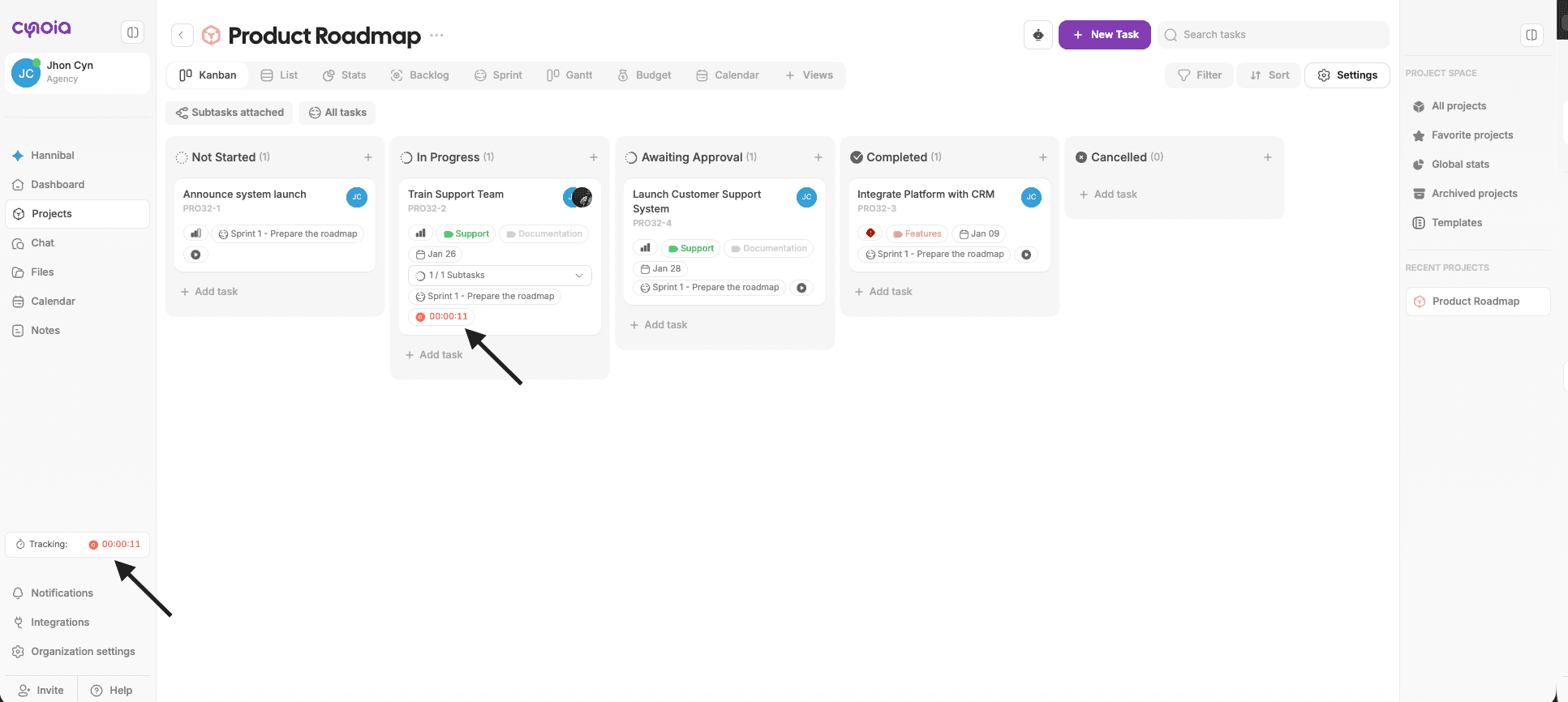
Time Tracking
Time tracking shows the actual time spent on a task.
Logged manually in the Time Logs tab
Can be tracked per user
Helps compare planned vs actual effort
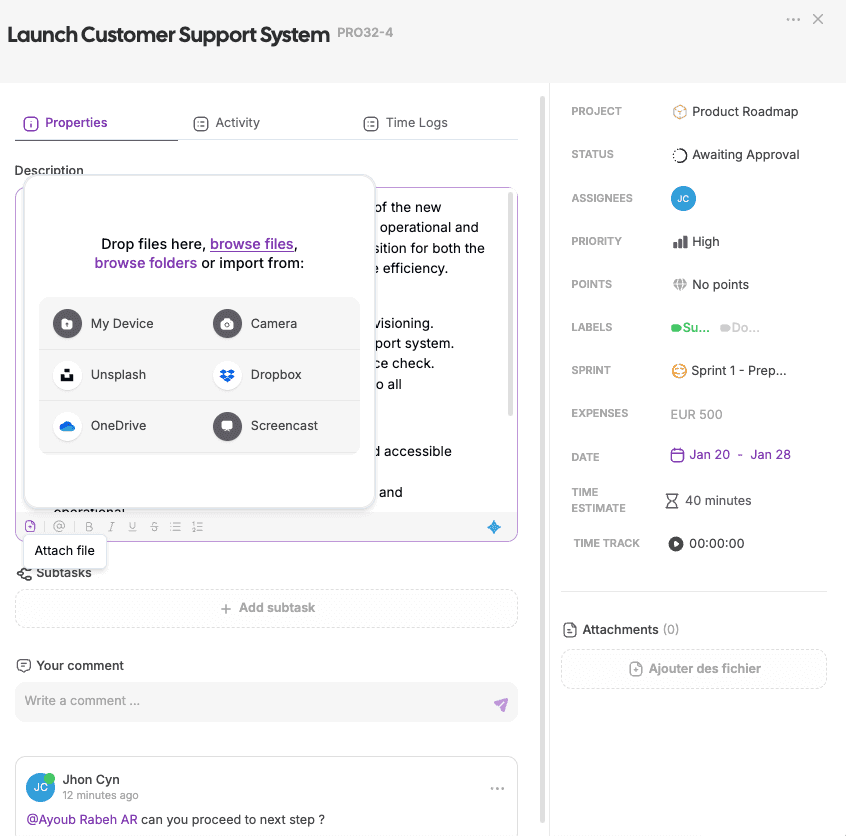
Attachments
Attachments allow you to add files directly to tasks.
You can upload files from:
Your device
Camera
Unsplash
Dropbox
OneDrive
Screencast
Using Properties Together
Combining properties makes work easier to manage.
Examples:
Use priority + due date to highlight urgent work
Use labels + filters to group similar tasks
Use points + sprints to balance workload
Best Practices
Keep statuses simple and consistent
Avoid overusing labels
Use priority sparingly
Update dates when plans change
Review estimates after completing work
What’s Next?
👉 Next article: Subtasks & Task Hierarchies
You’ll learn how to break down work and manage complex tasks effectively.
Related to Tasks & Work Management